What an automatic document feeder does
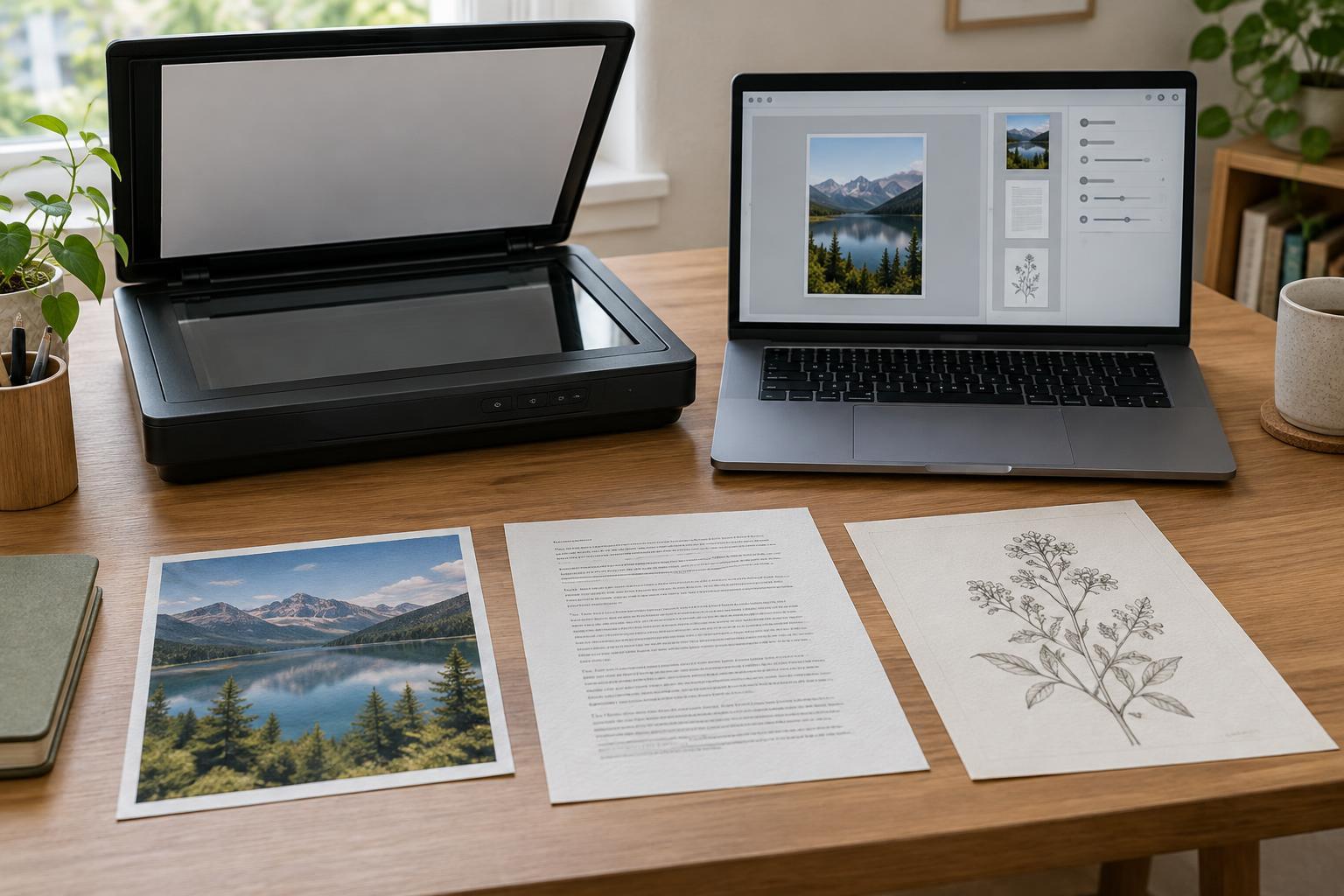
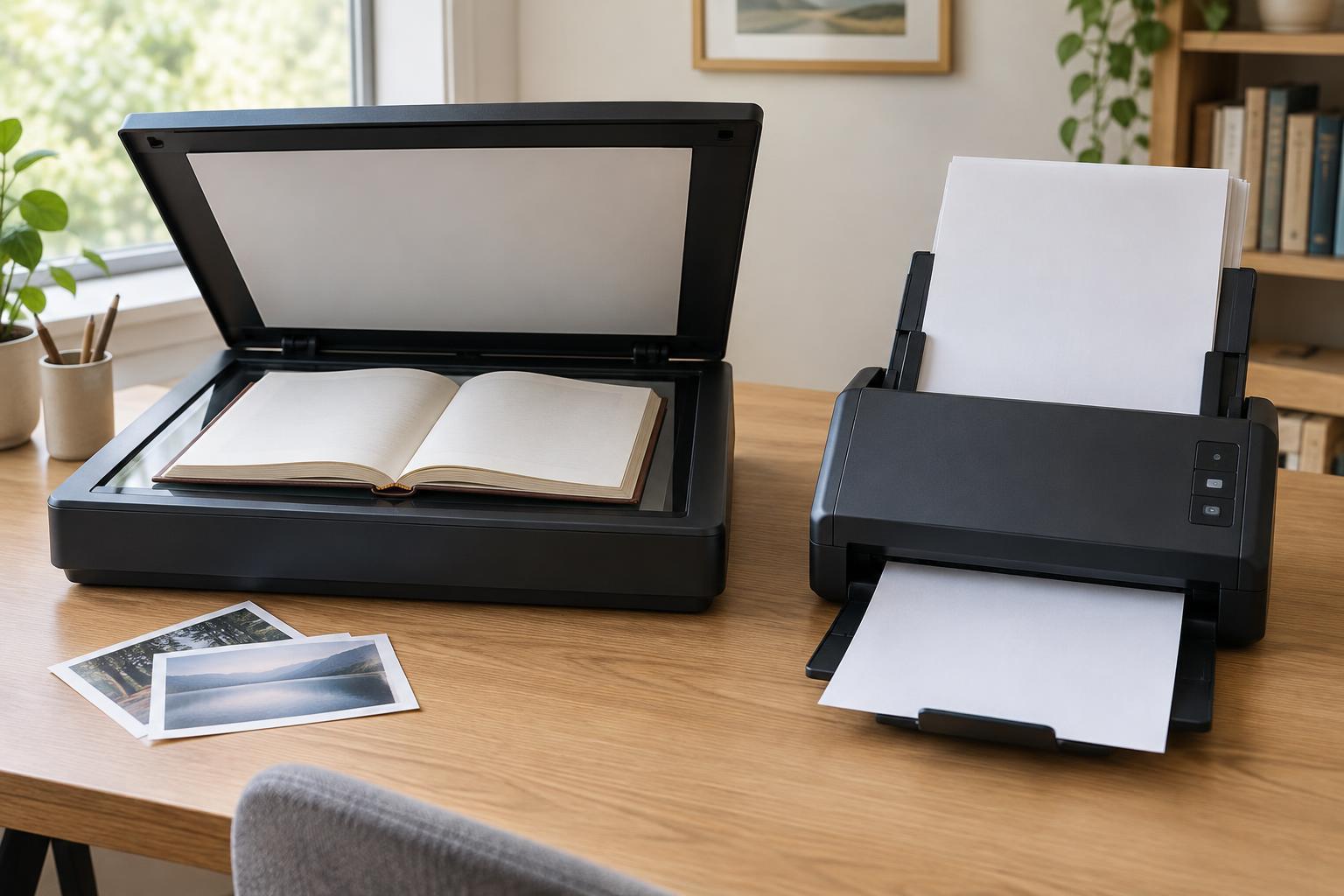
An automatic document feeder, or ADF, pulls sheets through a scanner one at a time. Instead of placing each page on the flatbed glass, you load a stack, set your scan or copy options, and let the machine advance the pages. It is especially useful for invoices, forms, letters, and other loose, similarly sized sheets. The flatbed remains the better choice for books, fragile originals, and items that should not be bent or pulled through rollers.
When comparing machines, start with the work you actually do. A feeder that handles occasional ten-page packets may be enough for a household office. Someone who regularly digitizes two-sided contracts or large batches will care more about capacity, duplex scanning, and how reliably the feeder handles their usual paper. An ADF is a convenience only when its supported originals match the documents you need to process.
Capacity: how many pages fit, and what happens next
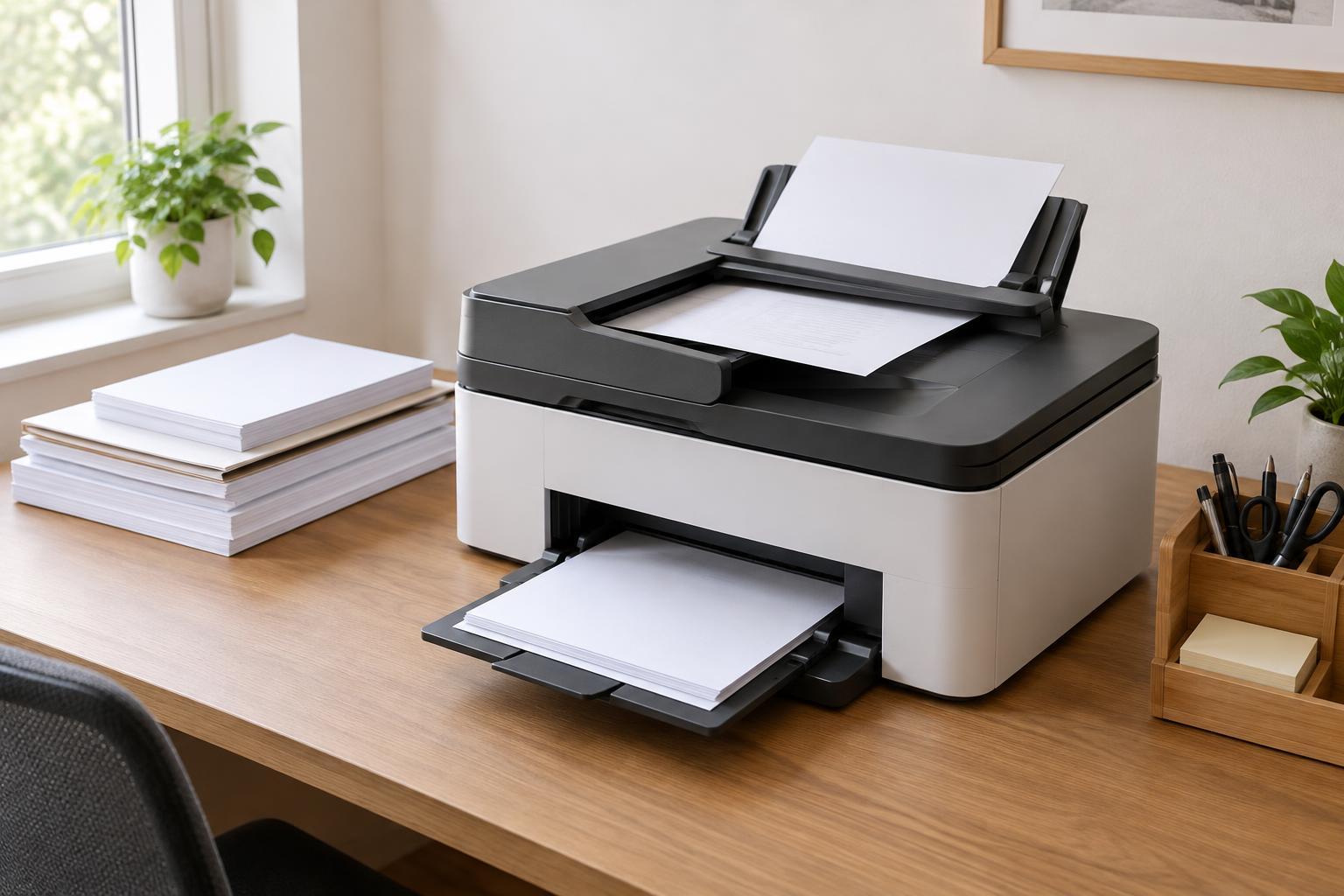
ADF capacity is the number of sheets the input tray is intended to hold, often under specified paper conditions. It is not a promise that every stack will feed without attention. Thin sheets, curled pages, mixed sizes, or paper with staples and sticky notes can reduce reliability. Check the supported paper sizes and weights as well as the headline capacity; a large tray offers little benefit if your common forms fall outside those limits.
Think about both loading and output. If your typical packet fits in one load, a larger feeder may not change your routine. If you frequently scan stacks bigger than the stated capacity, you may need to divide them into batches and combine the resulting files. Also look at where scanned pages land and whether the output area holds them neatly. Capacity matters most when it lets you complete a real task without repeated loading, sorting, or rescuing pages.
Duplex scanning versus single-pass scanning
Duplex scanning means capturing both sides of a sheet. It is different from duplex printing, which puts ink or toner on both sides of an output page. A multifunction printer can support one without supporting the other, so confirm that its specifications explicitly describe two-sided scanning through the ADF. If you scan double-sided originals often, this distinction can save substantial manual flipping and help keep pages in order.
There are two common ways an ADF scans both sides. A reversing design scans one side, turns the sheet within the paper path, and scans the other. A single-pass design captures both sides as the sheet travels through once, typically using scanning elements positioned for each face. Single-pass feeding can reduce the handling needed for each sheet and may be quicker for two-sided batches. Actual job time still depends on settings, document size, processing, and where the file is saved. If speed matters, compare stated duplex scan speeds under similar conditions rather than relying on the design label alone.
Match the feeder to your document workflow
Picture a normal scanning session from start to finish. Are the originals single-sided or mixed? Do you need one searchable file per packet, or a separate file for each page? Feeder hardware moves the paper, but scan software determines many of the steps afterward. Useful options may include blank-page removal, automatic rotation, page-size detection, and saving directly to a chosen folder. Check which options are available on the device and in the software you expect to use.
For occasional small jobs, straightforward controls and dependable feeding may matter more than a high capacity or a single-pass design. For frequent two-sided paperwork, prioritize confirmed duplex ADF scanning, adequate capacity, and an output path that keeps pages orderly. If you handle receipts, photos, bound material, or delicate originals, plan to use a flatbed or another appropriate method alongside the feeder. No single paper path is ideal for every type of document.
Simple habits that make feeding more reliable
Before loading a stack, remove staples and paper clips, flatten folded corners, and let recently printed pages cool and separate if they tend to cling together. Fan pages gently when needed, align their edges, and set the guides snugly without squeezing the paper. Avoid exceeding the stated capacity. For a mixed stack, check the machine’s size and weight limits rather than assuming it can feed every sheet together.
If pages skew, double-feed, or jam, begin with the originals and the loading method. Try a smaller, more uniform stack and inspect the paper path using the machine’s instructions. Rollers and separation parts may need cleaning or replacement over time, but follow the manufacturer’s guidance before servicing them. Run a short test batch when accuracy matters, then check the saved file for missing pages, correct order, and readable backs before putting the originals away.