Start with the printer and the network
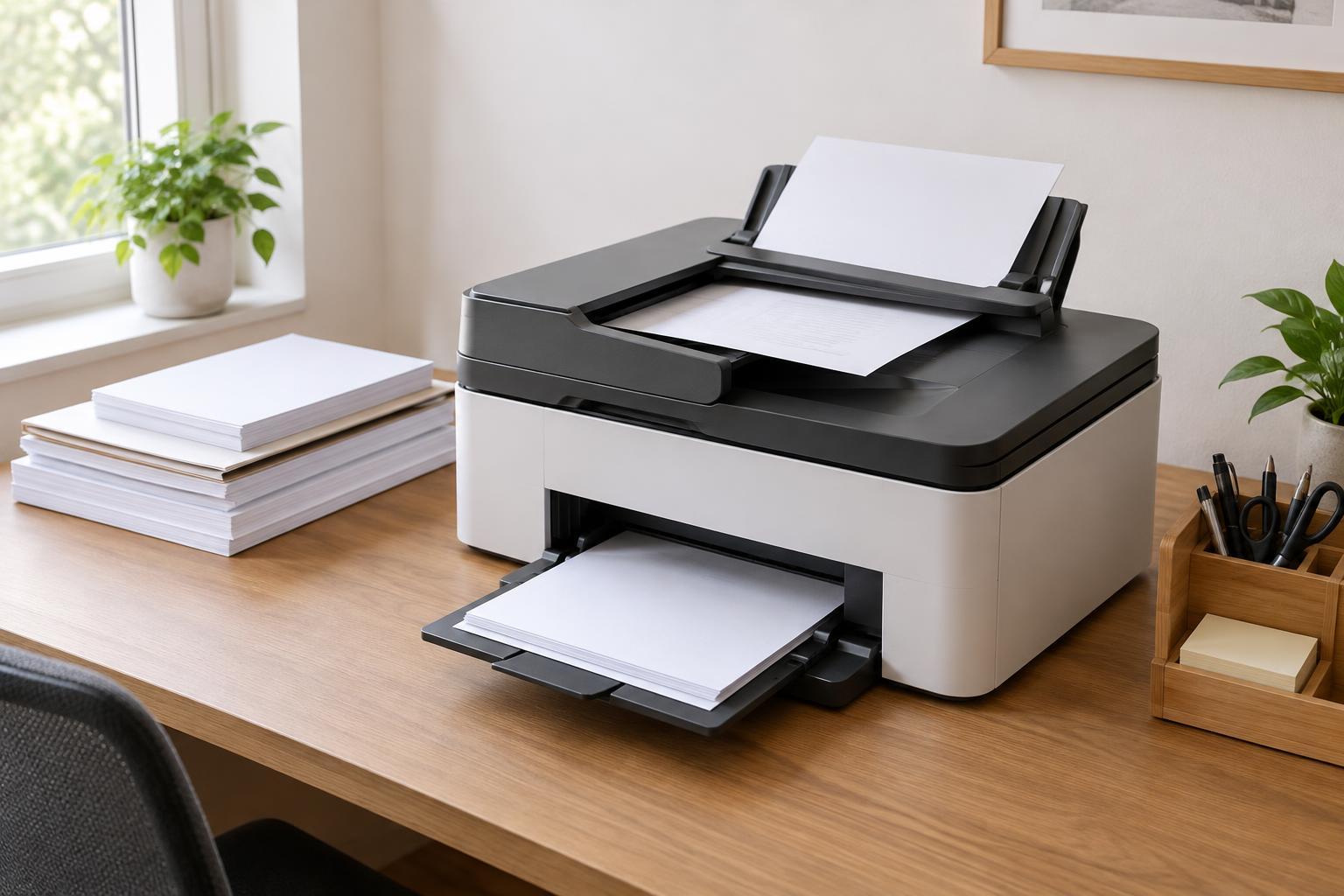
Before looking for a Print button, make sure the printer is on, has paper, and is not showing an error. Then check how it connects. A printer can often accept jobs from a phone even if the printer itself uses an Ethernet cable, provided both devices are on the same local network. A USB-only printer may need a computer or another supported device to act as an intermediary.
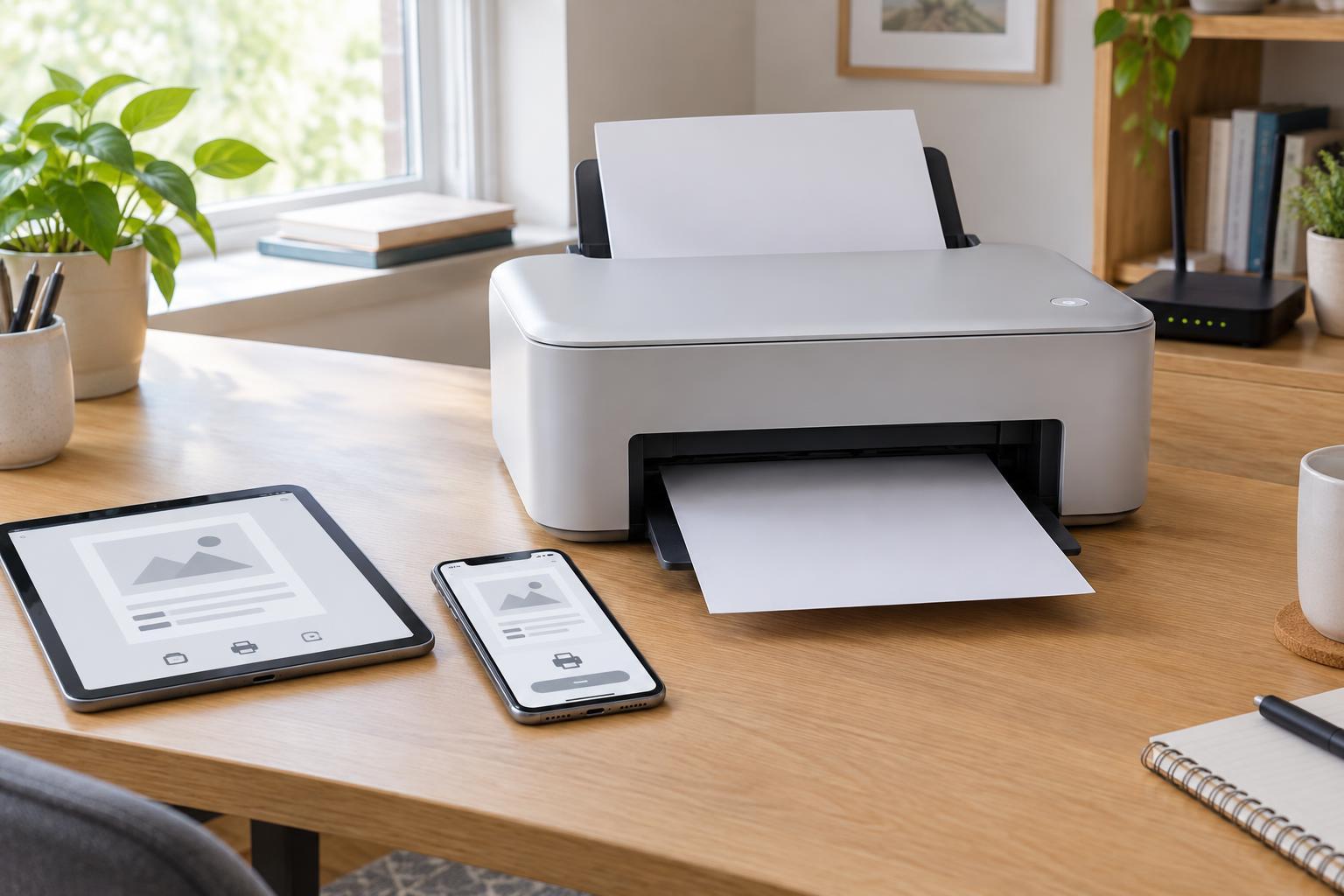
Connect your phone or tablet to the Wi-Fi network used by the printer. Being in the same building is not always enough: a guest network may prevent devices from finding one another. If the printer has a screen or a network-status page, use it to confirm its connection. You can also check the printer’s manual or settings for its network name and supported mobile-printing features. These checks make the next steps easier to follow.
Choose a printing method your devices support
On an iPhone or iPad, many compatible printers work with AirPrint. Open the document, photo, email, or web page in an app that supports printing. Look in its Share menu or other options for Print, then select the printer. If it does not appear, check whether the printer supports AirPrint and whether both devices can communicate on the network.
On an Android phone or tablet, open the item you want to print and look for Print in the app’s Share or options menu. Android printing varies by device and app. You may need to enable a built-in print service or install a compatible service before the printer appears. A printer maker’s app is another option on either platform, especially when you need features such as scanning or printer-status checks.
Some printers offer Wi-Fi Direct, which connects a mobile device to the printer without using the usual office Wi-Fi network. It can help when no shared network is available, but the connection steps depend on the printer, and your phone may temporarily leave its normal Wi-Fi connection. Use the printer’s displayed instructions or manual rather than assuming the process is the same as ordinary network printing.
Run a small test print
Start with a one-page document so you can confirm the connection without wasting paper or ink. After selecting the printer, review the available options before sending the job. Common choices include number of copies, color or black and white, paper size, page range, and two-sided printing. Options shown on your phone may differ from those on a computer or in the printer’s own settings.
Check the preview closely, particularly for photos, spreadsheets, and web pages. A preview can reveal clipped edges, unexpected blank pages, or a document that will use more sheets than you intended. If a setting you need is missing, try opening the file in a different app or using the printer maker’s app. For an important document, a test page is simpler than trying to correct a large print job afterward.
If the printer does not appear or the job stalls
Work through the connection in order. Confirm that the printer is awake and connected, and that your mobile device is using the expected Wi-Fi network rather than a guest network. Refresh the printer list or reopen the app, then try again. If the printer was recently moved or the Wi-Fi password changed, it may need to be reconnected to the network.
If you can select the printer but nothing prints, look for a message on the printer itself. Paper jams, empty trays, low supplies, and a paused queue can all stop a job after it has been sent. Check your device’s print queue if one is available, cancel a stuck job, and resend the one-page test. Restarting the printer and phone can clear a temporary connection problem; if that does not help, check the printer’s setup instructions for updates or network troubleshooting.
If only one app fails, test with a different document or app. That helps distinguish a connection problem from a file or app problem. Avoid repeatedly tapping Print while you investigate: queued copies may emerge later when the printer reconnects.
Keep the setup convenient and appropriate for the document
Once printing works, note which method you used and where its settings live. That small record can save time when you replace a phone or help someone else in the workspace. For a shared printer, use a clear printer name so people can choose the right device, and collect sensitive pages promptly rather than leaving them in the output tray.
Printing from outside the local network is a separate feature, not a standard part of every mobile setup. If a printer maker offers remote printing through an account or app, review its access settings and consider whether sending that document through the service suits your needs. For routine printing at home or in a small office, a compatible printer on a shared local network is usually the simplest place to start.