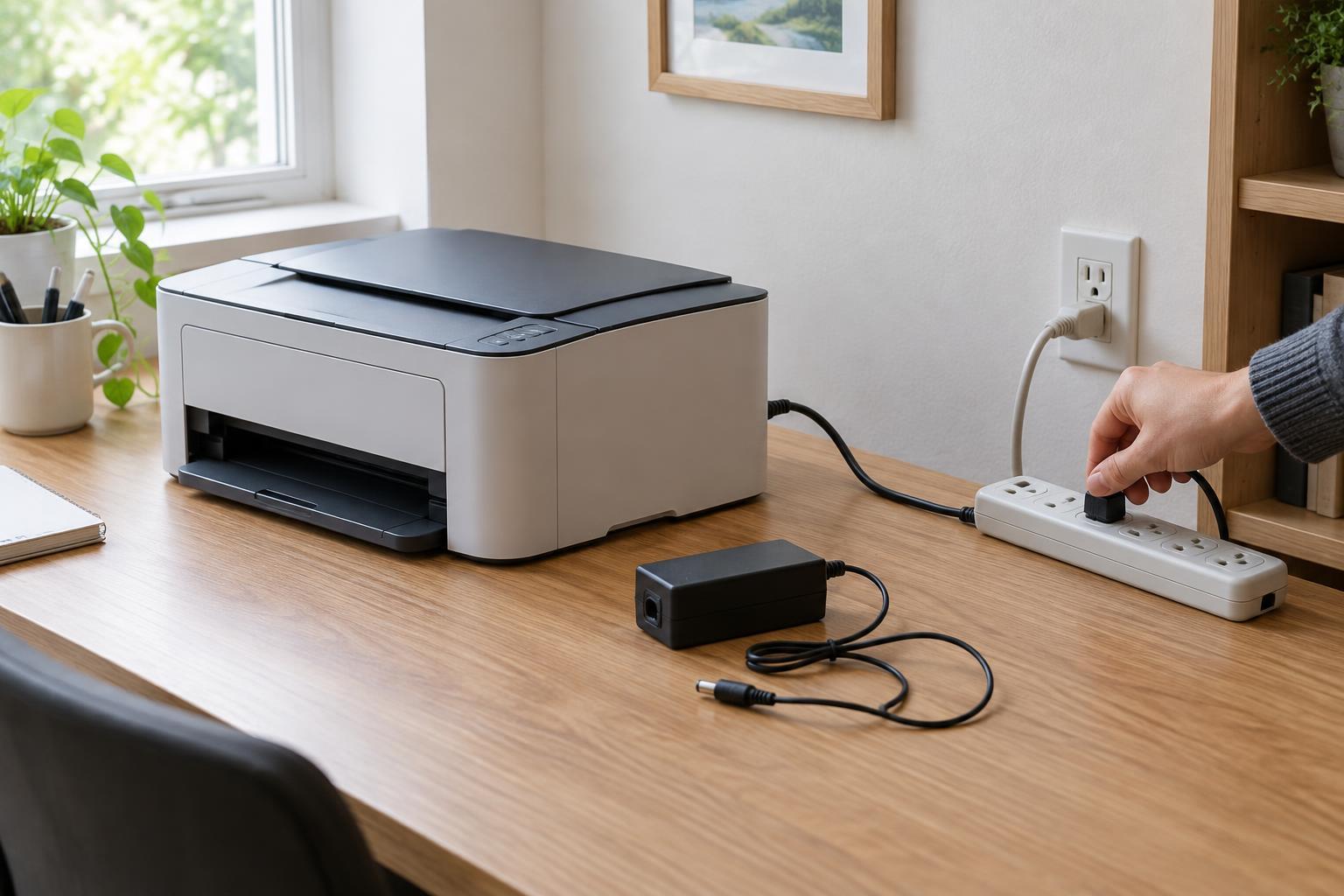
Everyday TroubleshootingWhen a printer, scanner, monitor, or other office device appears dead, start with the simplest parts of its power path. These checks can help you identify a switched-off outlet, loose cable, faulty power strip, or unsuitable adapter without opening the device.
Read article · 4 min↗

Everyday TroubleshootingWhen a USB drive disappears, the safest first step is not to repair it. Learn how to check the port, computer, and drive without putting important files at unnecessary risk—and when to stop troubleshooting.
Read article · 4 min↗

Everyday TroubleshootingA dropped video call does not always mean your internet connection is too slow. Use a few controlled checks to tell weak Wi-Fi, a busy connection, device issues and meeting-app problems apart.
Read article · 4 min↗

Everyday TroubleshootingA silent microphone does not always mean a broken microphone. Work through the input selection, mute controls, app permissions, and a simple recording test to find where sound stops.
Read article · 4 min↗

Everyday TroubleshootingA blank video preview does not always mean a broken webcam. Work through a short set of checks for camera covers, app permissions, device selection, competing apps and USB connections before changing more settings.
Read article · 4 min↗

Everyday TroubleshootingA pointer that skips, freezes or trails behind your hand can make ordinary desk work frustrating. Start with the mouse surface, then check the sensor, cable or wireless connection. These simple tests can help you narrow down the cause before changing software settings or replacing equipment.
Read article · 4 min↗
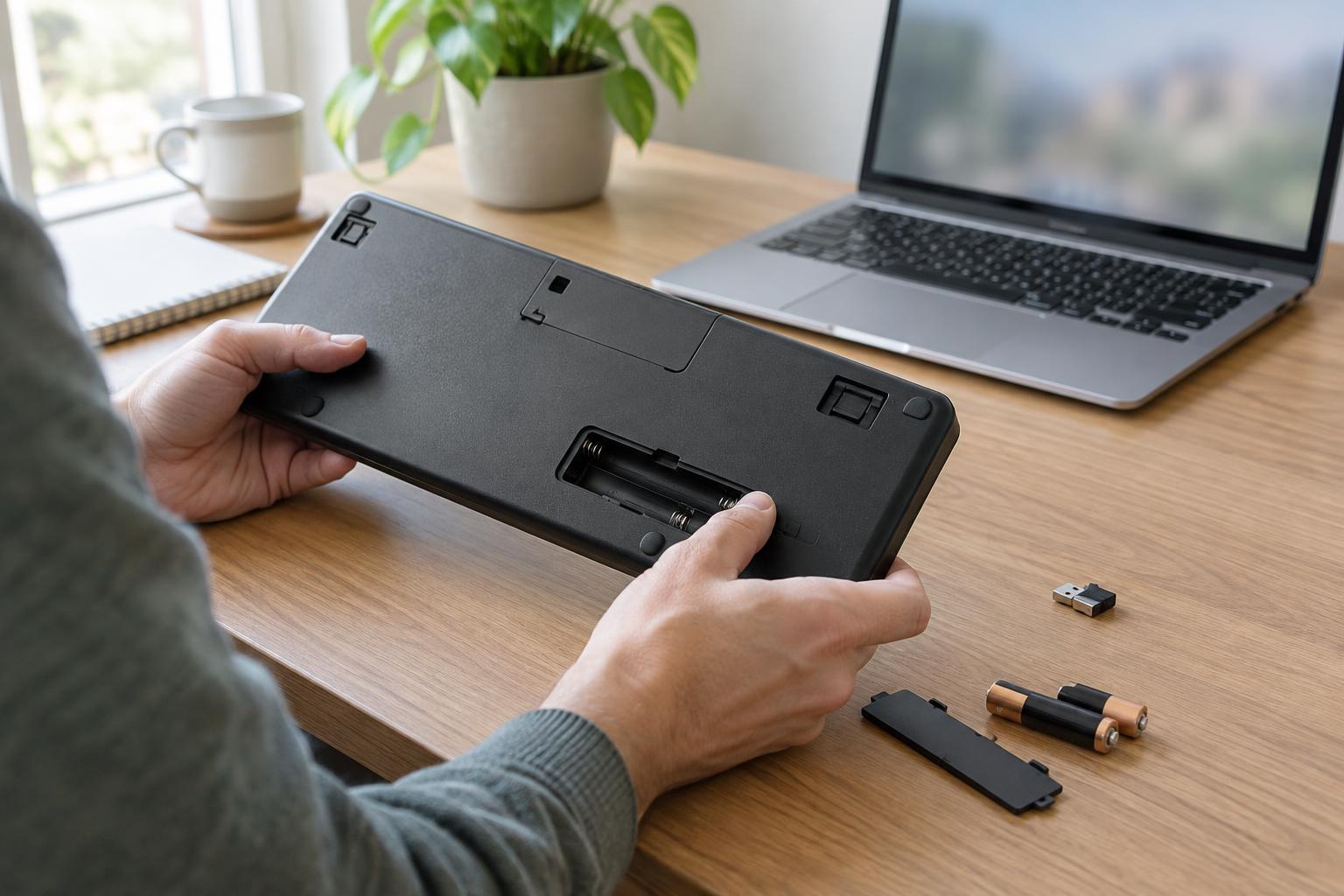
Everyday TroubleshootingA keyboard that stops responding does not always need replacing. Use this step-by-step guide to check whether the problem comes from the keyboard, its power source, the connection, or a computer setting.
Read article · 4 min↗

Everyday TroubleshootingA dock can appear connected while a keyboard, printer, monitor, or other device remains unavailable. Use this step-by-step approach to narrow the problem to a cable, port, dock, peripheral, or computer setting.
Read article · 4 min↗

Everyday TroubleshootingIf text looks fuzzy on an external monitor, start with its resolution and scaling settings. Learn how to identify the right display, choose a sharp resolution, adjust text size, and rule out simple connection problems.
Read article · 4 min↗

Everyday TroubleshootingA “no signal” message usually means the monitor is powered on but is not receiving a usable picture from the computer. Work through the input setting, cable, adapter, computer display settings, and a few simple isolation tests before replacing equipment.
Read article · 4 min↗
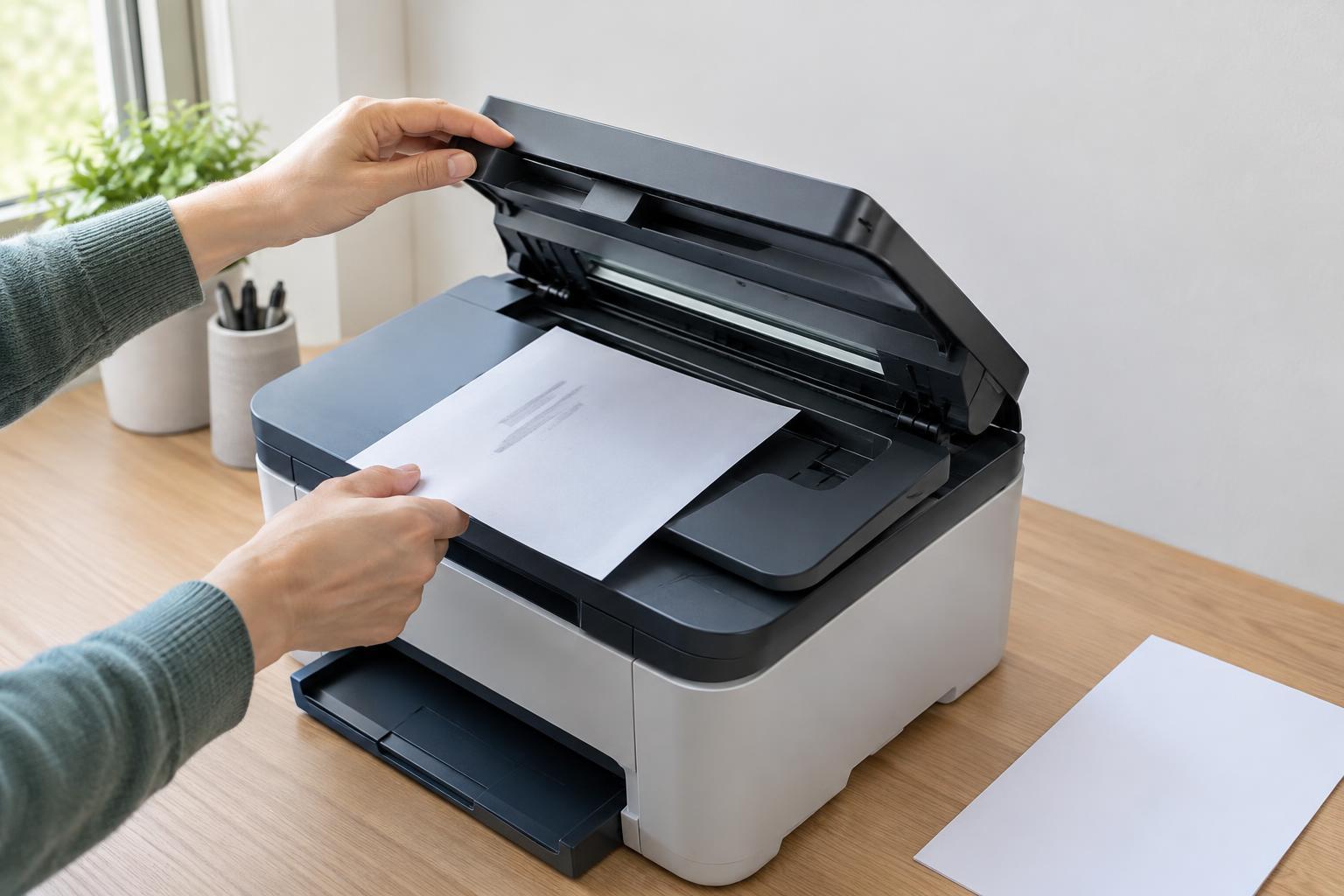
Everyday TroubleshootingIf an automatic document feeder produces blank scans or copies, start with a one-page test. Check how the original is loaded, confirm the scan source and duplex settings, then inspect the narrow scanner glass. This guide helps you isolate the cause without wasting a full stack of paper.
Read article · 4 min↗
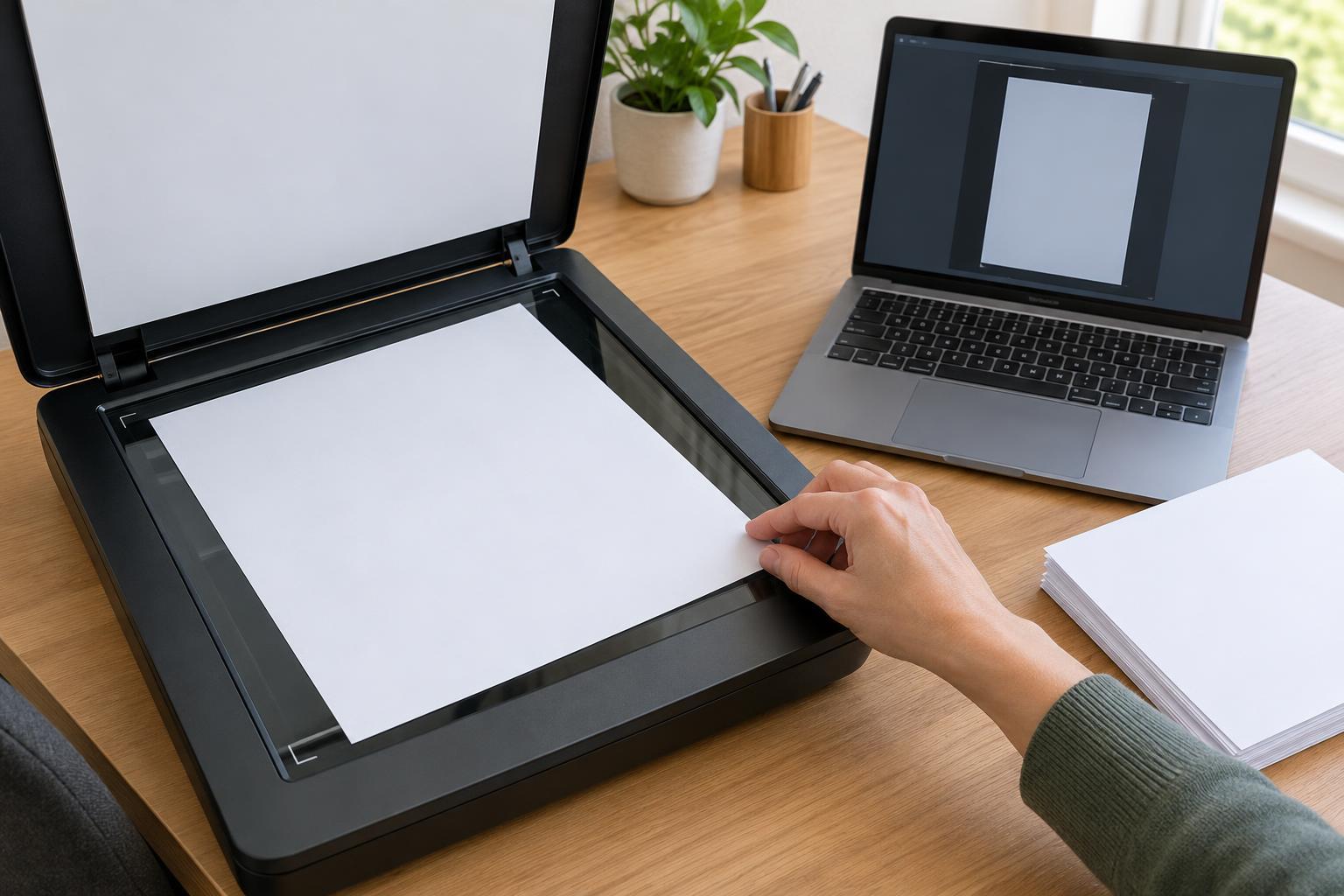
Everyday TroubleshootingA scan that tilts or cuts off an edge is often caused by document placement, feeder guides, or a setting that does not match the page. Use a preview and a few simple tests to find the cause before scanning the whole stack again.
Read article · 4 min↗

Everyday TroubleshootingWhen a scanning app cannot find your scanner, work from the simplest checks toward software settings. This guide covers USB and network connections, drivers, app permissions, and a quick way to narrow down where the problem lies.
Read article · 4 min↗
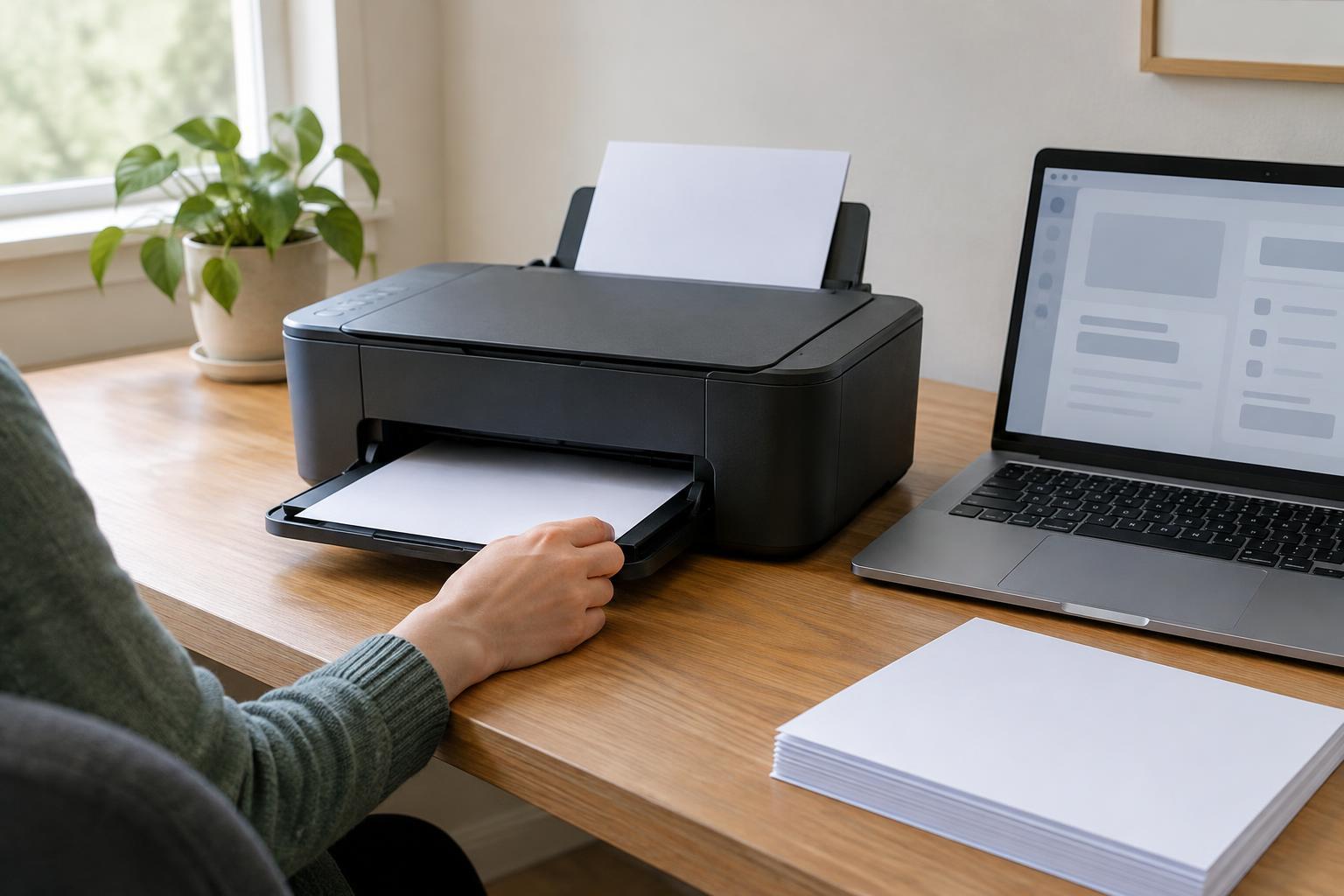
Everyday TroubleshootingA slow print job does not always mean a failing printer. Use the point where the delay occurs to narrow down the cause, then check print quality, paper type, two-sided printing, file size and connection settings before changing anything more complicated.
Read article · 4 min↗
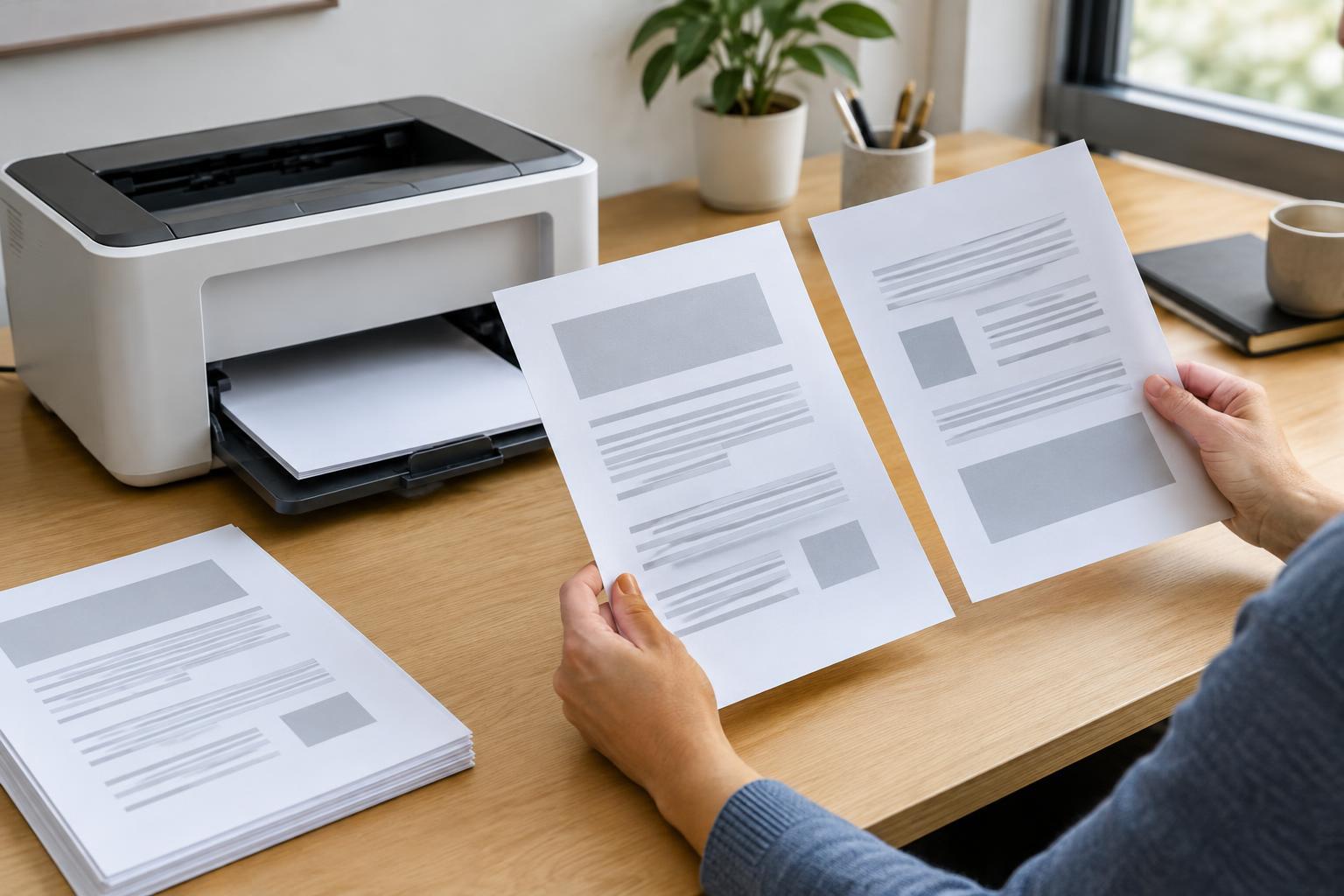
Everyday TroubleshootingBack pages upside down? Sheets coming out in the wrong sequence? Use a short test print to identify whether the problem is binding direction, page order, or manual paper loading before printing the whole document again.
Read article · 4 min↗

Everyday TroubleshootingA document can look right on screen but print too small, too large, or with its edges cut off. Learn how paper size, scaling settings, margins, and printer software affect the result, then use a simple test to find the cause.
Read article · 4 min↗
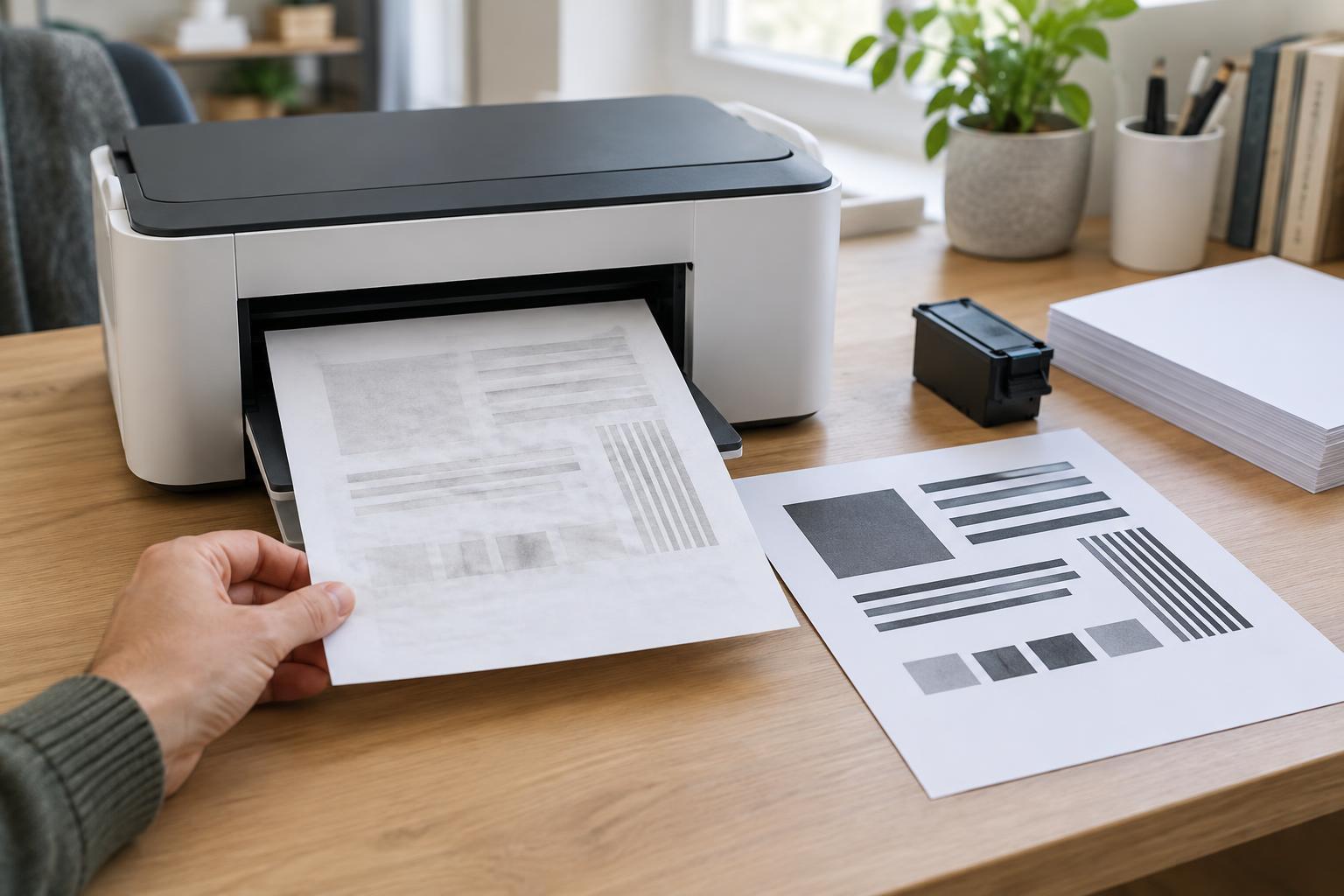
Everyday TroubleshootingA faint page does not always mean it is time to buy a new cartridge. Use a simple test page and a few settings checks to narrow down whether the cause is the file, paper, ink, toner, or printer.
Read article · 4 min↗
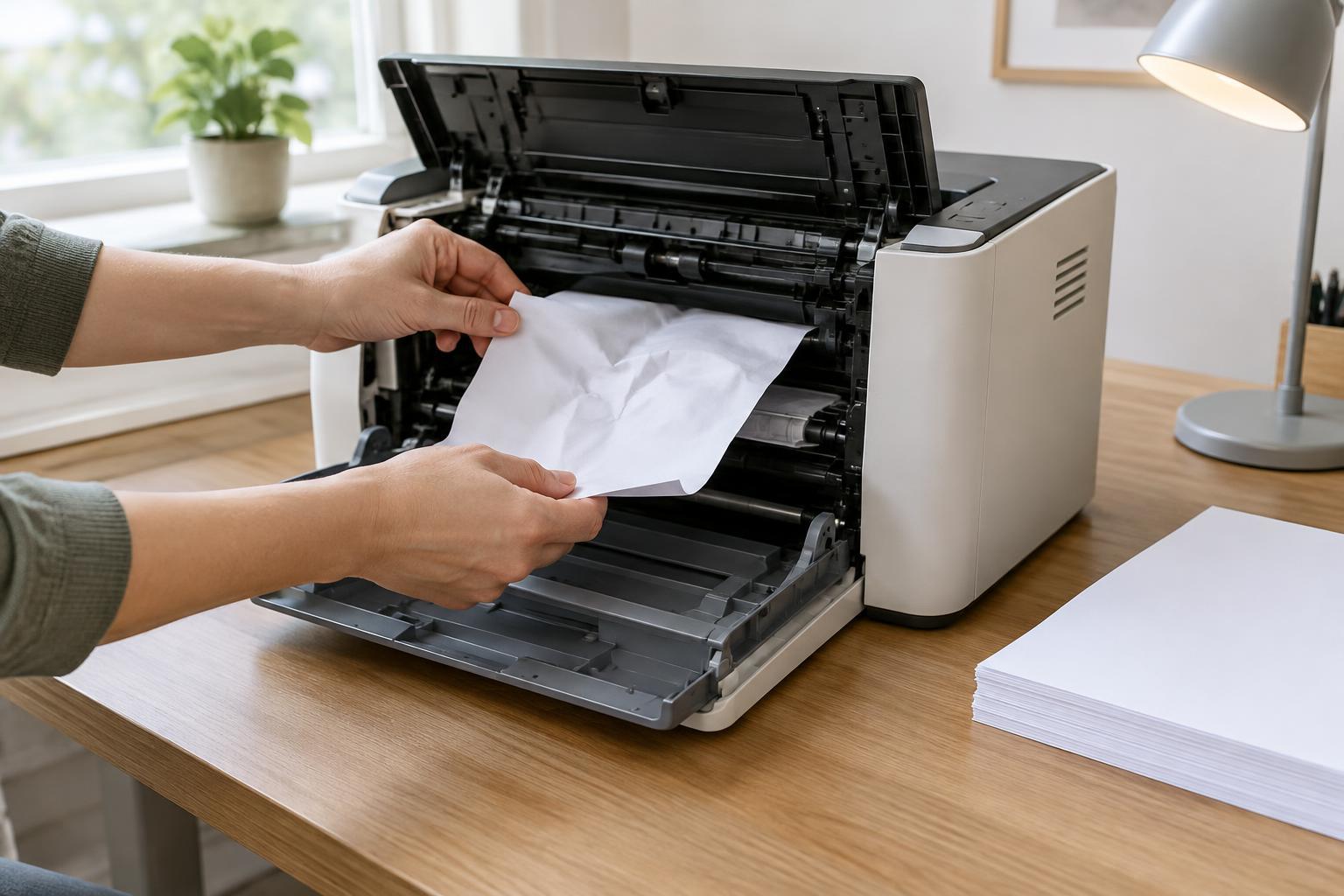
Everyday TroubleshootingA paper jam is easier to solve when you treat it as a clue rather than an interruption. Learn how to clear a jam safely, identify where it starts, and check the paper, tray, settings, and feed path before printing again.
Read article · 4 min↗
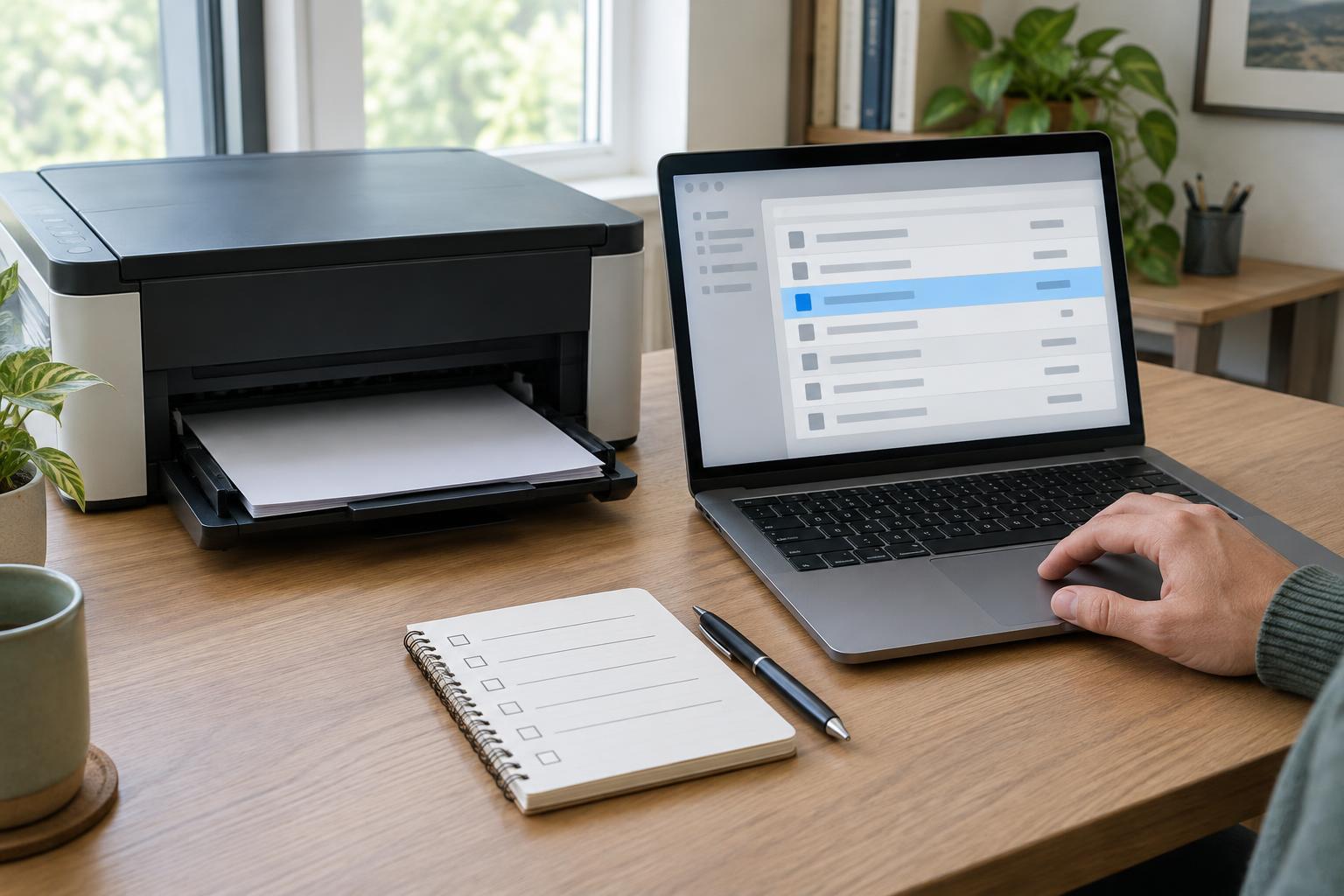
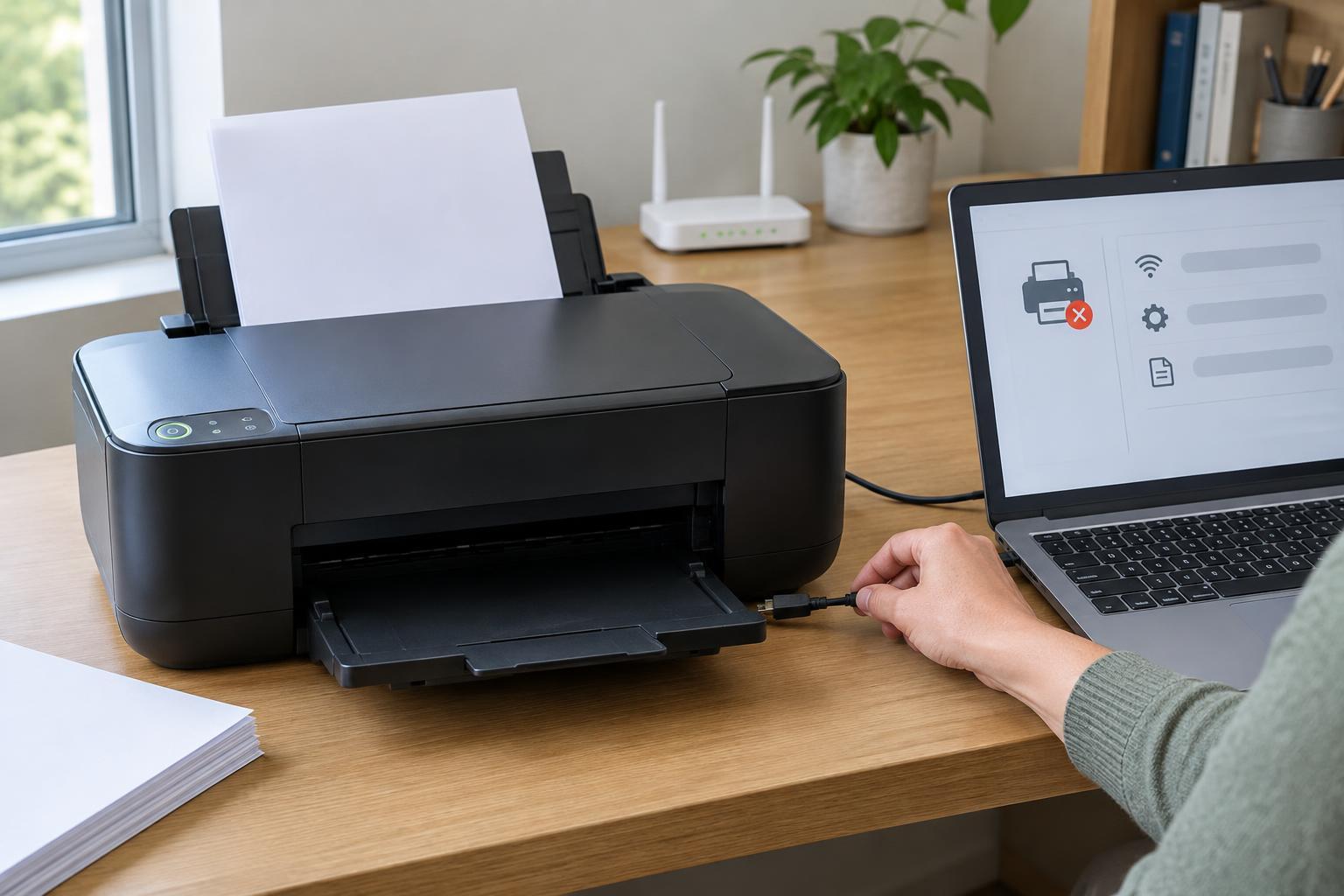
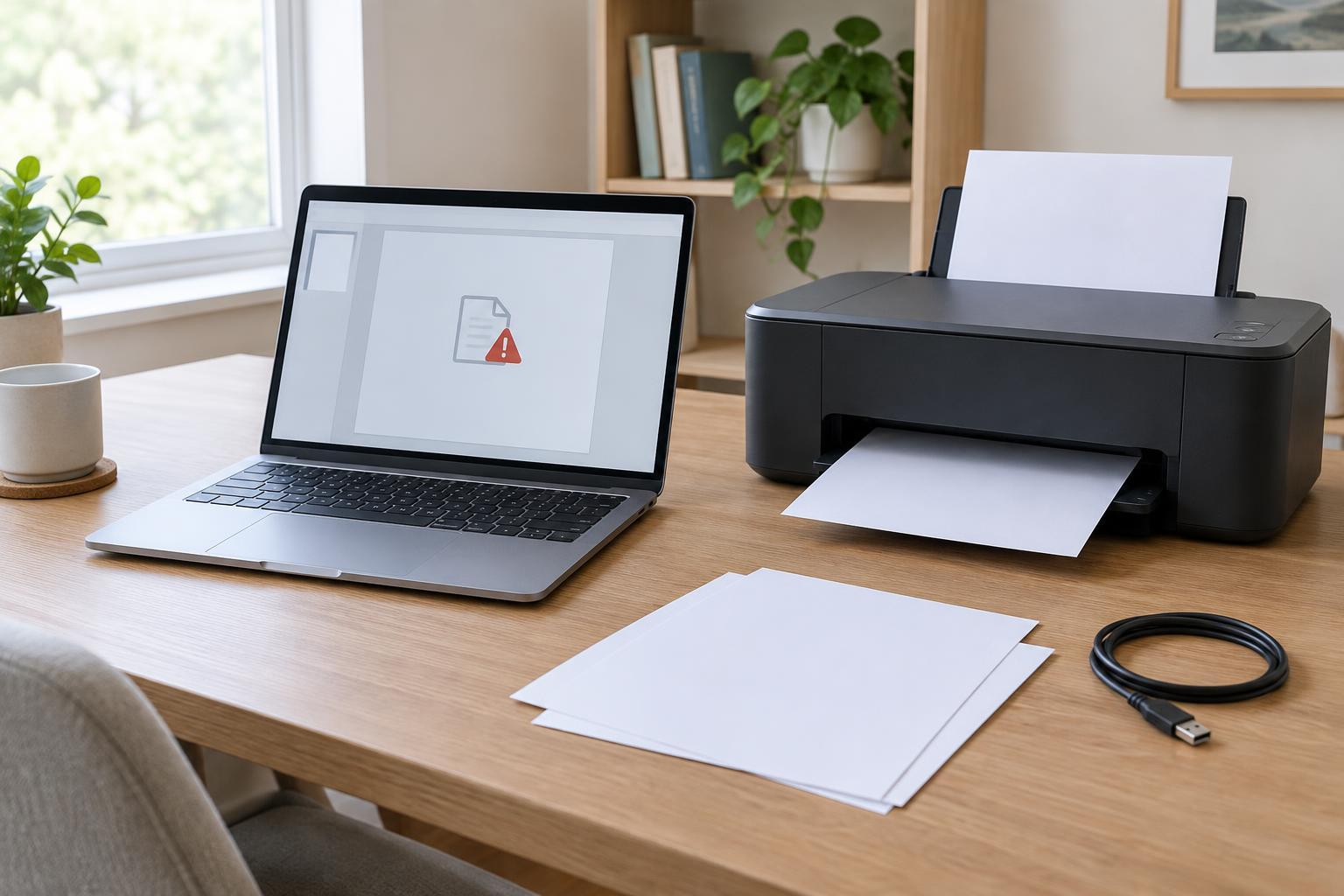
Everyday TroubleshootingAn “offline” message does not always mean the printer is disconnected. Work through power, connection, queue and computer settings first to find the cause without rebuilding your setup.
Read article · 4 min↗