Two copies with different jobs
A backup is a recovery copy of files you still use. Its job is to help you get back to work if a device fails, a file is accidentally deleted, or a document is overwritten. A useful backup preserves older versions as well as recent files, so discovering an error after a few days does not leave you with only the damaged copy.
An archive is a place for documents you have finished using regularly but may need to consult later. Completed project files, final invoices, signed forms, and past reference material are typical candidates. An archive should make those records findable and readable. It is not necessarily designed to restore your entire working folder after a computer failure.
Think of the distinction as recovery versus retrieval. Backups answer, “How do I restore what I was working on?” Archives answer, “Where is the finished record?” The same document may belong in both systems for a time: a final report can enter an archive while the archive itself remains covered by a backup.
What each system can and cannot protect
An automatic backup can reduce the damage from everyday mistakes, but its settings matter. If it keeps only the latest copy, an unwanted edit may replace the version you needed. If it runs only while a drive is connected, missed sessions can leave gaps. Check what is included, how long previous versions remain available, and whether you can restore a single file without restoring everything.
An archive brings order to completed work, but moving files into it does not make them safe. A single archive folder on one computer can be lost with that computer. A cloud folder that synchronizes changes across devices can also carry an accidental deletion to each synced device. Synchronization is useful for access and collaboration; it should not be assumed to provide an independent recovery copy.
Neither backups nor archives automatically solve every document problem. A backup may preserve a poorly named file that no one can identify. An archive may contain a scan that is incomplete or unreadable. Before relying on either, check that important documents are complete, use clear file names, and can be opened with software you expect to keep using.
Build a simple workflow for working and finished files
Start with one clearly defined location for active documents, such as a Work folder with subfolders for clients, projects, or tasks. Keep the structure shallow enough that you can save a file without guessing where it belongs. Set your backup tool to include that location automatically. If you use a cloud service, review its version history and recovery options rather than treating the word “cloud” as a backup plan.
When a project or reporting period ends, decide which files are worth keeping as records. Save a final version in an Archive folder organized by a category and period that make sense for your work. A name such as “ProjectName_FinalReport_2024” is easier to recognize than “final_v3_new.” Keep supporting files only when they help explain the finished record; an archive crowded with temporary drafts is harder to search.
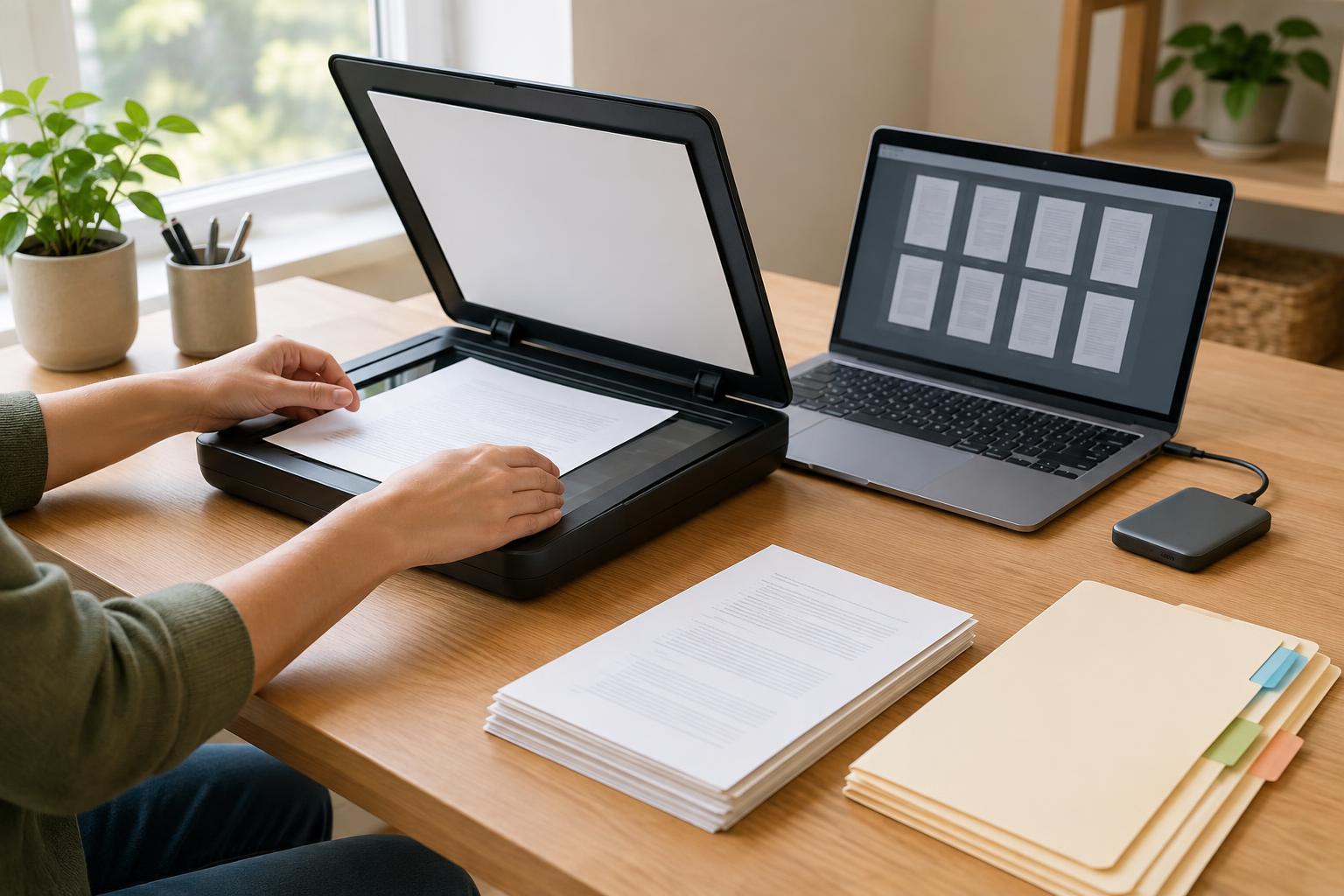
For scanned paper records, inspect the scan before putting away or discarding the original. Confirm that every page is present, text is legible, and pages are in the right order. A searchable PDF can make retrieval easier when your scanner or software supports text recognition, but search results may miss faint or handwritten text. Use descriptive file names even when the document is searchable.
Protect access without making retrieval difficult
Choose backup and archive locations with different risks in mind. Keeping another copy on a separate drive or service can help if one device fails. A drive left constantly connected may be convenient, but it can be affected by some of the same accidents as the computer. An offline or otherwise separate copy can provide another recovery option. Protect sensitive records with appropriate account security and encryption where available, and limit access to people who need it.
Write down where the archive lives, how it is organized, and who can access it. For a small business, this matters when someone is away or a computer is replaced. Keep that guide somewhere accessible to authorized people, without putting passwords in an unprotected document. Decide when records should be reviewed or removed based on your needs and any applicable requirements; do not assume that keeping everything forever is the safest choice.
Test the process before you need it
A system is only useful if you can recover from it. Periodically restore a sample working file from your backup to a separate location, then open it and check that it is the version you expected. Look up an older archived document without relying on your memory of its exact file name. These small tests reveal missing folders, confusing names, and access problems while there is time to fix them.
If a test fails, adjust one part of the workflow at a time: the backup selection, version settings, archive naming, or access instructions. The goal is not a complicated collection of copies. It is a dependable route back to active work and a clear route to finished records.