1. Decide what each file needs to do
Before scanning, choose a small, manageable batch of records and decide how you will use them. Do you only need to read an old receipt, or will you need to search a folder for an invoice number? Will someone else need to edit the text? These answers affect your file format and scanning settings. Starting with one document type, such as invoices or equipment manuals, also makes it easier to settle on a consistent process before tackling a full cabinet.
For records you mainly need to view and share, PDF is often a practical choice because it can hold several pages in one file. A searchable PDF is more useful when you need to find words inside a document. That search feature usually depends on optical character recognition, or OCR, which attempts to identify text in the scan. OCR can make a file easier to search, but it can misread faint print, handwriting, or unusual layouts. If you need editable text, review any OCR output against the original rather than treating it as a perfect transcription.
2. Prepare and scan one batch at a time
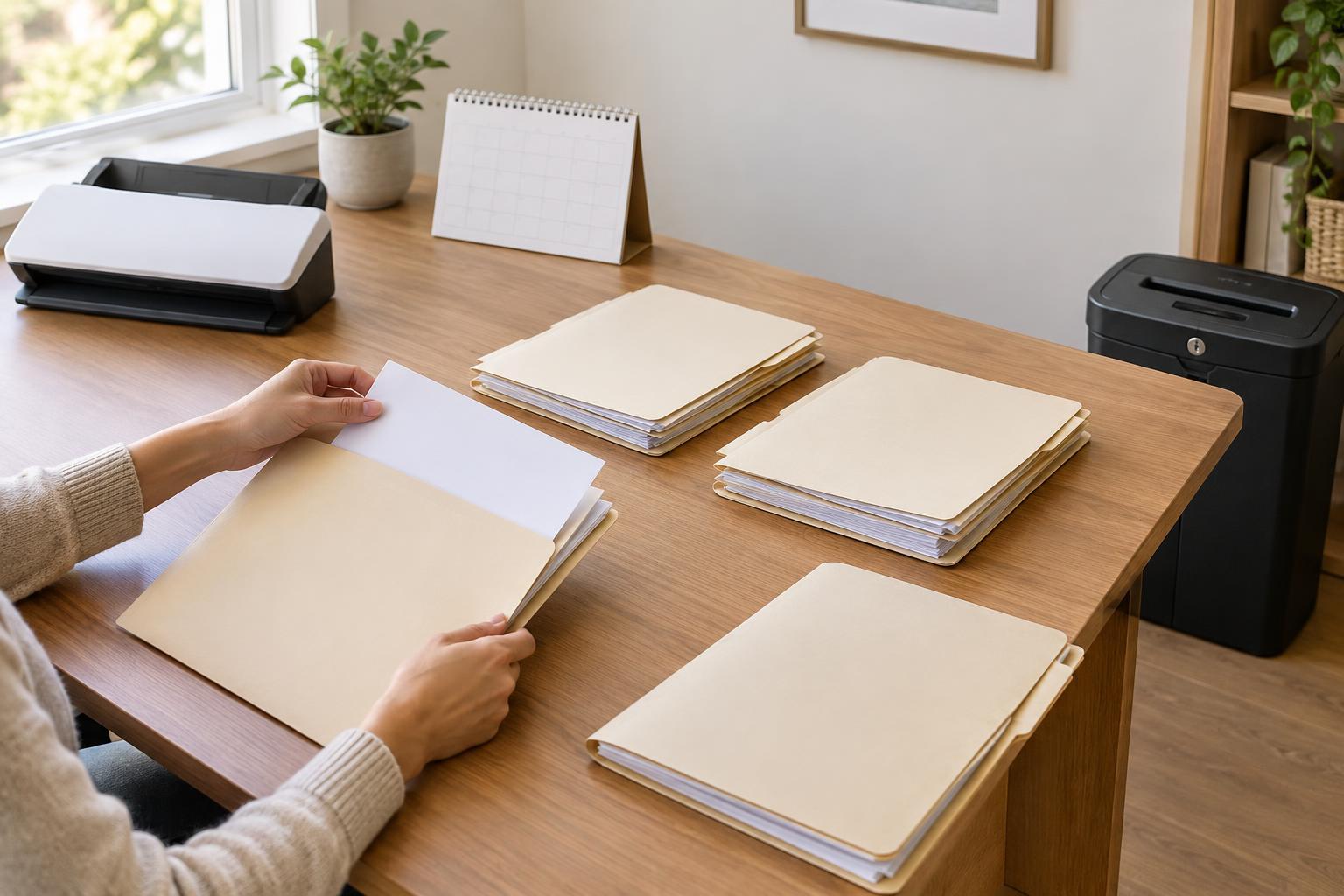
Remove staples and clips, unfold pages, and put sheets in their intended order. Separate double-sided records from single-sided ones if your scanner requires different settings for each. Give each batch a clear boundary: one contract, one month of receipts, or one customer file. Keeping unrelated papers out of the same scan saves sorting work later.
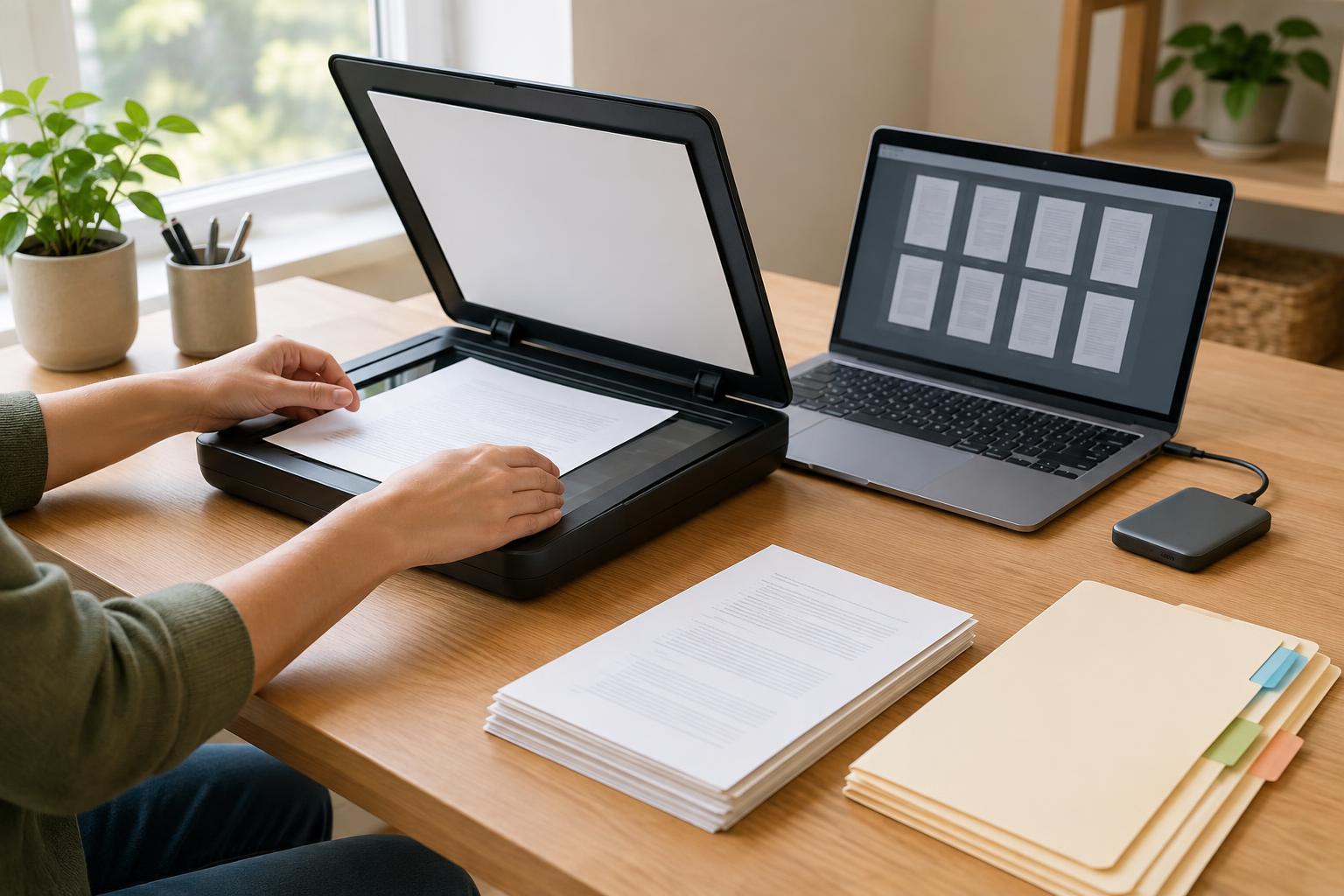
A scanner with an automatic document feeder can speed up stacks of loose, similarly sized pages. A flatbed is better suited to fragile papers, bound pages, or items that do not feed reliably. Whichever device you use, check that it captures both sides when needed and that page edges are not cut off. For ordinary text, a moderate resolution is generally sufficient; increase it when small print or fine detail is hard to read. Choose grayscale for documents that do not rely on color, and color when highlights, stamps, charts, or other color distinctions carry meaning.
Scan a short test batch before processing everything. Open the resulting file at normal viewing size and zoom in on the smallest important text. If it is blurry, crooked, too dark, or missing pages, adjust the settings or page placement now. A few minutes spent testing is easier than rescanning an entire box.
3. Name files so you can find them again
Use a naming pattern that describes the record without requiring you to open it. For example, 2024-04_supplier-invoice_042.pdf identifies a date, document type, and reference number. Put dates in year-month-day order when a day is available so files sort chronologically. Avoid vague names such as Scan001.pdf and avoid changing your pattern from one batch to the next. If a record has several pages, keep them together in one file when they belong together.
Create a simple folder structure based on how you look for records: perhaps Documents, then Invoices, then a folder for each year. Do not add so many folder levels that saving a file becomes a guessing game. A useful test is whether someone familiar with your work could locate a record using its type, approximate date, or reference number. Consistent names and folders can still help when OCR misses a word.
4. Check the finished files before putting paper away
Quality control should be part of the workflow, not an occasional cleanup task. Open every file, confirm its page count, and check that the pages are in order and readable. Pay particular attention to double-sided sheets, faint marks, signatures, and pages near the end of an automatic-feeder batch. If you used OCR, try searching for a distinctive word or number, then visually verify any detail you intend to rely on.
Move checked files out of an incoming folder into their permanent folders. This makes unfinished work visible: anything still in incoming needs review. If several people scan records, agree on the same naming pattern and on who performs the final check. Keep the paper originals until you are satisfied that the files are complete and you have determined whether the originals need to be retained. Requirements for particular records can vary, so do not assume a scan always replaces the paper.
5. Protect the files and keep the routine manageable
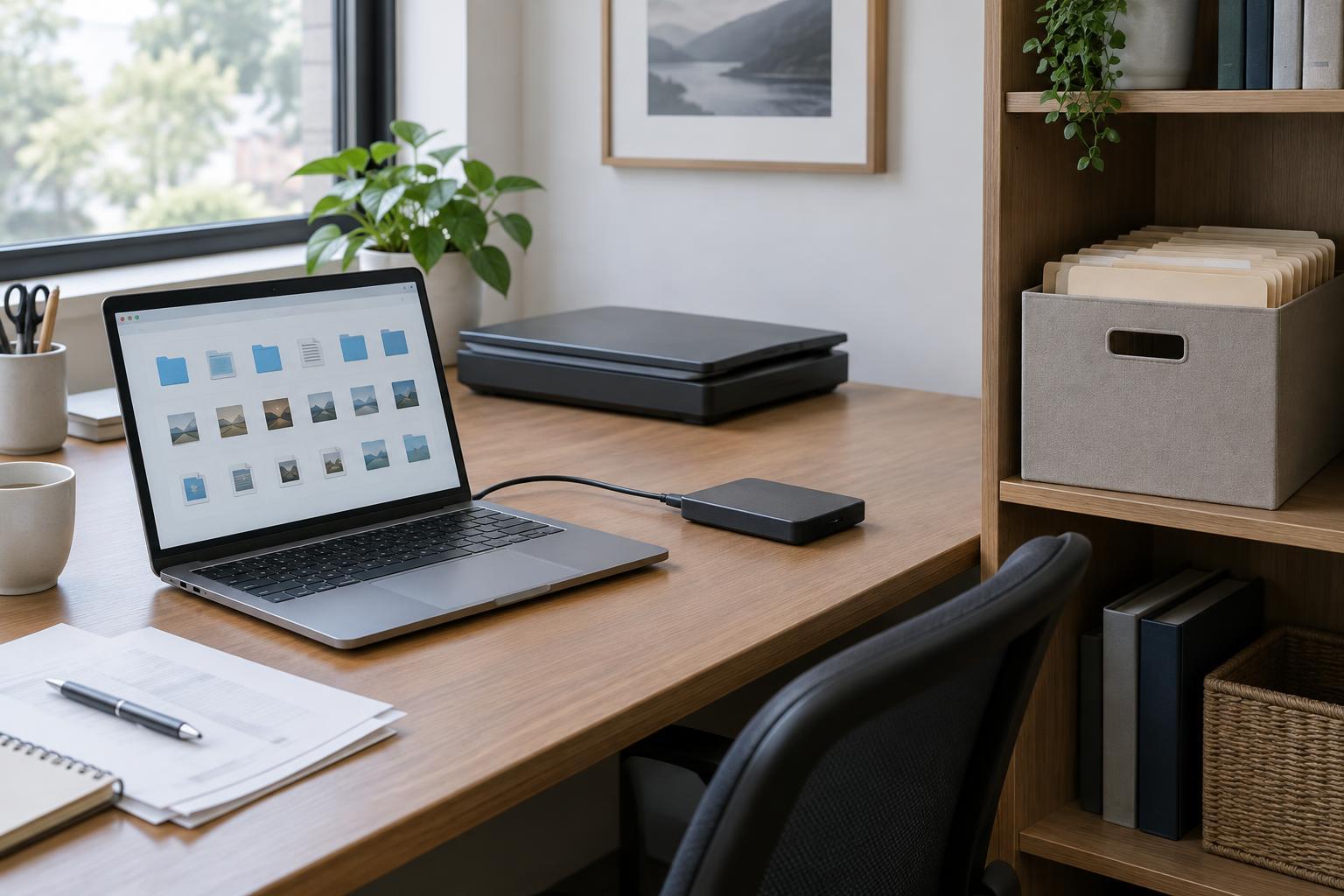
A digital folder is not a backup if it exists in only one place. Keep a separate backup copy and periodically confirm that you can open files from it. Limit access to sensitive records to people who need them, and use the security features available on your storage system. Think about file sharing as well: a convenient shared folder may expose more records than a colleague needs for a single task.
Finally, make digitizing a small recurring task. Set aside a place for papers awaiting scanning and a separate place for those already scanned but awaiting review. Process batches regularly enough that they remain easy to identify. The goal is not merely to reduce paper; it is to create files that you can locate, read, trust, and protect when you need them.