Start by separating opening from printing
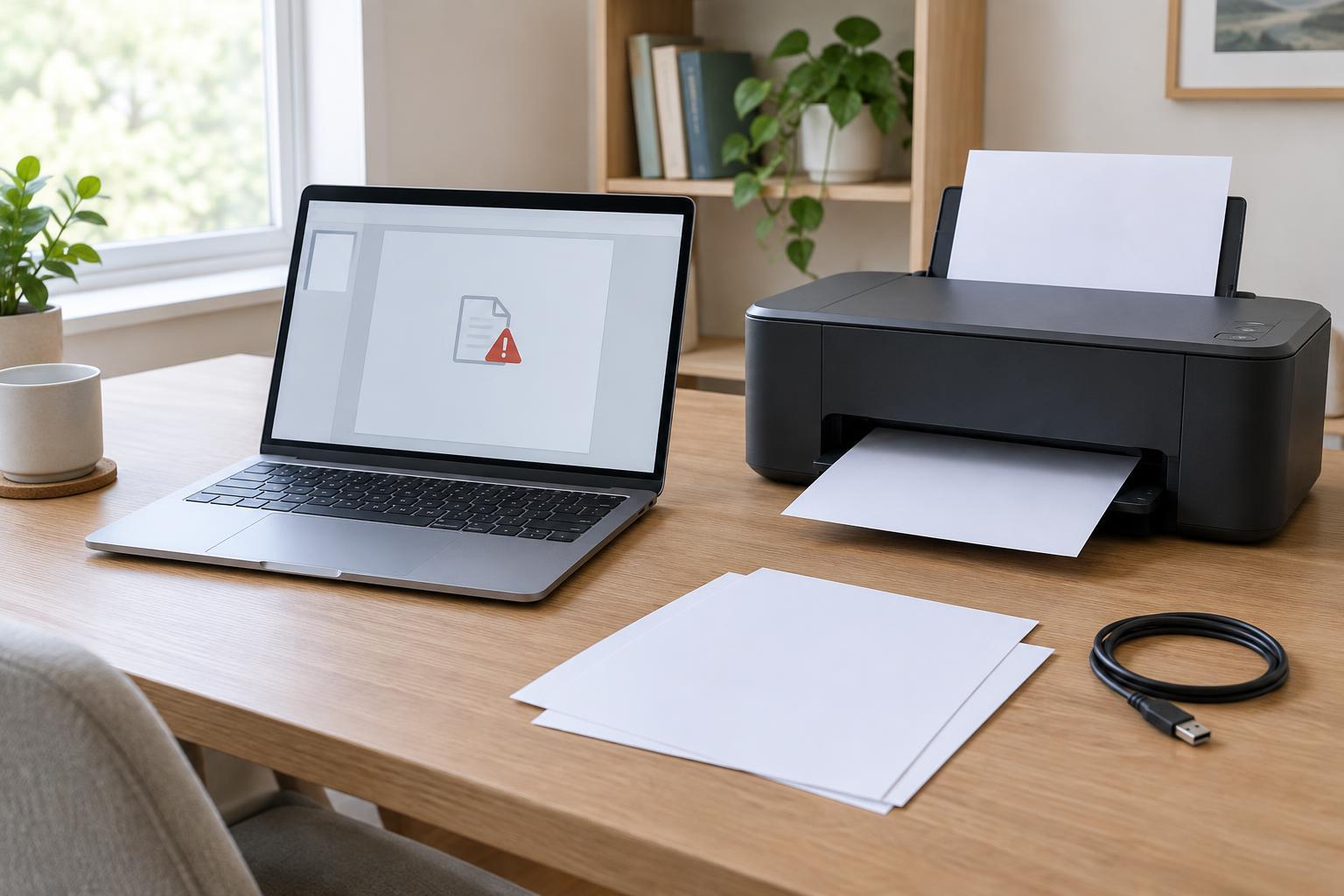
Before changing settings, identify exactly where the process stops. Does the PDF fail to open, open with missing pages, display normally but refuse to print, or reach the printer and come out wrong? These symptoms point to different places. Write down any error message and whether the problem affects one file or every PDF. That small distinction can save time spent reinstalling an app or printer that works normally.
Try opening a different PDF that you trust. If it opens, the first file or the way it was saved may be the issue. If neither opens, check the PDF-reading app or the device instead. If PDFs open but none print, try printing a simple document from another app. A successful test page suggests the printer connection works and lets you focus on the PDF or its print settings.
Check the file without risking the original
If the PDF arrived by email or through a shared folder, confirm that the download or copy has finished. Save a copy to a location you can find, then open that copy rather than repeatedly trying a preview inside a message or browser. A file that appears unusually small, has an unexpected extension, or produces an incomplete-document error may need to be sent or exported again. Keep the original until you know the replacement works.
Some PDFs require a password or restrict certain actions, including printing. Check for an on-screen notice before assuming the app is broken. If you do not have the needed access, ask the person who provided the file for a usable version. Avoid uploading confidential office documents to an unfamiliar “PDF repair” service merely to test whether it can open them.
Test the reader app and display
When several PDFs fail to open in the same app, close it and reopen one file. Restarting the computer can also clear a temporary app problem. If another PDF reader is already installed, try the same file there. Different results help narrow down the cause, though they do not prove which app is at fault. If your usual reader offers an update through its built-in menu or a trusted app store, that is a reasonable next check.
A PDF that opens to a blank or odd-looking page may simply be displaying at an unhelpful zoom level or on the wrong page. Check the page count, move to another page, and return to the first. If it looks correct in one reader but not another, use the reader that displays it properly for the immediate task, then revisit the app issue when you have time.
If it opens but will not print, narrow the print job
In the print window, confirm the selected printer, page range, paper size, and scaling option. For a quick test, print one ordinary page rather than the whole document. This limits wasted paper and helps show whether the issue affects every page or only a particular one. If the preview is already cropped or blank, correct the settings or try another reader before sending more jobs to the printer.
If the preview looks right but nothing comes out, check whether the printer is ready and whether the job is waiting in its queue. Avoid clicking Print repeatedly; duplicate jobs may appear later when the connection recovers. If another app prints successfully but this PDF does not, the problem is more likely tied to the file, reader, or PDF print settings than to the printer itself.
Choose the next step based on what worked
When only one PDF fails across multiple readers, request a fresh copy or ask its creator to export it again. If multiple PDFs fail in one reader but work in another, focus on the first reader. If files open correctly but print jobs from several apps fail, move to the printer and its connection. This approach changes one variable at a time, making the result of each test easier to understand.
After the issue is resolved, keep the working file in the appropriate office folder and remove unnecessary test copies according to your usual document practices. Note any setting you changed, especially the selected printer or scaling option, so the next job does not inherit an unwanted choice. A brief record of the symptom and fix can make a repeat problem much quicker to diagnose.