Resolution is only part of print quality
Print resolution describes how finely a printer can place marks on a page. It is often expressed in dots per inch, or dpi. A higher available resolution can help reproduce small details and smooth edges, but the number on a printer’s specifications does not tell you how every document will look. The printer’s software, ink or toner, paper, and quality of the original file all affect the result.
A document with clean, selectable text will usually print sharply at a standard setting because the printer can render its letters for the page. A low-resolution image is different: asking the printer to use its highest setting cannot restore detail that the image does not contain. Likewise, enlarging a small scan may make its blur or blocky edges more obvious. Think of resolution as the printer’s capacity to reproduce detail, not a way to create missing detail.
What quality modes actually change
Print menus commonly offer choices such as Draft, Standard, and Best, though names vary by printer. Draft mode generally favors speed and lighter use of ink or toner. It can be useful for checking wording, page breaks, or layout, but fine lines and filled areas may look less even. Standard mode is a sensible starting point for routine letters, forms, and internal documents.
A higher-quality mode may use more careful placement of ink or toner, take longer to print, and make subtle image details or gradients look smoother. On an inkjet printer, it may also put more ink on the page, making paper choice especially noticeable. These effects vary by model and document; selecting Best does not guarantee an improvement you can see in every page. A text-only agenda, for example, may look almost the same in Standard mode while taking longer to print at a higher setting.
Keep resolution separate from color and paper settings. Choosing grayscale changes how color content is printed, while selecting a paper type tells some printers how to handle that surface. If you change several settings at once, it becomes harder to tell which one improved—or worsened—the output.
When a higher setting is worth trying
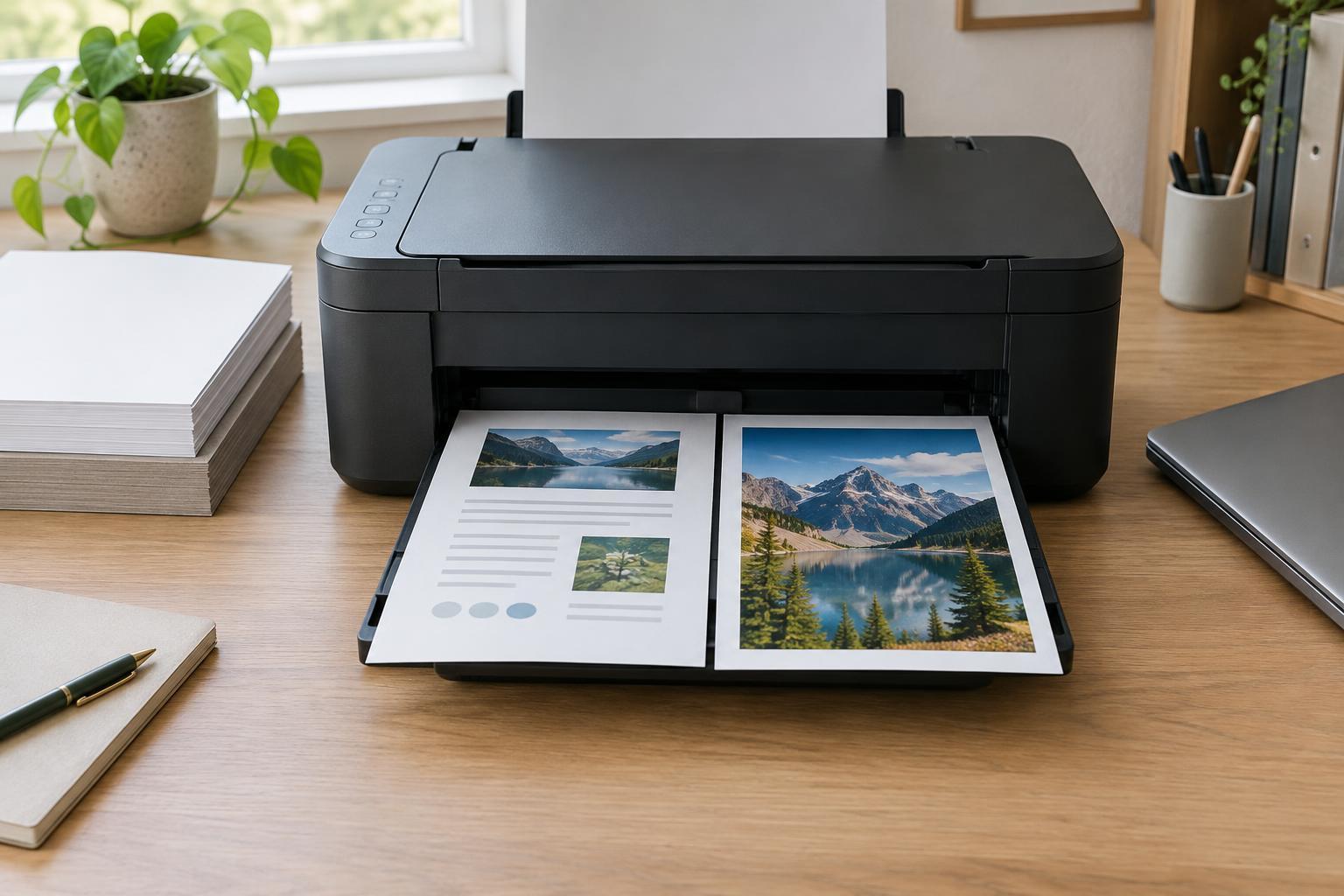
Use a higher-quality setting when the finished page depends on fine visual detail: a client-facing image, a small diagram with thin lines, or a document with shaded graphics. It is also worth testing if standard mode leaves visible banding, rough curves, or uneven color. Print one representative page first, then compare it with a standard-mode copy in the lighting where the document will be used.
For drafts, shipping paperwork, reading copies, and most straightforward text documents, Standard is usually a practical choice. Draft can be useful when appearance is unimportant and the page remains easy to read. If a barcode, small label, or fine table prints poorly, prioritize legibility over speed and test the actual printed page before producing a batch.
Check the file and paper before raising the setting
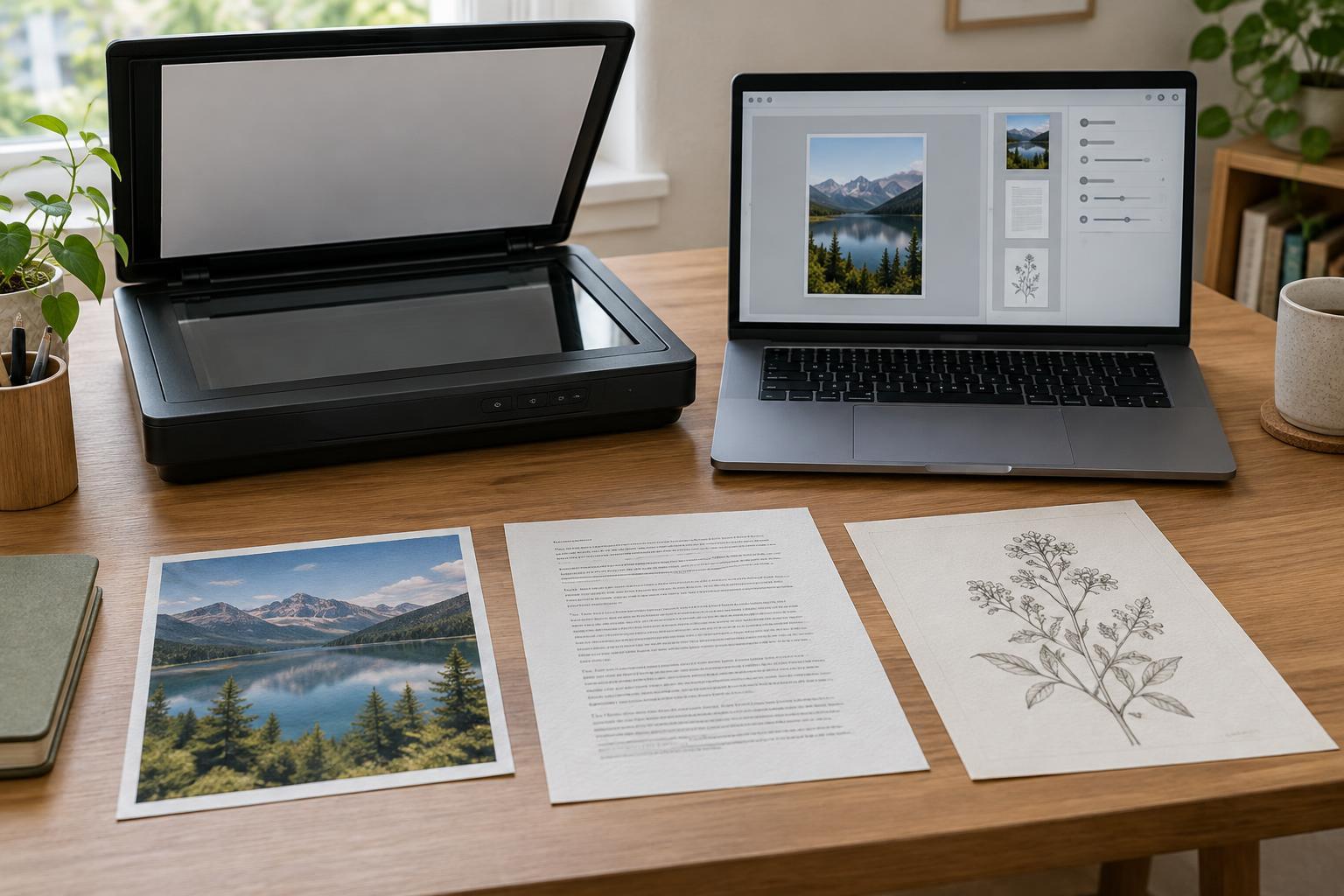
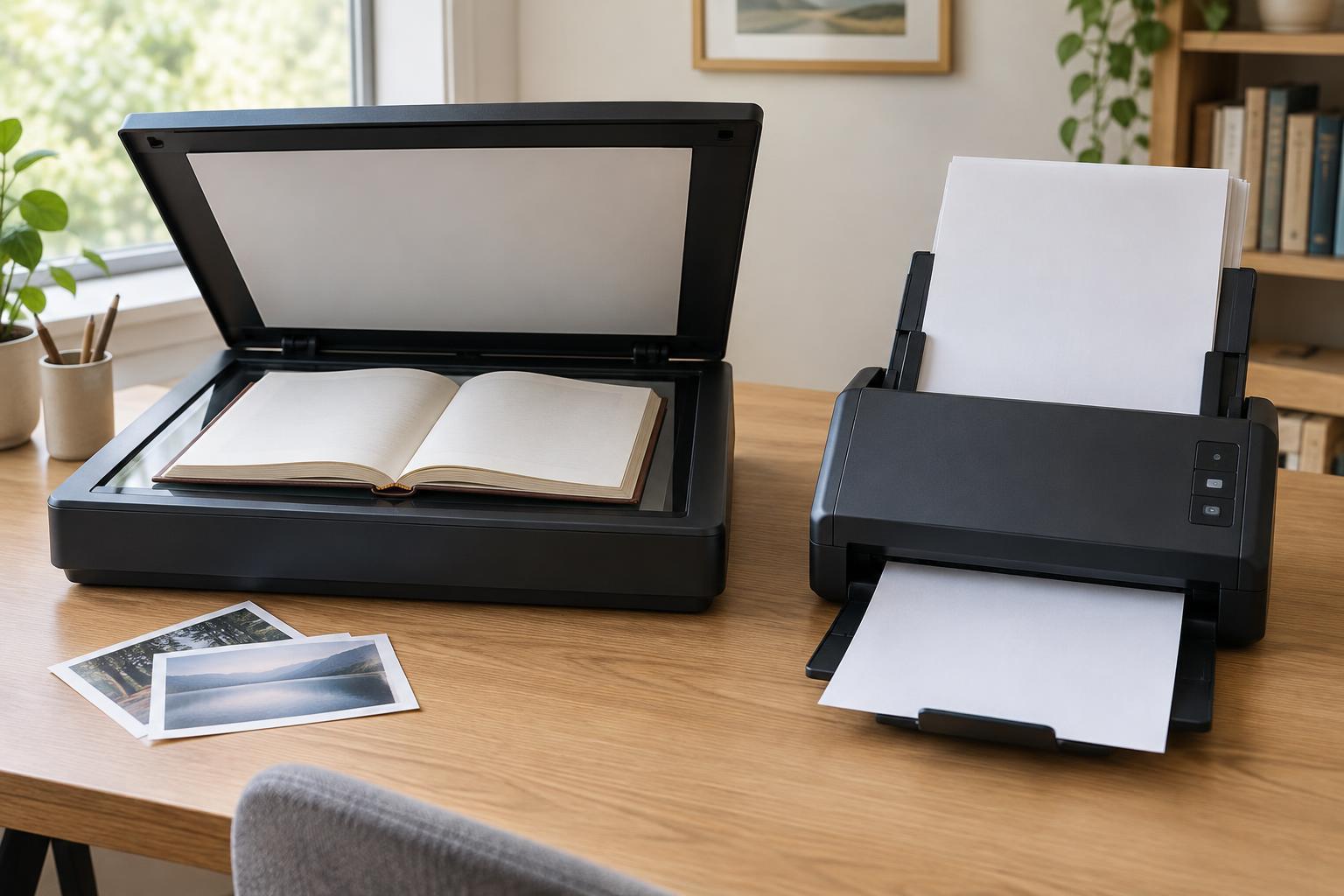
If a print looks soft, inspect the file at the size you intend to print it. A screenshot or small image stretched across a full page may look poor even at the printer’s highest setting. For a scan that will be printed, capture it clearly and avoid enlarging it far beyond its original size. Scan resolution and print resolution describe different steps: scanning determines how much detail is captured from the original; printing determines how that captured detail is placed on paper.
Paper can be just as important. Ordinary office paper is well suited to routine documents but may not display dense color or photos as cleanly as paper made for that purpose. Use paper compatible with your printer, and select the matching paper type in the print dialog when that option is available. Before changing quality settings to fix streaks, gaps, or smudges, check the printer’s basic maintenance guidance; those problems may have another cause.
Build a simple setting routine
Start with Standard mode and the correct paper type. For a new kind of job, print one page and check text edges, fine lines, shaded areas, and readability at the intended viewing distance. If the result meets its purpose, there is little reason to increase quality. If it does not, change one thing at a time: try a better source image, suitable paper, or a higher-quality mode.
Save useful presets if your printer software allows it, such as an everyday text preset and a presentation-graphics preset. Give each a clear name and verify that it includes the intended paper size and color choice. This makes routine printing quicker without treating the highest resolution as the default answer to every print problem.