What a printer driver actually does
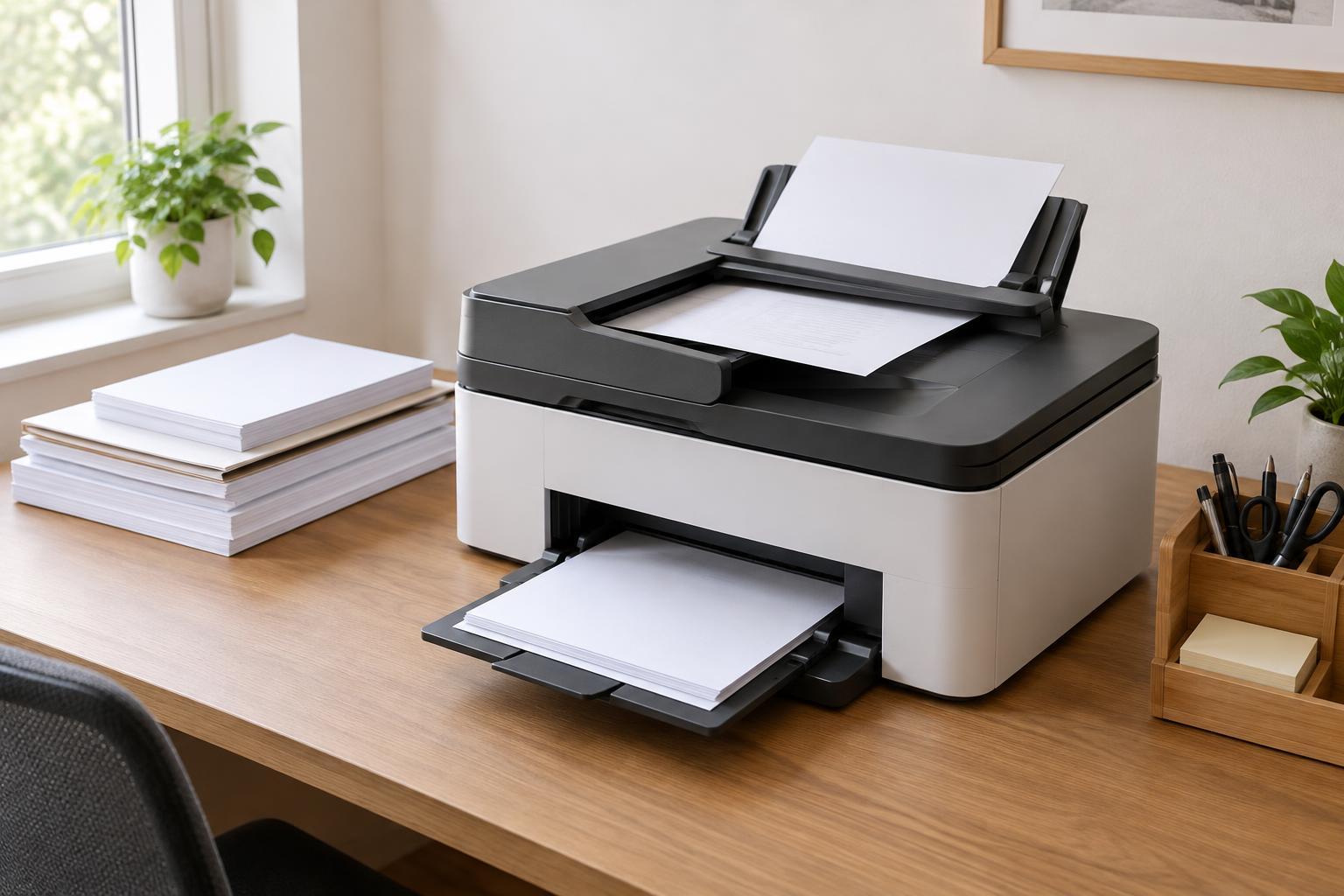
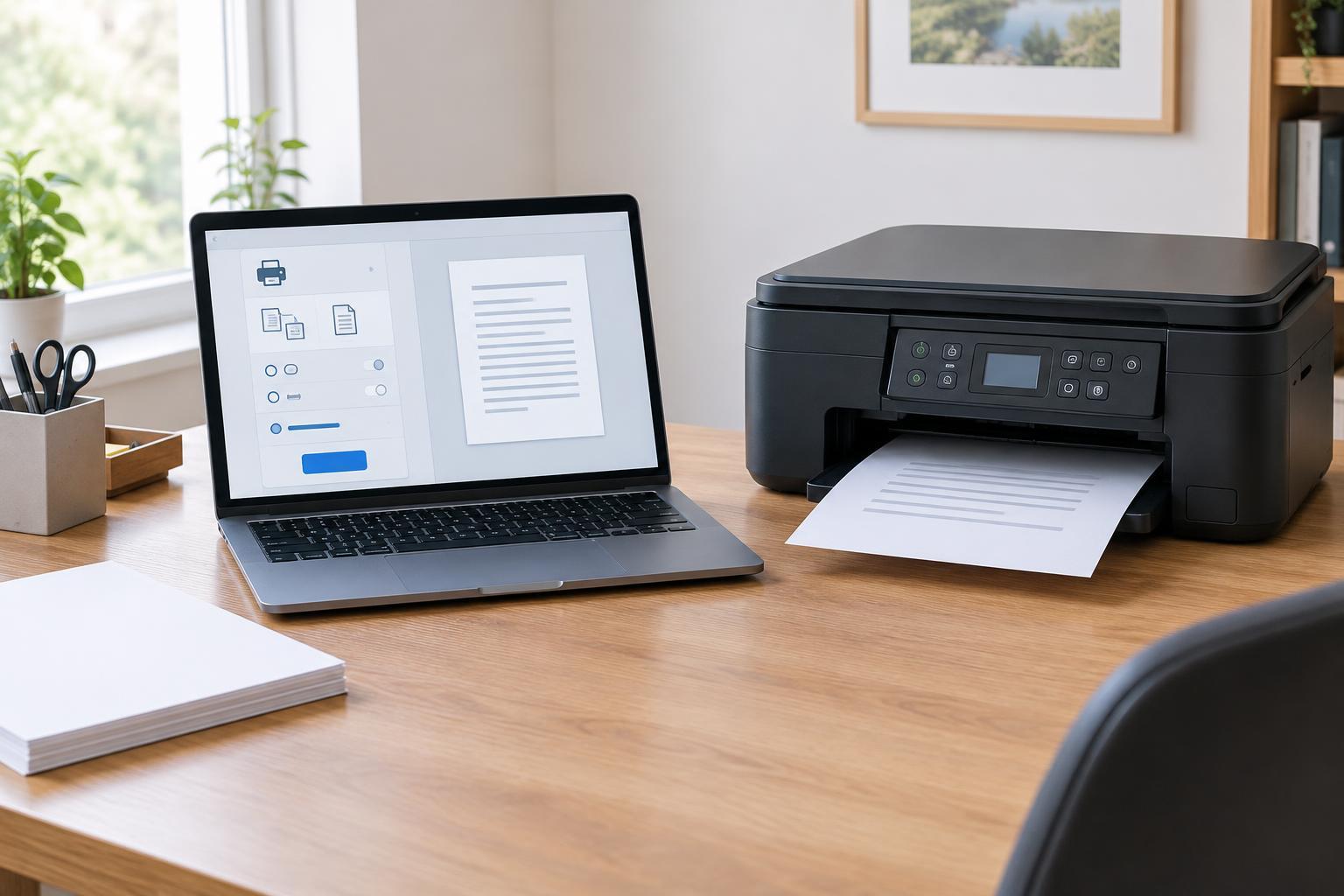
When you select Print, your computer has to turn a document into instructions the printer understands. A printer driver helps make that translation. It also presents controls such as paper size, color mode, two-sided printing, and print quality. The available controls depend on the printer, the connection, and the software used to set it up.
A driver is not necessarily the same as a manufacturer’s full software package. Your operating system may add a printer with a built-in driver or a general printing standard, letting you print without installing a separate app. A manufacturer package may include a model-specific driver plus scanning tools, status monitors, maintenance controls, and setup helpers. Some of those additions are convenient; others may be unnecessary for a simple print workflow.
When built-in printing may be all you need
Start with your computer’s normal Add Printer process if your main tasks are letters, invoices, shipping labels, or occasional photos. Print a one-page document, then check the settings you actually use. If paper size, tray choice, color or black-and-white output, and two-sided printing all work as expected, there may be little reason to install more software.
Built-in support can also keep a shared workspace simpler. Each computer needs a working way to print, but not every user needs a maintenance dashboard or an app that starts automatically. Simpler setups can mean fewer menus to learn. The trade-off is that a general driver may show fewer printer-specific options, even when the machine supports them.
Do not judge the setup solely by whether a test page prints. Try a representative job: a multi-page document using both sides of the paper, an envelope, or a photo on the paper you normally buy. A successful test of your real tasks is more useful than a long list of features you may never use.
When manufacturer software earns its place
Model-specific software is worth considering when a feature is missing or awkward to access. Examples include choosing among several paper trays, setting finishing options, adjusting specialized print quality controls, or viewing detailed supply and error information. Before installing a full package, check whether the manufacturer offers a smaller driver-only option that provides the control you need.
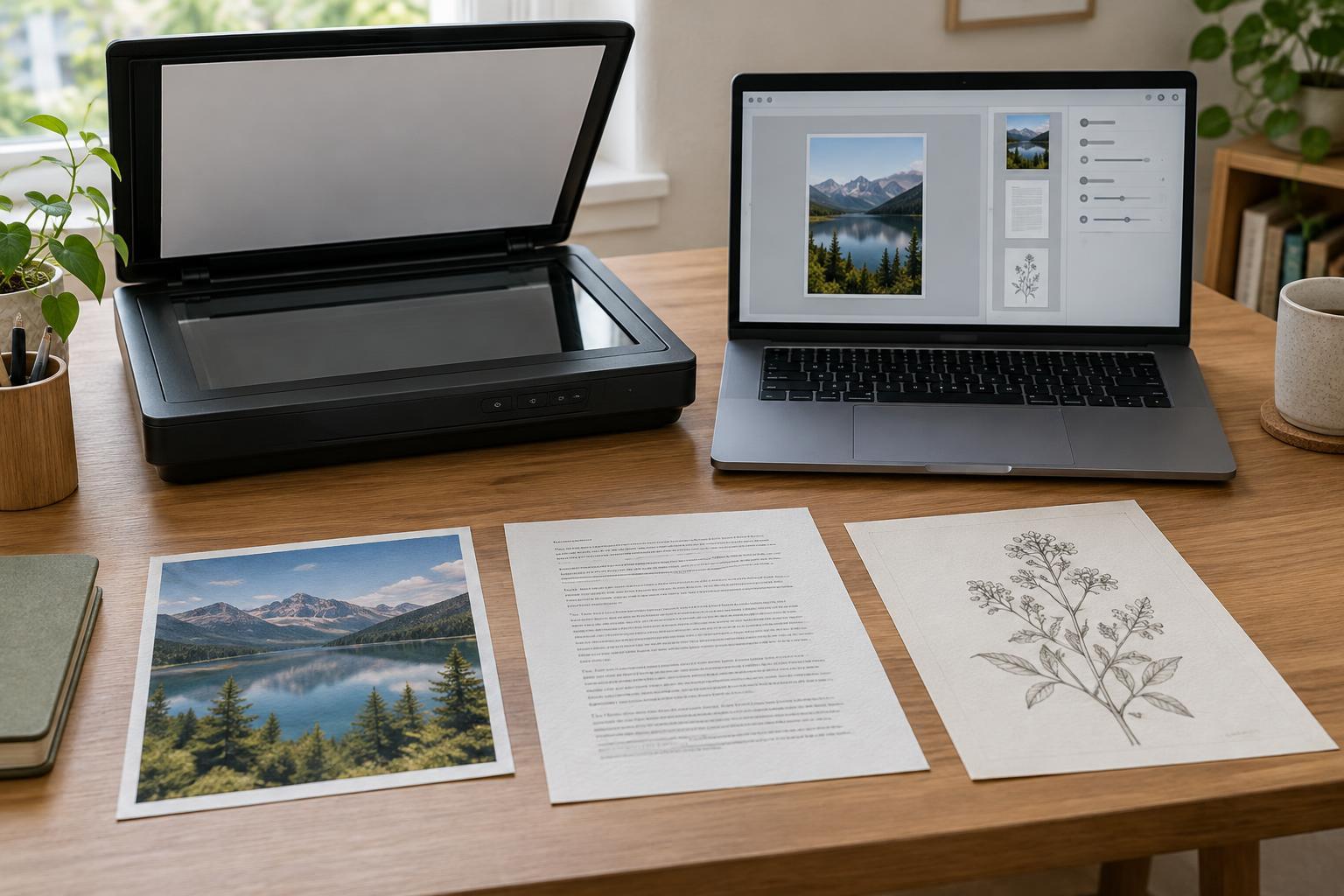
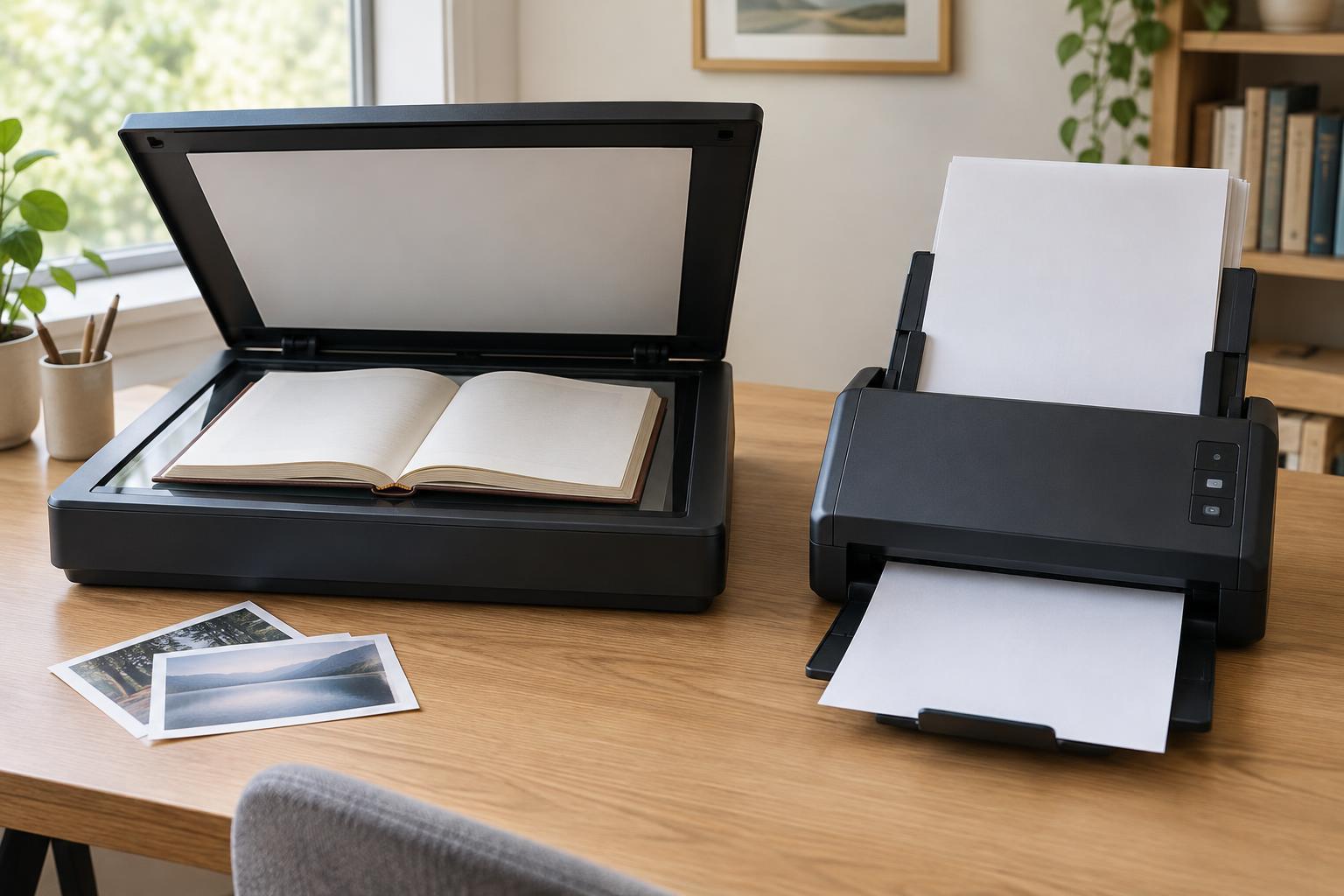
Scanning is a common reason to add software, but it is a separate question from printing. A multifunction printer might print perfectly through the operating system while its scanner needs a compatible scanning app or driver. Manufacturer utilities can make tasks such as scanning multiple pages through a document feeder, choosing a destination folder, or saving a searchable PDF easier. If the built-in scan tool already handles your workflow, compare the added convenience before installing another app.
Setup helpers can be useful when connecting a printer to a network, particularly if the printer’s own screen is limited. Once setup is complete, you can decide whether the companion app remains useful. Keep the components that support your routine work rather than assuming every bundled tool must stay installed.
How to choose and install safely
First, identify the exact printer model and your computer’s operating system. Similar model names can have different features or compatible downloads. If you decide to get manufacturer software, use the manufacturer’s official support page and select the package intended for your model and system. Avoid download pages that bundle unrelated installers or make it hard to tell what you are installing.
For a small office, make one change at a time. Add the printer with built-in tools and test it; then install model-specific software only if it solves a defined problem. On a shared network, note the printer name and how it is connected so you can choose the correct device when several appear. Keep a record of settings that matter, such as default paper size and whether two-sided printing is on.
A sensible troubleshooting order
If printing stops working, check the basics before replacing the driver: Is the printer powered on, connected, free of visible errors, and selected in the print dialog? Look for a paused print queue or a job stuck ahead of yours. If one application fails but another prints, the problem may be in that application’s settings rather than the printer installation.
If jobs print with missing options, incorrect paper handling, or garbled output, review the selected printer and driver. A generic setup may not expose a model-specific feature; an outdated or mismatched driver may also cause trouble. Check for a compatible update from the operating system or manufacturer, and restart the computer and printer after making changes when prompted. Reinstalling everything is best left until simpler checks have failed.
The practical goal is not to use the most software. It is to get reliable output and easy access to the features you need. Built-in printing is a good starting point; manufacturer software is a useful addition when it clearly improves a task you perform.