Start with the printer’s media limits
An envelope or label sheet may fit in a tray but still be unsuitable for the printer. Before buying a pack, check the printer’s guidance for supported sizes, paper weights, media types and feed paths. Check the media packaging too: it should identify the printing technology it is intended for. If either set of guidance rules out the combination, choose different media rather than trying to force it through.
Laser printers use heat to bond toner to a surface, so envelopes and labels used in them must tolerate that process. Inkjet printers deposit liquid ink, which makes the media’s coating and absorbency important. A sheet described simply as “printable” may not work equally well in both. For labels, confirm that the entire sheet, including its backing and adhesive, is suitable for your printer type. For envelopes, pay attention to seams, flaps, windows and adhesive closures, which can affect how smoothly they travel through the machine.
Choose a feed path that handles thicker media
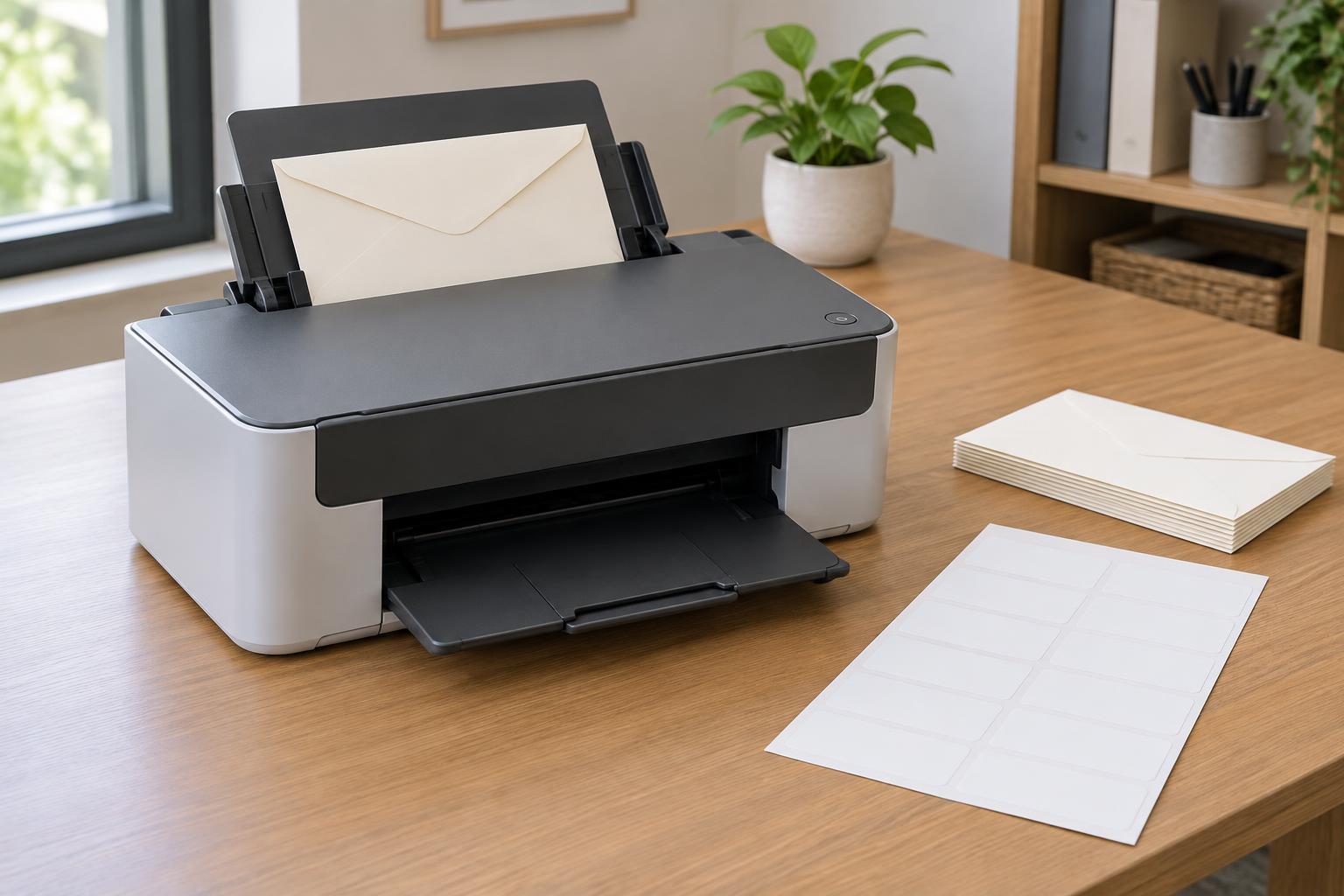
The main paper tray is convenient for everyday paper, but a multipurpose or manual-feed slot may be the better option for envelopes and labels if the printer supports them there. Some printers also have a rear output door that creates a less sharply curved route through the machine. A gentler path can help stiff or layered media pass through without curling or catching. Use only the doors and paths the printer identifies for printing; an access door is not necessarily an output path.
Load a small amount at first, and adjust the paper guides so they touch the media without bending it. Fan or separate envelopes only if the printer’s instructions recommend doing so. Keep the stack flat and avoid overfilling the tray. If the printer offers a setting for the tray or feed source, select the one you actually loaded rather than relying on automatic selection.
Set size, type and orientation before printing
Match the document layout and print settings to the physical media. Select the envelope size or label-sheet dimensions, then choose an appropriate media type if the driver offers one. Media-type settings may change how a printer feeds or processes a sheet, so leaving the setting on plain paper is not always harmless. If you use a label template, verify that it matches the sheet’s label layout; similar-looking products can have different margins and spacing.
Feed orientation varies by printer. Follow the tray diagram or printer instructions for which edge goes in first and which side faces the print mechanism. When the markings are unclear, draw a small arrow on ordinary paper and run a test print to learn how that tray handles a page. Then compare the result with the intended envelope or label layout. Print one real envelope or label sheet before starting a batch, and inspect both placement and print quality.
Turn off automatic two-sided printing unless the printer and media instructions explicitly allow it. Labels and envelopes are generally printed on one side, and an unnecessary second pass adds another opportunity for a jam or damage. Check the print preview as well: an address or label design placed too close to an edge may be clipped even when the correct size is selected.
Handle envelopes and label sheets carefully
Use envelopes that are flat, dry and free of loose flaps or exposed adhesive. Avoid heavily creased envelopes, and check the printer guidance before using padded, windowed or clasp envelopes. If closures need moisture or pressure to seal, keep them closed and clear of the feed mechanism until printing is complete, as appropriate for the envelope design.
For labels, use a fresh, intact sheet. Do not send a partly used sheet through again if labels have been removed: exposed backing or edges can catch, and adhesive may transfer inside the printer. Reject sheets with peeling corners, lifted labels or curled backing. Store unused media flat in its packaging so it is less likely to collect dust or bend before use.
Troubleshoot one variable at a time
If printing lands in the wrong place, first check the selected page size, scaling, template and feed orientation. If an envelope skews or jams, check its condition, the guide position and whether a supported manual-feed path is available. A label sheet that jams repeatedly may be too thick, curled or otherwise incompatible, even if ordinary paper prints normally.
When a jam occurs, stop printing and follow the printer’s removal instructions. Pulling against the intended paper path can tear media and leave pieces behind. After clearing it, try one fresh item rather than immediately restarting the whole batch. Keeping a short note of the media product, tray and settings that worked will make the next envelope or label job much easier to repeat.