Start with where the file needs to go
Choosing a scan destination is less about image quality than about the next step in your work. The same multifunction printer may offer several ways to deliver a scan, but those options differ in setup and in how easily you can find, share, or edit the result. Before pressing Start, ask whether the file needs to stay on your computer, reach someone else, or travel with you.
Destination settings also vary by printer. A device may show a destination on its screen without having it fully configured. If an option is missing or fails, check the printer’s instructions and connection settings rather than assuming the scanner itself is faulty.
Scan to computer: best for organizing and editing
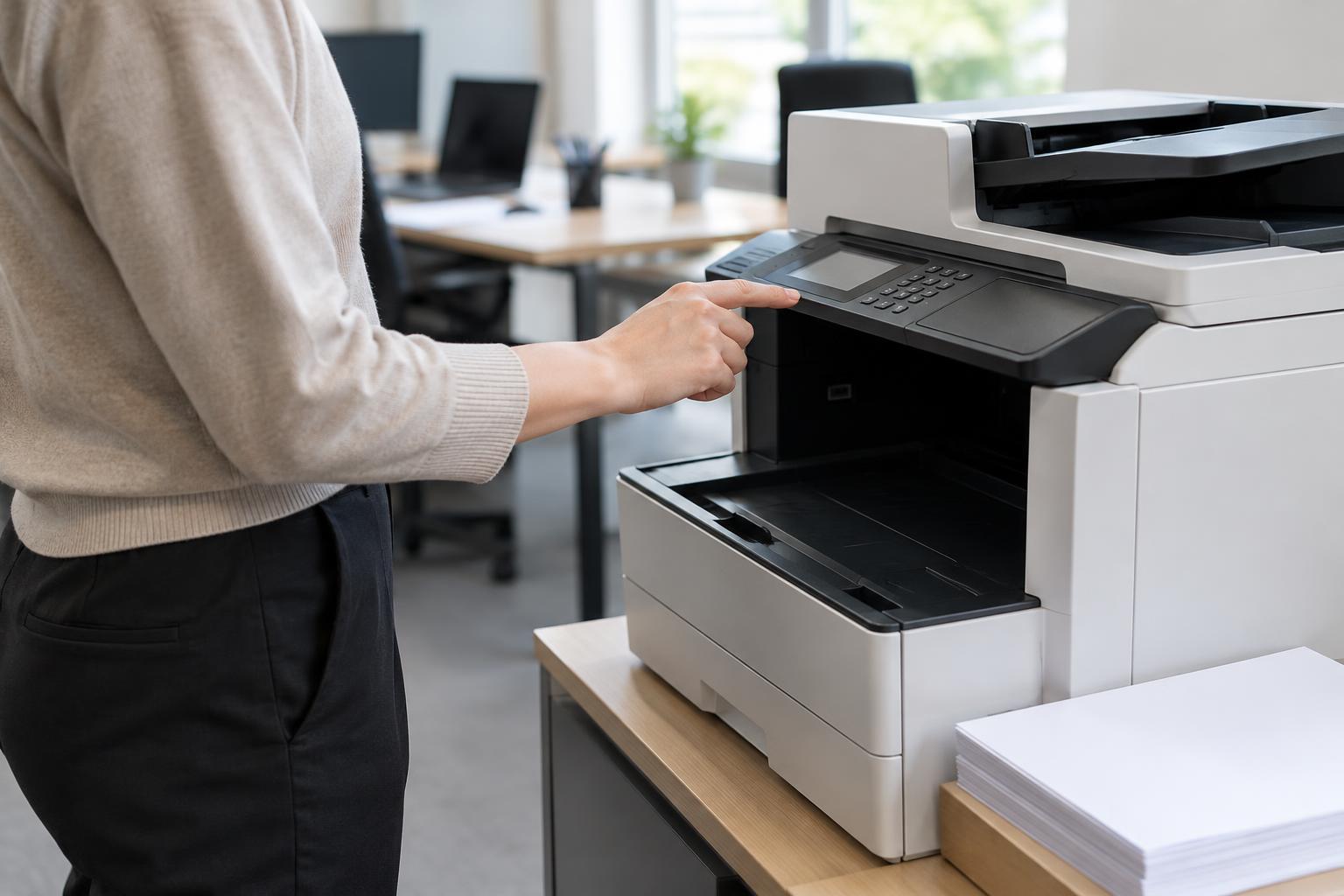
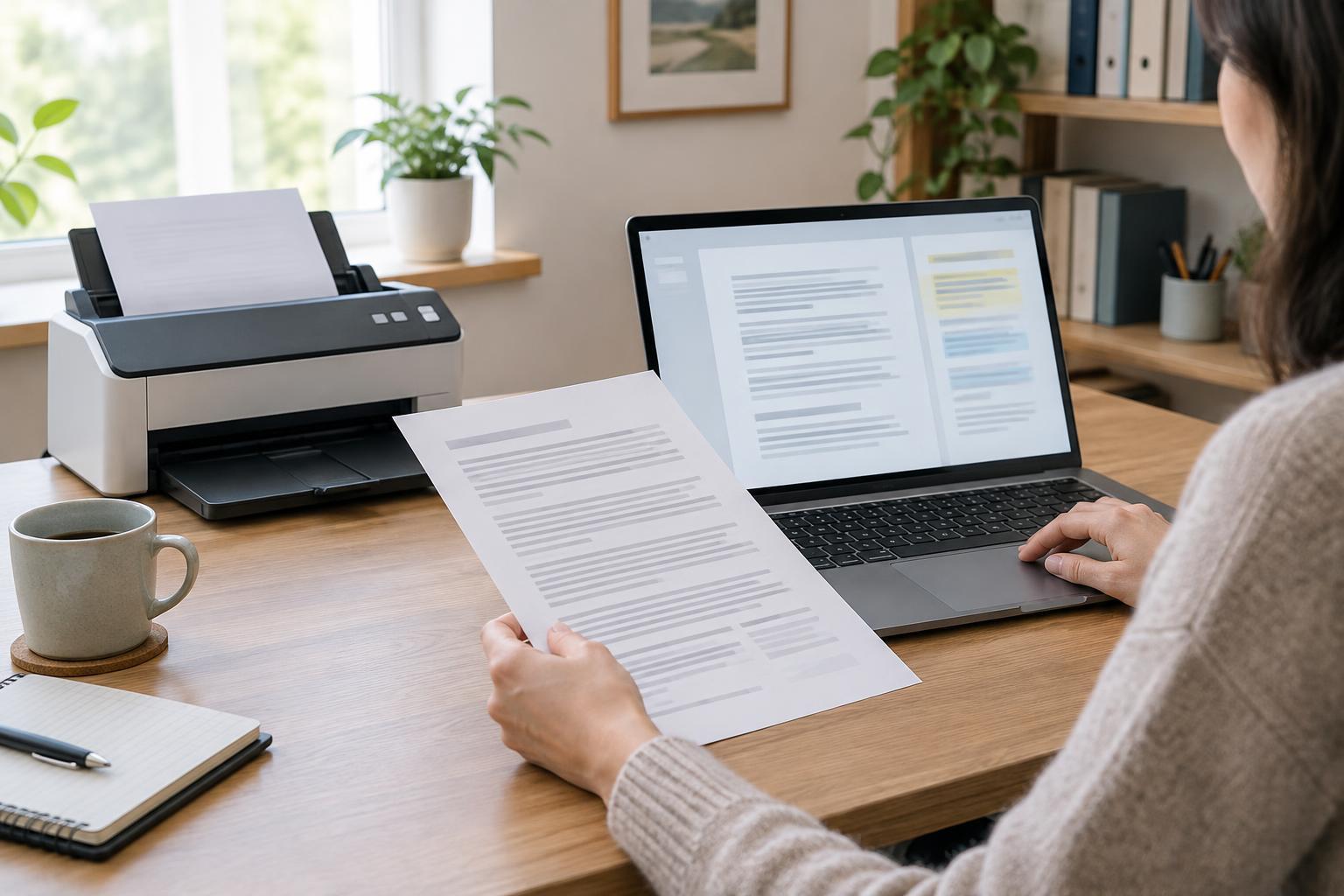
Scanning to a computer is a practical choice when you want to review a document before filing or sharing it. Depending on the equipment, you may start the scan from software on the computer or from the printer’s control panel. A direct USB connection between printer and computer can be straightforward; scanning over a network is more flexible but may require both devices to be on the same network and the appropriate scanning software or drivers to be installed.
This route gives you a chance to name the file, choose a folder, rotate pages, and check that nothing was cut off. If your software supports optical character recognition, or OCR, you may also be able to turn a clear scan into searchable text. OCR results should be checked, especially for faint print or handwritten notes.
The main drawback is dependence on that computer and its setup. If it is asleep, disconnected, or not recognized by the printer, a scan started at the printer may not arrive. For a repeatable workflow, save files in a clearly named folder and move them to their final location after reviewing them.
Scan to email: convenient for quick delivery
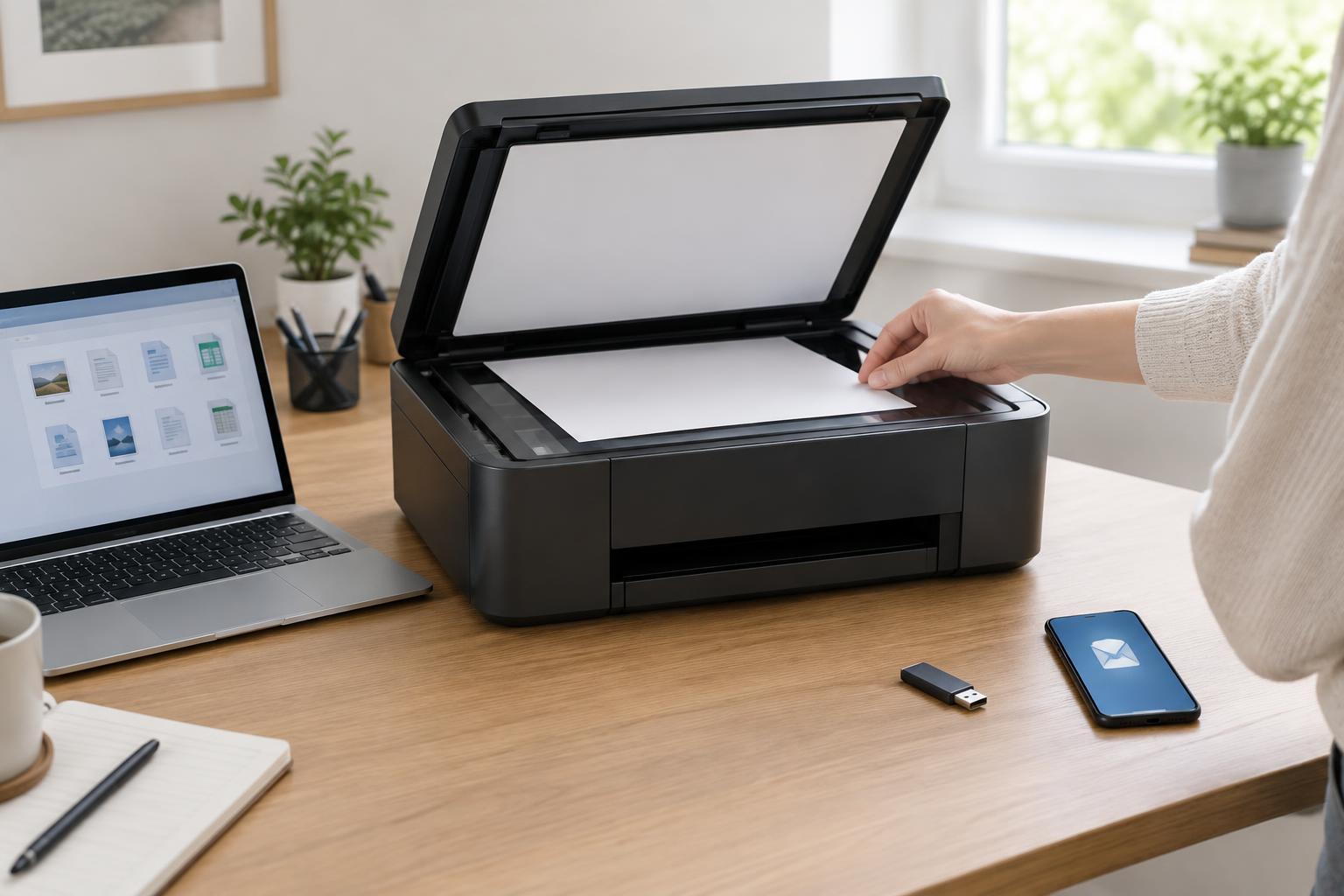
Scan to email can reduce steps when the goal is to send a document to a recipient. On some printers, the device sends the message directly after an email service has been configured. On others, an email option may simply open a message on a connected computer with the scan attached. Knowing which method your equipment uses helps you troubleshoot it and understand where a copy of the file might be stored.
Email is useful for a short document that someone needs promptly, but attachments may be subject to size limits. A large set of pages scanned at high resolution can be harder to send. Check the recipient address, page order, readability, and attachment before sending; a successful scan does not guarantee a successful delivery.
Use extra care with documents containing personal or confidential information. Email may leave copies in sent folders and inboxes, and an incorrect address can expose the file to the wrong person. If your organization has an approved sharing process, follow it instead of choosing email merely because it is the fastest button.
Scan to USB: useful when you need a portable file
With scan to USB, you insert a compatible USB drive into the printer and save the scan directly to it. This can be handy when the computer you want to use is unavailable or when you need to carry a file to another workspace. It can also avoid setting up an email destination or a scan-to-computer connection, provided the printer supports direct USB scanning.
The trade-off is that you must keep track of the physical drive. Remove it safely when the printer has finished writing, then open the file on a computer to confirm it saved correctly. A lost drive may expose sensitive documents, so use an approved storage method for confidential material and avoid leaving the drive in a shared printer.
USB scanning may offer fewer opportunities to inspect or rename a file before it is saved. If you scan several documents, use clear filenames where the printer allows them, or sort the files soon afterward so that similar-looking scans do not become difficult to identify.
Match the destination to the task, then check the result
Choose computer when you need to edit, search, rename, or file a scan carefully. Choose email when direct delivery matters and the attachment is suitable for email. Choose USB when portability or independence from a particular computer is the priority. For a shared office, the best default may be the option that fits its access and document-handling rules, not the one with the fewest taps.
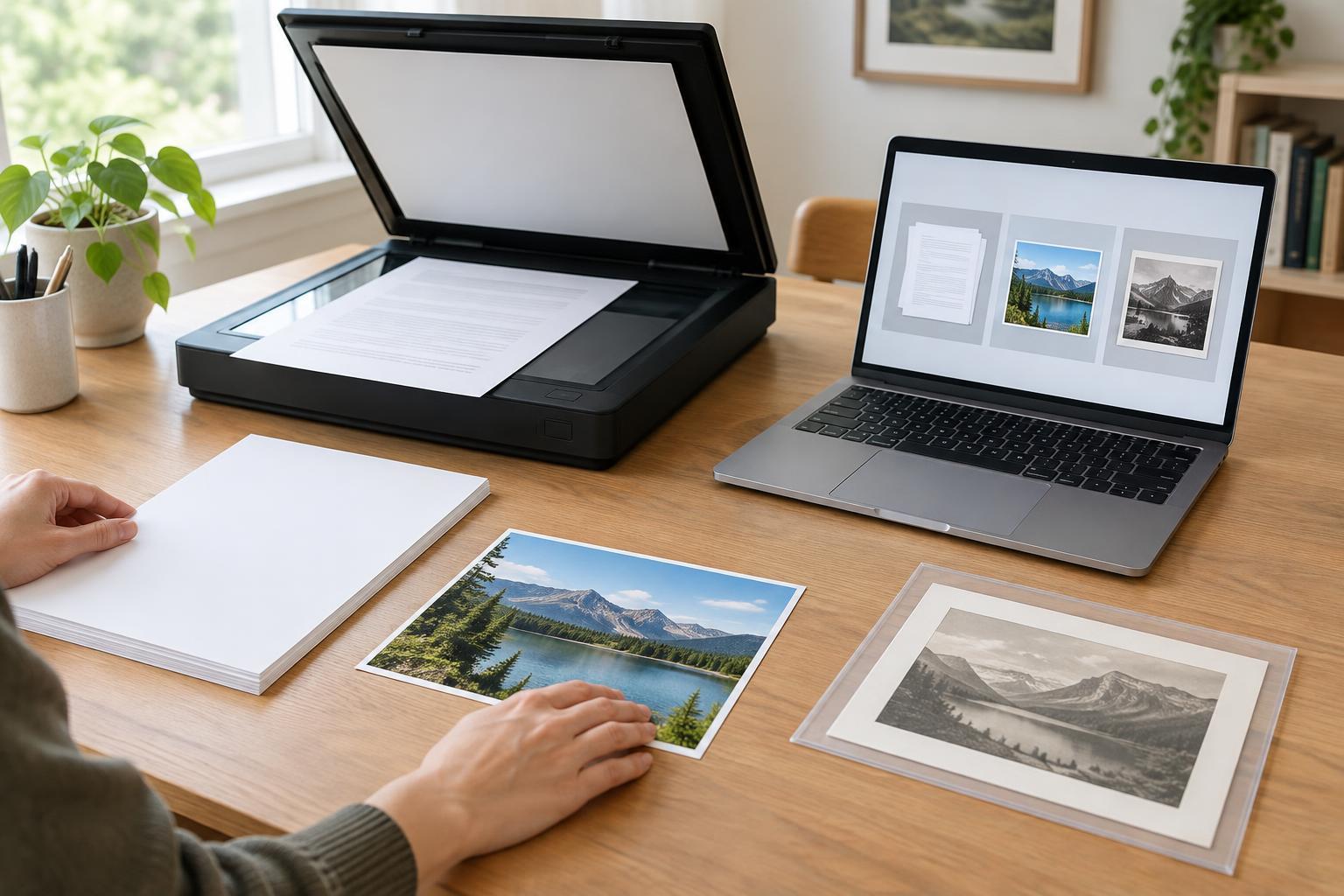
Whichever destination you use, set the file type and scan settings for the document. PDF is often convenient for multipage records, while an image file may suit a single photograph or graphic. Higher resolution can improve legibility in some cases but also produces larger files. A quick test scan helps you find a useful balance before processing a long stack.
Finally, verify the result at its destination. Open the file, check every page and orientation, and make sure small text is readable. Only then should you discard a paper original if your document-retention requirements permit it. A dependable scanning workflow ends with a usable file, not merely a confirmation on the printer screen.