What OCR actually does
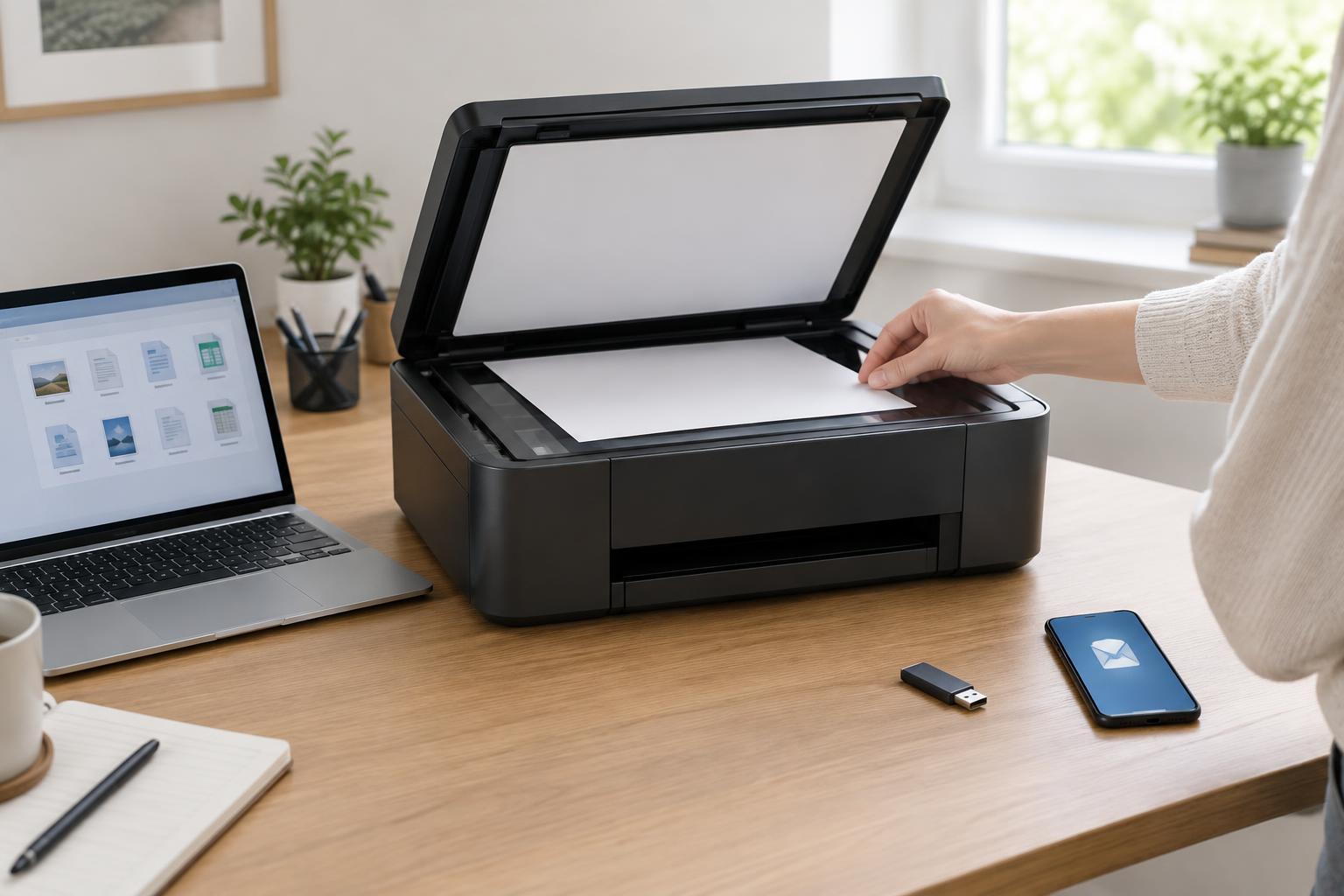
A scan is usually an image of a page. You can look at the words, but a computer may not be able to search, copy, or edit them as text. Optical character recognition, or OCR, examines the shapes in that image and produces characters it thinks they represent. Depending on the software, the result might be an editable text file, a document with recognized text, or a searchable PDF that still looks like the original scan.
Those outputs serve different purposes. A searchable PDF is useful when you want to find a name or phrase while keeping a visual copy of the page. Editable text is useful when you need to reuse content, but it may need formatting work. OCR does not establish that the words are correct. It makes a best-effort reading of the image, so the original page remains the reference when accuracy matters.
What OCR tends to read well
OCR generally has an easier job with clean, printed text: a flat page, even lighting, clear contrast, and a familiar typeface. A typed letter or a neatly printed instruction sheet is usually a better candidate than a crumpled receipt or a phone photo taken at an angle. The quality of the source matters as much as the OCR tool. Enlarging a blurry scan will not restore detail that was never captured.
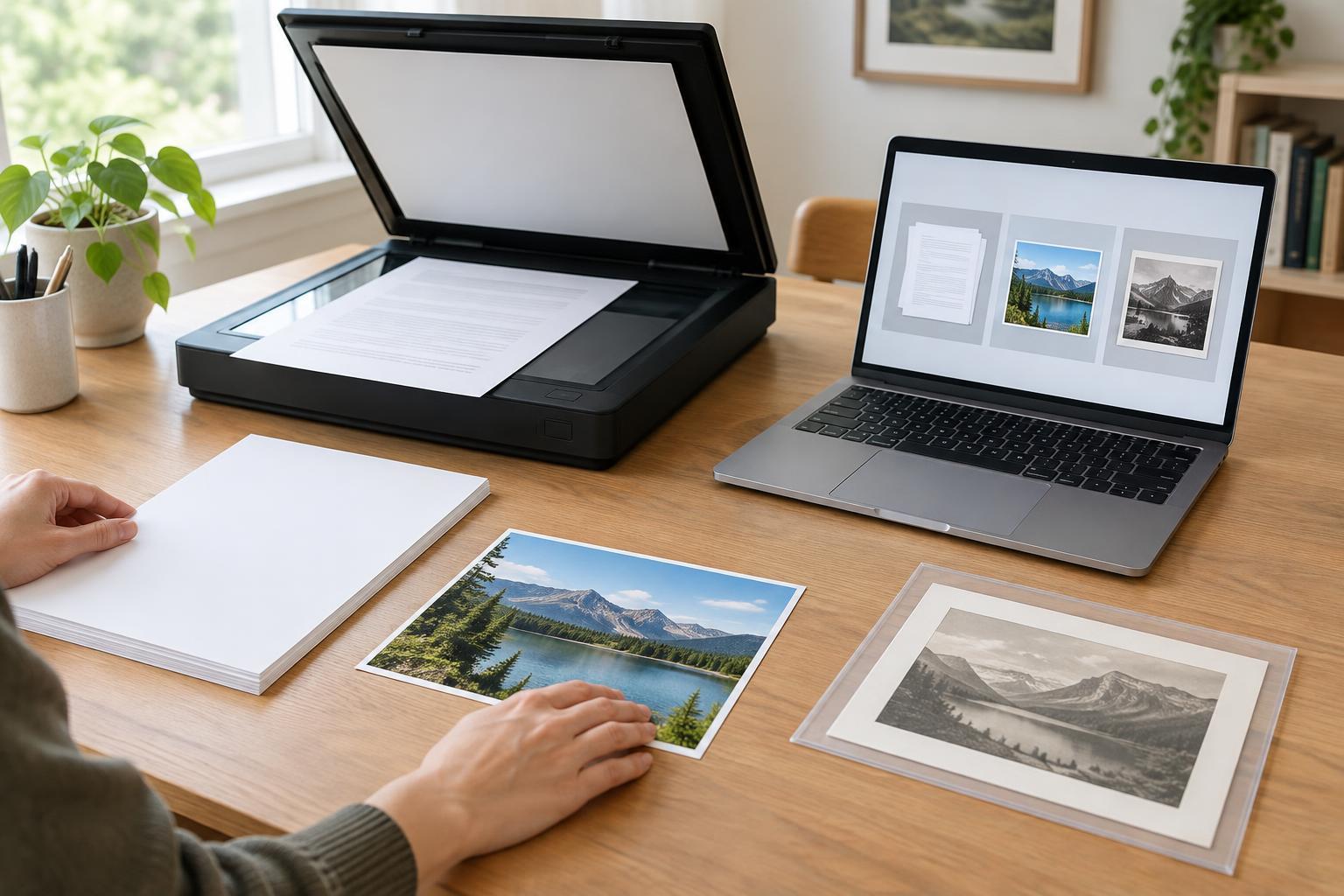
If you control the scan, start with a clean page and align it squarely. Check the preview for cropped edges, shadows, faint print, or text showing through from the other side. Choose a scan setting that leaves small characters legible without creating an unnecessarily large file. For a phone capture, place the page on a contrasting surface, use steady, even light, and review the image before running OCR. These steps make errors easier to avoid than correcting a poor capture afterward.
Where recognition becomes unreliable
OCR can confuse characters that look alike, such as 0 and O, 1 and l, or 5 and S. Small footnotes, faded ink, decorative fonts, stamps, and handwritten notes can be difficult to recognize. It may also struggle when text crosses a fold, lies under a mark, or appears on a patterned background. Handwriting support varies by tool and by how clearly the writing is formed; do not assume that a readable-looking handwritten note has been transcribed correctly.
Layout creates another kind of error. On a page with columns, sidebars, tables, or labels beside values, OCR may capture individual words but put them in the wrong reading order. A price can become detached from its item, or a form answer can appear under the wrong question. Some tools preserve a page’s appearance better than others, but a tidy-looking result is not proof that the extracted text or its sequence is accurate.
A practical way to check the output
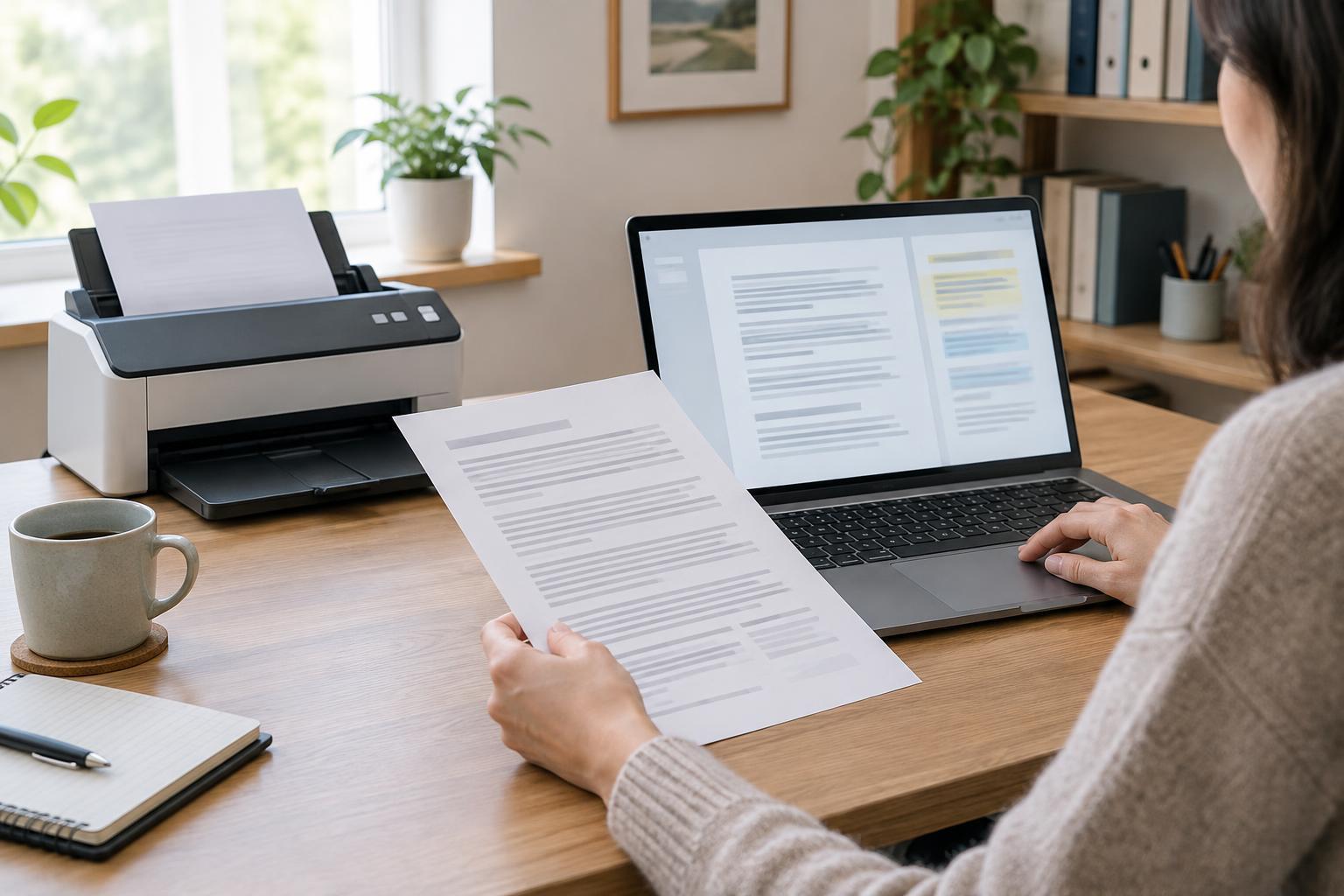
First, keep the original image or scan and open it beside the OCR result. Make a quick pass for completeness: are all pages present, and are any headings, columns, table rows, or notes missing? Then search the recognized text for a few visible phrases from different parts of the document. This helps reveal sections that were skipped even if the first page looks fine.
Next, check high-impact details character by character. Compare names, addresses, dates, quantities, totals, reference numbers, and email addresses against the image. Look especially closely at similar-looking characters and at text near folds, edges, stamps, or faint areas. If the content will be copied into another system, check it again in that system: pasting can introduce its own line-break or field-placement problems.
For a table or multi-column page, do not review only whether the words are present. Trace each row or column against the original to confirm which values belong together. If a portion cannot be read confidently, mark it for manual review rather than guessing. The time spent checking should match the consequence of an error: a personal search copy may need a spot check, while figures used in an invoice or customer record deserve a more thorough comparison.
Build OCR into a sensible document workflow
Decide what you need before processing a stack of pages. If the goal is retrieval, a searchable PDF with the page image intact may be enough. If the goal is editing, expect to correct both wording and layout in the converted document. Test the workflow on a representative page before scanning a large batch, especially if the pages include tables, small type, or mixed layouts.
Use clear file names so you can find both the original and the reviewed version, and avoid overwriting the source scan while making corrections. If a document contains private information, consider where the OCR processing happens and who can access the resulting files before uploading it to a service. OCR is a helpful shortcut for finding and reusing text, but a reliable workflow leaves room to compare the result with the page it came from.