Why the output tray matters
Shared printers are convenient because several people can send jobs to one device. The trade-off is that a document may finish printing before its owner reaches the machine. A visitor, coworker or contractor walking past the output tray could see a name, address, customer record or draft business plan. Even an accidental glance can be a problem when a document was meant for a limited audience.
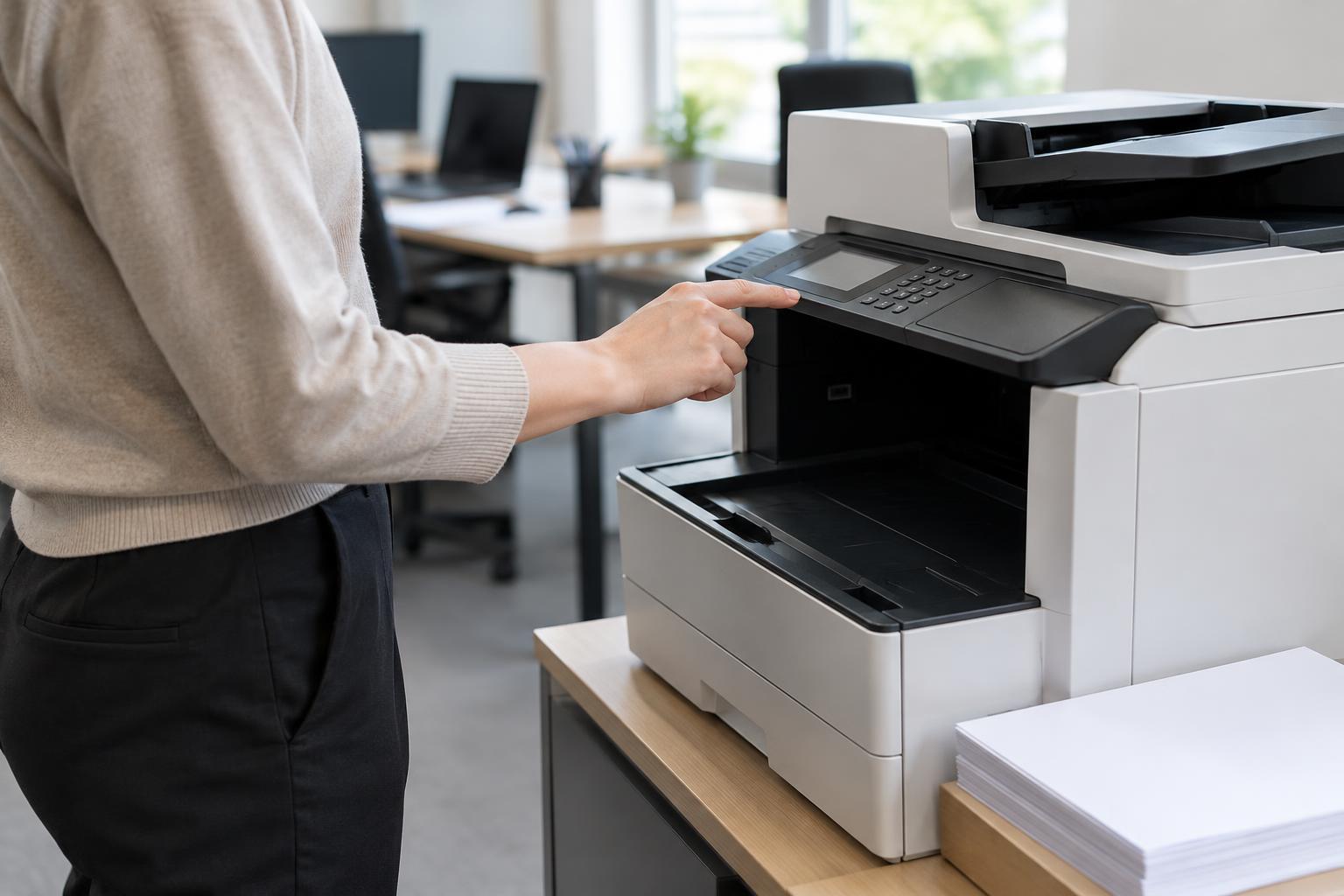
PIN printing addresses that particular gap. Instead of printing as soon as the job arrives, a compatible printer holds it. The sender goes to the printer, selects the job and enters a personal identification number to release the pages. This is often called secure print, private print or held print, though the names and exact behavior vary by printer. The practical benefit is simple: the owner can be present when the pages come out and take them away promptly.
How a PIN print job works
In a typical setup, the user chooses a secure or held-print option in the computer’s print settings, assigns a PIN and sends the job. At the printer’s control panel, they find the held job, enter the PIN and choose Print. Some devices let users delete the job from the panel instead. If several people share the printer, job names or usernames can help each person identify the right document without releasing someone else’s pages.
The details are worth checking before relying on the feature. A printer may store held jobs in memory or on a drive, and its settings determine what happens after a restart, after printing or after a job sits unclaimed. Some models delete released jobs automatically; others offer an option to retain them for another print. For documents that should not be printed again, choose deletion after release when that option is available. An automatic expiration period for unclaimed jobs can also help keep the queue manageable.
A practical setup for a small office
Start with one test document that contains no sensitive information. On each computer that uses the printer, look in the print dialog or printer preferences for a setting such as Secure Print, Private Job or Job Storage. Select the setting, enter a PIN if prompted and send the test. Then walk to the device and confirm that nothing prints until the code is entered. This checks the complete path, not just the setting displayed on a computer.
If the option is missing, check that the computer is using a driver that supports the printer’s held-job features. A basic printing setup may expose fewer controls than the printer provides. Also check the printer’s own settings: job storage may need to be enabled, and some devices require storage hardware or an administrator to configure the feature. For a team, write down the steps for both sending and releasing a job, since a held document is easy to mistake for a failed print.
What PIN printing does not protect
A PIN reduces the chance that a document will sit unattended in the output tray, but it is not a complete document-security system. Someone who knows or observes the PIN may be able to release the job. A short code reused by a whole office provides less control than a code known only to its sender. People should shield the keypad when entering a PIN and avoid leaving the printed pages behind after release.
PIN release also does not automatically protect the file on the sender’s computer, secure every step of its journey to the printer or control what happens to copies after printing. Those depend on the equipment, connection and office practices. For documents requiring stronger controls, an organization may need other measures, such as individual user authentication, managed access to the device and appropriate handling or disposal of paper. Treat PIN printing as one useful safeguard for the moment of collection.
Make secure release easy to use
A safeguard works best when it fits the daily workflow. Place the shared printer where people can collect pages without disrupting others, and provide a nearby spot to sort documents without leaving them exposed. Ask users to check their print settings before sending sensitive jobs, particularly after changing computers or reinstalling a printer. A brief reminder beside the device can explain how to find held jobs without displaying anyone’s PIN.
If jobs seem to disappear, first check whether they are in the held queue rather than the ordinary print queue. If they remain stuck, verify the selected printer, the job name and any expiration setting before sending duplicates. For routine, low-sensitivity pages, immediate printing may be simpler. For documents that should go straight from printer to owner, PIN release adds a small step at the device in exchange for a more controlled handoff.