Start with who needs to print
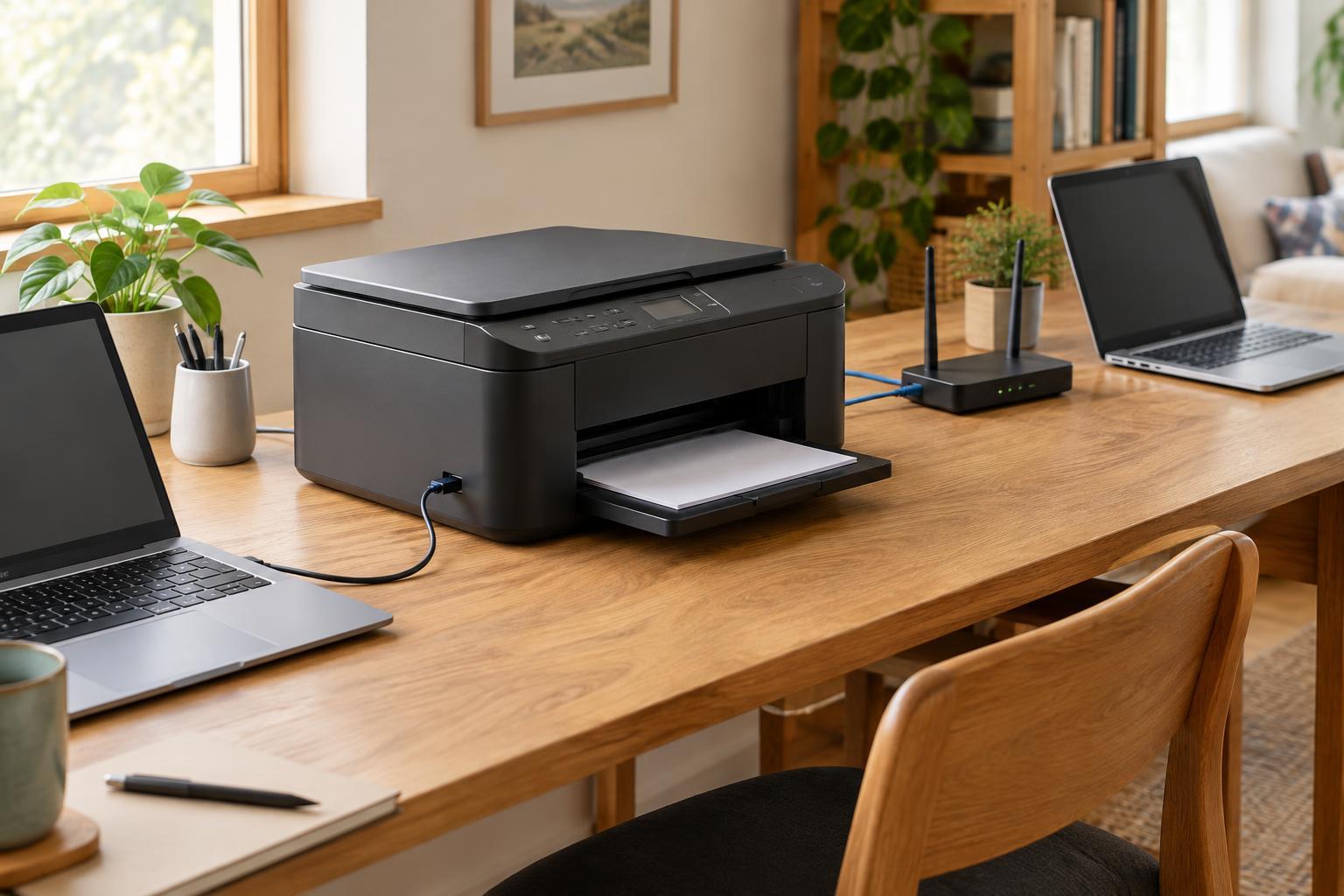
The best connection depends less on the printer than on the people and devices using it. If one computer does nearly all the printing and sits beside the printer, a USB cable may be the simplest choice. If several computers or phones need access, connecting the printer to the office network through Wi-Fi or Ethernet is usually more convenient.
Check the printer’s specifications before planning around a connection type. Not every model has an Ethernet port, and wireless features vary. Also check which devices and operating systems it supports. A network connection makes a printer reachable, but it does not guarantee that every device can use every printing or scanning feature.
USB: straightforward for one nearby computer
A USB connection runs directly from the printer to a computer. It avoids Wi-Fi signal problems and does not require the printer to join a network. That makes it a practical option for a dedicated desk, especially when the printer and computer can stay close enough for a suitable cable.
The trade-off is access. Other people generally cannot print to a USB-connected printer unless the attached computer shares it over the network and remains available. That adds a computer and its sharing settings to the path between the user and the printer. If several people regularly print, a printer with its own network connection is often easier to manage.
USB can also be useful as a fallback when diagnosing a network problem: if a supported computer prints successfully over USB, the printer mechanism is probably not the source of that particular connection failure. It does not, however, prove that the printer’s network settings or wireless hardware are working.
Wi-Fi: flexible placement, with network conditions to consider
Wi-Fi lets a compatible printer join a wireless network without a cable running back to the router or network switch. It can be a good fit when the printer belongs on a shelf away from the router or when a home office has no nearby network jack. Computers and phones on the same office network may then be able to print, subject to the printer’s features and each device’s setup.
Placement still matters. A printer in a weak-signal area may lose its connection or respond inconsistently. Walls, distance, and changes to the router’s network name or password can affect access. Some printers also offer Wi-Fi Direct, which allows a device to connect directly to the printer; that is different from putting the printer on the normal office network and may be less convenient for routine shared use.
Before choosing Wi-Fi for a shared space, consider whether everyone uses the same trusted network. Guest networks and network isolation settings can prevent devices from finding a printer, even when they appear to have internet access. Review the printer’s supported wireless security options and keep its firmware updated using the manufacturer’s instructions.
Ethernet: a wired network option for shared use
Ethernet connects the printer to a router or network switch with a network cable. Once set up, the printer can serve multiple devices on that network. Those devices do not all need Ethernet cables: a laptop on the office Wi-Fi can often print to an Ethernet-connected printer if the wired and wireless parts of the network allow them to communicate.
A wired connection avoids Wi-Fi signal issues at the printer, making Ethernet appealing for a shared printer that stays in one place. The limitation is physical: the printer needs an Ethernet port and a practical cable route to the network. Ethernet does not fix every printing problem, since device drivers, printer settings, and network configuration still matter.
Make the choice easy to maintain
For a single-computer desk, start with USB if cable placement works. For a printer shared by several people, choose Ethernet when a network cable is easy to provide; otherwise, Wi-Fi offers more placement flexibility. If scanning is important, confirm how the printer sends scans to each intended device before settling on a setup. Printing successfully from a device does not necessarily mean scanning to it is configured.
Whichever connection you choose, add the printer on each device using its normal printer setup process, then test a short print job. For a network printer, note its displayed network name or address and keep it on the intended office network. If it later appears offline, first check power, cables or Wi-Fi status, and whether the device trying to print is on the right network. These basic checks often narrow the problem before you reinstall anything.