First, identify where the blank page appears
An automatic document feeder, or ADF, pulls originals past a scanner so you can scan or copy a stack without placing each sheet on the flatbed glass. When the result is blank, the first question is whether the blank page is in a saved scan, a printed copy, or both. That distinction can keep you from troubleshooting the wrong part of the machine.
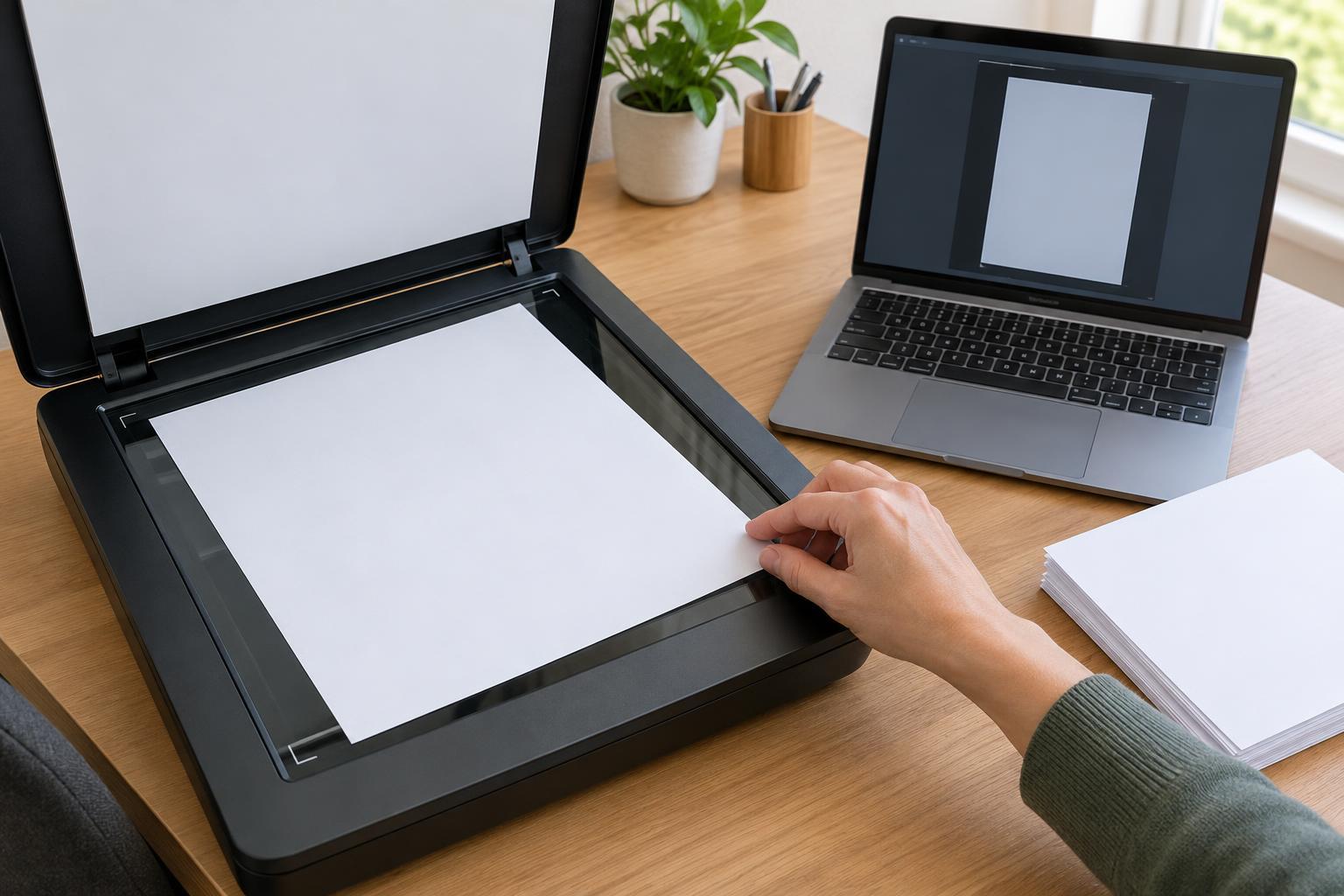
Make a test with one sheet that has large, dark text on one side. Scan it through the ADF and look at the file on your screen before printing it. If the file is blank, focus on loading, scan settings and the scanner. If the file looks correct but a printed copy is blank, the issue is more likely in the printing stage. If flatbed scans work but ADF scans do not, you have narrowed the problem to the feeder path or its settings.
Check which side of the original the ADF reads
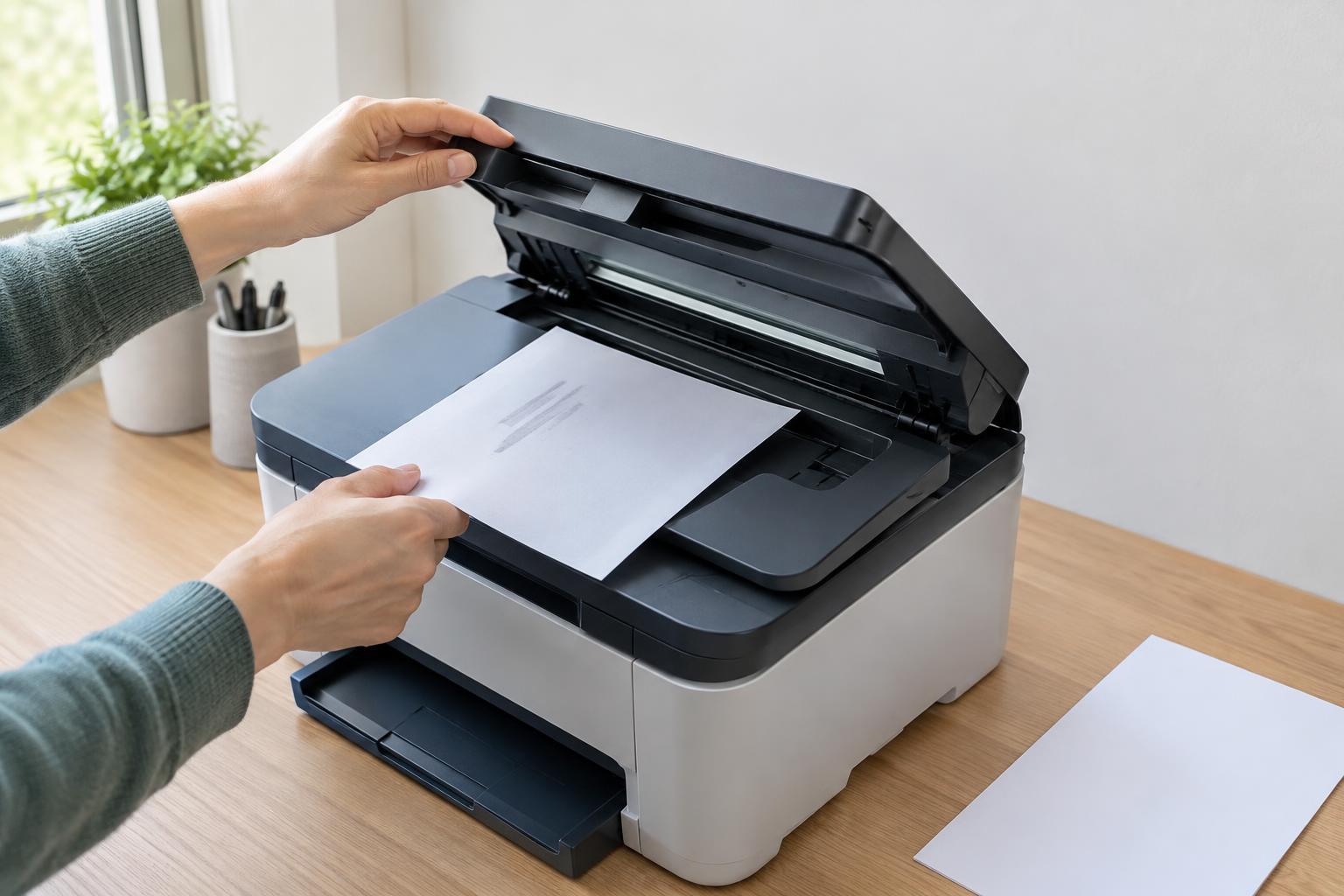
Page orientation is the quickest check and one of the easiest to miss. Some feeders read the side facing up; others read the side facing down. Look for the small page diagram near the input tray rather than assuming your current machine works like another model. Reload the single test sheet with its printed side facing the indicated direction and try again.
Square the sheet against the tray guides without squeezing it. A page that enters at an angle may not be read as expected, and sheets that stick together can make the result confusing. For a larger stack, fan the pages gently and remove staples, clips and sticky notes first. If the feeder takes the sheet but the output is blank, watch whether the original actually travels through the ADF or stops before scanning begins.
Review source, sides and blank-page settings
In the scan or copy menu, confirm that the selected source is the document feeder. Some apps retain the last source used, such as the flatbed, even after you load pages into the ADF. Try starting a scan from the machine’s control panel as well as from your computer, if both options are available. A difference between those results can point to an app setting rather than a feeder fault.
Next, match the sides setting to the originals. With one-sided documents, choose one-sided scanning for the first test. A two-sided setting can create a blank image for the empty back of each sheet; that is different from failing to capture the printed front. Conversely, if only the backs of two-sided originals are blank, check that your machine supports two-sided ADF scanning and that the appropriate option is selected.
Look for features named “remove blank pages,” “skip blank pages” or similar. These normally omit empty images rather than create them, but an aggressive sensitivity setting might treat faint text or pale marks as blank. Temporarily turn that feature off. Also try a normal document preset instead of a custom one with unusual brightness or contrast settings.
Inspect and clean the ADF scanning area
If the same test page scans correctly on the flatbed but remains blank through the ADF, check the scanning area used by the feeder. On many machines, that is a narrow strip of glass beside the main flatbed glass. Open the scanner lid and look for dust, correction fluid or other residue on the strip and the surface opposite it. Follow the machine’s cleaning instructions; generally, a soft, lint-free cloth is safer than spraying liquid directly onto the glass.
Cleaning the strip is especially useful for streaks, but it is still worth checking during a blank-page investigation because residue can interfere with reliable scanning. Let any cleaned surface dry before closing the lid. Avoid forcing feeder covers or reaching into moving parts. If you see a paper scrap in an accessible jam area, use the machine’s jam-clearing directions to remove it.
Use a repeatable test before deciding what to do next
After each change, scan the same clearly printed page and inspect the saved image. Change one thing at a time so you know what helped. Once the front scans correctly, test a short two-sided document if duplex scanning is part of your usual workflow. Then restore conveniences such as blank-page removal and check that the result still contains every page you need.
If every ADF scan is blank despite correct loading and settings, while the flatbed consistently works, check the machine’s manual for an ADF-specific diagnostic or cleaning procedure. A restart may clear a temporary error, but repeated failures may need service. Meanwhile, the flatbed can provide a slower workaround for important pages. For a recurring office task, keep a note of the working source, sides and page-orientation settings so the next stack starts with a reliable setup.