First, identify what is missing
“Scanner not detected” can describe two different problems: your computer does not see the device at all, or one scanning app cannot see a device that other apps can use. That distinction saves time. If your printer or multifunction device appears in system settings but not in your preferred scanning app, start with the app and its permissions. If it appears nowhere, start with power and connections.
Make sure the scanner is on, awake, and showing no error that needs attention. If it has a screen, check for a paper jam or setup message. Close and reopen the scanning app, then restart the scanner and computer if the device is still missing. Restarting is a useful early test, but note what changes: a scanner that disappears again after waking from sleep may need a different fix from one that has never connected.
Check the physical or network connection
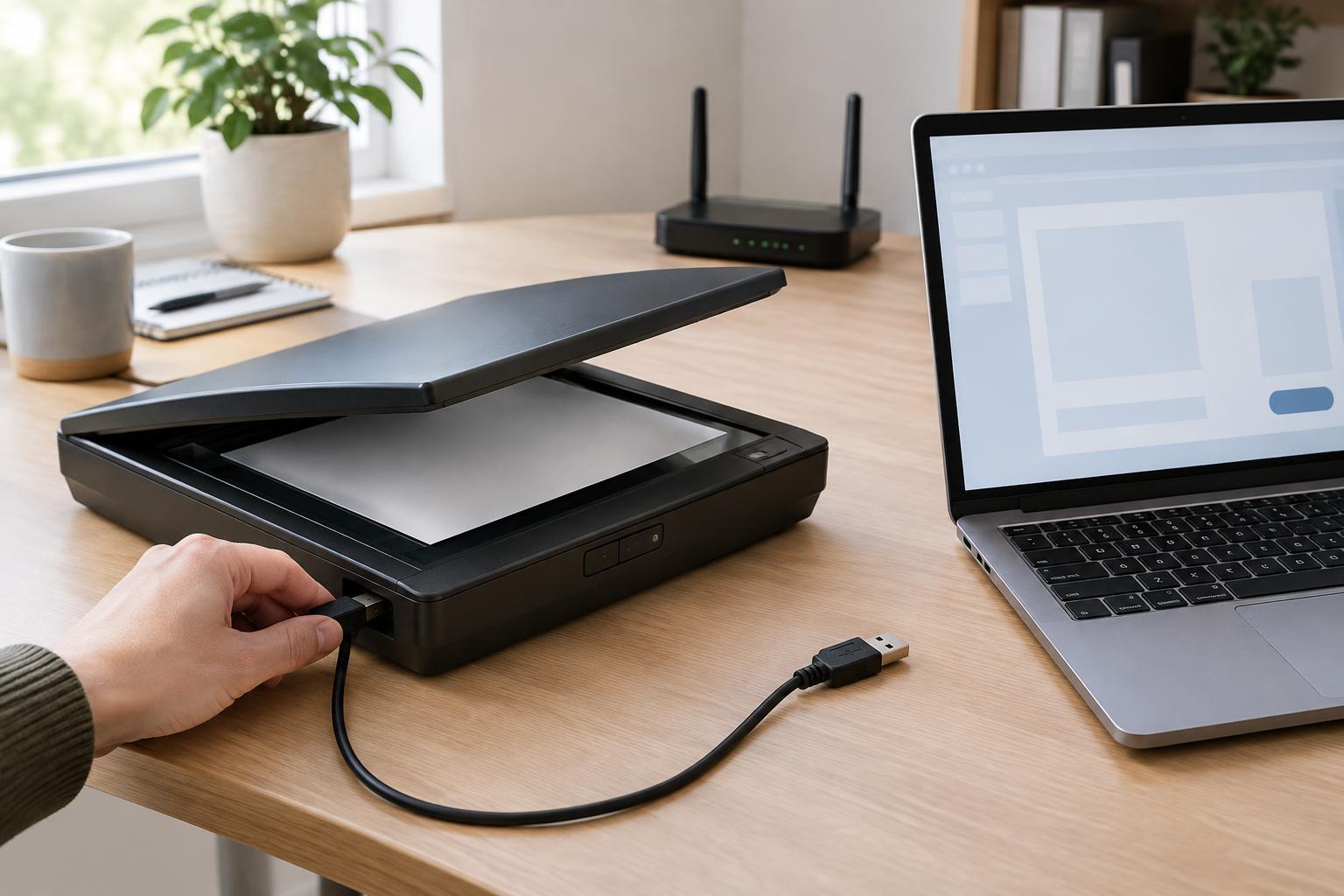
For a USB scanner, reseat the cable at both ends and try a different USB port on the computer. If possible, connect directly rather than through a hub or dock while testing. A cable can supply power yet still fail to carry data reliably, so trying another compatible cable can be worthwhile. After reconnecting, give the computer a moment to recognize the device before reopening your scanning app.
For a network scanner, confirm that both the scanner and computer are connected to the intended network. A computer on a guest network may not be able to reach devices on the main network. Check the scanner’s network status on its display or settings page if one is available. If you know how to open your router’s device list, it may also help you confirm whether the scanner has joined the network. Avoid changing firewall settings as a first step; establish that the scanner is connected before investigating software that might block it.
See whether the computer recognizes the scanner
Open your operating system’s printer and scanner settings and look for the device. A multifunction printer may appear under a printer name even when you want to use its scanner. If it is listed, try the operating system’s built-in scanning tool. A successful scan there suggests the connection and basic scanner support are working, and points you toward a problem with your usual app instead.
If the scanner is absent, use the system’s option to add a printer or scanner. For a network model, make sure you select the correct device if several similar names appear. If the device is listed but shows as unavailable, remove it and add it again only after confirming the connection. Keep in mind that printing successfully does not always prove scanning is configured: the two functions may use different software or discovery methods.
Review drivers, scanning software, and permissions
A driver helps the operating system communicate with the scanner. After an operating system update, a device change, or a fresh computer setup, the installed driver may be missing or unsuitable. Check the scanner maker’s support information for software intended for your exact model and operating system. Prefer the maker’s official download or your operating system’s update tools over an unfamiliar driver site. If you install or update software, restart when prompted and test again before changing other settings.
If the system can scan but a particular app cannot, check that app’s scanner selection. It may be set to an older device or a virtual scanner. Also review operating system permissions for the app, especially access related to cameras, local-network devices, or files where scans are saved; the relevant controls vary by platform and app. Grant only permissions needed for the task, then quit and reopen the app. If a scan starts but cannot be saved, the issue may be access to the destination folder rather than scanner detection.
Use one simple test to narrow the next step
Try scanning a single page with a built-in scanning tool or the manufacturer’s app, using a straightforward save location such as your documents folder. If one app works and another does not, focus on the failing app’s settings or reinstall it. If no app works on your computer but the scanner works from another computer, focus on your computer’s connection, driver, or permissions. If no computer can find it, return to the scanner’s status and network connection.
Change one thing at a time and retest so you know which step helped. If the device remains unavailable, record its model, connection type, any error message, and the steps you tried before contacting the manufacturer or your office’s IT support. That short record can make the next round of troubleshooting more focused.