First, notice when the printer slows down
The most useful clue is where the wait happens. Does the printer pause before the first page, stop between pages, or move paper slowly throughout the job? Each pattern points to a different place to look. A delay before printing may involve the computer preparing the file, a crowded print queue, the network connection or the printer warming up. A pause between pages may mean the printer is processing a complex document. Consistently slow paper movement is more likely to be related to a print mode or paper setting.
Start with a simple test: print one page of ordinary text using the settings you normally use. Then compare it with the job that seems slow. If plain text prints promptly but a photo-heavy PDF does not, the file or its selected quality is a better starting point than the printer hardware. If every job is slow, check the printer’s settings and connection first.
Check quality and paper settings before anything else
Open the print dialog and look for a quality setting such as Draft, Standard, Normal, Best or High Resolution. Higher-quality modes can take longer because the printer uses more detailed processing, more ink passes or a slower printing method. For everyday text, try Standard or Normal. Draft can be useful for an internal review copy, though the result may be lighter or less crisp. Keep a higher-quality setting for work that needs it.
Next, confirm that the selected paper type matches what is loaded. Choosing photo paper or another specialty stock may tell the printer to use a slower method suited to that material. Do not change the setting merely to force more speed when you are actually using specialty paper; a mismatch can produce poor results. Also check whether two-sided printing is enabled. Automatic duplex printing may pause while each sheet is turned or the ink dries. If speed matters more than saving paper for a particular job, compare it with a single-sided print.
Look at the job and the print queue
Large images, detailed graphics and some PDFs take more time to prepare than a plain text document. A file may appear to be only a few pages long but still contain high-resolution images or complex page elements. If one document is the problem, try printing a small page range rather than repeatedly sending the whole file. Where appropriate, exporting a fresh PDF or using a lower image-quality option may help, but keep the original if fine detail matters.
Check the computer’s print queue for earlier jobs that are paused, stuck or waiting for attention. Clear only jobs you no longer need, then send one test page. If several people share the printer, another person’s job may be ahead of yours. Sending the same document again and again can make the wait longer and create unwanted copies once the queue starts moving.
Compare the connection and the printer itself
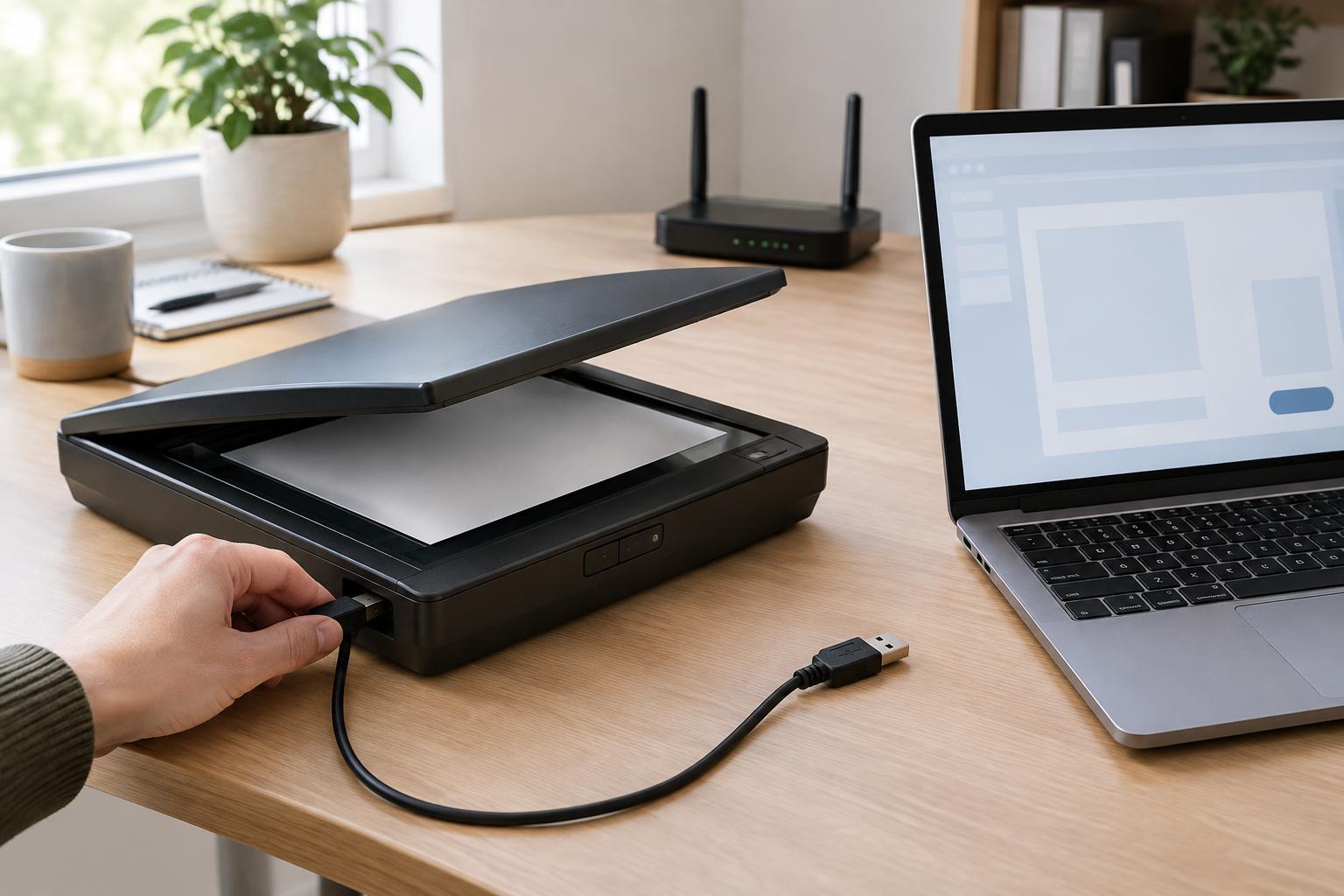
If the printer waits a long time before starting, try a small test job from a device near the printer. For a wireless printer, a weak or inconsistent connection may delay the transfer of a job. Check that the computer and printer are connected to the intended network and that the printer has not been set to offline mode. If you can safely use a compatible cable, a temporary wired test can help separate a connection issue from a printing issue.
Printers also have limits that settings cannot remove. A compact device may take longer to handle a large, graphics-heavy job than a model designed for frequent office printing. Some printers pause for warm-up or routine internal maintenance, especially after sitting idle. If the printer shows an error or supply warning, address that message before judging its speed. Avoid repeatedly switching the printer off during an active job or maintenance cycle.
Use a short, repeatable troubleshooting routine
Change one thing at a time so you can tell what helped. Print a plain-text test page, then check quality mode, paper type and duplex mode. Review the queue before trying the slow document again. If only that document is affected, test a smaller portion of it. If all jobs are delayed before the first page, check the connection and restart the printer and computer when neither is processing a job.
If the slowdown began after a settings change, restore the previous setting where possible. If it persists across different files and devices, consult the printer’s built-in status screen or its manufacturer’s troubleshooting guidance for that model. Keeping a note of which jobs are slow, where the delay occurs and which tests you have tried makes the next step much easier than treating every slow page as the same problem.