Start with one page and a preview
When a scan comes out crooked or loses part of the page, avoid repeating the entire job with random settings changes. Choose one representative sheet and make a preview scan. Look for which edges are missing, whether the page is rotated, and whether the image is tilted within an otherwise straight scan area. Those details help distinguish a placement problem from a crop or orientation setting.
If your scanner offers both a flatbed glass and an automatic document feeder, try the same page on each. A good flatbed scan and a crooked feeder scan point toward how the sheet travels through the feeder. If both scans cut off the same side, check the selected page size and scan area. Change one thing at a time and preview again; that way, you can tell which adjustment helped.
Place the document correctly on the glass
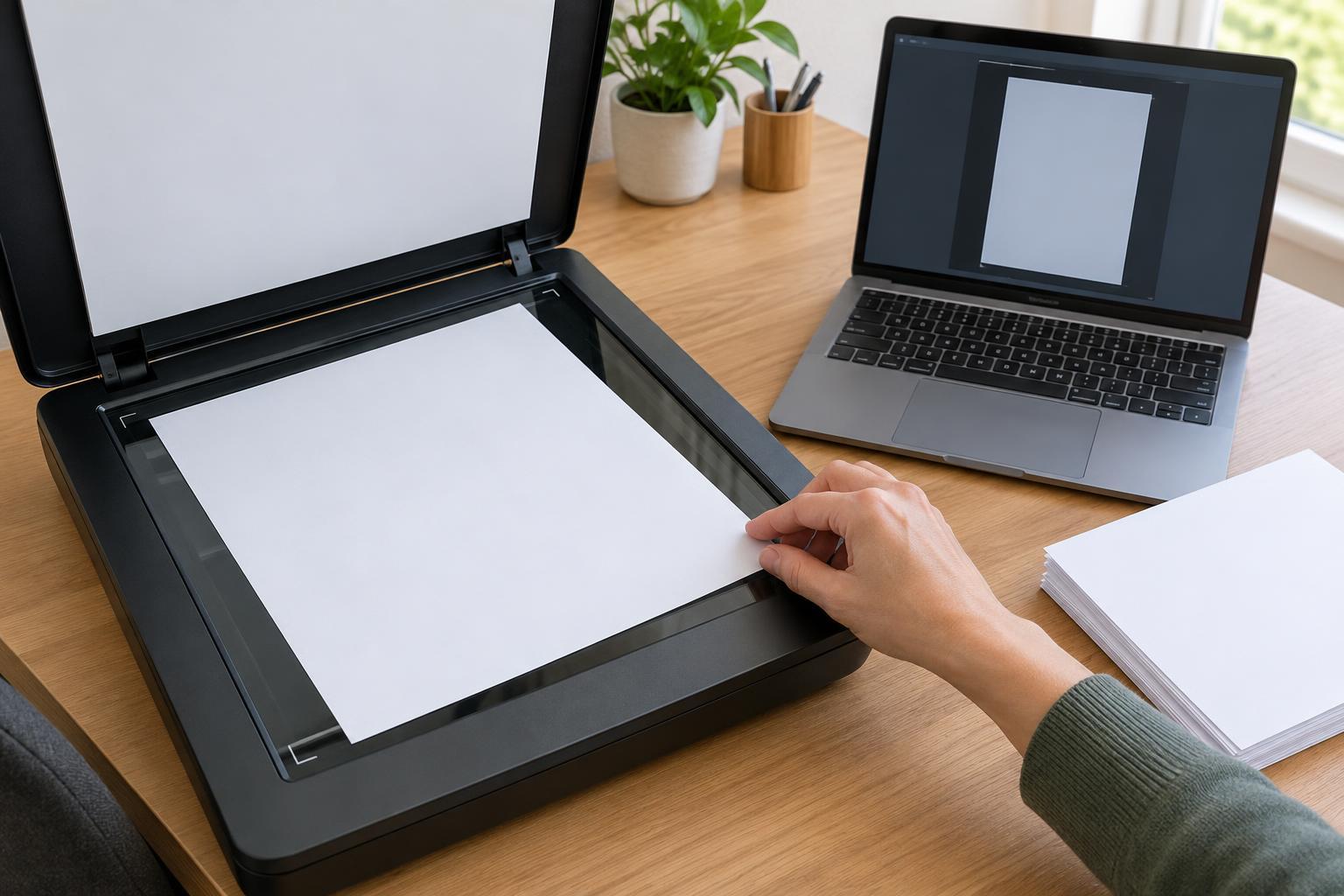
Lift the lid and find the alignment marks beside the glass. Place the document face down, with its corner against the indicated reference corner and its edges parallel to the marks. Do not assume the center of the glass is the scanning reference point. A page set at an angle may be captured at an angle, while a page extending beyond the usable scan area will be cut off regardless of the software settings.
Close the lid gently so the sheet does not shift. For a small receipt or an irregular item, use the preview to confirm that the entire item sits inside the selected scan area. If a curled page will not lie flat, flatten it as much as practical without damaging it. Check the glass and the white backing under the lid for dust or scraps that could interfere with automatic edge detection; clean them according to the equipment’s instructions.
Check how pages enter the feeder
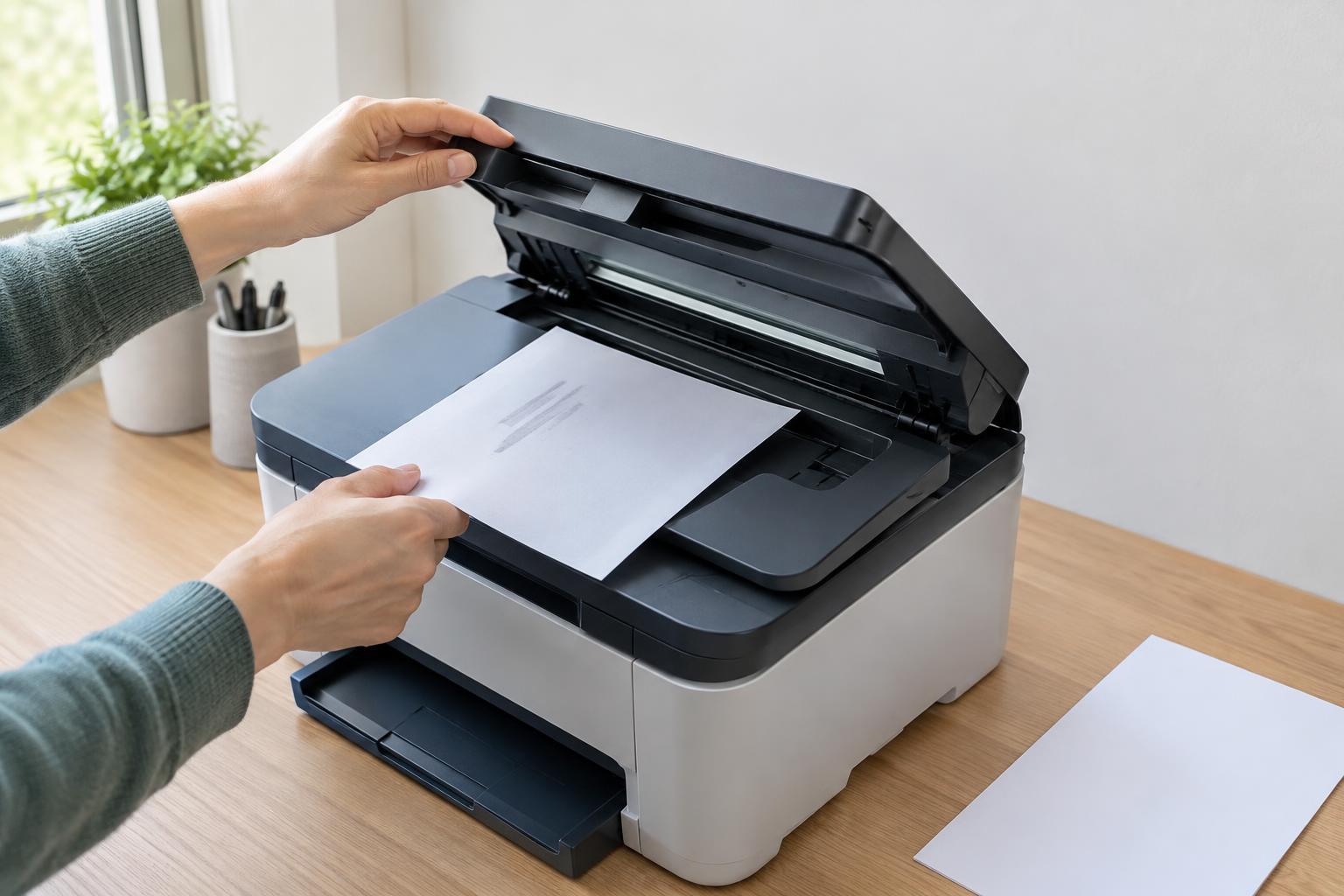
An automatic document feeder works best when pages enter straight. Square up the stack on a desk, remove folded corners, and slide the paper guides until they lightly touch both sides. Guides left too wide can allow pages to skew; guides pushed too tightly may bend or resist the paper. Follow the feeder’s markings for face-up or face-down loading and for which edge enters first.
Test with a single, ordinary sheet before trying a mixed stack. Thin receipts, curled pages, or sheets of different sizes can be harder for a feeder to handle consistently. If only those items scan crooked, the flatbed may be the more reliable choice. If every feeder scan tilts despite careful loading, inspect the accessible feed path for a small obstruction and consult the device’s instructions for cleaning or maintenance. Do not force a page through the mechanism.
Match the scan area and page settings
A correctly placed document can still look cropped if the software expects a different size. Check the selected paper size against the original, especially when switching between letter, A4, legal, and smaller items. Also check whether the software is using a fixed scan area drawn on the preview. If it is, expand or reposition that area to include the whole page.
Automatic crop and deskew features can save time, but they are not always reliable with faint edges, dark backgrounds, or pages containing large blank margins. If a preview trims off content, turn off automatic cropping temporarily and select the scan area yourself. Check orientation settings as well: portrait and landscape describe the shape of the output page, not a way to straighten a physically tilted sheet. Increasing resolution may improve detail, but it will not bring back an edge excluded from the scan area.
Confirm the fix before scanning the stack
Once the test page looks right, scan one or two more pages and inspect the saved files, not just the preview. Open them at a size where you can see all four edges. This catches problems that appear only after saving, such as a different crop applied by a scan preset or by the app handling the file.
If the problem returns, note whether it follows a particular page, the feeder, or a saved preset. That pattern gives you a useful next step: flatten or scan a troublesome page on the glass, revisit feeder loading for repeated tilts, or create a new preset with the confirmed size and crop settings. For recurring jobs, keep a sample page nearby so you can verify placement and settings before feeding a full stack.