Work out what looks blurry
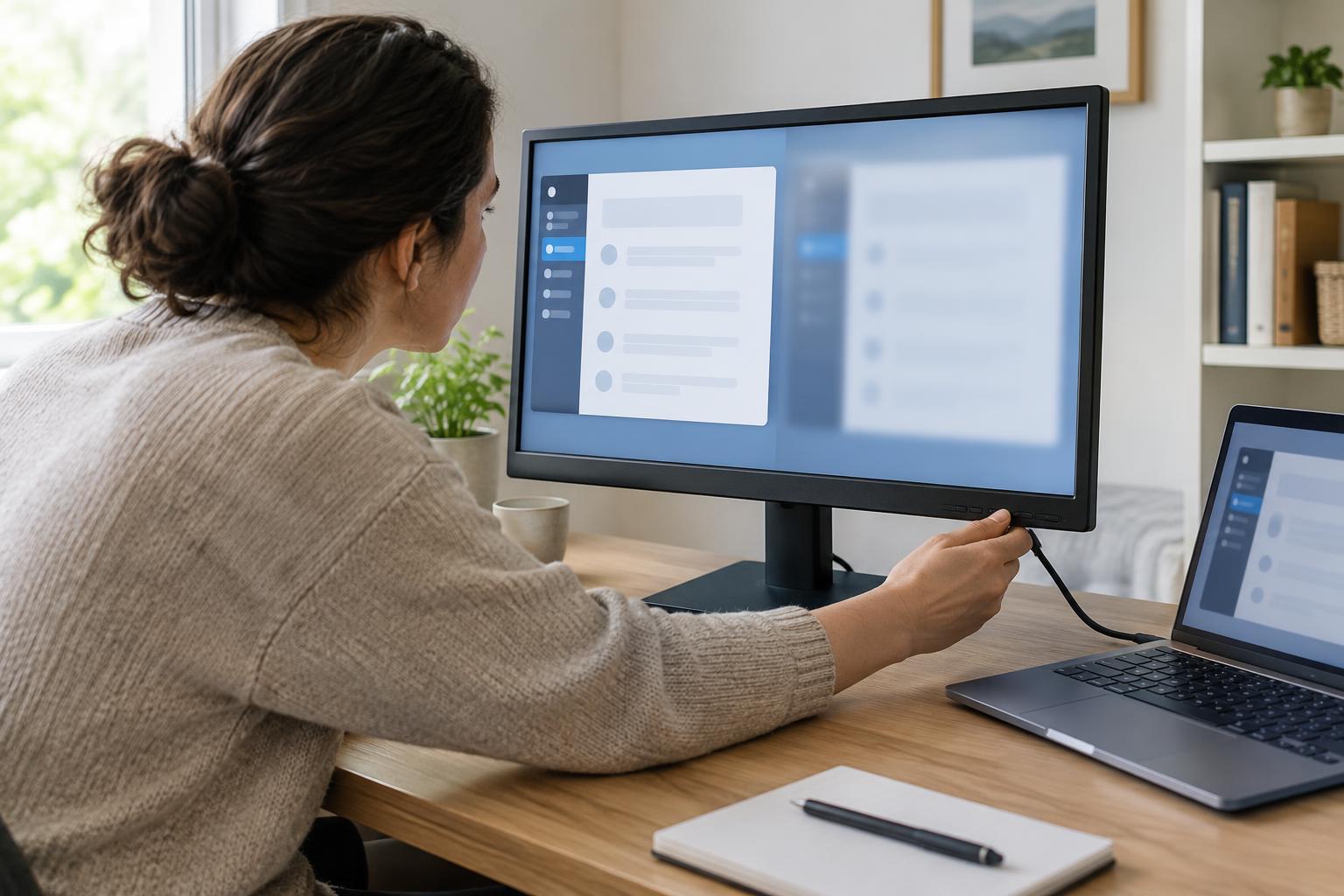
An external monitor can make menus, documents, and browser tabs look less crisp than they do on a laptop screen. Before changing settings, look at a few different things: text in a document, icons on the desktop, and the edges of application windows. If all of them look soft, the display resolution is a good place to start. If only one application looks blurry, its own zoom or display behavior may be responsible.
It also helps to distinguish small text from blurry text. Raising the display resolution may make everything smaller without making it easier to read. Scaling addresses size: it enlarges interface elements while aiming to preserve sharp edges. Application zoom is different again; it changes the contents of an individual app, such as a web page or document, without changing the whole desktop.
If you use both a laptop screen and an external monitor, compare the same text on each. A difference does not automatically mean the external monitor is faulty. The screens may have different sizes and pixel densities, so a comfortable setting on one may not suit the other.
Check the external monitor’s resolution
Open your computer’s display settings and select the external monitor, rather than the built-in screen. On Windows, look under Settings, System, Display. On a Mac, look under System Settings, Displays. Menu names can vary by software version. If the screens are arranged side by side in the settings window, use the identify option or move the pointer between them to confirm which one you are adjusting.
Check the resolution selected for that monitor. An LCD monitor is generally sharpest at its native resolution: the number of physical pixels in its panel. Display settings may label this choice as recommended or default. If a lower resolution is selected, the monitor or computer must stretch the image to fit, which can soften fine details such as letters. Try the recommended setting first, then examine text at your usual viewing distance.
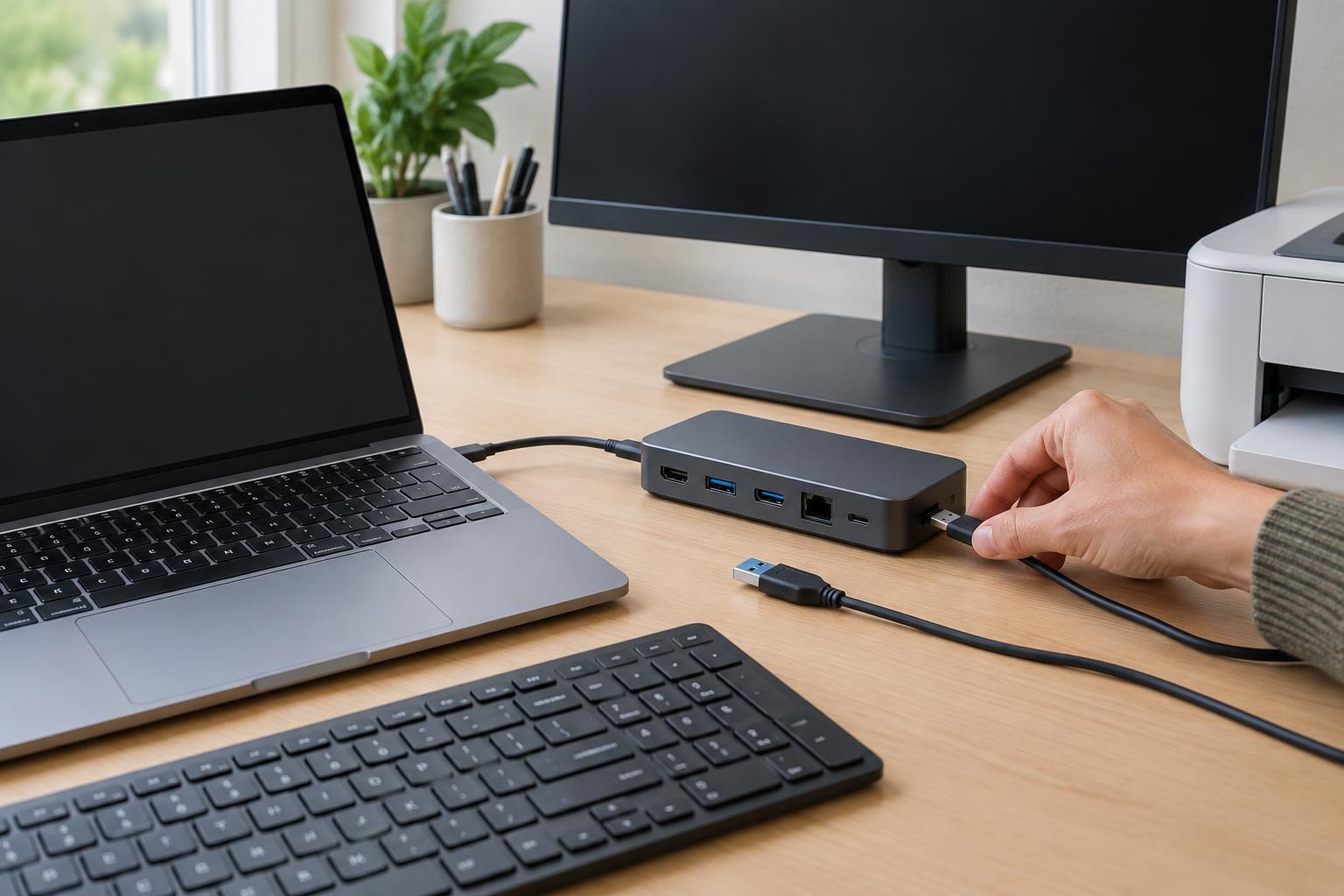
If the expected resolution is missing, check how the monitor is connected. An adapter, docking station, or cable may limit the display modes available, particularly at higher resolutions or refresh rates. Make sure the connector is seated securely, then try another suitable cable or a direct connection if you have one. Changing one part at a time makes it easier to tell what helped.
Adjust scaling without giving up sharpness
Once the monitor is set to its recommended resolution, adjust scaling if text and controls are too small. Display settings commonly offer a scale percentage or a choice between larger text and more space. Start with a suggested option and judge it using the applications you actually use. The aim is not to fit the maximum number of windows on screen; it is to make routine work comfortable without unnecessary squinting.
With two screens, check the scaling setting for each one separately where your system allows it. A laptop and a larger external monitor often need different settings. Moving a window between displays may briefly change how it looks while the system redraws it. If an application stays blurry after you move it, close and reopen that application to see whether it adjusts to the new screen.
Avoid lowering the monitor’s resolution simply to make text larger unless scaling is unavailable or does not work well for your setup. Lower resolution and higher scaling can produce similar-looking text sizes, but they do not use the panel’s pixels in the same way. Keeping the native resolution and changing scaling is usually the better first approach for clear text.
Rule out display modes and app settings
Check whether your computer is duplicating or extending its display. Duplicate mode shows the same desktop on both screens and may involve a compromise if the screens have different supported resolutions. Extend mode lets each screen use its own display settings, which can make it easier to set the external monitor to its recommended resolution. Choose the mode that fits how you work, then recheck the resolution on both screens.
If most of the desktop looks sharp but text in a browser or document does not, reset that application’s zoom to its normal level and compare again. If the problem occurs only in an older application, try reopening it after changing scaling. Where your operating system offers text-smoothing or font-tuning controls, follow its on-screen examples and keep the setting that looks clearest to you.
Finish with a simple repeatable check
After each change, inspect the same short line of text in the same application. That gives you a more useful comparison than switching between unrelated pages. A sensible order is to confirm the correct monitor, set its recommended resolution, choose comfortable scaling, and then check the display mode and connection. Keep track of the previous setting so you can reverse a change that makes things worse.
If text remains soft across the entire screen at the recommended resolution, test the monitor with another computer or test the computer with another monitor if possible. This can help narrow the issue to the display, connection, or computer without guessing. For a home office, the best result is not a particular scale percentage: it is text that looks clear at a comfortable size during everyday work.