Start by narrowing down the problem
Before changing settings, find out how much of the keyboard has stopped working. Try typing in a different app or a search box. If only one program ignores your typing, close and reopen that program. If just one key fails, the issue may be limited to that key rather than the connection. If nothing responds anywhere, check the keyboard and its connection next.
If you have unsaved work, avoid restarting immediately. You may be able to use the mouse to save it first. An on-screen keyboard, usually found in your computer’s accessibility settings, can also help you type a password or a short message while you investigate. If both the keyboard and mouse are unresponsive, the computer itself may be frozen; give it a moment before considering a restart.
Check power before changing software
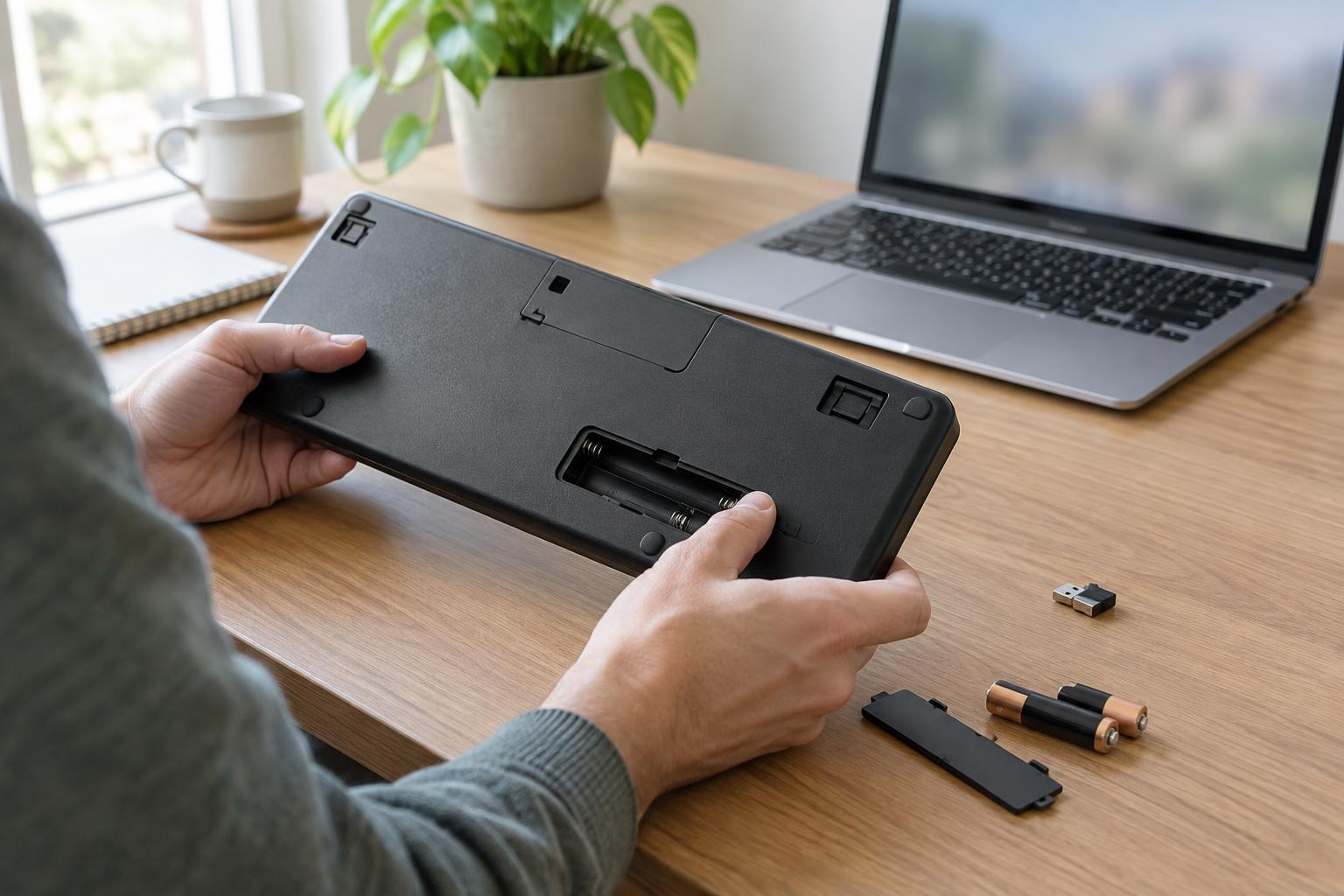
A wireless keyboard can appear connected even when its batteries are nearly empty. Replace disposable batteries with fresh ones, making sure they face the directions marked inside the compartment. For a rechargeable keyboard, connect it to its charger and allow some time before testing again. A charging cable does not necessarily carry typing input, so do not assume that plugging it in makes the keyboard a wired device.
Look for a power switch and, if the keyboard has one, a status light. Switch it off and back on. A light can confirm that the keyboard has power, but it does not prove that the computer is receiving keystrokes. If a key seems physically stuck or a spill occurred, turn the keyboard off or unplug it before inspecting it. Do not keep pressing keys on a wet keyboard.
Test the physical or wireless connection
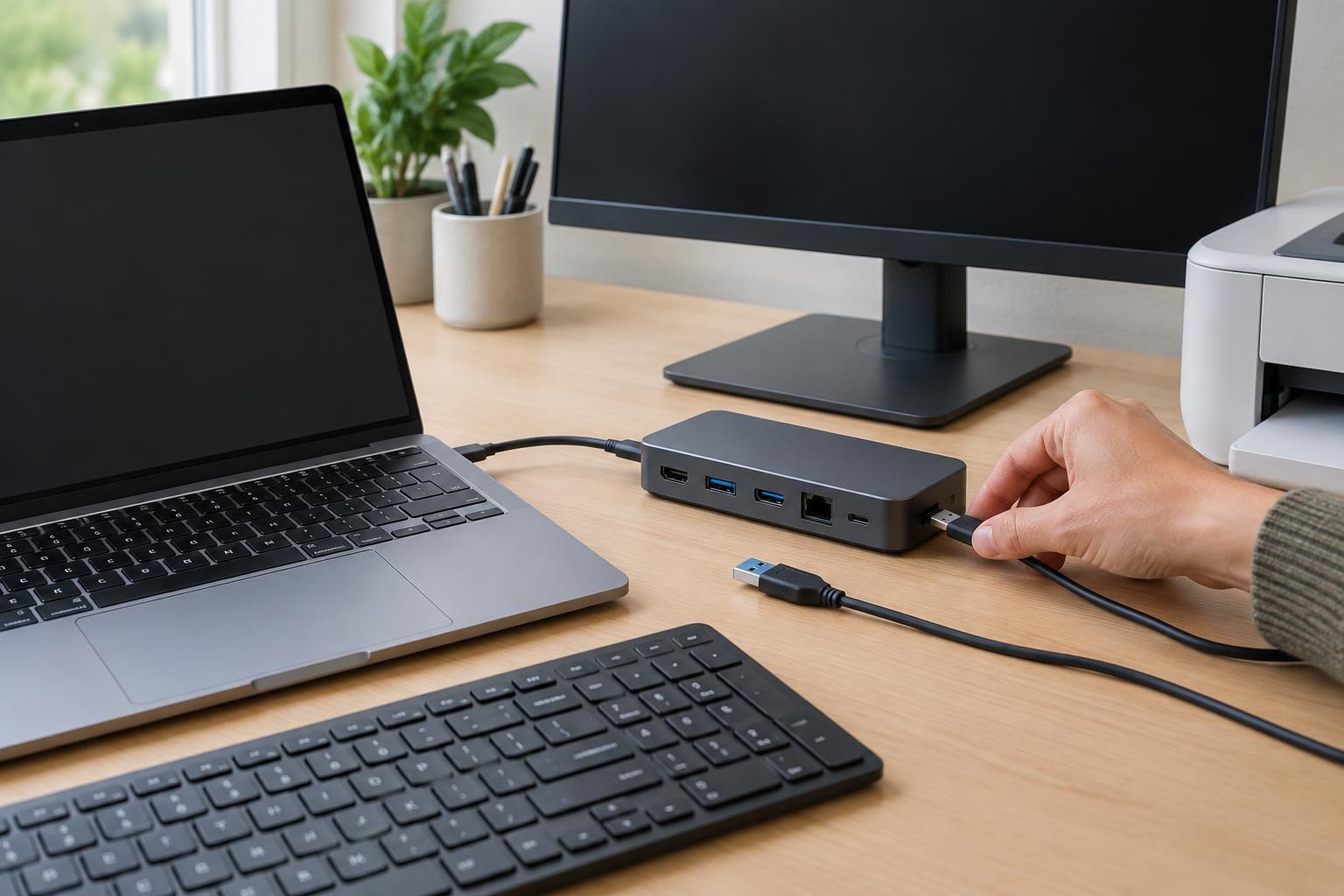
For a USB keyboard, unplug it and reconnect it firmly. Try another USB port on the computer, preferably without a hub or dock in between. If it works when connected directly, the hub, dock, or its power supply may be the problem. Check the cable and plug for visible damage; avoid using a cable with exposed wires or a bent connector.
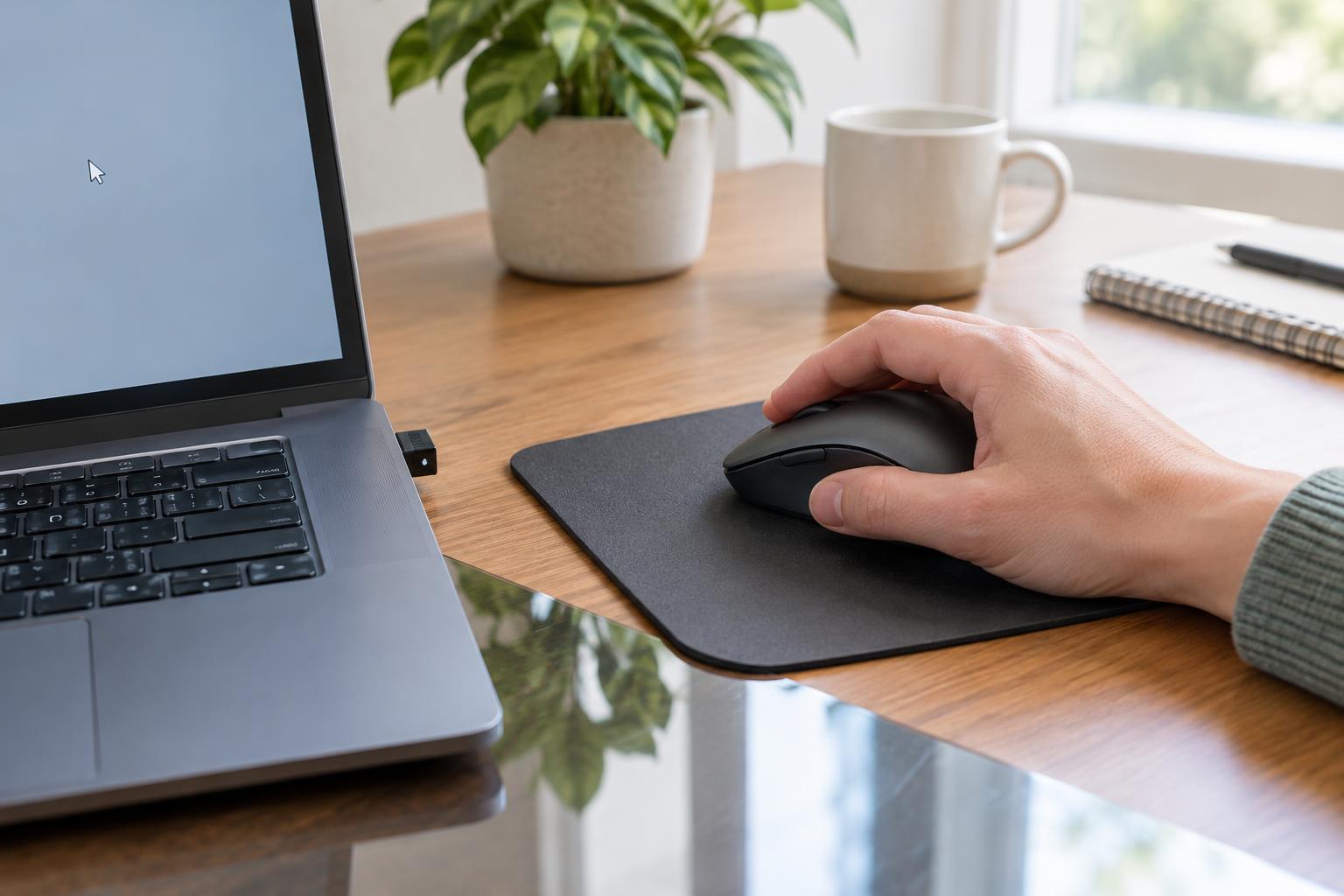
Wireless keyboards commonly connect through either a small USB receiver or Bluetooth. If yours uses a receiver, confirm that it is plugged in, then try another port. Keep the keyboard within a reasonable distance and move large metal objects away from the space between it and the receiver. If it uses Bluetooth, check that Bluetooth is enabled on the computer and that the keyboard appears as connected. Some keyboards can switch between multiple paired devices, so confirm that yours is set to the computer you are using.
If the connection still fails, follow the keyboard’s pairing instructions to reconnect it. Remove an old pairing only when you are ready to pair again, especially if this is your only way to type. Testing the keyboard with another compatible computer, or testing a different keyboard with yours, can help identify which device needs attention.
Review settings that can make typing seem broken
If the keyboard connects but types unexpected characters, check the selected keyboard layout or input language. A layout changed by accident can put symbols in unfamiliar places. If keys respond only after being held down, or repeated presses behave oddly, review accessibility features such as Filter Keys or Slow Keys. These features are useful when enabled intentionally but can be confusing when turned on by mistake.
For a Bluetooth keyboard, check its battery level and connection status in the computer’s settings. For any keyboard, a restart can clear a temporary connection problem once your work is saved. If the problem began after installing a device utility or changing keyboard settings, review those changes before removing drivers or resetting the computer. Menu names vary by operating system, so use the settings search to find keyboard, Bluetooth, or accessibility options.
Know when to stop troubleshooting
If one keyboard fails on multiple computers while another works on yours, the keyboard is the likely cause. If several keyboards fail only on your computer, focus on its ports, wireless connection, or settings. A single unreliable USB port points to a different issue than a keyboard that disconnects from every port.
For a shared office computer, note what you tested and ask whoever manages the device before changing system-wide settings. If you see damaged wiring, signs of liquid inside the keyboard, or repeated connection failures after basic checks, stop using the affected equipment and seek a repair assessment or replacement. A short list of what works and what does not will make the next step easier.