Identify what works and what does not
Before changing settings, make a short list of what is missing. Does the computer charge through the dock? Does an external monitor show a picture? Do the keyboard and mouse work while a printer or scanner does not? These details help separate a general dock connection problem from a problem with one accessory. Charging alone does not prove that data is flowing, and a working display does not necessarily mean every USB port is working.
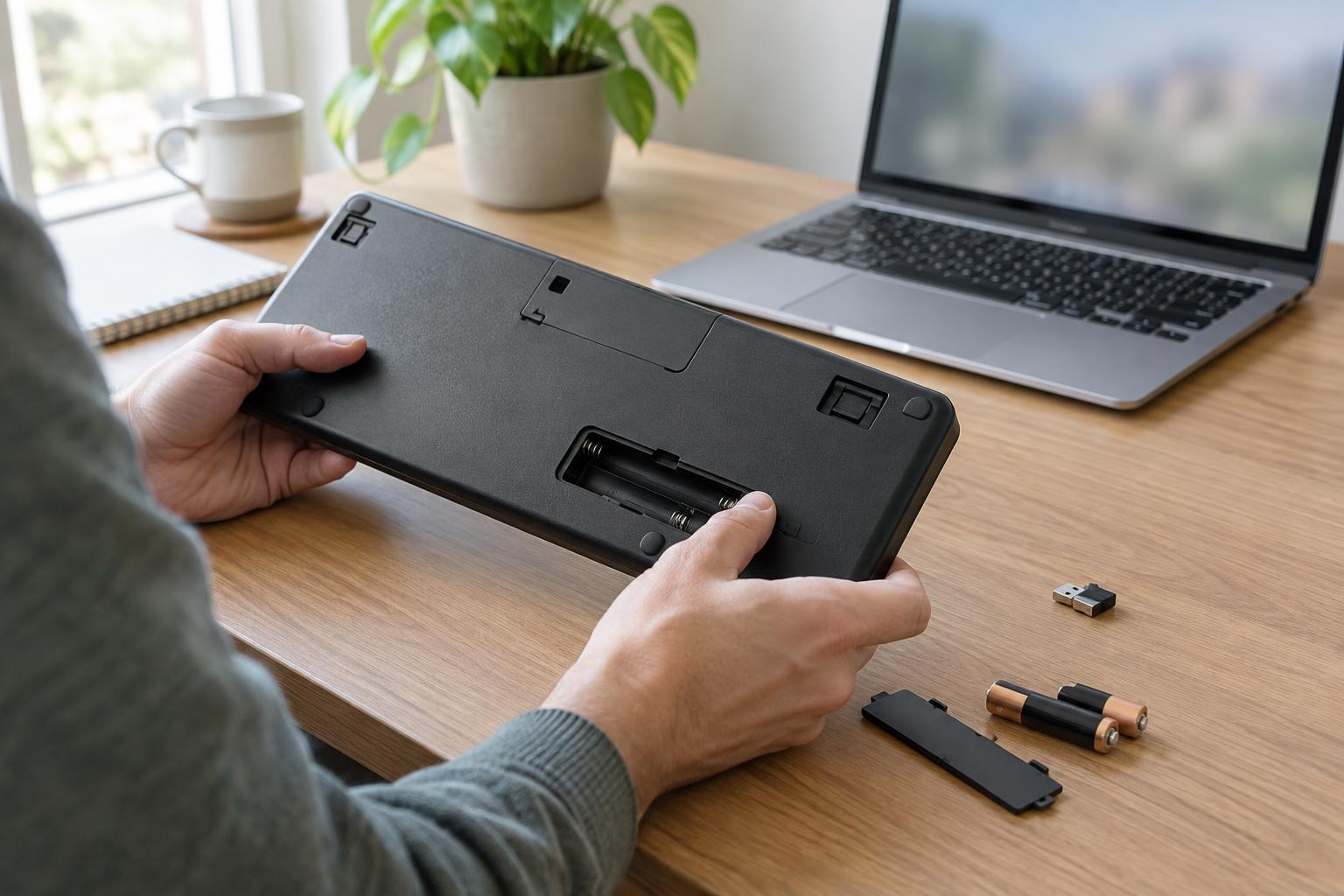
Check whether the missing device has power and is connected to the port you expect. Look for a loose plug, an unpowered USB hub, or a peripheral with its own power switch. If an external drive is attached, finish any file transfers before disconnecting it. For a printer or scanner, confirm that it is awake and that its USB cable is seated at both ends.
Check the connection between computer and dock
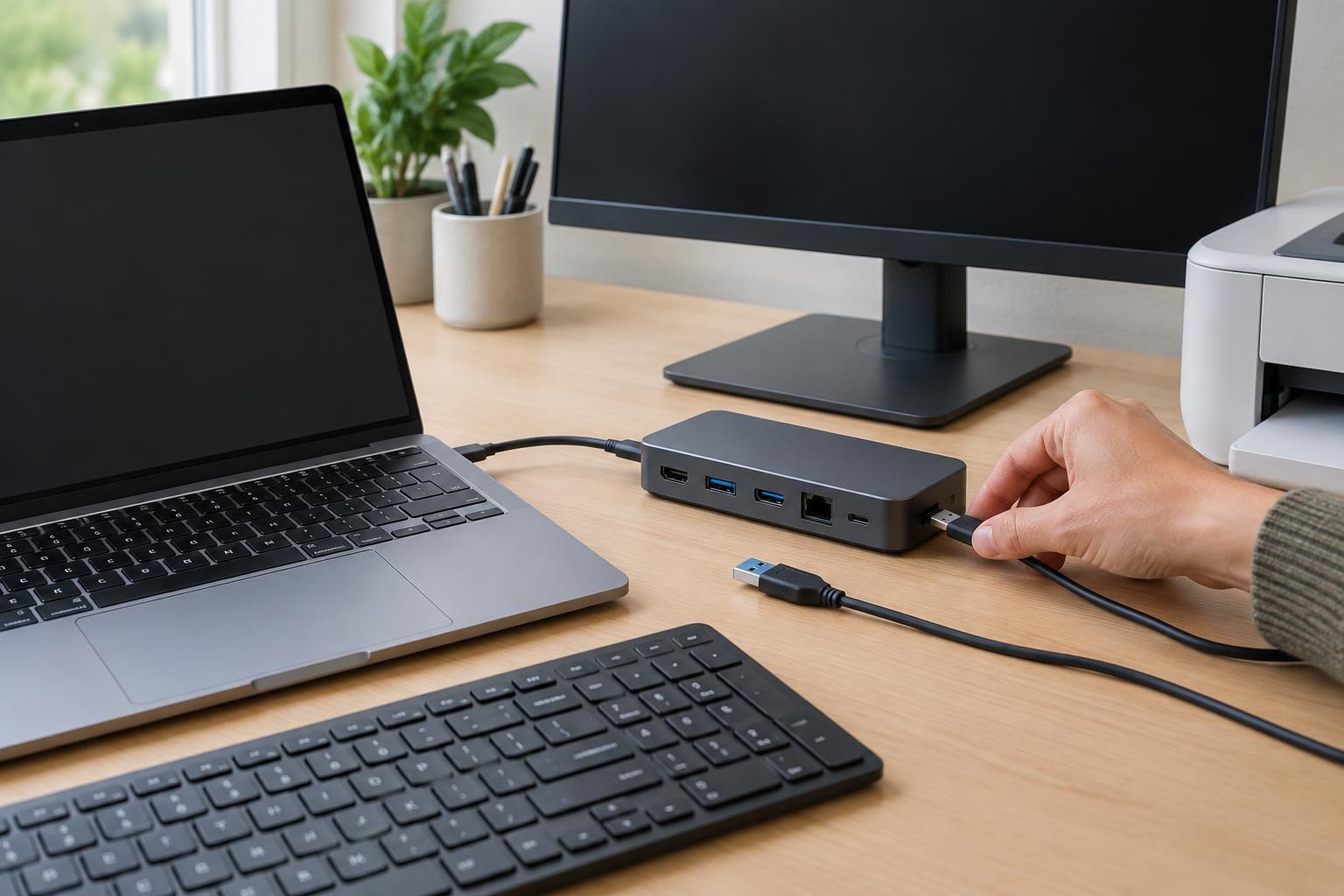
Disconnect and firmly reconnect the dock’s computer-facing cable. If the dock has a separate power adapter, confirm that it is plugged into the dock and a working outlet. Some docks can pass along limited functions without their intended power supply but may not reliably run multiple attached devices. If a connector feels damaged or unusually hot, stop using it rather than repeatedly trying it.
Pay attention to the computer port and cable. USB-C describes the connector shape, not a guarantee that every port or cable supports the same data, display, and charging functions. Use the dock’s intended host cable where possible, and check the computer and dock specifications for compatible ports. If the computer has another suitable port, try it. Avoid adding an adapter while diagnosing the problem; a direct connection removes one possible point of failure.
After reconnecting, give the computer a moment to recognize attached devices. If nothing changes, restart the computer with the dock connected. A restart is a useful test, but it should not replace checking the physical connection first.
Test one peripheral at a time
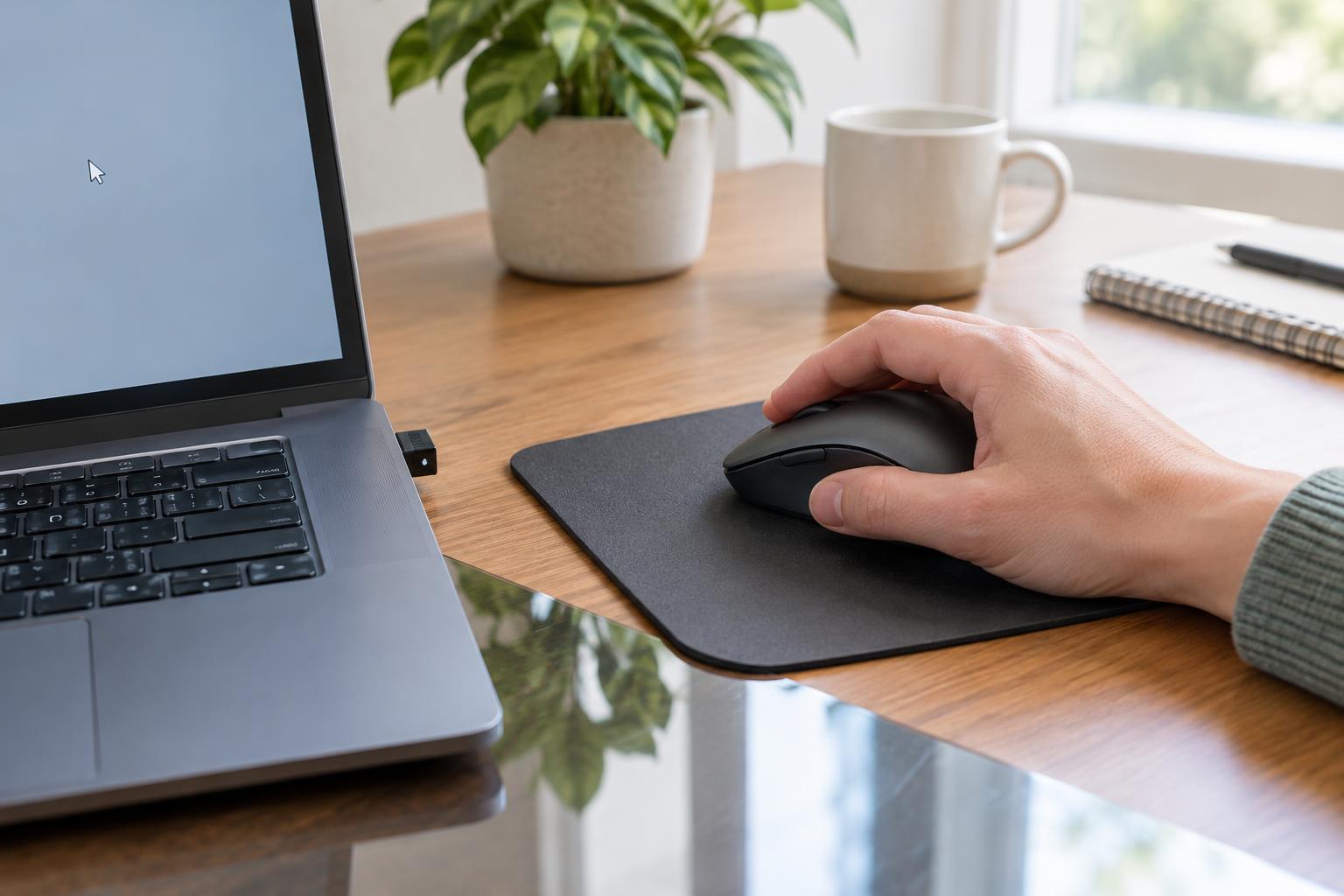
Unplug the accessories from the dock, then connect one simple device, such as a wired mouse or keyboard. Try another dock port if it is not detected. Next, plug that same device directly into the computer, if a compatible port is available. If it works directly but not through any dock port, focus on the dock, its host connection, and its power. If it fails in both places, test the peripheral or its cable before changing dock settings.
Add devices back one by one once the first test succeeds. This can reveal whether a particular port or accessory causes the problem. It can also help with power-hungry devices: a portable drive or several accessories may behave differently from a basic mouse. Where a device has its own approved power supply, use it as directed rather than assuming the dock can power everything.
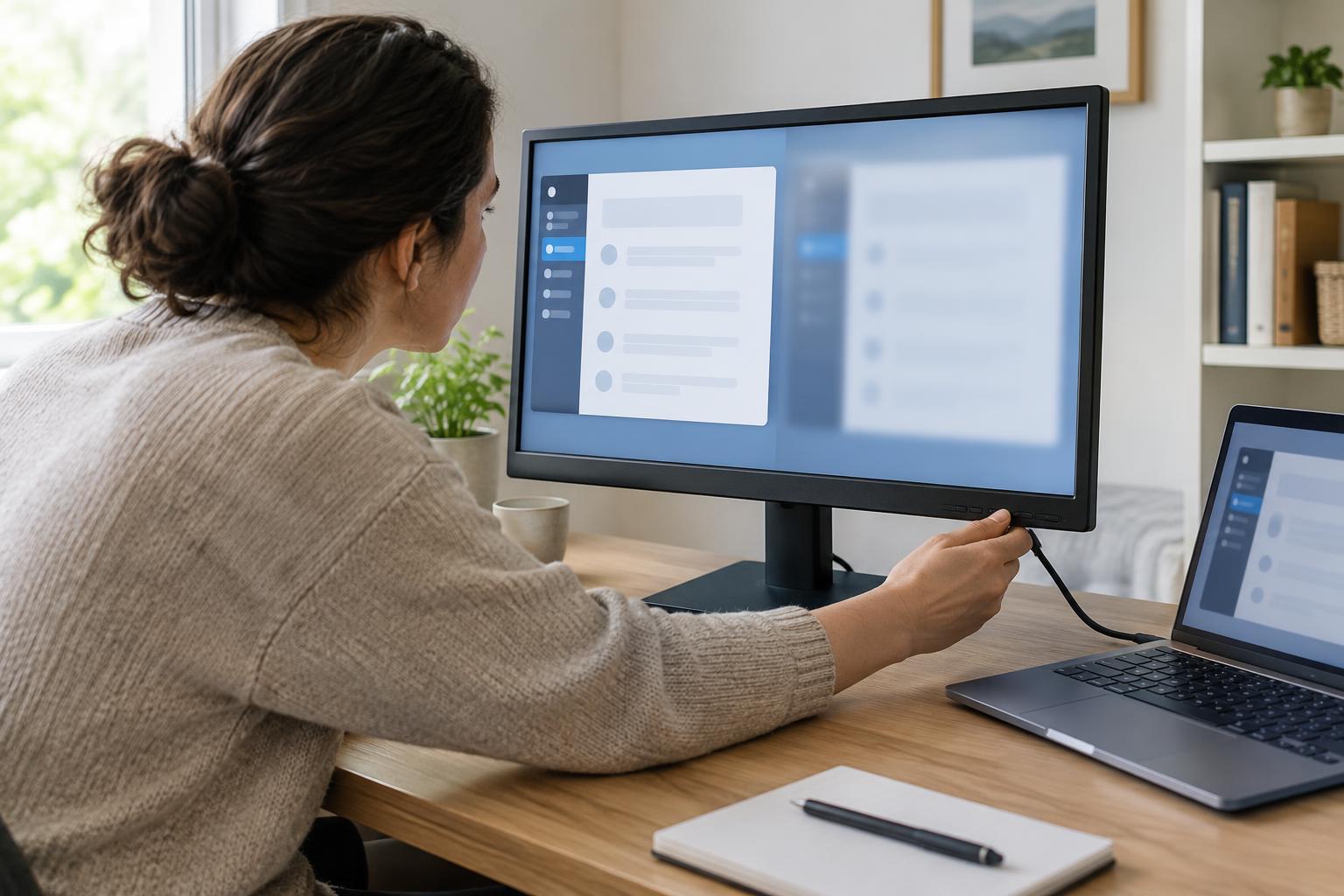
Treat a missing monitor as a related but distinct symptom. Check the monitor’s power, selected input, and cable, then look at the computer’s display settings to see whether the screen is detected but disabled. A monitor that fails while USB devices work may point to a display-compatibility or cable issue rather than a complete dock failure.
Look at computer settings and device software
If the hardware tests are consistent but a device is still missing, open the computer’s device or system settings. Check whether the keyboard, printer, scanner, network adapter, or display appears there, even if an application cannot use it. A printer that is listed but unavailable in one program calls for a different fix from a printer that the computer never detects. For audio devices, also check the selected input and output; connecting a dock may change the default.
Some docks and peripherals need manufacturer-provided drivers or software for particular functions. Compare the exact dock model with the manufacturer’s setup instructions, and obtain updates through trusted manufacturer or operating-system channels. If this is a managed work computer, ask your IT contact before installing software or changing security settings. An operating system may also ask you to approve a newly connected accessory; review such prompts rather than dismissing them automatically.
Know when to stop and what to report
If several known-working peripherals fail through the dock after you have checked power, the host cable, and compatible ports, the dock or its connection may need closer inspection. If only one device fails, note whether it works directly on the computer and whether it fails on every dock port. Avoid a factory reset or broad driver removal as an early step; those changes can create more work without identifying the cause.
For a support request, record the computer and dock models, which dock ports you tested, the missing devices, and the results of direct-connection tests. Include any error message in your own words or as a screenshot. Those observations give support staff a clearer starting point than simply reporting that the dock is connected but nothing works.