Notice what the pointer is doing
A pointer that jumps to an unexpected spot is different from one that moves slowly or briefly stops responding. If it jumps mainly when you move across a particular part of the desk, start with the surface and sensor. If it pauses and then catches up, look at the connection and whether the computer is busy. These clues are not a diagnosis, but they give you a sensible order for testing.
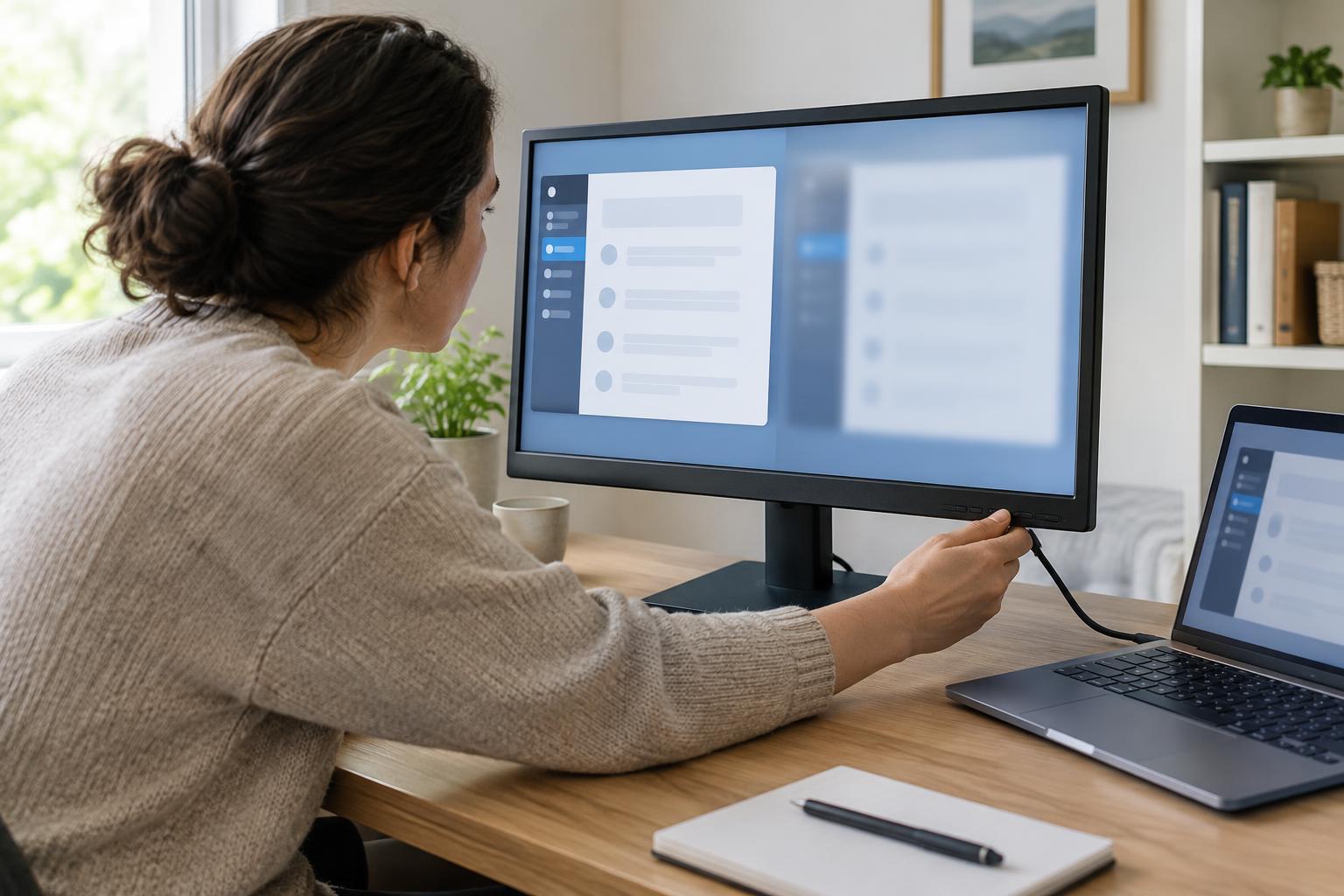
Before changing settings, try moving the mouse slowly in a straight line, then in small circles. Note whether the problem happens throughout the movement or only occasionally. If you use an external monitor, also check whether the pointer merely feels awkward when crossing between screens. A different monitor arrangement or pointer speed can feel like lag even when the mouse is tracking normally.
Test the surface and clean the sensor
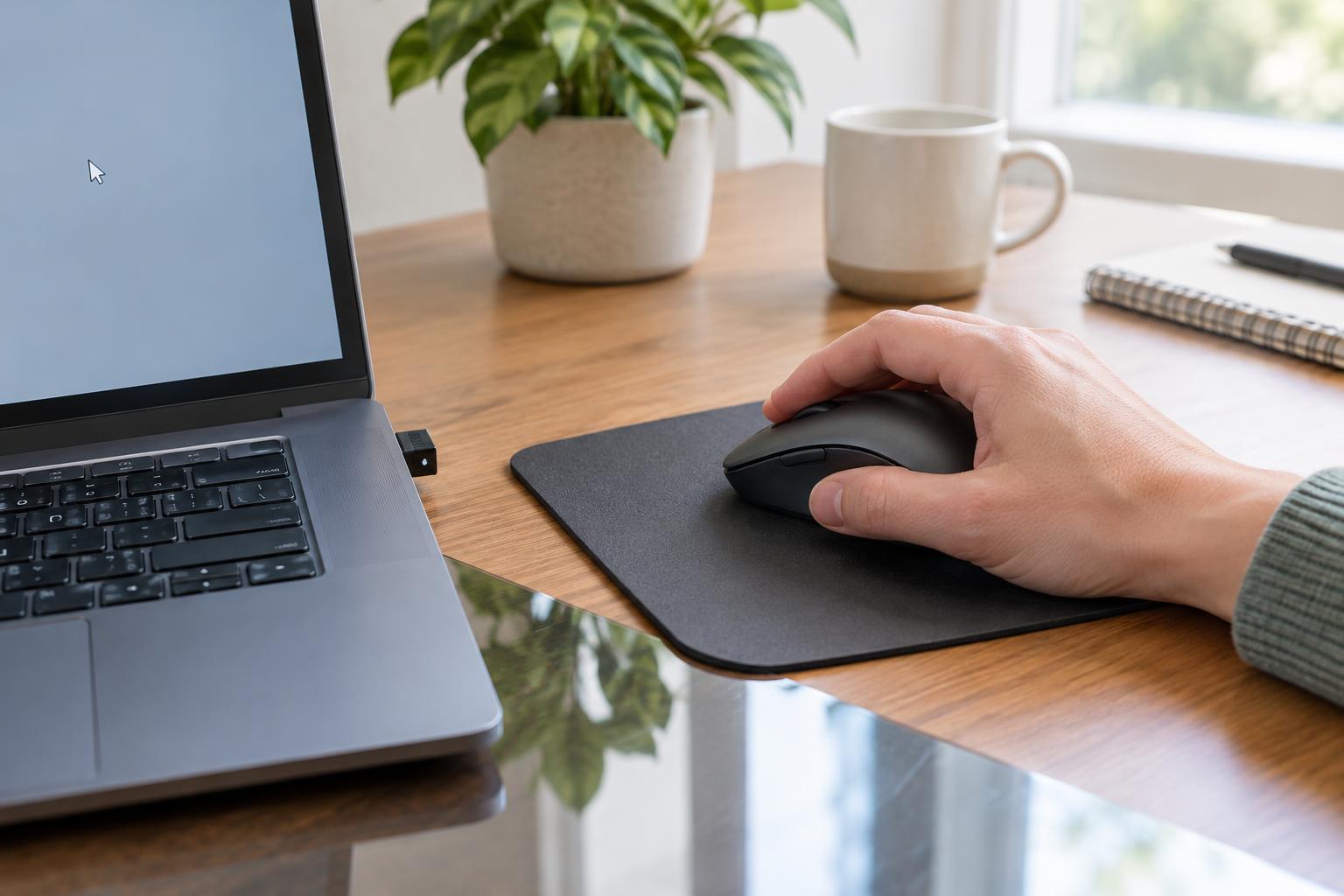
A mouse needs a surface its sensor can track consistently. Glass, glossy finishes and strongly patterned or uneven areas may cause unreliable movement with some mice. Put a plain mouse pad or a sheet of matte paper under the mouse and repeat your test. If the pointer improves, the desk surface was likely contributing to the problem. Choose a pad that stays flat and leaves enough room for your usual hand movements.
Turn the mouse over and inspect the small sensor opening. Dust or a stray hair near it can interfere with tracking. Switch off a wireless mouse or unplug a wired one before cleaning. Remove loose debris gently with a dry, soft cloth or a soft brush; avoid pushing anything into the opening. Check the feet on the underside as well. Built-up dirt can make the mouse drag or tilt, changing how steadily it moves.
Check the cable or wireless link
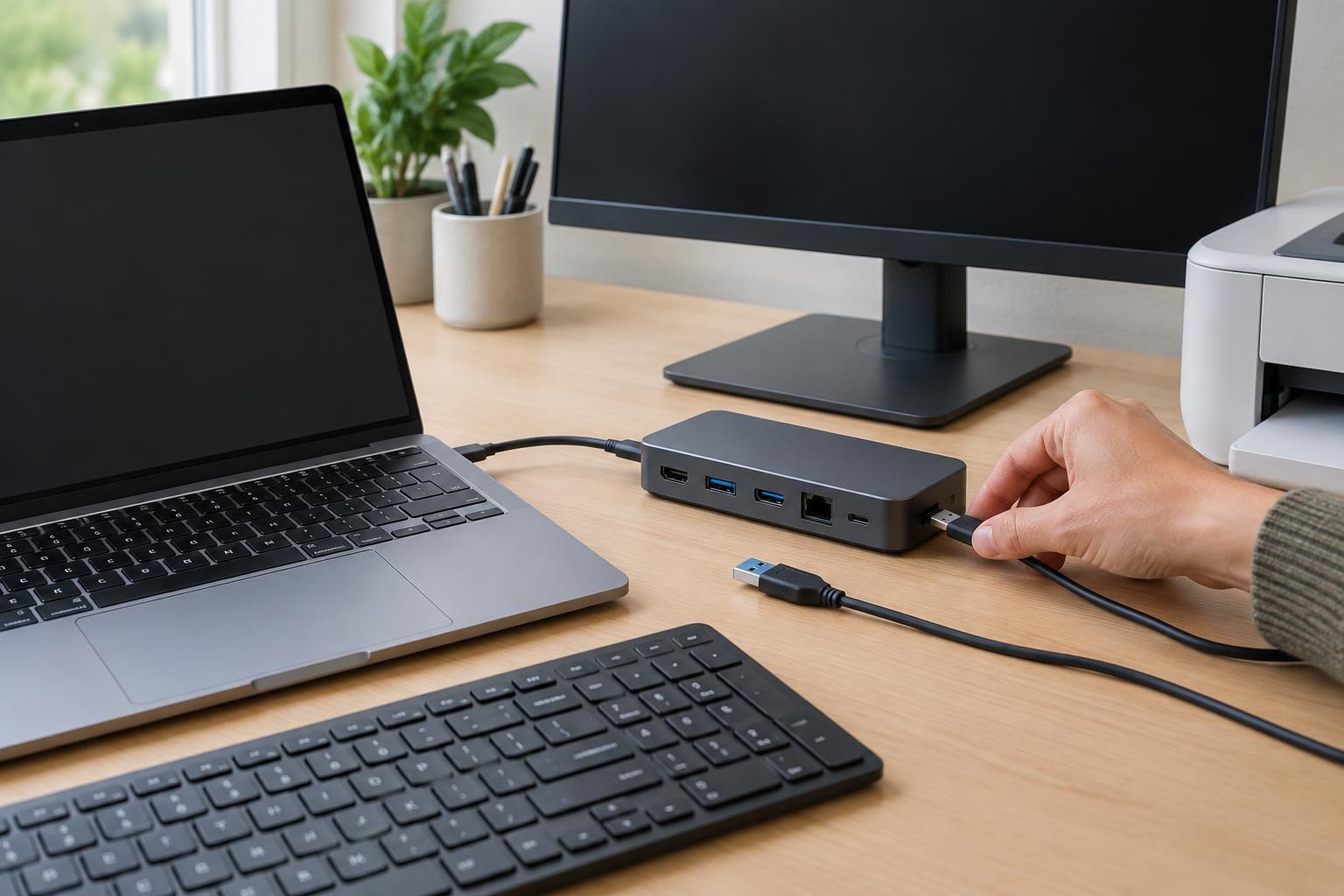
For a wired mouse, make sure the plug is firmly seated and the cable is not caught behind the desk. Try another suitable USB port if one is available. If movement changes when the cable bends near the mouse or plug, the cable may be damaged. Avoid repeatedly flexing a suspect cable; testing with another mouse is a clearer way to confirm the cause.
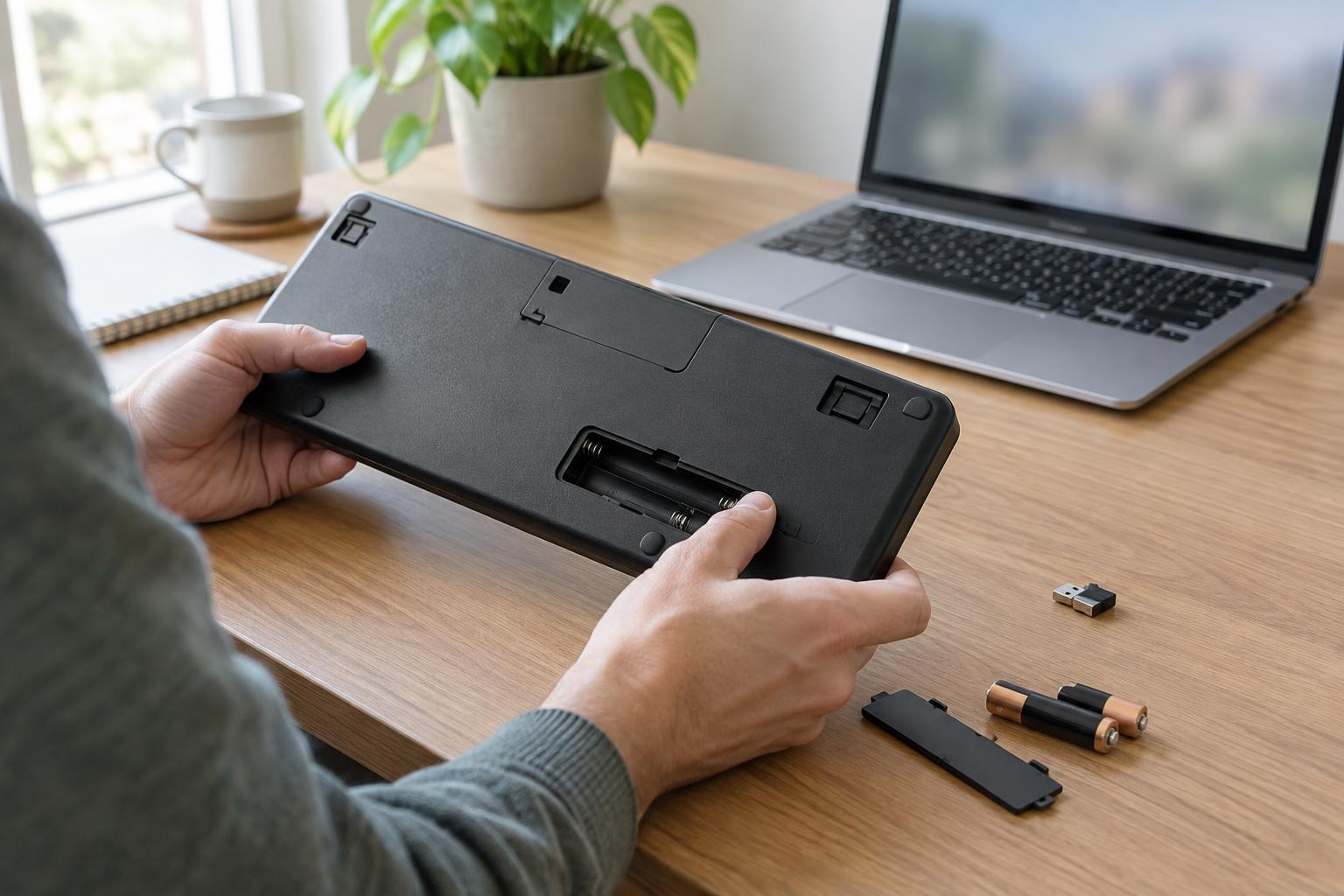
For a wireless mouse, start with power. Replace disposable batteries or charge the mouse, as appropriate, and confirm its power switch is on. If it uses a USB receiver, reseat the receiver and try a different port. A receiver tucked behind a metal computer case or far from the mouse may have a less reliable link; moving it to a more open position can be a useful test. If the mouse uses Bluetooth, check that it still appears connected, then turn the mouse off and on. Follow the mouse’s pairing instructions if you need to reconnect it.
Rule out settings and a busy computer
If the surface and connection checks do not help, restart the computer and test again. A temporary software problem or a heavily occupied computer can make pointer movement feel delayed. Notice whether the lag occurs only while a particular application is open. If so, close that application when practical and compare the response. Save your work before restarting or closing programs.
Check the operating system’s mouse settings for pointer speed and any acceleration or precision option. Change one setting at a time and test after each change so you know what made a difference. If you recently changed a driver, utility or accessibility setting, consider whether the timing matches the problem. Avoid installing unfamiliar troubleshooting tools: the built-in settings and a simple comparison test are usually better starting points.
Use a comparison test to decide what to do next
The most useful final test is to change just one piece of the setup. Try the same mouse on another computer, or try a known-working mouse on yours. If only one mouse misbehaves across different surfaces and computers, the mouse itself may be at fault. If several mice have the same problem on one computer, focus on that computer’s ports, wireless connection or settings instead.
You do not need to replace a mouse at the first skipped movement. A clean sensor, suitable surface and secure connection often make the cause clearer. If the problem persists after these checks, note the circumstances in which it happens and consult the device maker’s support guidance or your workplace IT contact. A short description of the tests you have already tried can make the next troubleshooting step easier.