Start by identifying what went wrong
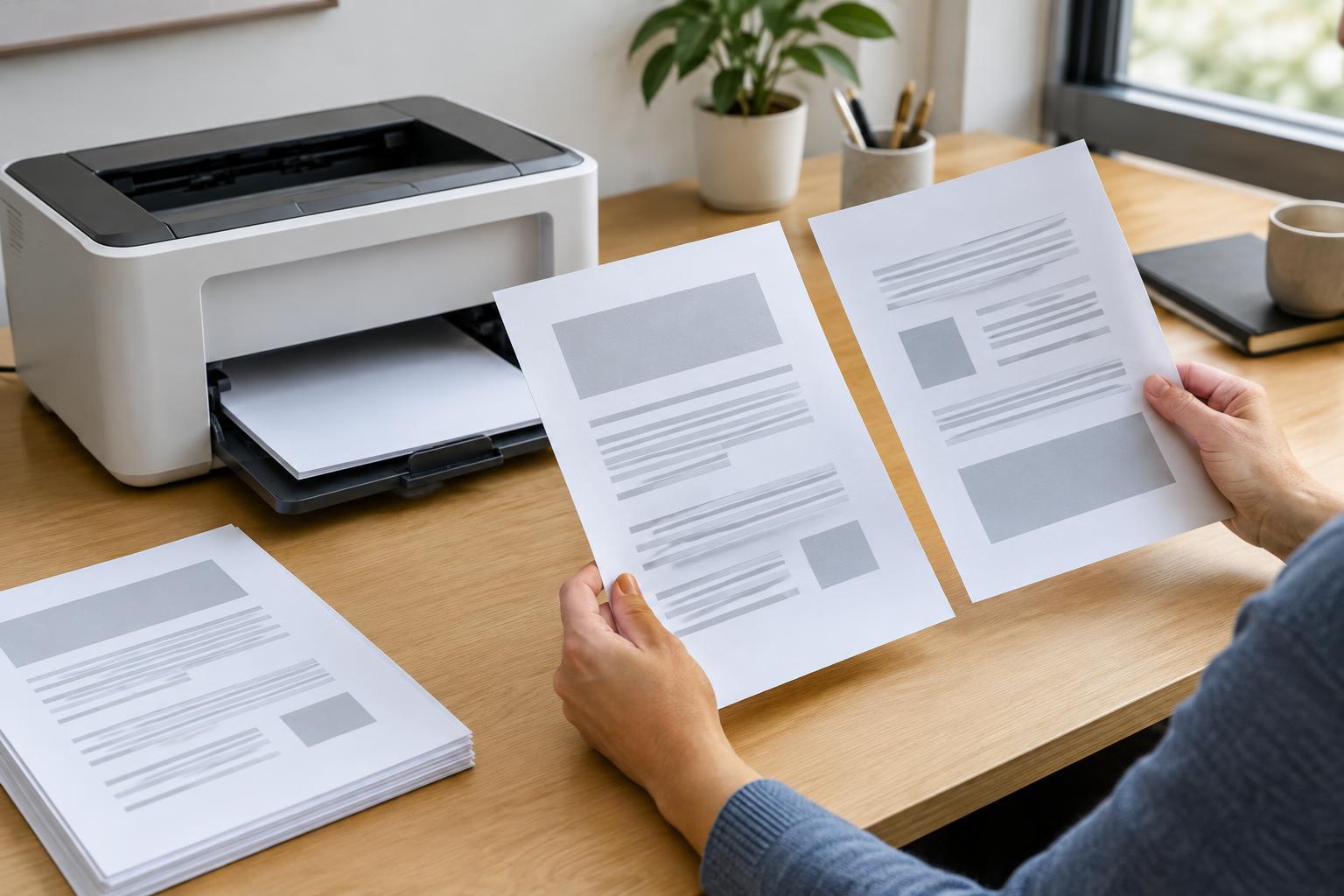
Double-sided printing, also called duplex printing, puts two document pages on each sheet. When the result looks wrong, check one sheet before changing several settings at once. Are the back pages upside down when you turn the sheets like a book? Are both sides upright, but the sheets are stacked in an unexpected order? Or did the printer put the second page on the same side as the first? Each symptom points to a different setting.
Keep the misprinted sheet nearby and note how you intended to use the document. A portrait report usually opens from the left, while a landscape handout may open from the top. The correct setting depends on the direction in which you want to turn each sheet, not just on whether the document is portrait or landscape.
Fix upside-down back pages with the binding setting
Most duplex menus offer “flip on long edge” and “flip on short edge.” These describe the edge that acts like the binding. For a typical portrait document read like a book, choose long-edge flipping. For a portrait document that flips upward like a notepad, choose short-edge flipping. A landscape document read like a book often needs short-edge flipping, while one that flips upward often needs long-edge flipping.
If the back of each sheet is upside down, switch between long-edge and short-edge flipping, then print just two pages to check. These labels may appear under Two-Sided, Duplex, Layout, or Finishing in the print window. Some apps also offer their own two-sided setting; if the result is confusing, check both the app’s print options and the printer’s properties so you know which setting is being used.
Use the print preview to confirm that the document itself has the intended page orientation. If one page is rotated in the file, changing the duplex binding setting will not fix that individual page.
Separate page order from sheet order
If every page is upright but the finished stack reads backward, look for settings such as Reverse pages, Print last page first, or Output order. Printers differ in whether they deliver sheets face up or face down, so an order setting that works for one machine may be inconvenient on another. Print a short, numbered document and compare the stack with the order shown in the preview before changing the setting.
Collation solves a different problem. When printing multiple copies, a collated job groups each copy in reading order; an uncollated job groups matching pages together. Changing collation will not usually correct an upside-down reverse side. If you are printing only one copy, focus on duplex binding and page order instead.
Also check the page range. A job set to print only odd pages, only even pages, or a custom range can resemble an ordering error when some pages are missing. Clear those options before retrying a normal automatic duplex job.
Test manual duplex printing before using a full stack
Without automatic duplexing, a printer may ask you to print one set of pages, reinsert the sheets, and print the other set. The tricky part is that paper travels through different printers in different ways. Do not assume a universal rule for placing the printed side up or down, or for feeding the top edge first.
Make a four-page test document with large page numbers and an arrow pointing toward the top of each page. Print the first pass on two sheets, mark the top of the stack with a pencil if needed, and follow the on-screen reinsertion diagram for your printer. After the second pass, check which numbers share a sheet, whether both sides are upright, and whether the sheets are in reading order. Keep a note of the successful loading direction near the printer.
If the first pass comes out in a different order than the manual-duplex instructions expect, arrange the sheets as directed before reinserting them. Feed a small test stack until the process is reliable; a full document makes a loading mistake harder to untangle.
Make the next print job predictable
Before committing to a long document, print pages 1–4 with the intended paper size, orientation, and duplex setting. Turn the sheets the way a reader will turn them. Confirm that page 2 is behind page 1, page 4 is behind page 3, and both sheets are upright and ordered correctly.
If the test works in one app but fails in another, compare their print settings rather than changing the printer itself. An app may remember a previous binding choice or page-order option. Once you find a reliable combination, note the app, printer, paper source, and settings. A short test and a clear record are usually quicker than reprinting a full stack after a preventable mistake.