Start with the document, not the printer setting
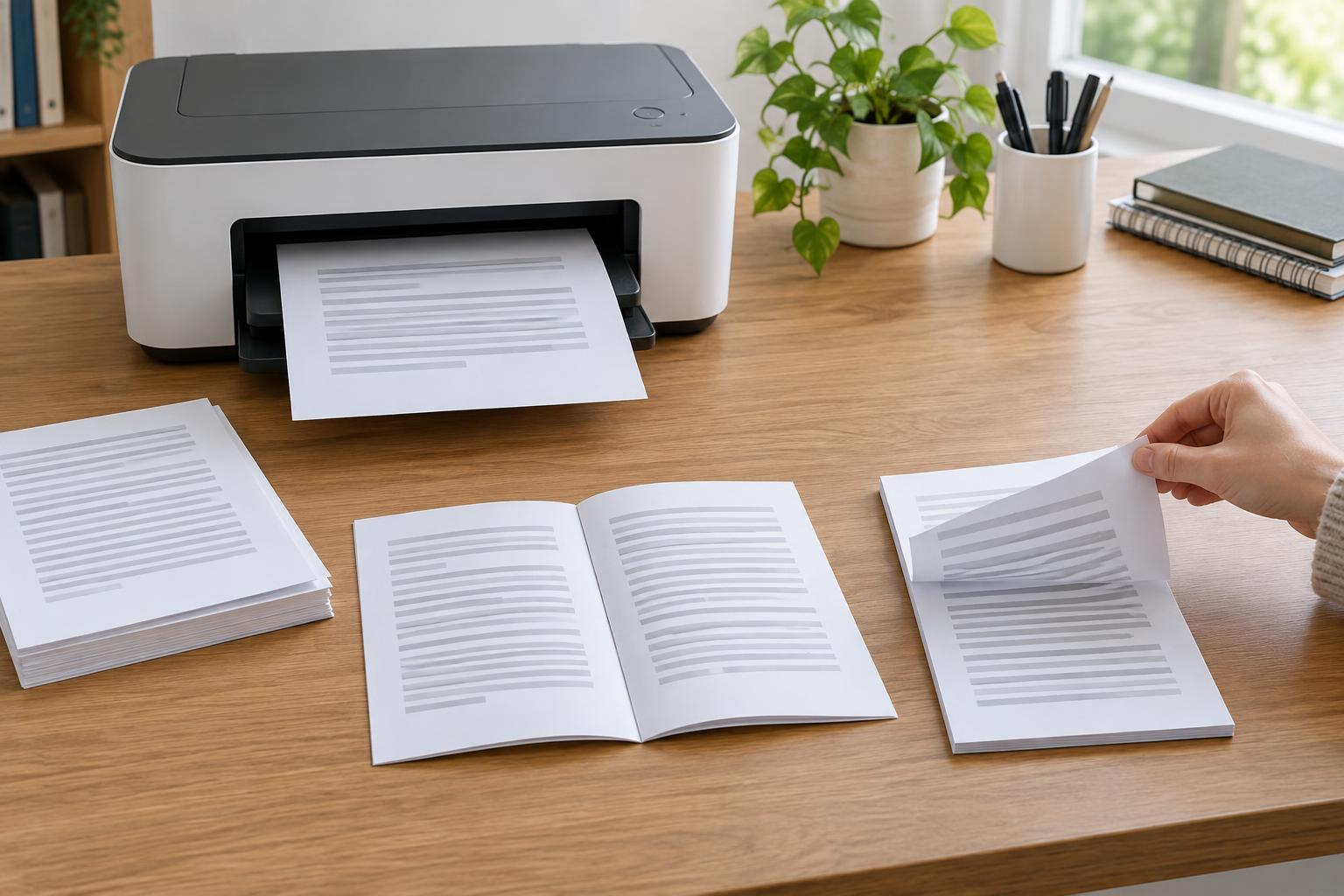
Duplex printing means putting content on both sides of a sheet. It is useful for drafts, handouts, and longer documents where fewer sheets make the result easier to store or carry. One-sided printing may still be the better choice for forms people must write on, pages intended for a display board, or documents whose reverse sides need to remain blank.
Before selecting two-sided printing, decide how the finished pages should be read. A portrait document that opens like a book usually needs a different flip setting from a landscape handout that opens like a calendar. If the document includes pages that must stand alone, such as a cover or a sheet to be signed, check whether the application lets you print that page separately. Treating those exceptions as separate jobs is often simpler than trying to make one setting fit every page.
Automatic and manual duplex printing
An automatic duplex printer prints one side and then routes the sheet through the machine to print the other. This is the convenient option for regular two-sided work. Check the printer specifications for automatic two-sided printing rather than assuming that a two-sided copy or scan feature also applies to printing. Some printers support duplex printing only for certain paper sizes, types, or feed trays.
With manual duplex printing, the printer produces one set of sides first and prompts you to put the stack back for the remaining sides. The exact way to reload it depends on the printer’s paper path. Do not rely on a generic instruction to turn the stack over or rotate it: a different tray or output arrangement can change which face and edge should go in first. Follow the on-screen prompt or the printer’s guidance, and test with a short document before attempting a long run.
Manual duplexing also requires extra attention to page order. Let the first pass finish, keep the stack in order, and remove any blank or stray sheets before reloading. If sheets stick together or feed unevenly, pause rather than trying to correct the order halfway through the second pass. For a large document, automatic duplexing may save enough handling to be worth considering when choosing a printer.
Choose the flip edge by imagining the finished sheet
The flip-edge setting controls how the second side is oriented. For a portrait document read like a book, choose long-edge flipping: the pages turn at the left or right side. For a portrait document that flips upward like a notepad, choose short-edge flipping. The names refer to the edge the sheet turns around, not the edge that feeds into the printer.
Landscape pages are where mistakes are especially easy. A landscape handout that turns at the top commonly needs long-edge flipping, while one that opens at the side commonly needs short-edge flipping. Rather than memorizing a rule for every layout, picture the printed page in your hands and decide which edge will act as the hinge. Then print two pages and check that the back is upright when you turn the sheet as intended.
The setting may appear in the application’s print dialog as “flip on long edge,” “flip on short edge,” “book,” or “tablet.” Names vary, so use the print preview if it clearly shows both sides, but do not treat a preview as a substitute for a physical test. A one-sheet test can catch an upside-down back before it affects an entire document.
Make the first full job easier to check
Use paper that your printer supports for duplex printing, and confirm that the selected tray contains the size shown in the print settings. Heavy or specialty media may need a different feed path or may not be suitable for automatic duplexing. If the printer rejects a two-sided setting or repeatedly misfeeds, check its media guidance rather than forcing the same job through again.
For a first run, print a small page range that includes any changes in orientation or layout. Read both sides, confirm the page sequence, and check that important content is not too close to an edge that will be stapled or bound. Duplex printing does not automatically adjust margins for binding; if the document needs extra space at the inner edge, set that in the document or layout options before printing.
Finally, save the settings that worked if your application or printer offers a preset, and give it a descriptive name such as “portrait book-style, two-sided.” Recheck the settings when switching applications or paper types, since print dialogs can retain different choices. A short test and a clearly named preset turn two-sided printing from a guessing exercise into a repeatable routine.