Start with the path air needs to take
Computers and many other office devices release heat while they work. Some use fans to draw cooler air in and push warm air out; others shed heat through their cases. Either way, the surrounding space matters. A device can have a working fan and still run hot if its vents face a wall, sit against a stack of paper, or are enclosed in a cabinet that traps warm air.
Before arranging a desk, locate each device’s intake and exhaust openings. They may be on the back, sides, bottom, or top. Leave those openings unobstructed, and check the manufacturer’s placement guidance for any required clearance. Think about where the warm air will go after it leaves the device: a gap behind a computer helps less if that gap is sealed on every other side.
Choose positions that let heat escape
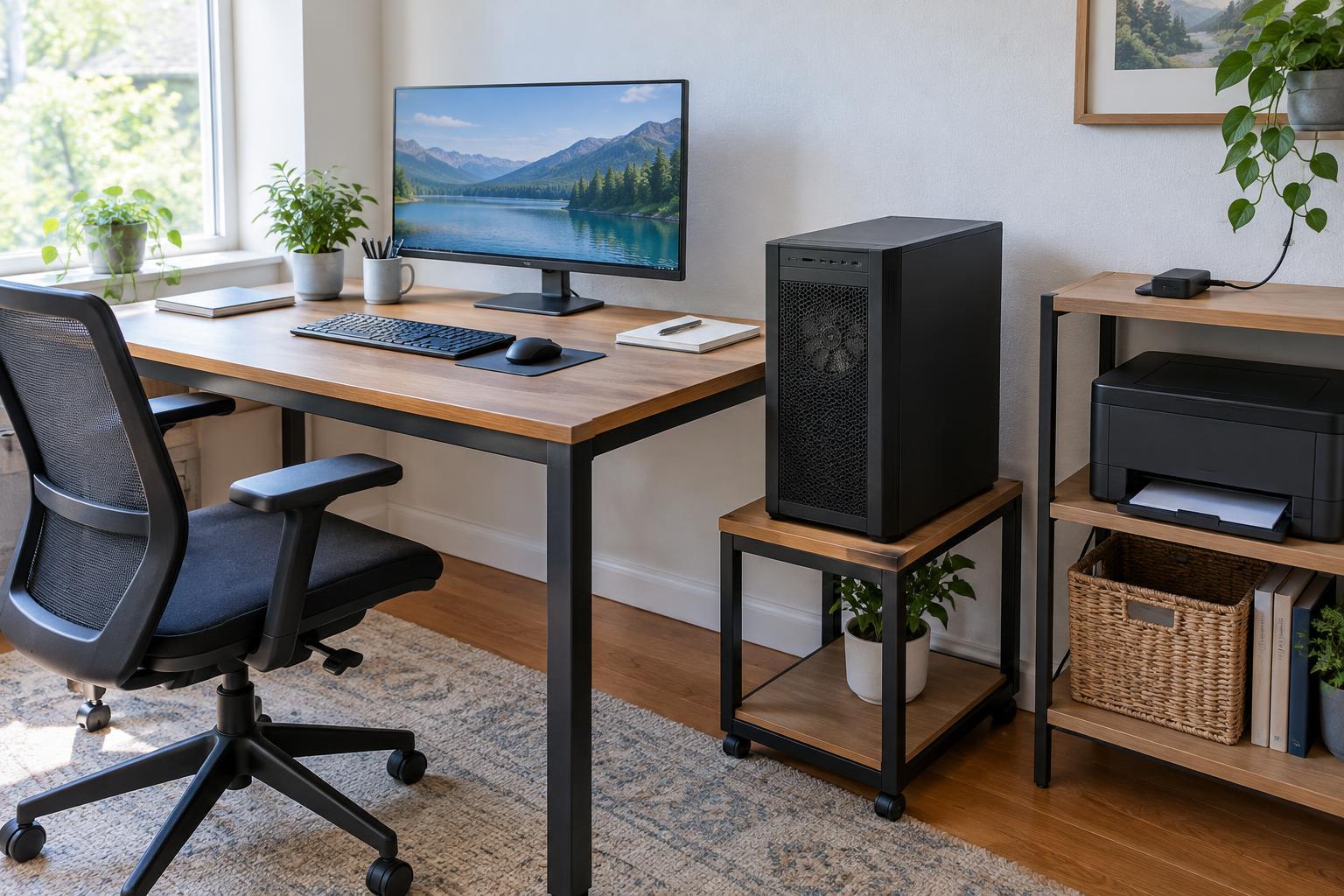
A desktop computer is usually easier to keep clear on a stable, open surface than in a tightly fitted desk compartment. If it must go in a cabinet, look for an open back or another way for warm air to leave. Avoid placing a computer directly beside a radiator or other heat source. Keep its fan openings away from loose papers and fabric that could shift against them.
Laptops need particular attention because their vents can be easy to cover. Use a firm surface rather than a cushion or blanket, and check whether the underside needs space for airflow. An external keyboard and monitor can make an open laptop position more comfortable without forcing it into a cramped spot. If you use a laptop stand, choose one that does not block its vents and is stable enough for your setup.
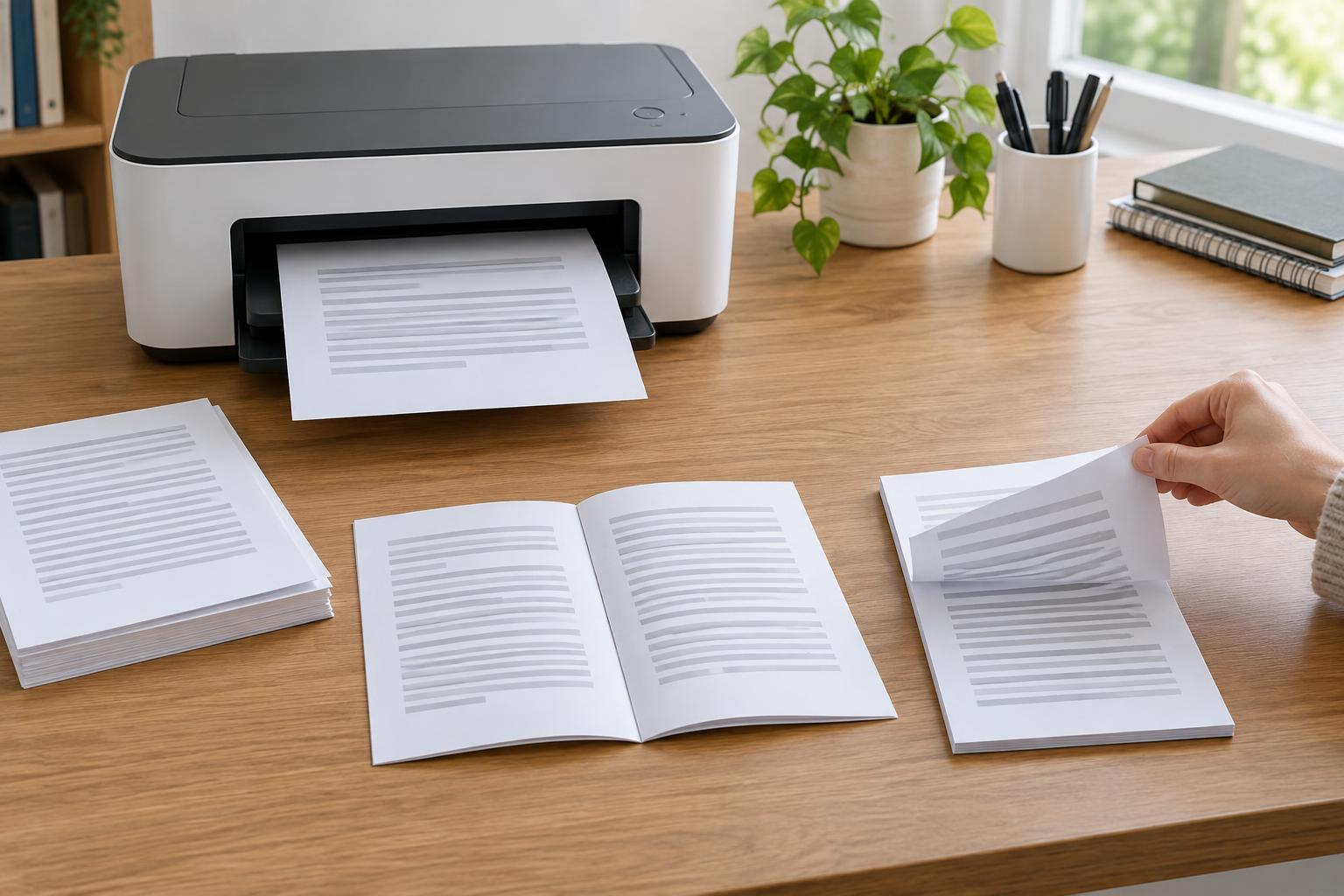
Printers, scanners, routers, monitors, docking stations, and chargers may also warm up during normal use. Do not stack equipment unless its instructions permit it. A printer needs room for trays and access panels as well as any ventilation openings; leave space to remove a paper jam without pulling the whole workspace apart. Put chargers and power adapters where they are visible and uncovered, rather than buried under papers or tucked into soft furnishings.
Organize the desk without blocking airflow
Cable management helps keep a workspace usable, but it should not bundle every component into a dense pocket behind a computer. Route cables so they do not drape over vents or hold a device against a wall. Leave enough slack to move equipment for cleaning and troubleshooting without tugging on connectors. If a power strip sits behind the desk, keep it accessible and follow its instructions rather than covering it with storage.
Storage choices can change airflow over time. A shelf that fits a printer today may become crowded when extra paper, folders, and supplies accumulate around it. Give those items a separate home. A quick visual check when restocking paper or rearranging the desk can catch a blocked vent before it becomes a persistent problem.
Maintain a clear, clean workspace
Dust can collect on vents and fan grilles, making it harder for equipment to move air. Include exposed vents in routine cleaning. Turn off and unplug a device before cleaning it where its instructions call for that, and use the cleaning method the manufacturer recommends. Avoid pushing debris into openings or opening a device simply to clean inside it if that is outside its user maintenance guidance.
Room conditions matter too. A closed, crowded workspace may feel warmer during long sessions because people and equipment both add heat. If practical, allow fresh room air to circulate without placing devices where direct drafts, moisture, or strong sunlight create new problems. Comfort at the desk is a useful prompt to check the setup, though it does not by itself tell you whether a device is operating within its intended limits.
Know when to stop and investigate
A fan running faster during a demanding task can be normal. Repeated shutdowns, unusual heat, persistent warning messages, or a fan that sounds different from usual deserve attention. Start with simple checks: confirm that vents are clear, the device is on a suitable surface, and its surrounding space matches the manufacturer’s guidance. Let equipment cool and consult its troubleshooting instructions before trying anything more involved.
If you notice a burning smell, smoke, damaged wiring, or a power adapter that appears damaged or unusually hot, stop using the equipment and disconnect it if you can do so safely. Do not treat airflow changes as a fix for an electrical fault. A good setup makes heat easier to manage, but it also makes warning signs easier to notice and equipment easier to reach when something needs attention.