Start with the monitor, not the computer
A “no signal” message is a useful clue: the monitor can display its own menu, but it is not receiving a usable picture on the selected connection. First, make sure the computer is awake. Move the mouse, press a key, and, on a laptop, open its lid. If the computer appears off or unresponsive, address that before changing monitor settings.
Next, use the monitor’s buttons or on-screen menu to check its input source. A monitor connected by HDMI must be set to the matching HDMI input; some monitors have more than one. The same applies to DisplayPort and USB-C inputs. Try selecting the input manually rather than relying on automatic detection. If the monitor has no lights, menu, or message at all, check its power cable and outlet instead: that is a different problem from “no signal.”
Reseat the connection and check what each port does
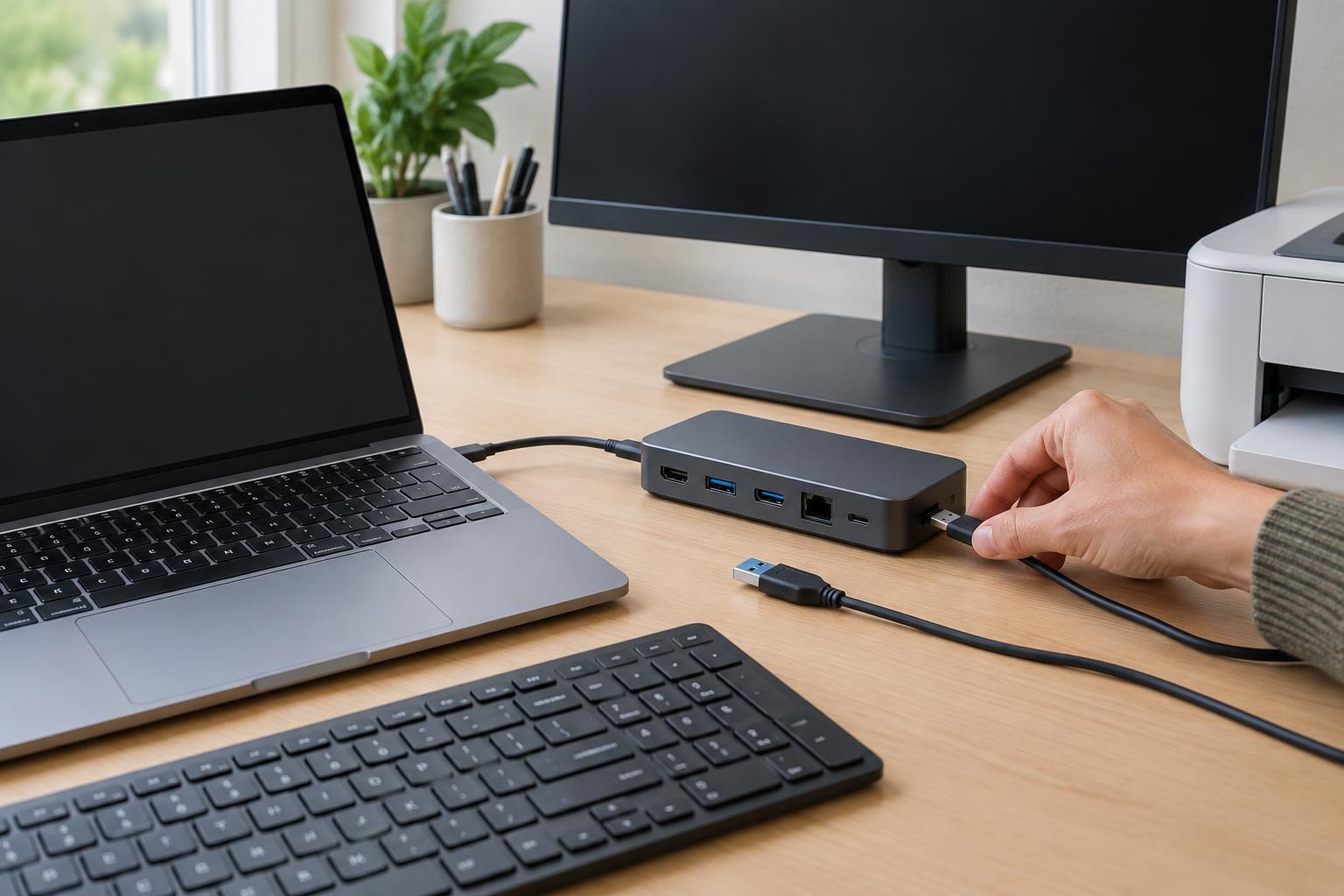
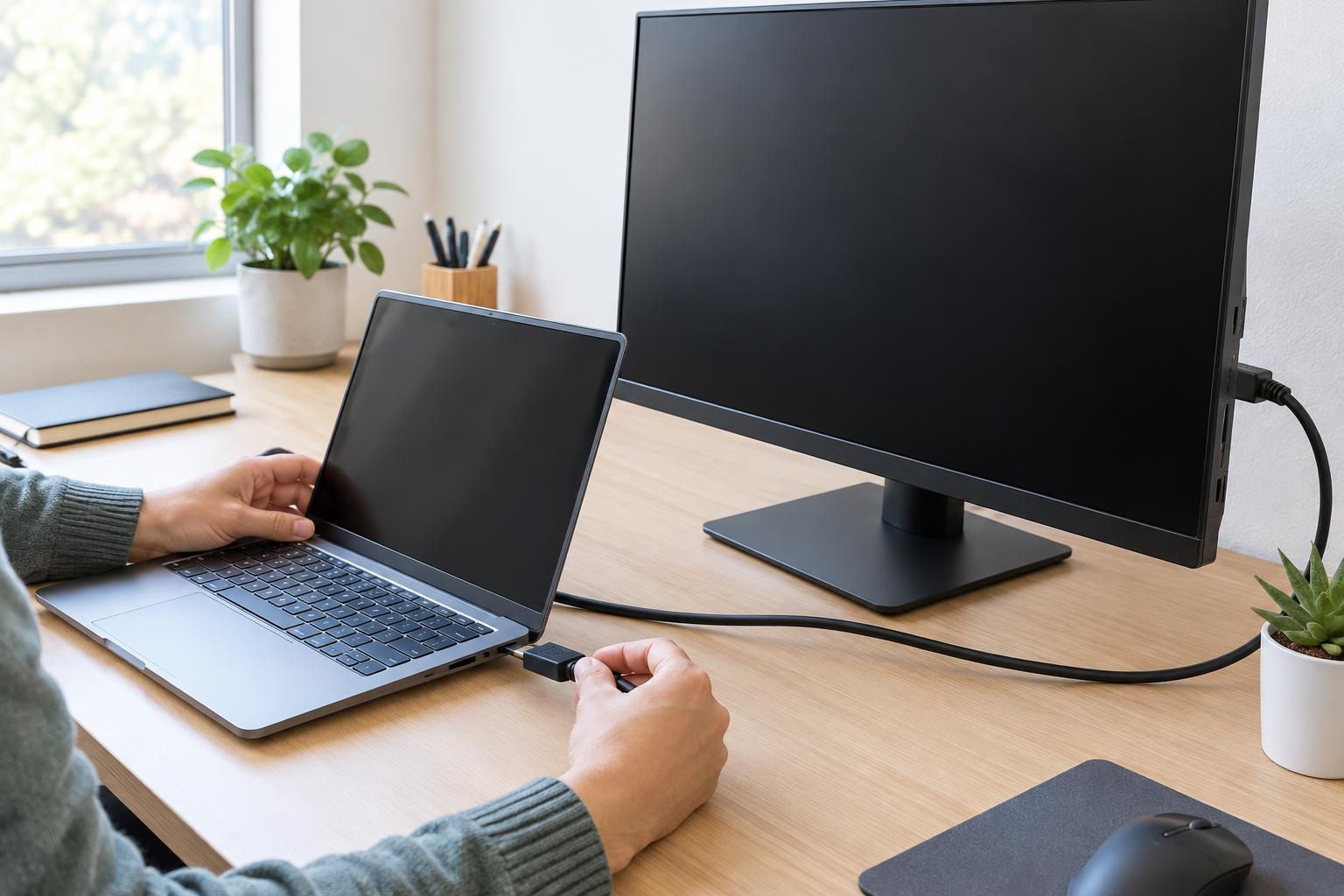
Follow the video cable from end to end. Unplug it from the monitor and computer or dock, inspect the connectors for visible damage, and reconnect both ends firmly. If the cable passes through an adapter or docking station, reseat those connections too. A loose connector is easy to overlook when a desk has been moved or a laptop is plugged in daily.
Check that the cable is in a video-capable port. HDMI and DisplayPort ports normally carry video. USB-C is less predictable: a USB-C port, cable, or adapter may support charging or data without supporting an external display. If you use USB-C, check the computer and accessory specifications for video output or a supported display mode. On a desktop with a separate graphics card, the monitor generally needs to connect to a port on that card rather than an unused video port elsewhere on the computer.
For a first test, simplify the setup. Connect one monitor directly to the computer with one known-compatible cable, if possible. Leave extra monitors, switches, and docks disconnected for now. This reduces the number of places where the signal could be lost.
Ask the computer to use the external display
Once the physical connection looks sound, open the computer’s display settings. Look for an option to detect displays, then choose a mode such as duplicate or extend. A laptop may also have a keyboard shortcut for switching display modes; its key markings and behavior vary by model. If the external screen is detected but remains blank, try duplicate mode first. It is easier to confirm a picture when both screens should show the same thing.
If the monitor appears in display settings, check its resolution and refresh rate. Start with a setting the monitor supports; an automatic or recommended resolution and a standard refresh rate are sensible first choices. If you recently changed these settings and lost the picture, revert them using the computer’s built-in screen. Then reconnect the external monitor and test again.
Swap one part at a time
If there is still no picture, change only one component between tests. Try another input on the monitor and select that input in its menu. Then try another video cable of the same type, if one is available. If you normally use a dock or adapter, test a direct connection or a different compatible adapter. Replacing several parts at once may restore the picture, but it will not tell you which part caused the trouble.
Cross-testing can narrow the cause further. Connect the computer to another monitor or TV using a compatible input, or connect a different computer to the original monitor. If the original monitor works with another computer, focus on the first computer’s output and settings. If the first computer works with another screen, focus on the original monitor, its selected input, and its cable. These tests are clues rather than guarantees, especially when different devices use different ports.
What to do when the simple checks fail
Restart the computer with the monitor connected, and power the monitor off and on. If the display has worked before and stopped after a software change, check the computer’s display or graphics settings and use its normal update tools to look for an appropriate driver update. Avoid installing drivers from unfamiliar download sites. For a dock, confirm that its power supply is connected if it requires one, and that the dock supports your computer and monitor setup.
Stop using a cable, adapter, or port that is visibly damaged, unusually hot, or requires force to connect. If a known-working monitor and cable still show no picture from any suitable port on the computer, or the monitor fails with multiple computers, the remaining issue may need manufacturer support or repair. Keep a note of which cables, ports, and devices you tested; it will make the next troubleshooting step much more focused.