Start with a simple comparison
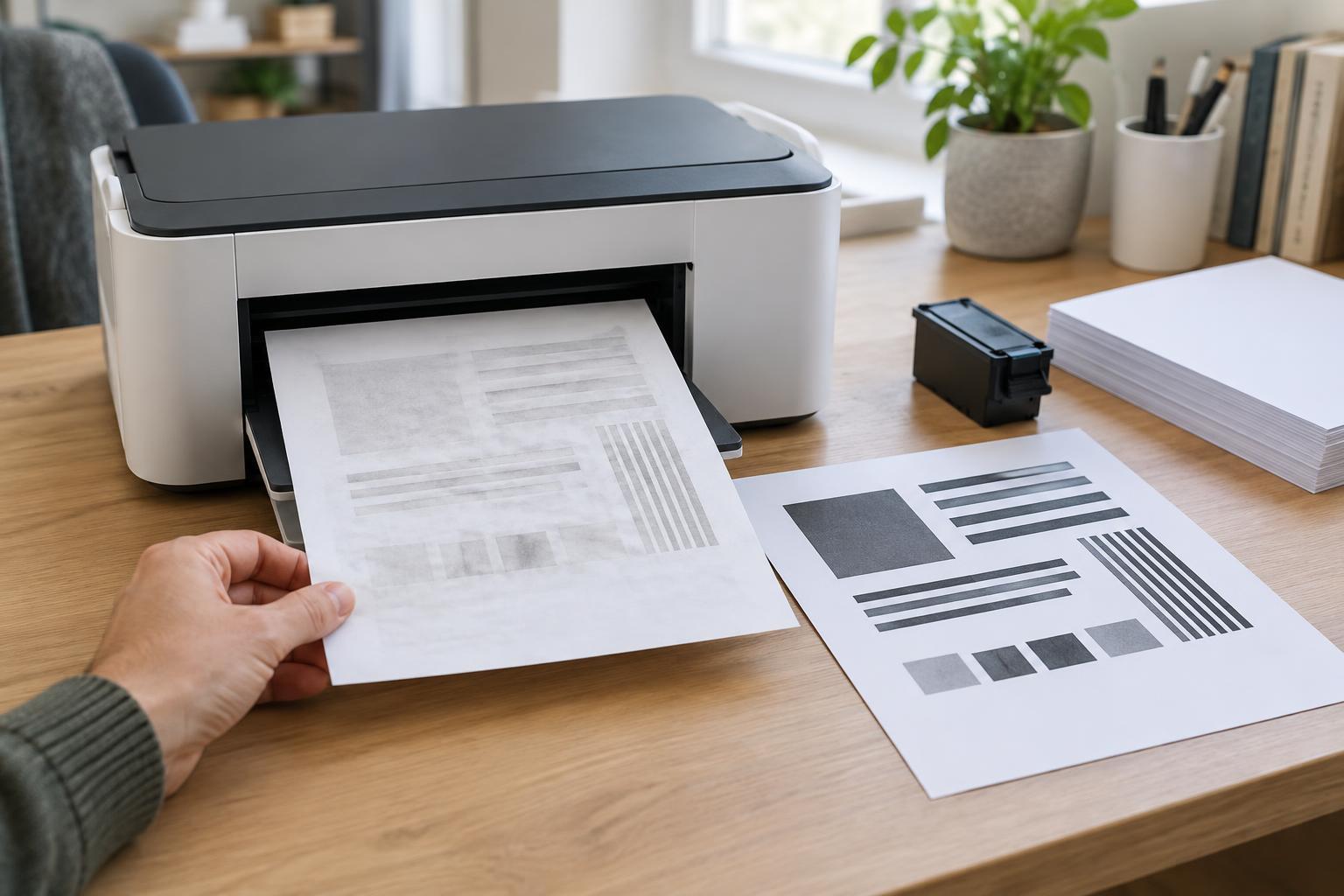
When a printout looks faint, resist replacing supplies immediately. First, print a short test page with black text and a few solid shapes. If your printer has a built-in test or status page, print that too. A built-in page helps separate a problem in the printer from one in a particular document or app: if it looks normal but your file does not, check the file and print settings first.
Notice what is faded. Is every part of the page pale, or only one color? Does the same light band appear in the same place on repeated pages? Try printing the same file from another app if you can. These comparisons give you a clearer starting point than a supply-level indicator alone, which may not precisely reflect how much usable ink or toner remains.
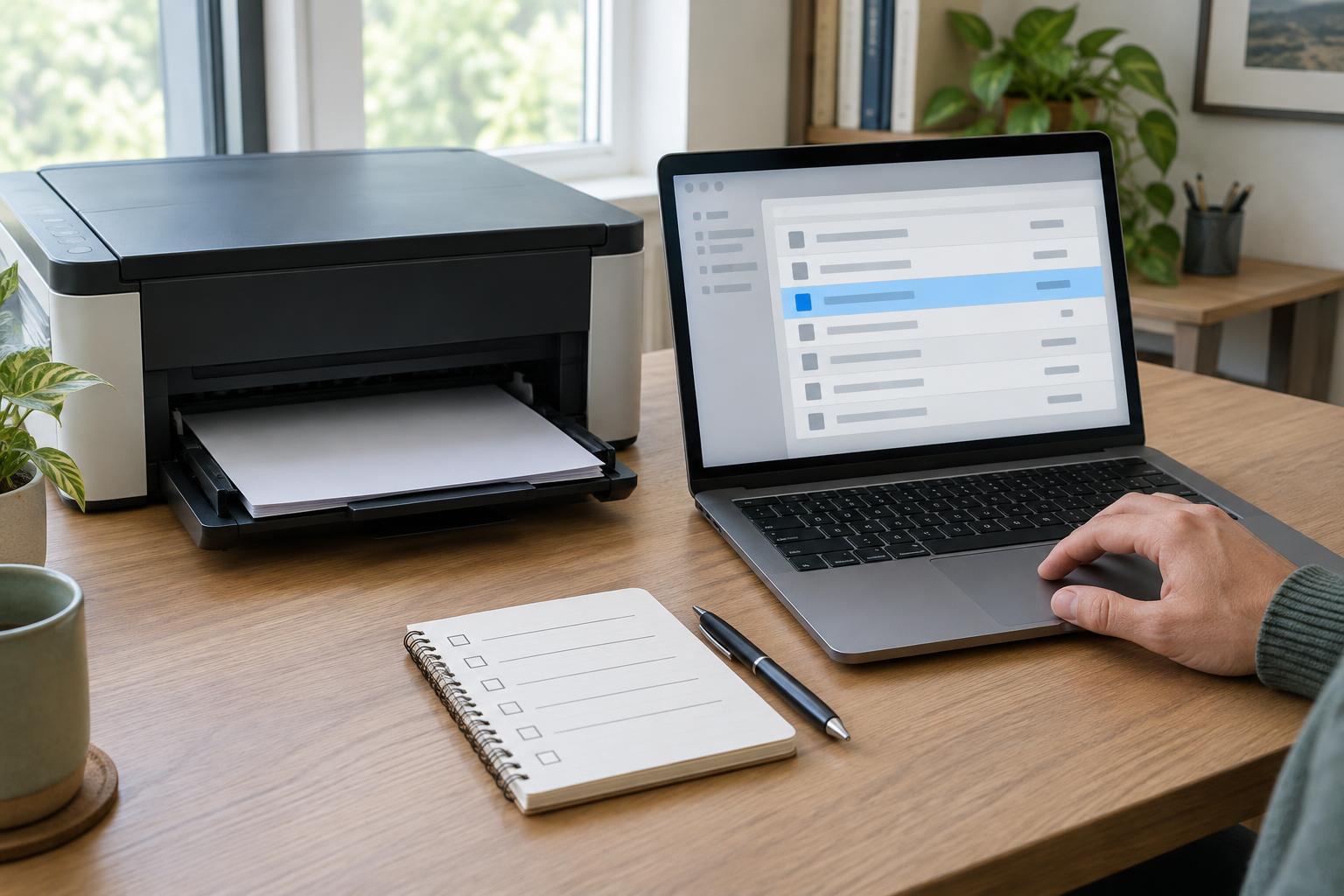
Check print settings before opening the printer
Open the print dialog and look for Draft, Economy, Toner Save, or a similar mode. These options deliberately use less ink or toner and can make text look lighter. Switch to a standard or normal quality setting, then print one page again. For an inkjet photo or graphic, also check that the selected paper type matches the paper in the tray; the paper setting can change how the printer applies ink.
Look at the document itself as well. Gray text, low-opacity images, and thin fonts may look faded even when the printer is working properly. If a PDF or image is unusually light, compare it with a different file containing solid black text. For color printing, confirm that the job is not set to grayscale and that the expected color options are enabled. Change one setting at a time so you can tell which adjustment helped.
If you have an inkjet, inspect the ink and run a nozzle check
Inkjet printers place liquid ink onto paper through small nozzles. Low ink can produce weak output, but dried or blocked nozzles can also cause missing lines, streaks, or a missing color. Check the printer’s ink status, then use its maintenance menu to print a nozzle-check pattern if that feature is available. Gaps in the pattern point toward a delivery problem rather than a pale original file.
If the nozzle check shows gaps, run the printer’s recommended cleaning cycle and test again. Cleaning uses ink, so avoid repeating it indefinitely if nothing improves. Confirm that cartridges are seated correctly and that any protective tape was removed from a newly installed cartridge. Handle cartridges as the printer instructions direct, and avoid touching contacts or printhead surfaces. If the nozzle check is complete but ordinary documents remain faint, return to the document, quality, and paper settings.
If you have a laser printer, check toner and cartridge seating
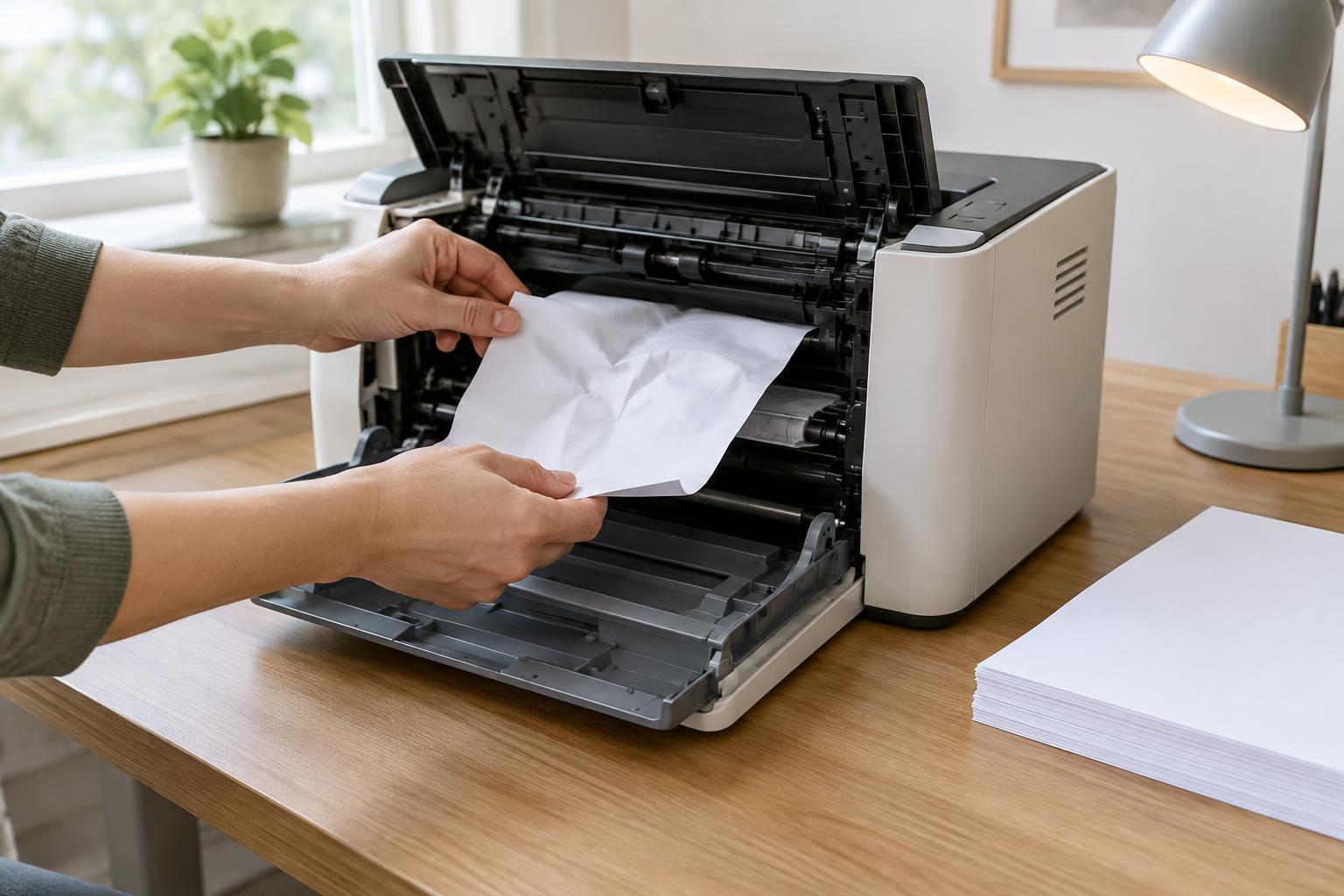
Laser printers use toner powder rather than liquid ink. A low toner supply may cause broadly pale text, while a recurring light band can suggest an issue with the cartridge or another part of the print path. Review the printer’s supply message, if it has one, and check that the toner cartridge is installed securely. If you recently replaced it, confirm that all shipping seals and packaging were removed according to the printer’s instructions.
Some cartridges can temporarily produce more even pages after they are gently redistributed, but only do this if the manufacturer’s instructions recommend it. Keep the cartridge level, avoid spilling toner, and do not touch exposed rollers or drums. Print the same test page after each check. If a fresh, correctly installed cartridge and normal print settings still produce faint pages, the cause may be elsewhere in the printer.
Know when to stop troubleshooting
Try a small batch of ordinary paper from a dry, properly stored pack if results vary from sheet to sheet. Damp or unsuitable paper can affect output, and specialty paper often needs its matching print setting. Check that paper is loaded correctly, especially if one side is intended for printing. These are useful low-cost checks before you commit to replacing a supply.
Stop and consult the printer’s manual or support options if cleaning cycles do not improve an inkjet nozzle pattern, a laser printer stays pale with a correctly installed cartridge, or the machine reports an error. Do not disassemble internal parts to chase a faint page. Keep your test prints and note which settings and supplies you checked; that record makes the next troubleshooting step easier and helps prevent repeated purchases that do not solve the problem.