Clear the jam without creating another problem
Start with the printer’s display or status message. If it identifies a tray, rear door, or duplex path, check that area first. Cancel the print job if the printer allows it, then follow the access instructions for your model. If you need to reach inside, turn the printer off when its instructions call for it. Some internal parts, especially in laser printers, can be hot; let the machine cool before touching areas near the fuser.
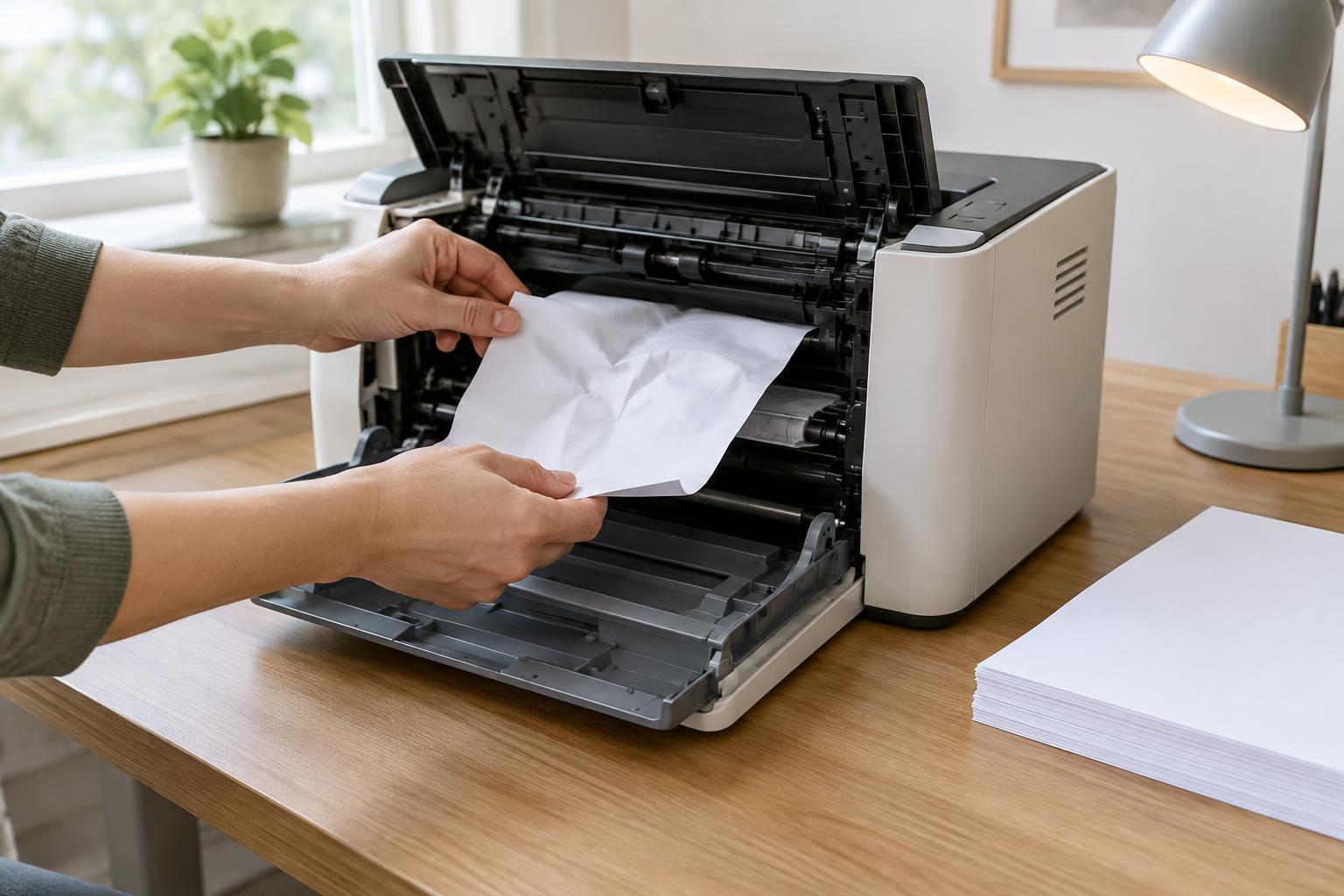
Remove any loose sheets from the input tray so they cannot feed while you work. Open the indicated cover and pull the stuck page slowly, using both hands when possible. Pull in the direction the paper normally travels unless the printer’s instructions say otherwise. Avoid sharp tools and do not force a sheet past a roller or latch. If the page tears, look for scraps along the accessible path before closing the covers.
Check that each door clicks shut and that the tray is seated properly. Print one simple test page before sending the full job again. If it jams immediately, repeating the same large job is unlikely to help; the next step is to identify where the sheet stops.
Use the jam location as a clue
A sheet that barely leaves the tray points toward a pickup problem: paper condition, tray loading, guides, or feed rollers. A sheet that enters the printer but stops farther along may indicate an obstruction or a problem with a particular paper path. If jams occur only during two-sided printing, pay attention to the duplex route. If they occur only with envelopes or thick stock, check whether that material is supported and whether the printer has a straighter feed option.
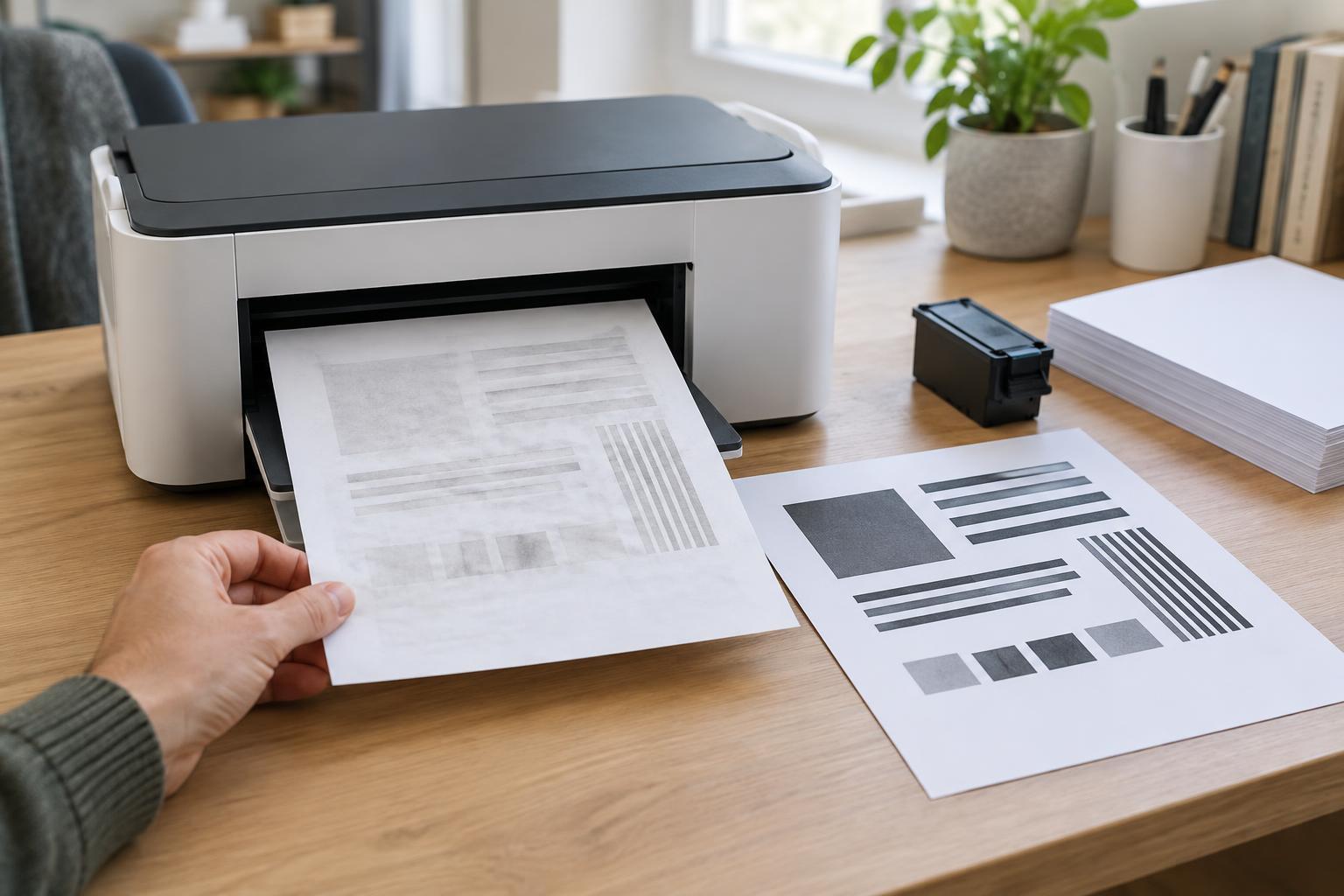
Look at the page you removed. A folded leading edge can mean it met resistance as it entered the machine. A skewed page may suggest that the stack or tray guides are uneven. Repeated marks or folds in the same place can help you locate a problem, although they do not prove that a particular part has failed.
Make a brief note of the tray, paper type, job settings, and jam location. This is especially useful in a shared office, where several people may encounter the same fault. One isolated jam may need no further action, but a repeatable pattern gives you something specific to test.
Check the paper and tray first
Take out the stack and inspect it. Bent corners, curled sheets, damp paper, and mixed sizes can all interfere with feeding. Replace visibly damaged sheets, fan through a stack only if the printer’s guidance recommends it, and reload the paper neatly below the tray’s fill mark. Keep spare paper in its wrapper until needed and store it flat in a dry place.
Move the tray guides so they touch the edges of the stack without squeezing it. Guides set too wide can let sheets enter at an angle; guides set too tight can keep them from moving freely. Confirm that the size in the tray matches the size selected in both the printer and the print job. When using labels, envelopes, or heavier stock, check the printer’s supported media and loading orientation rather than assuming ordinary-paper settings will work.
If more than one tray is available, try the same paper in another supported tray. If the problem follows the stack, the paper may be the cause. If it stays with one tray, inspect that tray’s seating and accessible feed area.
Inspect the feed path and routine maintenance items
With the printer off where appropriate, use the access points described in its manual to look for scraps, stray labels, or other obstructions. Check removable trays and the rear access door if your model has one. Do not dismantle parts or reach into areas the instructions do not make user-accessible.
Feed rollers can become dusty or worn, making it harder for them to pick up one sheet at a time. If your printer provides a cleaning procedure, follow it using the materials specified by the manufacturer. Avoid spraying cleaner directly into the machine. Some printers also have user-replaceable rollers or maintenance kits; use the model’s instructions to decide whether replacement is appropriate.
After each change, test with a few plain, supported sheets. Changing one thing at a time makes it easier to tell what helped. If plain paper feeds reliably but one specialty material does not, review that material’s specifications and job settings before treating the printer as faulty.
Know when to stop troubleshooting
Repeated jams in the same location after you have checked the paper, tray, settings, and accessible path may point to a worn part or an internal obstruction. Stop if a sheet is firmly trapped, a cover will not open as described, or you notice unusual noise or damage. Forcing the mechanism can turn a routine jam into a repair.
When contacting support or a service provider, share the printer model, the displayed error, where the paper stops, which tray and material you used, and what you have already tested. That short record is more useful than simply reporting that the printer jams. For day-to-day prevention, load clean paper correctly, keep trays within their fill limits, choose settings that match the media, and address small feeding problems before they become a regular interruption.