First, find out what is actually stuck
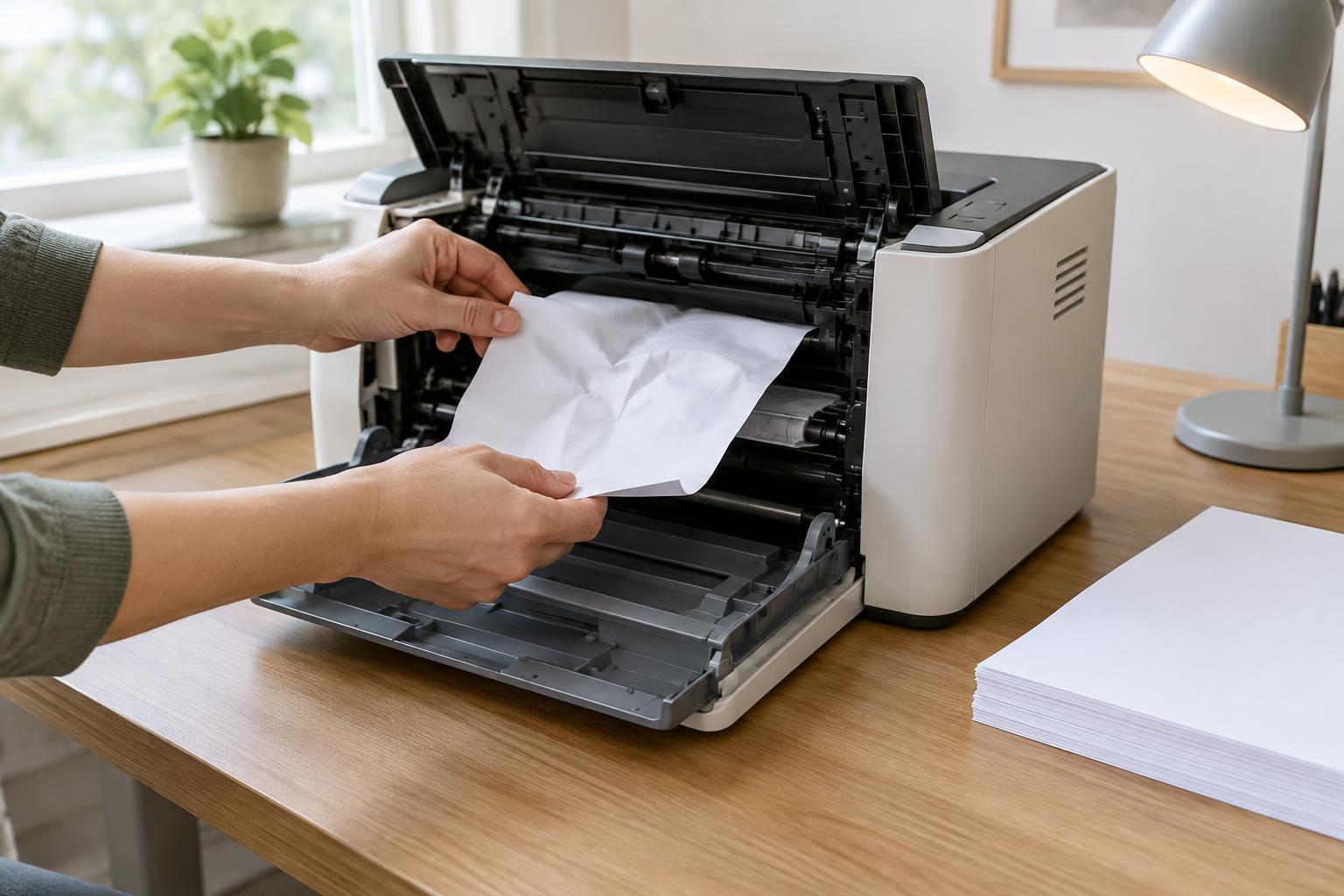
When a printer stops responding, it is tempting to cancel everything and try again. First, check whether the printer itself needs attention. A paper jam, empty tray, open cover, or offline connection can leave perfectly good jobs waiting in line. Look at the printer’s display or status lights, then check that it has paper and is connected to the expected network or cable.
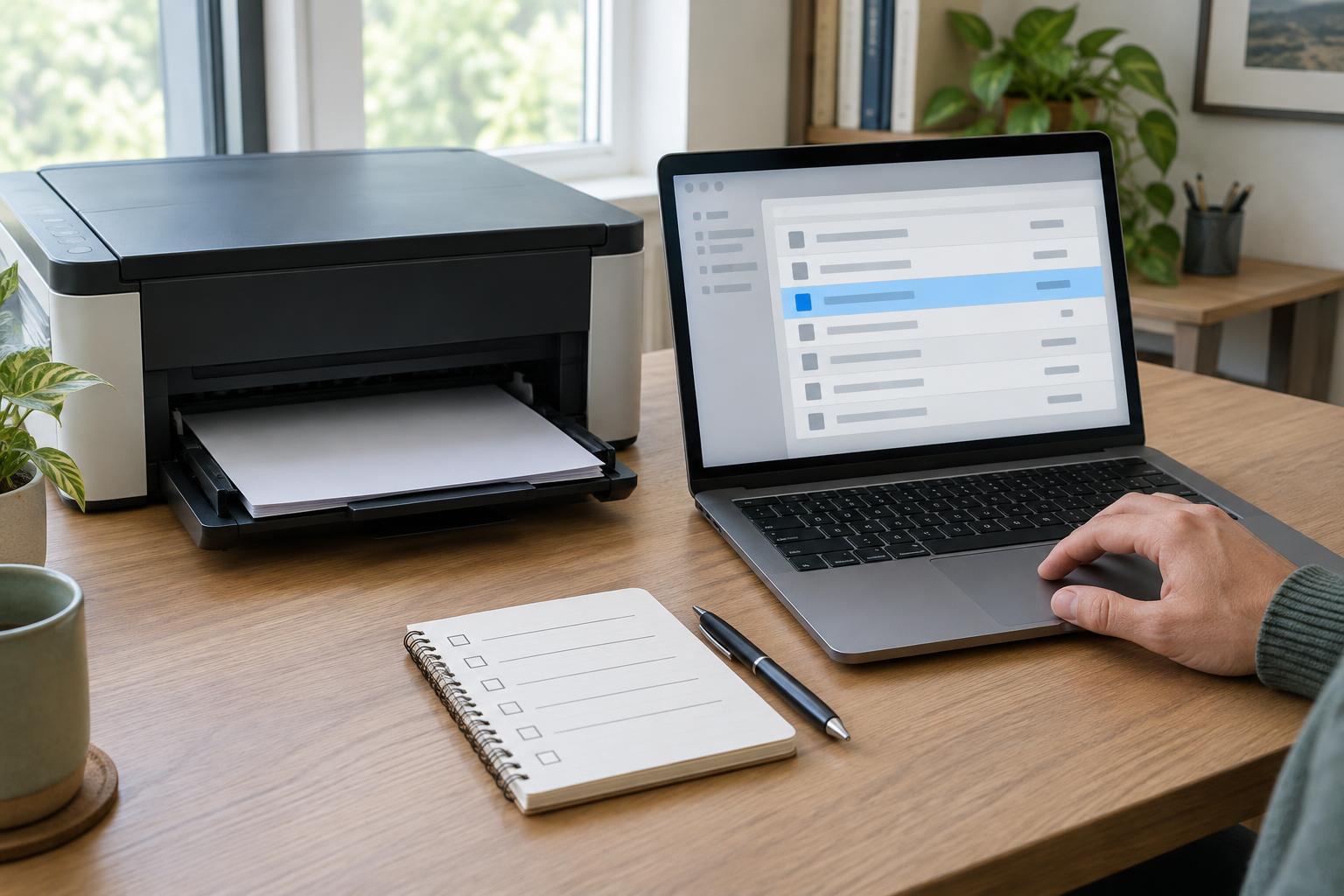
Next, open the print queue on the computer that sent the job. On Windows, you can generally find it through Settings, under printers and scanners, by selecting the printer and opening its queue. On a Mac, open Printers & Scanners in System Settings, select the printer, and open its queue. Menu names vary by operating system version. If several people use the printer, remember that your computer may show only the jobs it sent; the printer or another computer may have a separate list.
Make a short job record before canceling anything
A print queue is a temporary waiting list, not a reliable record of completed work. Before changing it, note each visible job’s document name, owner if shown, page count or copy count, and status. A quick photo or screenshot can help, but avoid capturing confidential document names if the image might be shared. For sensitive work, write a private checklist instead.
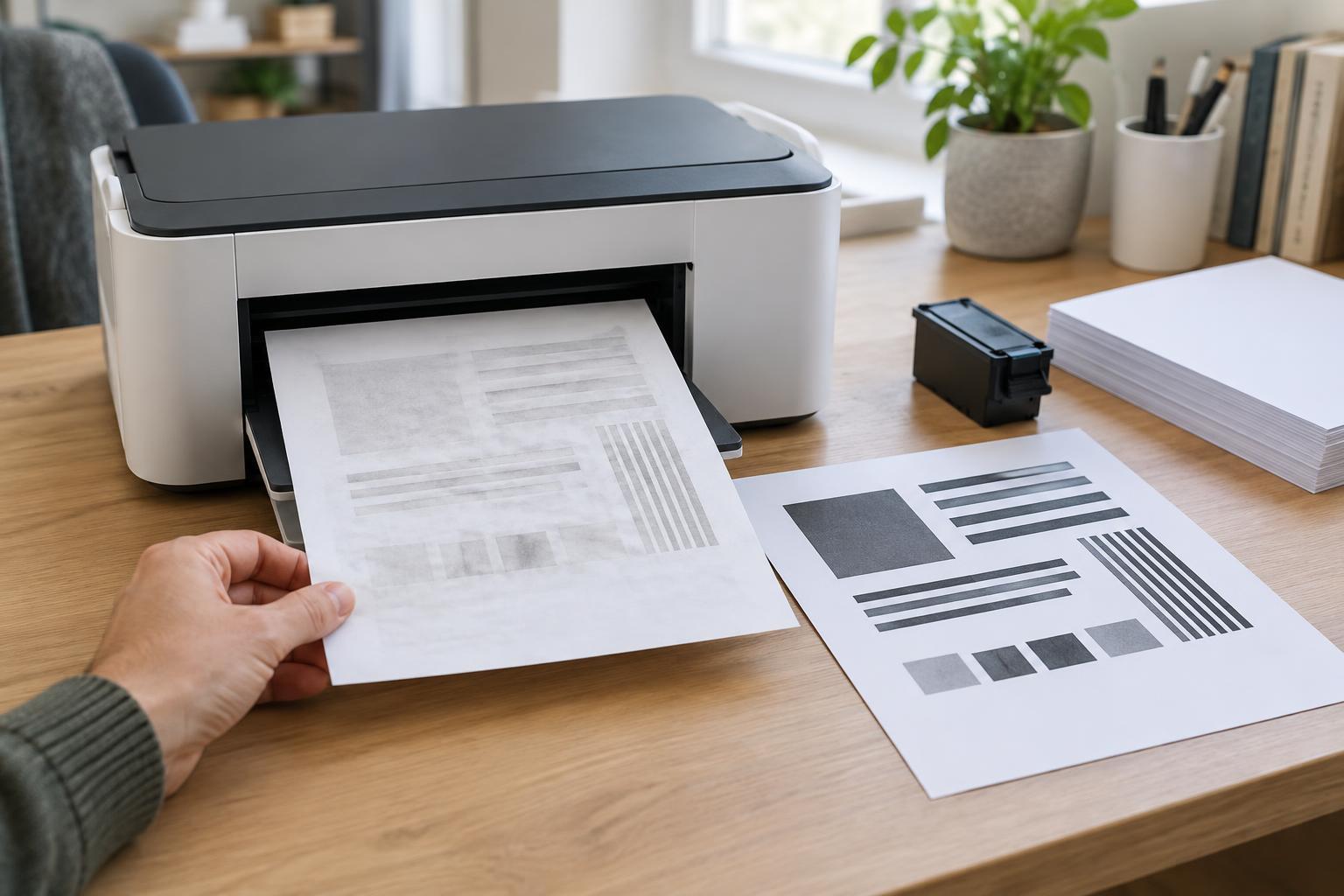
Check the output tray as well. A job labeled “printing” may have produced some pages before stopping. Mark which documents are complete, partial, or not started, and keep partial output separate from finished sets. If you are printing invoices, forms, or other numbered documents, note the last page you can verify. This small step makes it much easier to resume without creating duplicates or overlooking a missing page.
Remove the smallest possible obstruction
Start with the job that appears to be holding up the line. If the printer reports a physical problem, fix that first and give it a moment to continue. If one document remains stuck while later jobs wait, cancel that document from the queue rather than clearing the whole list. You may need to select the job and choose Cancel or Delete. Wait for the queue to update before sending a replacement; repeated clicks or repeated print commands can create multiple copies.
If the stuck job will not disappear, close the application that sent it and try canceling again. A restart of the computer and printer may also clear a temporary communication problem. Let the printer finish shutting down before turning it back on, and check the queue after both devices reconnect. On a shared printer, tell other users before restarting it or removing their jobs. If you cannot tell whether a job belongs to you, leave it alone until you can check.
Use a full queue reset only when targeted steps fail
Sometimes jobs remain in the queue even after cancellation. Windows has a Print Spooler service that manages pending jobs; restarting it can help when the queue is unresponsive. This can interrupt jobs on that computer, so first save your job record and coordinate with anyone else who uses it. The exact controls differ by Windows version and may require administrator access. Do not delete unfamiliar system files just to force a reset.
On a Mac, a printing-system reset is a more sweeping option that may remove configured printers and require you to add them again. Treat it as a last resort, not a routine way to cancel one document. Before any broad reset, make sure you can access the original files and know which printer, paper size, and print settings you will need afterward.
Reprint carefully and reduce repeat jams
Once the printer is ready, compare your job record with the pages in the output tray. Send one small test job first. Then reprint only documents that are missing or incomplete; if the application offers a page range, you may be able to print just the missing pages. Check the selected printer and number of copies before clicking Print, especially if you changed devices while troubleshooting.
If the same file stalls again, try a simpler test document. If that prints, the problem may relate to the file, its print settings, or the application rather than the queue. If nothing prints, check the connection and printer status again. Keeping a brief note of which test worked will make the next troubleshooting attempt faster—and will help you explain the problem clearly if you need support.