Start by identifying what changed
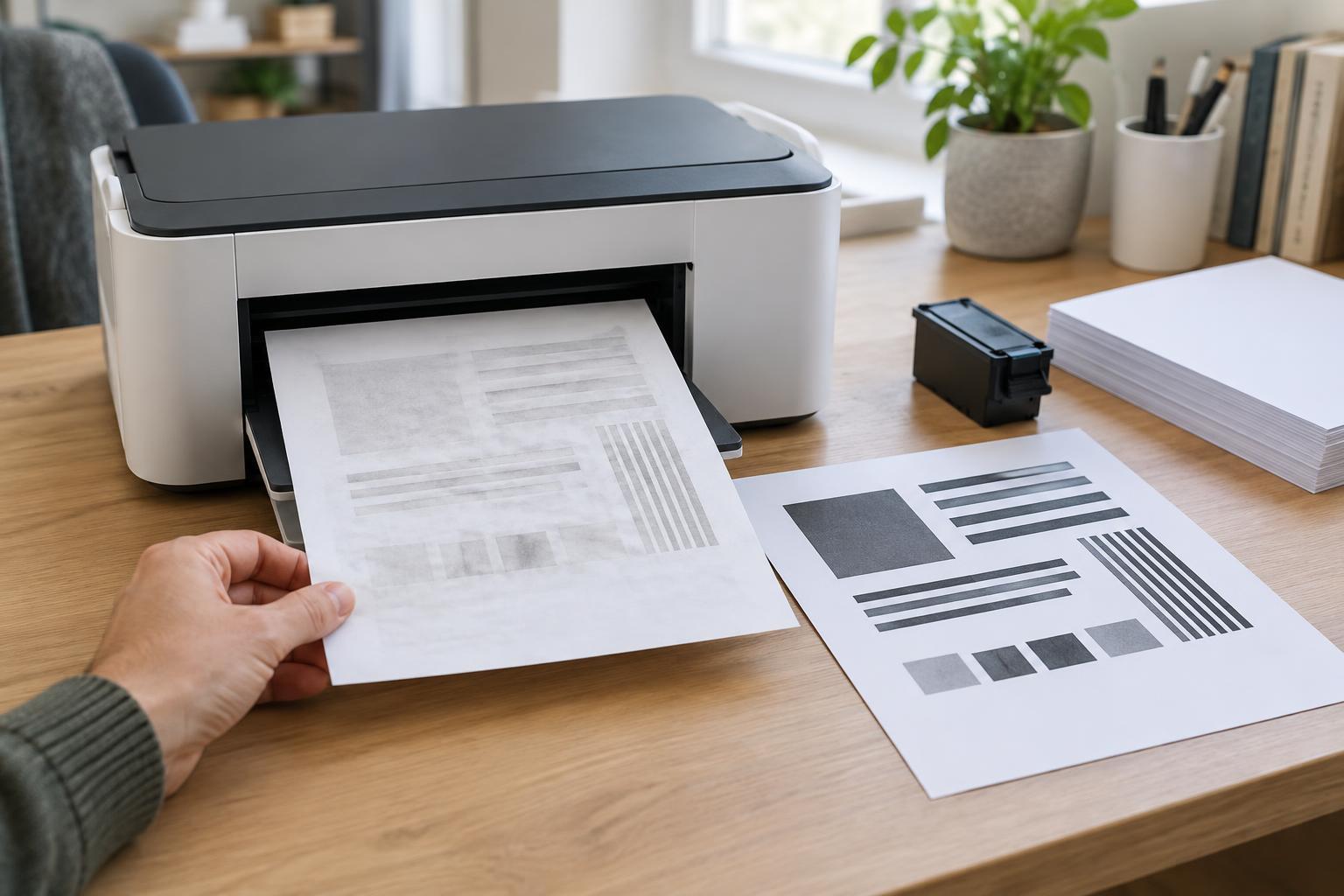
When a printout is the wrong size, first distinguish a scaling problem from a positioning problem. If everything on the page is uniformly smaller or larger, a scale setting is the likely cause. If the content is the expected size but shifted or cut off, check the paper size, margins, and printer’s printable area instead. If only one image or table looks wrong, its size may be set incorrectly in the document itself.
Keep one misprinted page for comparison. Note the application you printed from, the paper loaded in the tray, and the options shown in the print preview. Then change one setting at a time. This is faster than trying several fixes together, because you can tell which change affected the output.
Check paper size before adjusting scale
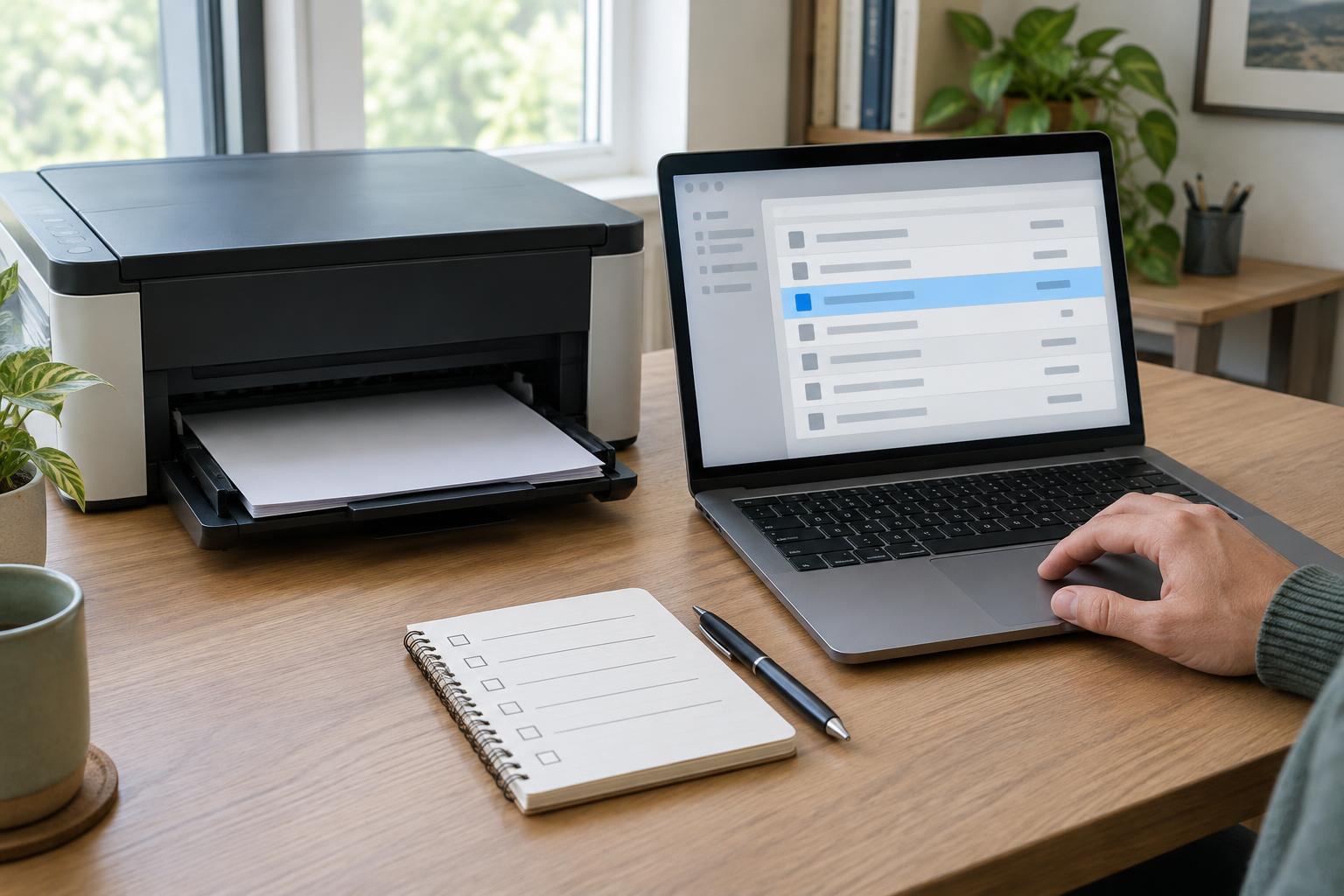
The document, print dialog, and printer tray should agree on paper size. For example, a document laid out for A4 may be reduced or clipped when sent to Letter paper. An application may also offer to fit the page automatically when it detects a mismatch. Check the document’s page setup, the selected paper size in the print dialog, and any paper-size setting in the printer’s own menu or driver.
If the intended paper is not available, decide whether you want to preserve the original dimensions or make the whole page fit. Fitting it to a different sheet can keep content from being cut off, but it changes the size of text, images, and any measurement marks. For forms, labels, patterns, or other items that need exact dimensions, use the intended paper size when possible.
Choose the scaling option that matches the job
Print dialogs commonly offer choices such as Actual size, 100%, Fit, Shrink oversized pages, or a custom percentage. Actual size or 100% is the starting point when dimensions matter. Fit scales the page to the available print area; it is useful for getting a complete page onto a sheet, but it may make the result smaller than expected. A custom percentage can be useful when you deliberately need a reduced or enlarged copy.
Look for scaling controls in both the application’s print window and the printer’s settings or properties. A PDF viewer, browser, word processor, and printer driver may present these options differently. If the result is unexpectedly small, check whether more than one place is applying a reduction. Also check for settings such as multiple pages per sheet or booklet printing, which intentionally shrink pages even when the document itself is set to 100%.
Use print preview as a clue, not a final measurement. It can show whether the page is likely to be clipped or surrounded by large margins, but the physical printout is the better check when precise size matters.
Understand margins and cropped edges
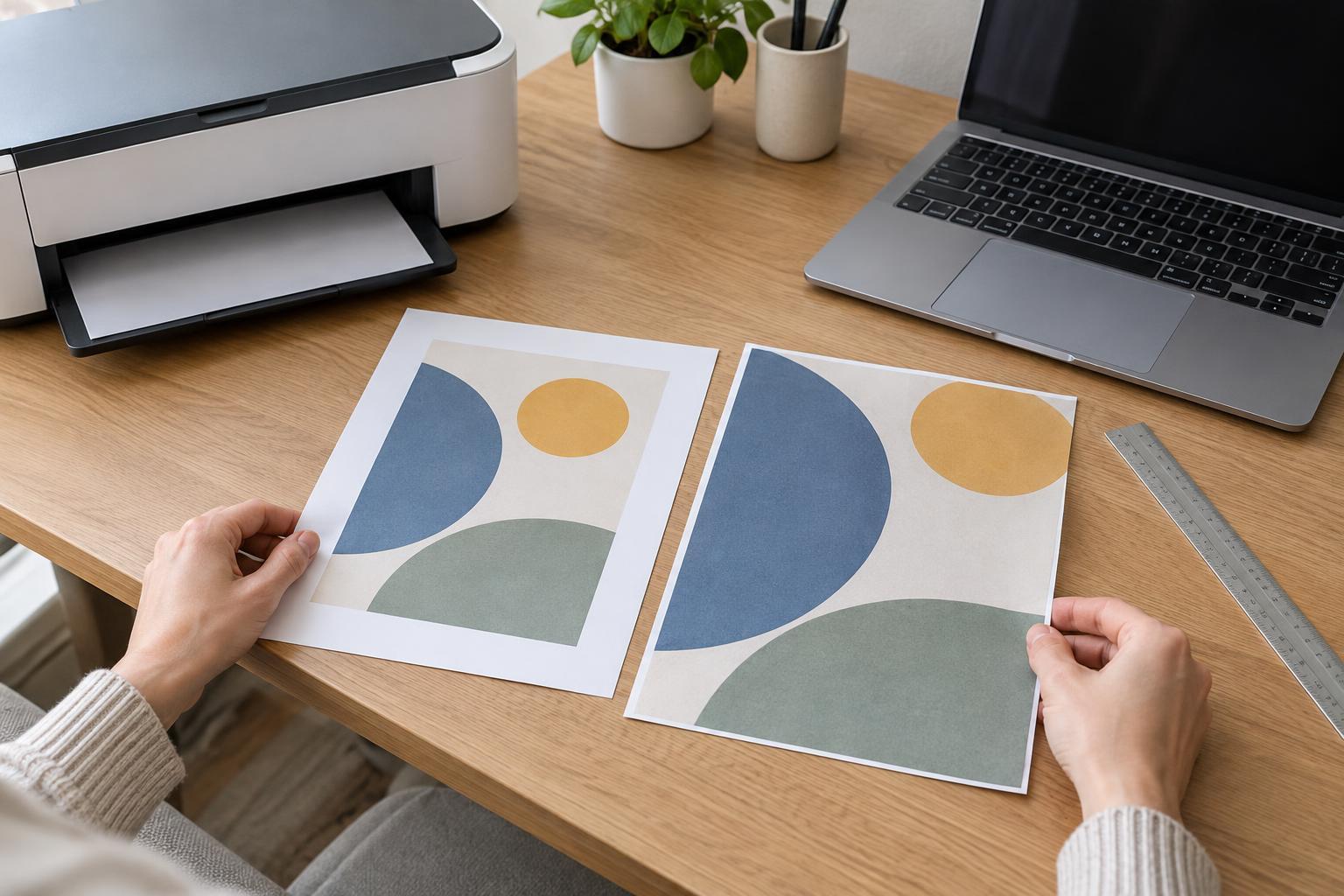
Many printers cannot print all the way to the edge of a sheet. If a document places content outside the printer’s printable area, the print dialog may offer to shrink it to fit, or the printer may cut off the edges. A page that appears slightly smaller than expected may therefore be the result of automatic fitting rather than an error in the document.
For ordinary letters and reports, moving content farther from the page edge is often the simplest solution. If you need an image to cover the entire sheet, check whether your printer supports borderless printing for that paper size. Do not assume that selecting borderless will preserve exact dimensions: some borderless modes enlarge the image slightly to avoid a white edge. Check the preview and make a test print before printing a batch.
Run a small test and narrow down the cause
Create a one-page test with a clearly sized shape, such as a square set to a known width in your document application. Print it on the correct paper at Actual size or 100%, with one page per sheet. Measure the printed shape with a ruler. If its size is correct, the printer can reproduce that document’s dimensions with those settings; return to the original file and check its page setup or print options.
If the test is also the wrong size, try printing from a different application and review the printer settings again. If only PDFs are affected, inspect the PDF viewer’s scaling choice. If only browser pages are affected, check the browser’s print scale and whether it is printing a simplified layout. If several applications produce the same error, a printer preset or driver setting is a reasonable next place to look.
Once you find a combination that works, note the paper size and scale setting rather than relying on memory. Print settings can persist between jobs, so a choice that helped one document fit may cause the next one to print at the wrong size.