What each scanning mode captures
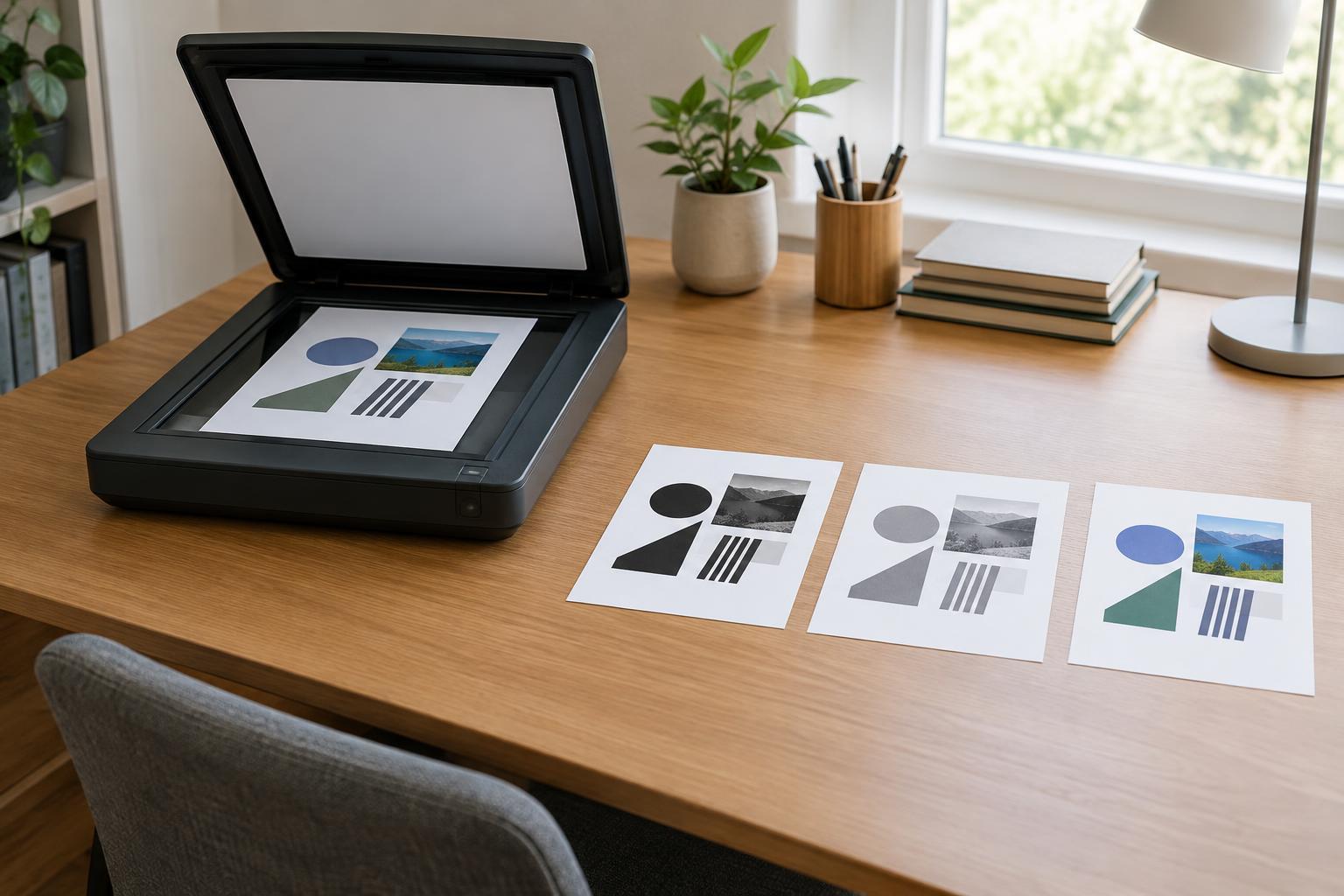
A scanner’s color setting determines what information it records from a page. Black-and-white mode, sometimes labeled monochrome or binary, reduces the image to two values: black and white. It can make clean, high-contrast text look crisp, but it may erase faint pencil marks, pale stamps, or shading. It may also turn a shadow near a page fold into a solid black patch.
Grayscale records a range of tones between black and white. It preserves shadows, light handwriting, and the shape of photographs without retaining their colors. Color mode records the page’s colors as well as its light and dark areas. It is the safest choice when the meaning of a document depends on colored marks, highlights, charts, or images.
These names describe the image, not its resolution. A low-resolution color scan can still be hard to read, while a well-made black-and-white scan can be excellent for ordinary printed text. Choose the mode for the information on the page, then adjust other settings if needed.
Start with the information you need to keep
For a typed letter or a sharply printed invoice with no meaningful color, black-and-white is a sensible starting point. Check the preview before scanning a large batch: thin fonts, small print, and lightly printed receipts can disappear when the scanner decides which pixels should be black. If important details look broken or missing, try grayscale.
Grayscale is a useful default for mixed text documents, including forms with handwritten notes, older photocopies, and pages with shaded tables. It can preserve detail that a two-tone scan loses without recording unnecessary color. Use color when you need to distinguish annotations, verify the appearance of a marked-up page, or keep photographs and diagrams useful. If someone will review the scan in place of the original, retaining color may prevent ambiguity.
A document feeder makes it easy to scan many pages under one setting, but a stack can contain exceptions. Before choosing black-and-white for an entire batch, look for pages with colored corrections, faint signatures, or images. Scan those pages separately if necessary, then check that the finished file remains in the intended order.
Balance file size with readability
Black-and-white scans often produce smaller files than grayscale or color scans, especially for clean text pages. That is helpful when storing or emailing many documents. File size is not determined by mode alone, though: resolution, page count, file format, and compression settings also matter. A highly detailed black-and-white image can be larger than a more compressed color image.
Avoid making a document so small that it becomes difficult to use. Higher resolution may help with tiny type, fine lines, or later enlargement, but it also tends to increase file size and scanning time. For an ordinary letter-size document, start with a moderate resolution offered by the scanner and inspect the result at normal reading size and when zoomed in. Increase it if fine details are not captured clearly.
If the scanner offers a PDF setting, remember that PDF is a container rather than a scan mode. It can hold black-and-white, grayscale, or color pages. Some scanning apps also offer compression or searchable PDF options; those choices affect the finished file separately from its color setting.
Consider searchability and editing
Optical character recognition, or OCR, attempts to turn text in a scanned image into searchable or editable text. Clear printed characters and good contrast generally give it a better starting point. Black-and-white can work well for clean print, but an aggressive conversion may break letters apart or merge them with background marks. Grayscale or color may preserve more of the original detail when a page is faded or unevenly lit.
Scan mode cannot repair text that is out of focus, cut off at the edge, or hidden by a page crease. Straighten the original, keep it flat when possible, and check the first page before processing a full stack. If accurate text matters, review the OCR output against the image, particularly for names, numbers, and handwritten entries. Keep the scanned image as a reference rather than relying only on extracted text.
Use a quick decision routine
Ask three questions before scanning: Does color carry meaning? Are there faint marks or images? How will the file be used? Choose color if colored information must remain distinguishable. Choose grayscale if tone matters but color does not. Choose black-and-white for clean, high-contrast text when a compact, readable copy is the goal.
Then preview one representative page, including the lightest or most complicated page in a batch. Zoom in on small text, signatures, and shaded areas, and check the edges for missing content. If the scan fails that check, change the mode or resolution and try again. A short test is usually more useful than committing to one setting for every document.