Start with your work and your desk
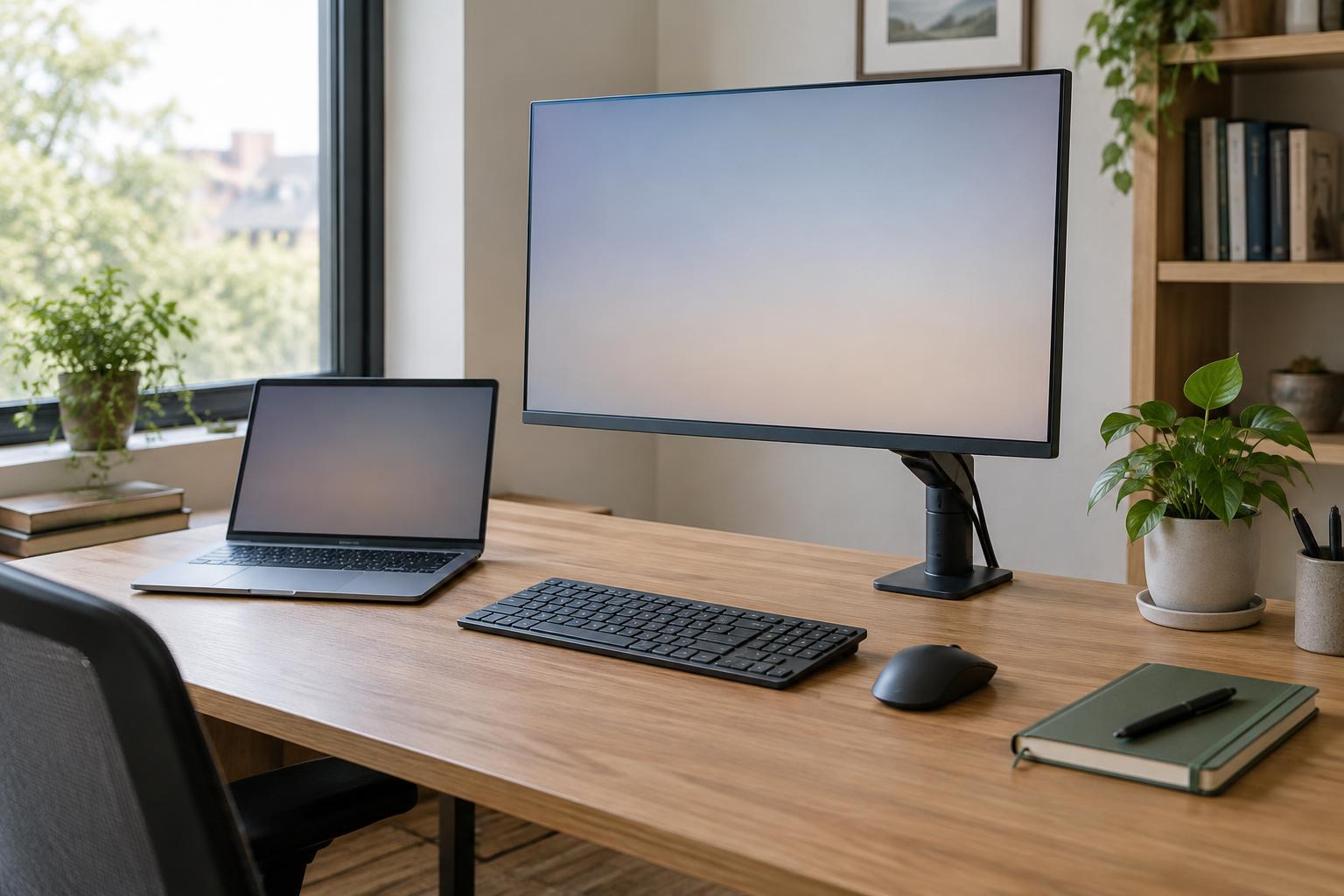
An external monitor can make it easier to keep a document, spreadsheet, reference page, or video call in view without constantly switching windows. The right choice depends on what you need to see at once, how far you sit from the screen, and how much room your desk offers. Before comparing models, measure the space available behind your keyboard and note whether shelves, lamps, or other equipment limit the screen’s height or width.
Think about your most common tasks rather than an occasional special project. If you mainly write and answer email, a modest screen with readable text may be enough. If you routinely compare documents or work in wide spreadsheets, extra screen area may be more valuable. A second, smaller monitor is another option if keeping two applications separate matters more than having one continuous display.
Choose a size you can use comfortably
Monitor size is measured diagonally, so two screens with the same stated size can still occupy different amounts of desk space if their shapes or stands differ. A 24-inch display is a practical starting point for a compact desk and everyday office work. A 27-inch display gives you more room to arrange windows, provided you can place it at a comfortable viewing distance. Screens around 32 inches or wider may suit people who want several large windows visible, but they require more desk depth and more head movement.
Check the monitor’s full dimensions, including its stand, rather than relying on diagonal size alone. A wide stand may compete with a keyboard, notebook, or document tray. If your desk is shallow, a larger screen placed too close can be less pleasant to use than a smaller one set farther back. For a two-monitor setup, also consider the combined width and where the screens will sit relative to your usual forward-facing position.
Match resolution to the screen
Resolution describes how many pixels the display can show. More pixels can make text and fine details look sharper and provide room for more content, but screen size and your display settings affect the result. Full HD, or 1920 × 1080, can work well on a 24-inch office monitor. At 27 inches, a 2560 × 1440 display often offers a useful balance of sharp text and workspace. A 4K display, commonly 3840 × 2160, offers more detail, especially on larger screens, but you may need to enlarge text and interface elements to keep them readable.
Do not choose a resolution solely because it is higher. Enlarging the interface can improve legibility while reducing the amount of content visible at once. Check that your computer and its connection can support the monitor’s intended resolution and refresh rate. For routine documents and web work, a standard refresh rate is generally sufficient; paying extra for a very high refresh rate is less likely to improve those tasks than getting the right size and resolution.
Check the ports before you buy
Compare the monitor’s inputs with the outputs on the computer you will actually use. HDMI and DisplayPort are common video connections, while some laptops can send video through USB-C. A USB-C port on a monitor does not automatically mean it accepts video: confirm that the specifications explicitly list video input. If you plan to use one cable for both a laptop’s picture and charging, check the monitor’s USB-C power delivery rating against the laptop’s charging needs.
A monitor with built-in USB ports can also act as a convenient place to connect a keyboard or mouse, but those ports may require a separate cable to the computer. If you switch between a work laptop and a personal computer, two suitable video inputs can save cable swapping. List the cables and any adapters you will need before purchasing; a compatible port on each device is simpler than relying on an adapter whose capabilities you have not checked.
Prioritize adjustments and make a final check
A stand that adjusts for height and tilt makes it easier to position the screen for comfortable viewing. Swivel helps when you share the display or change your desk position; pivot lets you turn a compatible screen upright for long pages. If the supplied stand is limited, check whether the monitor supports VESA mounting and whether your desk can accommodate a suitable arm. An arm can free desk space, but it adds cost and needs secure installation.
Before deciding, make a short checklist: available desk space, preferred screen size, readable resolution, matching ports, and the adjustments you will use. Then compare the complete setup, not just the display panel. A monitor that fits your desk, connects without fuss, and sits at a comfortable height is usually a better office tool than a larger model that makes any of those everyday tasks harder.