The basic difference
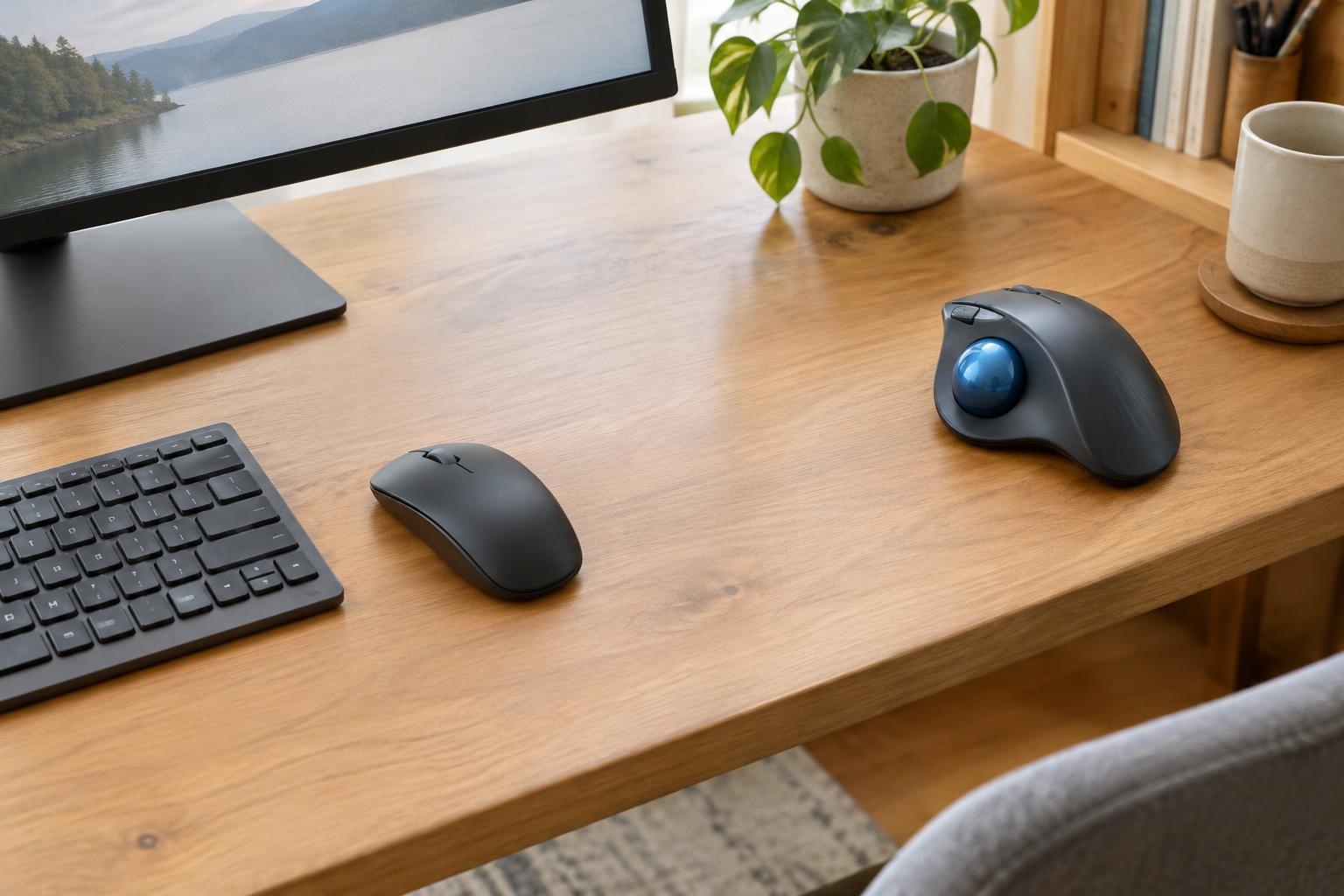
A mouse moves across the desk to move the pointer on screen. A trackball stays in place while you turn an exposed ball with your thumb or fingers. Both can select text, navigate spreadsheets, and handle routine office tasks. The important difference is how much room the device needs and which movements you repeat throughout the day.
Neither type is automatically more precise or more comfortable. Size, shape, button placement, pointer settings, and your habits all matter. If you can try a device before buying it, pay attention to ordinary tasks rather than judging it only by how it feels in your hand for a few seconds.
Desk space and placement
A mouse needs a clear area to travel, especially if you use a lower pointer speed or a large monitor. That space may compete with papers, a notebook, or a keyboard on a compact desk. A trackball needs enough room for its body and a comfortable place to rest your hand, but it does not need a travel area. This can make it easier to keep the pointer close to the keyboard or use it on a narrow shelf.
Surface conditions also differ. A mouse generally works best on a stable, suitable surface; a mouse pad can help if the desk is reflective, uneven, or uncomfortable against your hand. A trackball does not depend on the desk surface for tracking, though its base should sit securely. For either device, check the cable route or wireless receiver location so the setup does not crowd other equipment.
Control for common office tasks
For someone accustomed to a mouse, short movements and accurate clicks may feel natural immediately. A trackball often takes practice because your fingers move the pointer while the device remains still. Some people like being able to reposition their fingers without lifting and resetting the device; others find long pointer movements or fine adjustments less intuitive at first. Pointer speed can change that experience substantially.
Think about the work you do most. Selecting cells in a spreadsheet, dragging a file between windows, and highlighting small passages all require controlled movement while clicking. Try those actions with each device, not just basic browsing. Also check whether the model provides the buttons and scroll control you regularly use. Extra buttons can be convenient, but accessible placement is more useful than a long feature list.
Comfort depends on the whole setup
A mouse typically involves movement from the hand and arm, while a trackball concentrates much of the pointer movement in the thumb or fingers. That difference may make one feel better suited to your preferences, but switching devices does not guarantee relief from discomfort. Hand position, reach, desk height, task duration, and breaks can all affect how a work session feels.
Place the device where you can use it without reaching around stacks of paper or holding your arm far from your body. A larger device is not necessarily more comfortable, and a smaller one is not necessarily better for a small desk if it feels awkward to grip. If extended use causes persistent pain, do not rely on a device purchase as a substitute for appropriate professional guidance.
How to make a practical choice
Start with your available space. If you have a clear area beside the keyboard and already control a mouse easily, there may be little reason to change. If papers and equipment regularly consume that area, a stationary trackball is worth considering. Compare the actual dimensions of candidate devices, since both mice and trackballs come in different sizes.
Before deciding, check compatibility with your computer, connection type, and any software needed to customize buttons. If possible, use each option for a normal mix of clicking, scrolling, dragging, and text selection. Give an unfamiliar trackball some practice time, then judge whether its control and hand position suit your work. The best office pointer is the one that fits your desk and lets you complete routine tasks without fighting the device.