Decide what needs battery power
An uninterruptible power supply, or UPS, is a battery-backed power unit that keeps connected devices running briefly when utility power fails. For a home office, its main job is usually to give you time to save work and shut down a desktop computer safely. It is not a substitute for a generator or a way to keep an entire office operating through a long outage.
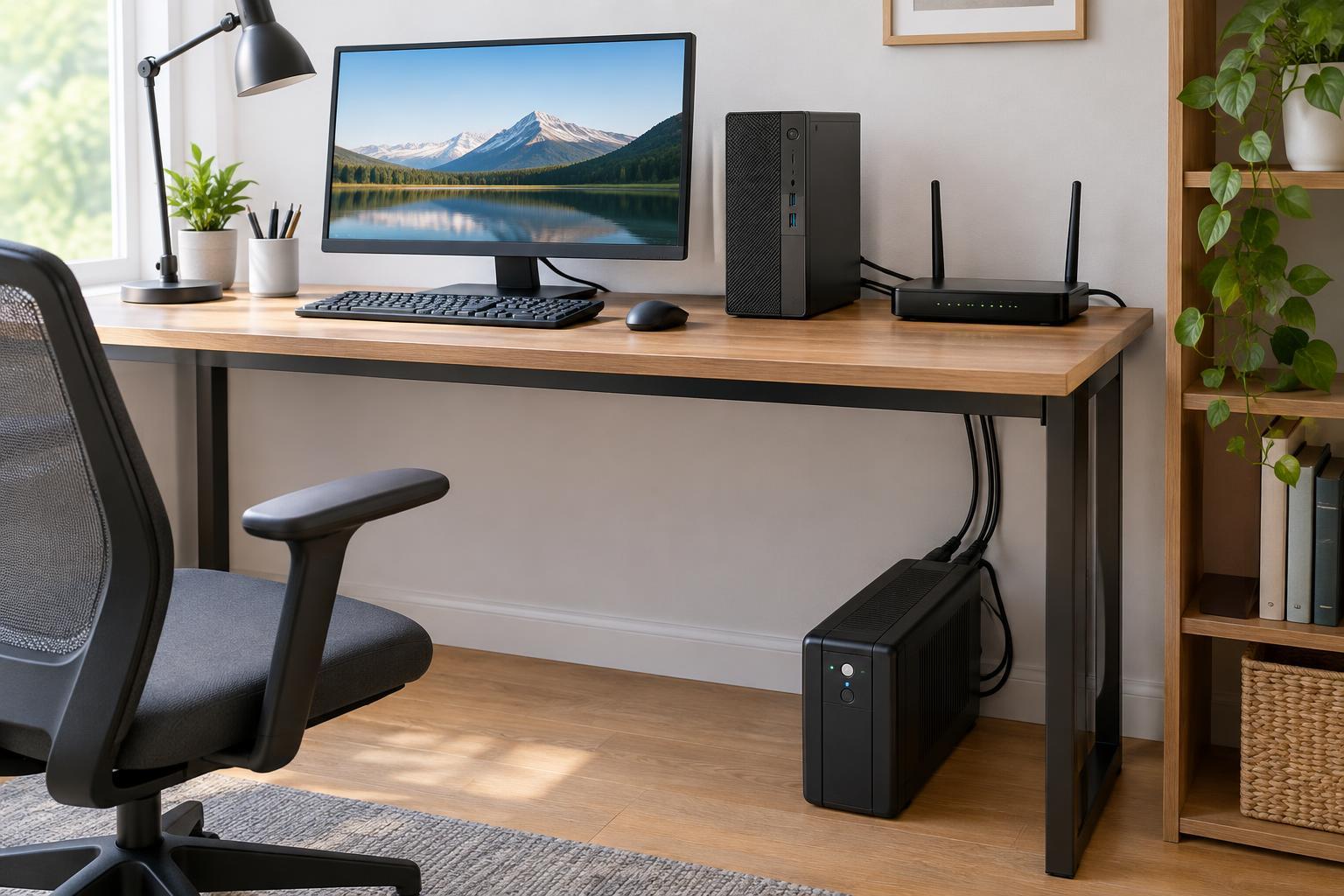
Start with a short list of devices that must stay on long enough for that shutdown. The desktop computer and one monitor are common choices. A modem and router may also be worth backing up if you need a few minutes to send a file or maintain a connection. An external drive can be important if it is actively used by the computer. A second monitor, speakers, desk lamp or scanner may be less essential.
Check which outlets on a UPS have battery backup: some models also provide surge-only outlets. Reserve the battery-backed outlets for your priority devices. Keep high-draw equipment, especially a laser printer, off those outlets unless both the printer and UPS manufacturers explicitly allow the combination. A printer’s power demand can rise sharply while it warms up or prints.
Estimate the load in watts
Make a list of the devices you plan to connect to battery-backed outlets and their power use in watts. A plug-in power meter can show what a device draws during normal work and heavier tasks. For a desktop, try measuring while you run the applications you commonly use, not just while the machine is idle. If you cannot measure, check the device’s documentation for power information and treat the result as an estimate.
Do not assume that a computer with a 500-watt power supply constantly uses 500 watts; that figure describes the power supply’s capacity, not necessarily the computer’s actual draw. On the other hand, an idle reading alone may understate the load when you are working. Add the expected loads for the computer, monitor and other essential devices, then leave capacity headroom rather than selecting a UPS whose rating exactly matches your total. Headroom helps accommodate changing workloads and avoids running the UPS at its limit.
Compare both watts and volt-amps
UPS specifications commonly show two capacity ratings: watts (W) and volt-amps (VA). Watts describe the real power the connected equipment uses. VA is a separate electrical capacity rating. You do not need to convert between them to shop: look for a UPS whose stated watt rating exceeds your estimated watt load, then confirm that its VA rating also suits the connected equipment. Do not choose a unit by its VA number alone, because two UPS models with the same VA rating can have different watt limits.
For example, if your planned devices draw an estimated 300 watts during demanding work, a UPS rated for exactly 300 watts leaves no margin. Compare models with watt ratings comfortably above that estimate, and check their documentation for any guidance on the equipment you intend to connect. If you are uncertain about a device’s demand, measuring it is more useful than guessing from its size.
Choose runtime using the expected load
Capacity and runtime are different questions. A UPS may support your equipment’s power draw but keep it running for only a few minutes. Decide what you need to accomplish after an outage: saving documents and shutting down may take less time than finishing a call or waiting for a short interruption to pass.
Compare manufacturer runtime estimates at a load close to your planned watt total, rather than relying on a headline runtime quoted for a lighter load. Runtime generally falls as the load rises, and battery performance can change with age. If the available estimate is shorter than your shutdown routine requires, consider a model with more battery capacity or move a nonessential device off the battery-backed outlets.
If your UPS offers a data connection and shutdown software, check that it supports your computer’s operating system. An automatic shutdown can be useful when an outage happens while you are away from your desk. Test the notification and shutdown settings so you know what the computer will do before you depend on them.
Set it up for dependable use
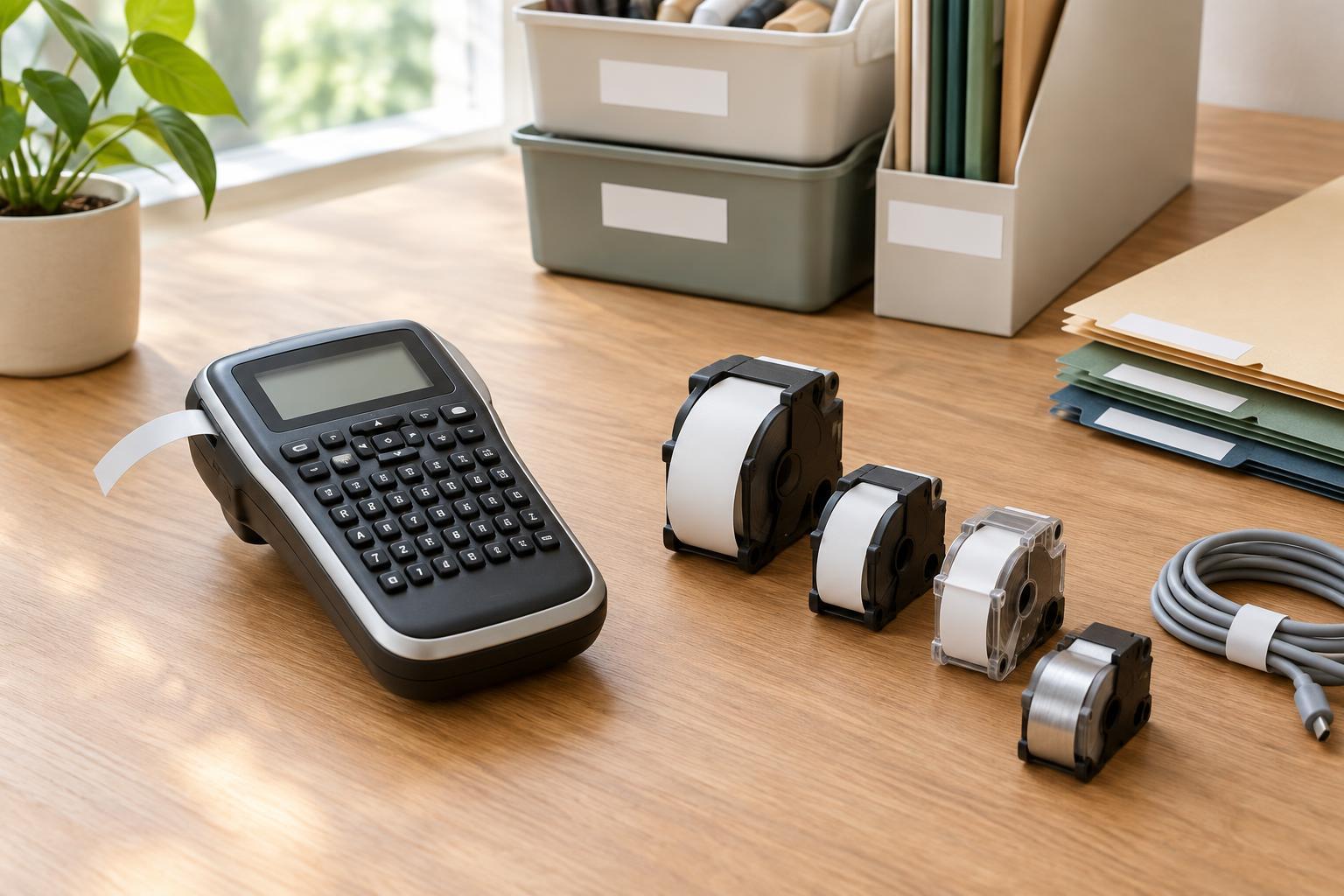
Place the UPS where it has the ventilation and clearance specified by its manufacturer, and plug it into a suitable wall outlet as directed. Avoid connecting it through another UPS or an extension arrangement the manufacturer does not permit. Label the battery-backed outlets or connected plugs so a future desk rearrangement does not put a printer or heater on the battery by mistake.
Once everything is connected, use the UPS display or software, if available, to check the reported load. Review that reading when you replace your computer or add office equipment. Batteries have a limited service life, so follow the unit’s maintenance guidance and pay attention to replacement alerts. A well-sized UPS is one that supports your essential load with room to spare and gives you enough time to finish a calm, orderly shutdown.