Start with the microphone and its connection
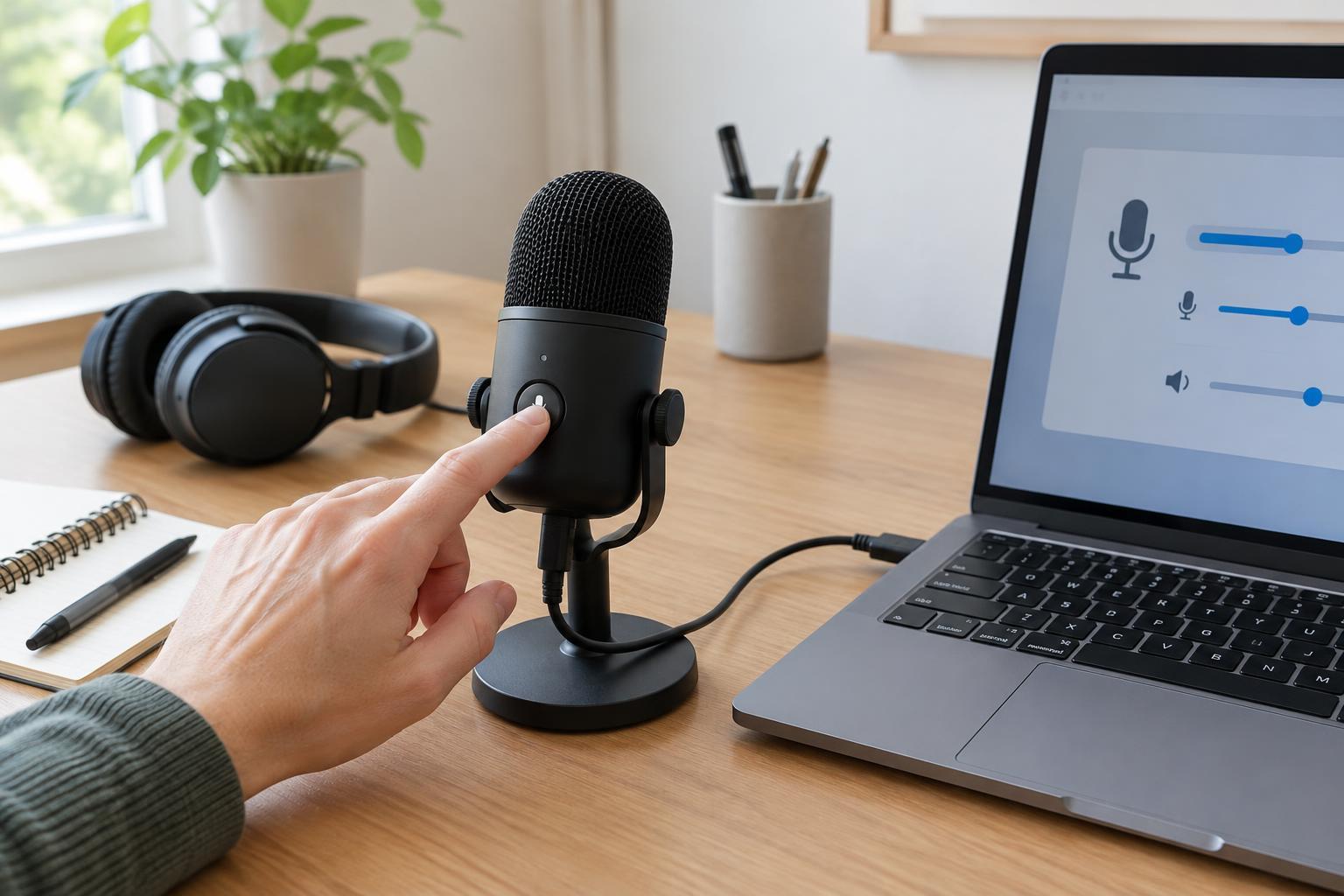
If people cannot hear you on a call, begin with the simplest question: is the microphone connected and ready to use? For a USB headset or desktop microphone, unplug it and reconnect it firmly. Try another USB port if one is available. For a wired headset, check that its plug is fully seated in the correct jack. Some computers have separate headphone and microphone jacks, while others use one combined headset jack; a headset may need a compatible connector or adapter to provide microphone input.
For a wireless headset, confirm that it is powered on and connected to the computer rather than only paired with another device. A low battery or an interrupted connection can leave the speakers working unpredictably or stop the microphone from appearing as an input. If the computer has a built-in microphone, set the external device aside temporarily. Testing the built-in microphone gives you a useful comparison without changing several settings at once.
Check which input the computer is listening to
A computer may have several possible inputs: a built-in microphone, a webcam microphone, a monitor or docking-station input, and a headset. Open the system’s sound settings and find the input or microphone section. Select the device you intend to use, then speak at a normal volume while watching its input-level indicator, if one is provided. If the indicator responds, the computer is receiving sound from that device.
If the level does not move, check the input volume or gain setting and raise it from zero to a moderate level. Speak near the microphone without covering it. Avoid turning gain all the way up immediately: that can make background noise more noticeable once the input works. If another microphone shows activity but your preferred one does not, the problem is more likely to involve that device, its connection, or its own controls.
Changing the system input may not change the input inside a meeting or recording app. Open the app’s audio settings and select the same microphone there, rather than assuming its “default” option has updated. This is especially useful after connecting a headset while an app is already open. If the app offers a microphone test, use it before joining or rejoining a call.
Look for mute controls in more than one place
Mute can be applied by the device, the computer, or the app. Check for a switch or button on the headset cable, earcup, or microphone body. On some headsets, moving the boom away from your mouth also mutes it. Then check the computer’s microphone control and the mute button in the call or recording app. An app may show that you are unmuted even when a physical headset switch is still off.
When troubleshooting, change one mute control at a time and watch the input-level indicator or run a short test. That makes it easier to identify which control caused the silence. If you are testing during a meeting, let others know before briefly unmuting, and mute again when finished.
Confirm the app has permission to use the microphone
If the microphone responds in system sound settings but not in one app, permissions are a sensible next check. In the computer’s privacy or app-permissions settings, look for microphone access. Confirm that microphone access is enabled for the computer and allowed for the app you are using. A browser-based call may also need permission for that particular website; look near the address bar for a microphone permission control.
After changing permission, close and reopen the affected app or browser tab, then test again. If you previously denied a permission prompt, simply selecting the correct input inside the app may not override that denial. You can use a basic voice-recording app as a comparison: if it records clearly while the meeting app remains silent, focus on the meeting app’s device selection and permissions.
Use a short recording to narrow down the problem
Record a few seconds of speech and play it back. A successful recording shows that the microphone, its connection, and at least one app can capture sound. If the recording is silent, repeat the test with another input, such as the built-in microphone. If only one device fails, try its other available port or connection method, inspect its cable for obvious damage, and restart the computer before testing once more.
If recordings work but colleagues still cannot hear you, check the microphone selected in the calling app and its mute state again. Also make sure you are diagnosing the right symptom: if you cannot hear others, the speaker or output settings may be the issue instead. Keeping a note of which device worked in which test can save time the next time you change headsets, docks, or workspaces.