First, confirm what “won’t power on” means
A device with no lights, sounds, or response to its power button calls for a different check than one that lights up but has a blank screen. Before moving cables, press the power button once and allow the device a moment to respond. Look for a small status light, listen for a fan or startup sound, and check whether a connected computer can detect it. A printer that is awake but not printing may have a connection or print-queue problem rather than a power problem.
If the device smells burnt, has a cracked case, shows scorch marks, or has a frayed cord, stop using it and unplug it if you can do so safely. Do not open a power adapter or device housing to investigate. The checks below are for accessible outlets and external connections, not internal electrical repairs.
Trace the power path from the wall
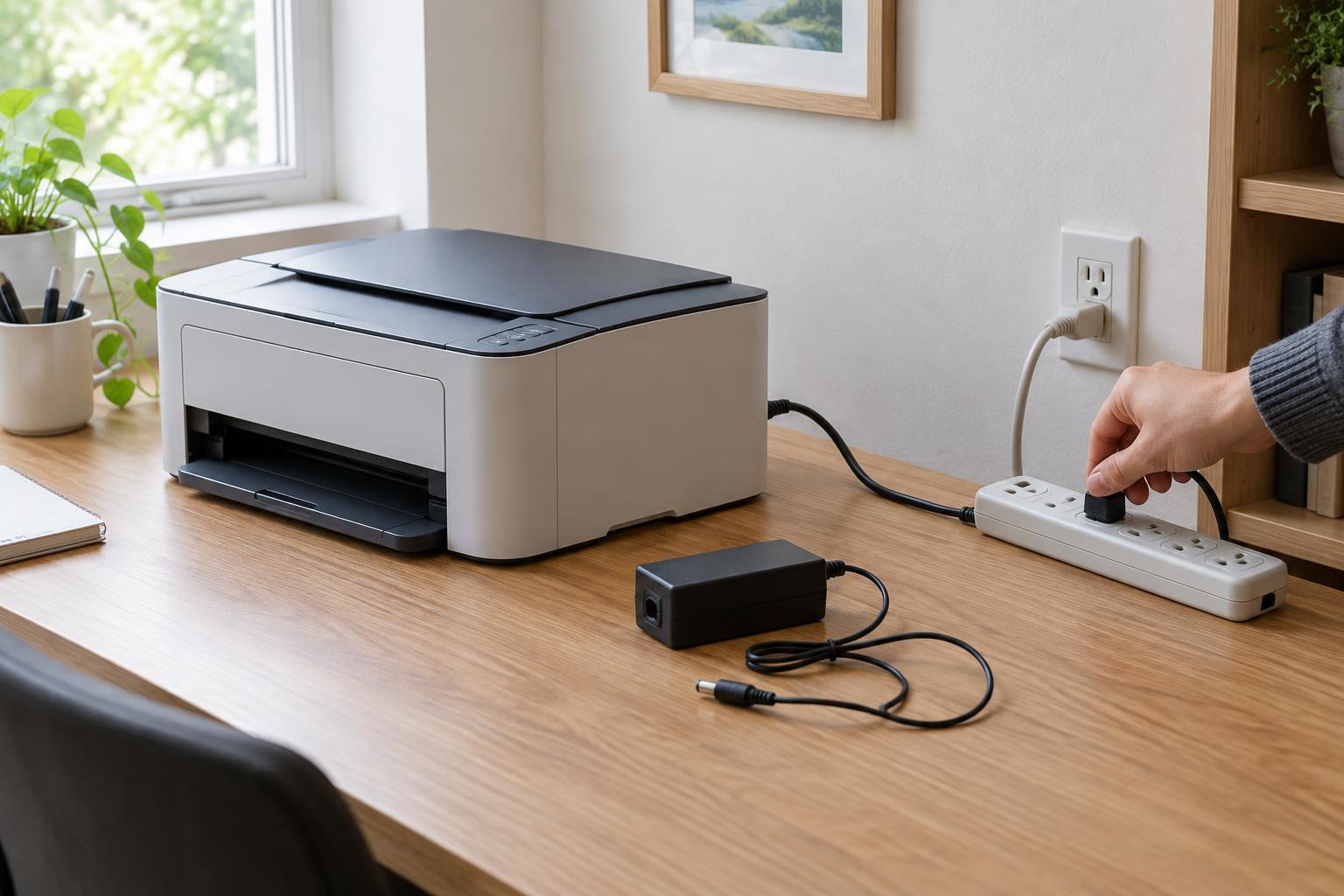
Follow the cable from the device back to its power source. It may lead directly to a wall outlet, or pass through an adapter, extension cord, surge protector, or power strip. Each connection is a place where power could be interrupted. If the device is on a strip, check that the strip’s switch is on and that its plug is firmly seated in the wall. Some strips have a reset control; use it only as directed on the strip.
To check an outlet, plug in a simple device you know works, such as a desk lamp. If the lamp also fails, try another outlet rather than assuming the office device is faulty. An outlet may be controlled by a wall switch. If multiple outlets have stopped working, leave any electrical investigation beyond ordinary switches and plugs to someone qualified. Avoid testing with a device or cord that already shows signs of damage.
A temporary test at a known-working wall outlet can help separate a strip problem from a device problem. Keep cords clear of walkways while testing, and do not use a chain of power strips or extension cords as a permanent workaround.
Check both ends of the cable
Turn the device off and unplug it before reseating a removable power cable. Check where the cable meets the device or its adapter, as well as the wall or strip end. A plug can look connected while sitting slightly loose. Push connectors in straight and firmly without forcing them. If the cable has a detachable section between an adapter brick and the wall, check that joint too.
Look along the accessible length of the cable for cuts, crushed spots, bent connectors, or exposed wiring. Do not tape over damage and keep using the cord. If a compatible, undamaged replacement cable is available, swapping it can be a useful test. Match the connector and any required rating stated on the device or cable; a plug that fits is not, by itself, proof that a substitute is suitable.
Treat power adapters as matched parts
Many scanners, monitors, label printers, and small desktop devices use an external adapter, sometimes called a power brick. Check that it is connected securely at both ends. If its status light is normally on but is now dark, first confirm that the outlet works; the light alone does not prove which part has failed.
Do not substitute a nearby adapter merely because its plug fits. A replacement needs the correct connector, output voltage, current capacity, and, where relevant, polarity. Those details are usually printed on the original adapter and the device. If the labels are missing or unclear, use the device manufacturer’s guidance or ask a qualified support provider rather than guessing. Unplug an adapter that is damaged, makes unusual noises, or becomes unusually hot.
Retest methodically and know when to stop
After checking the outlet and reseating connections, reconnect the device and try powering it on again. If it has an external adapter, give it a brief pause after unplugging before reconnecting it. Note what changes: perhaps a status light appears, the device starts only when plugged directly into the wall, or it still shows no response. Testing one part of the power path at a time makes the result easier to interpret.
If the device powers on at a different outlet, the original outlet or power strip needs attention. If it works with a known-compatible cable or adapter, replace the suspect part rather than relying on it. If a known-working outlet and suitable external power parts make no difference, the fault may be inside the device. At that point, check its manual for supported steps or contact the manufacturer or a repair provider. Keeping a note of what you tested can save time when you ask for help.