Start with the printer itself
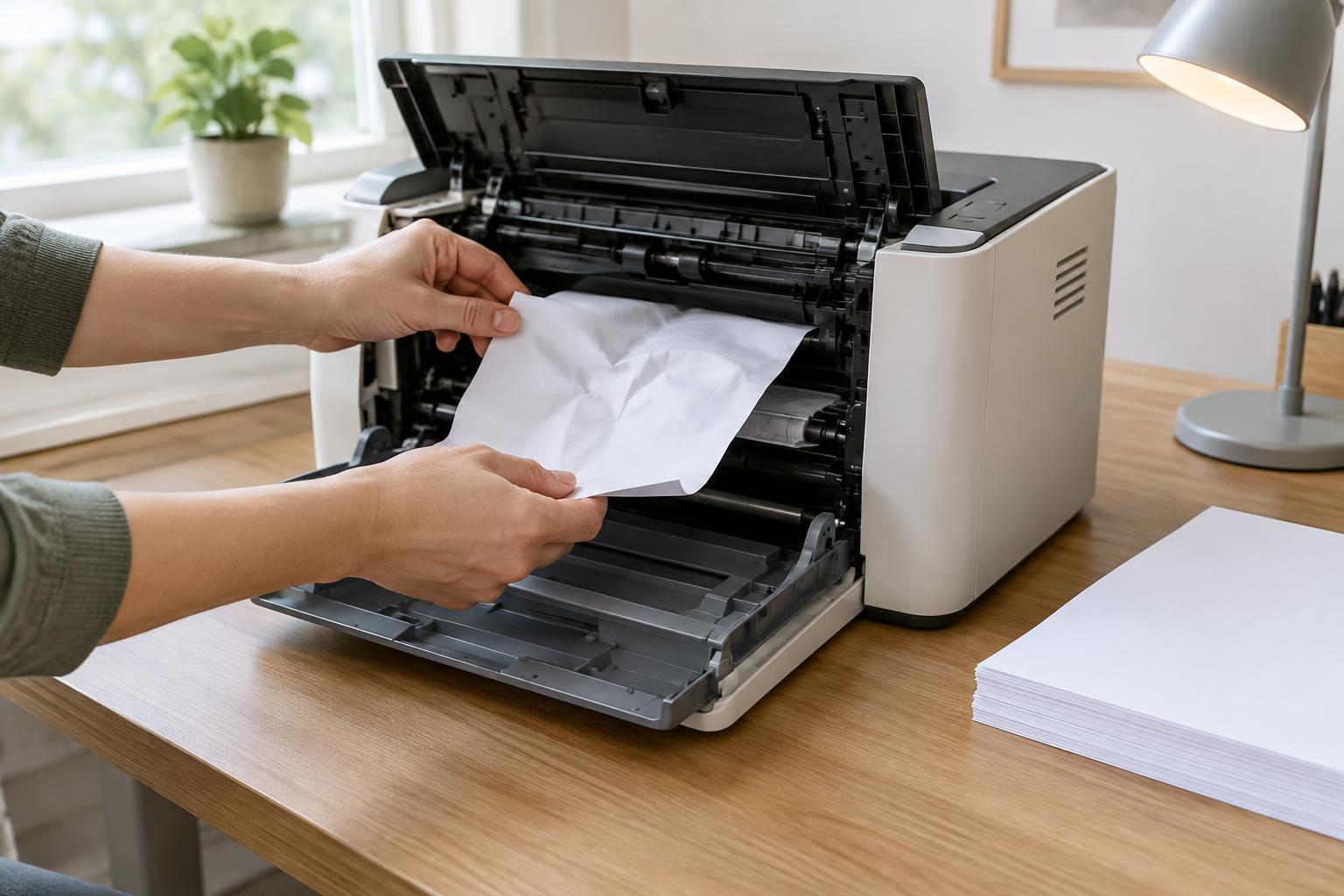
A computer may label a printer “offline” when it cannot communicate with it, even if the printer appears to be on. Before changing software, look at the printer’s display and indicator lights. Confirm that it is powered on, awake and free of messages about a paper jam, open cover or another condition needing attention. If it is asleep, wake it and give it a moment to reconnect before trying again.
Print a test page directly from the printer’s controls, if that option is available. This checks whether the printer can operate on its own; it does not prove the computer can reach it. If the printer cannot print its own test page, address the message on the device first. If it can, move on to the connection between the printer and computer.
Check the connection you actually use
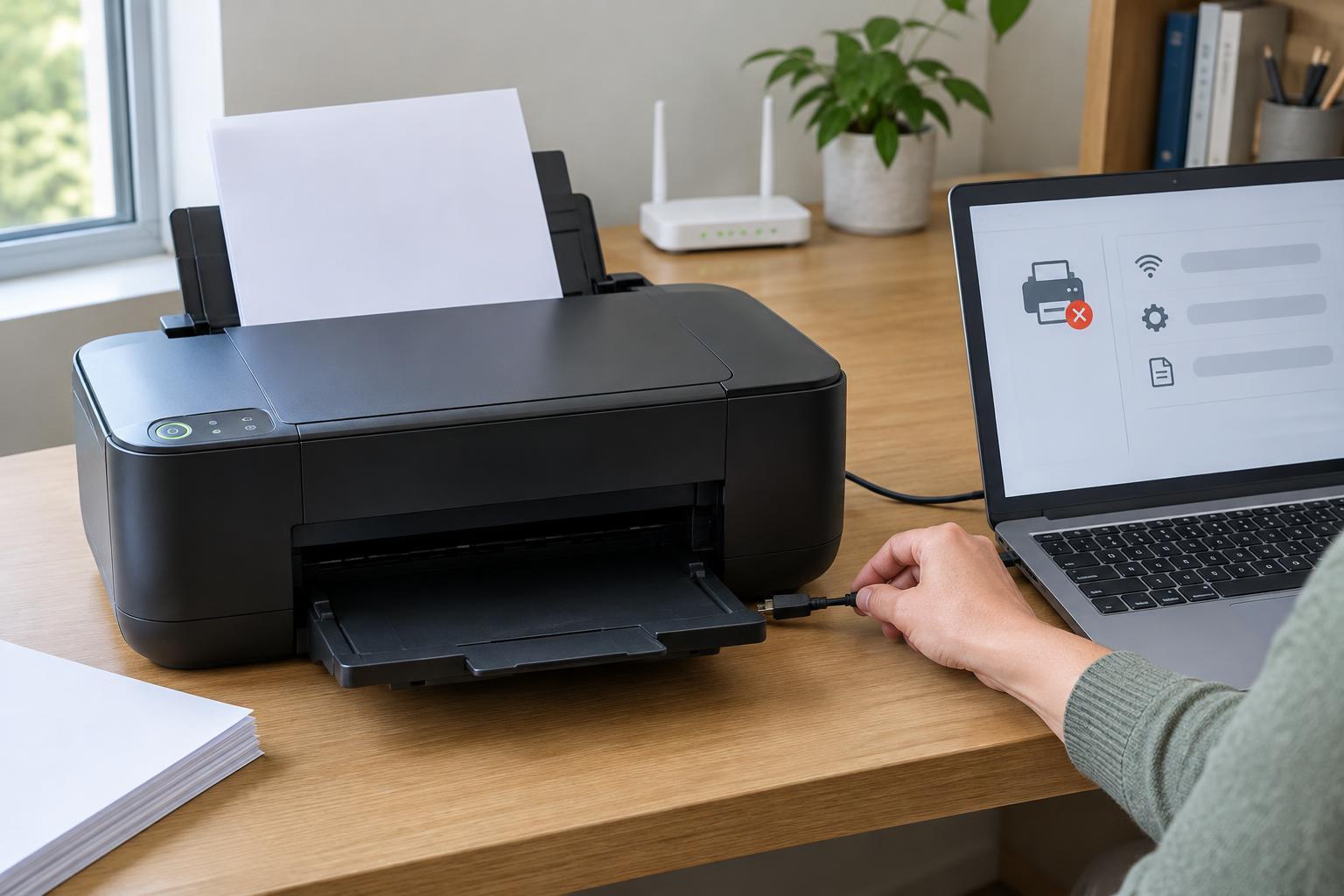
For a USB printer, check that the cable is firmly seated at both ends. A direct connection to the computer can help rule out a hub or docking station. If you try another USB port, allow time for the computer to recognize the printer, and check which printer entry your application has selected before sending another job.
For a network printer, confirm that both the printer and computer are connected to the intended network. A laptop on a guest network, for example, may not be able to reach a printer on the main network. The printer’s network screen may show whether Wi-Fi or Ethernet is connected. If the connection has dropped, reconnect the printer using its normal network setup rather than removing it from the computer immediately.
If other people can print to the same device, that is a useful clue: the printer is probably running, and the issue may be specific to your computer or its connection. If nobody can print, concentrate on the printer and network first. Avoid repeatedly sending the same document while testing, because queued copies may print later when the connection returns.
Inspect the print queue and printer selection
Open your computer’s printer settings and verify that the selected printer is the one you intend to use. Similar names, an old printer entry or a virtual printer can make it easy to send a job to the wrong destination. If the correct printer has a queue, look for a paused status, an “use printer offline” option or a job that is holding up the rest. The exact labels vary by operating system.
If a job is stuck, cancel that job and try printing a small, non-sensitive test document. Be aware that cancelling a job on your computer may not remove a copy already stored by a shared printer or print server. In a shared office, coordinate with others before clearing an entire queue: their jobs could be waiting there too.
Refresh the connection without starting over
Once you have checked for visible errors and saved any work, restart the printer and then check its status on the computer again. A computer restart can also clear a temporary communication problem. If the printer is network-connected and other devices have lost access as well, checking the network equipment may be more useful than changing one computer’s printer settings.
Some printers are added using a network address that can change after a router or printer restart. If the device is connected to the network but one computer still reports it offline, compare the printer’s displayed network details with the connection details saved on that computer, if those details are accessible. In a managed workplace, ask whoever maintains the network before changing addresses or shared printer settings.
Decide when reinstalling makes sense
Reinstalling is a reasonable later step if the printer works from its own controls, the connection is available, and queue and restart checks have not helped. It may also be useful when the computer shows a damaged or duplicate printer entry. Before removing anything, note the printer’s model, how it connects and any settings you rely on, such as duplex printing or a particular paper tray.
Removing a printer can discard its saved preferences or queue entries, and reinstalling will not fix a loose cable, an unresolved device error or an unavailable network. Working from the physical printer toward the computer narrows down the fault first. That makes a reinstall, if you ultimately need one, a deliberate fix rather than a guess.