Start by protecting what may still be on the drive
A USB drive that does not appear in your file browser is not necessarily empty or broken. The problem could be a loose connection, a faulty port, a missing drive letter, or a file system the computer cannot read. If the files matter, treat the drive as though it holds the only copy until you confirm otherwise.
Do not accept a prompt to format or initialize the drive. Avoid copying new files onto it, running repair utilities, or repeatedly trying to save to it. Those actions may change data on the drive and complicate recovery. If the drive becomes unusually hot, has visible damage, or disconnects whenever it is touched, unplug it and stop testing.
Rule out simple connection problems
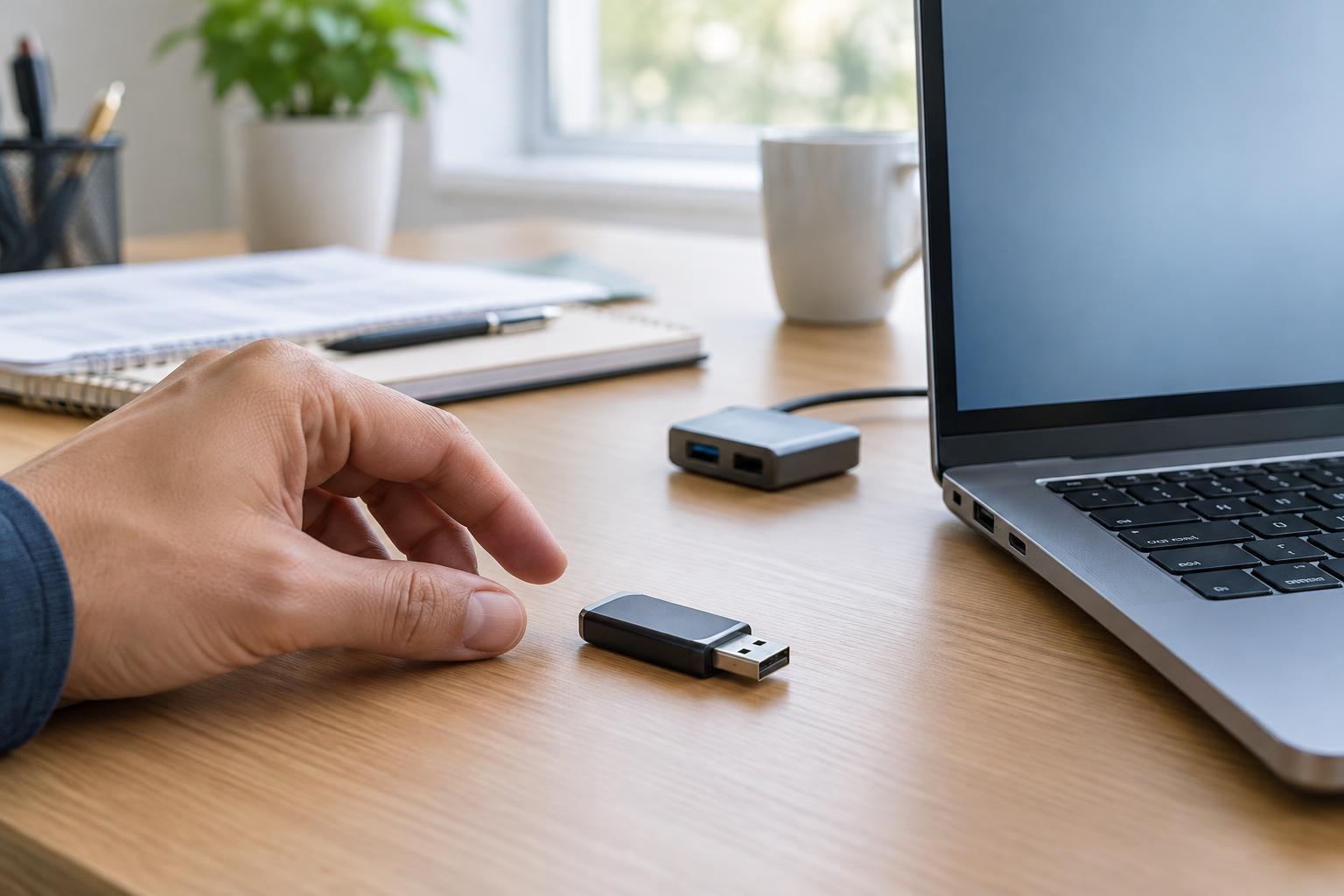
Remove the drive, wait a moment, and plug it directly into another USB port on the same computer. Skip hubs and adapters for this check if you can. A port that works with a mouse or keyboard may still have a poor connection with a particular drive, so trying a second port is worthwhile. If the drive has an activity light, note whether it turns on, but do not treat the light as proof that the files are accessible.
Next, restart the computer and check again. If possible, try the drive on a second computer you trust. This helps separate a computer-specific issue from a drive issue. Keep the test brief: if either computer asks to format, initialize, or repair the drive, cancel the prompt. If the files appear, copy the important ones to a different storage location before doing more troubleshooting.
Check whether the computer detects the drive
A drive may be connected even when it is absent from the usual list of files. On Windows, Disk Management can show connected disks and their partitions; on a Mac, Disk Utility can show attached storage devices. Use these tools to look, not to change settings yet. Identify the USB drive by its approximate capacity and connection, rather than guessing from a disk number or name.
The distinction matters. If the device is listed with a recognizable capacity but has no accessible volume, the connection may be working while the volume has another problem. If it is missing from the storage tool altogether on more than one computer, a hardware fault becomes more plausible. A capacity that looks wildly wrong is another reason to stop rather than experiment. None of these observations, by itself, establishes whether the files can be recovered.
Treat repair prompts and unusual behavior as warning signs
Operating systems may offer to scan, repair, erase, or format a drive they cannot read. Those options serve different purposes, and some write changes to the drive. If your priority is retrieving files, cancel the prompt until you have another copy of the data or a recovery plan. The same caution applies to commands or utilities that promise to fix a file system: a successful repair is not guaranteed, and a failed attempt can leave fewer options.
Watch for repeated disconnects, extremely slow access, files with unexpected names, or a drive that reports different capacities between attempts. These signs do not identify a single cause, but they do suggest that continued trial and error may be unwise. If a USB flash drive has a bent connector or a portable hard drive makes unfamiliar clicking or grinding sounds, disconnect it. Do not open the device or try to bend its connector back while important files are at stake.
Choose the next step based on the value of the files
Before trying recovery software, check for another copy in your backups, email attachments, shared folders, or the original computer where the files were created. If you do find the files elsewhere, you can troubleshoot the USB drive with less risk. Keep any recovered or copied files on a separate device; do not save them back to the problem drive.
If there is no other copy and the files are difficult to replace, consider a professional data recovery service before running more tests. Recovery may not be possible, and cost and methods vary, so explain what happened and ask what the service will do before handing over the drive. For less critical files, you may decide to try a recovery tool, but first read whether it writes to the drive and where it saves results. The safest troubleshooting sequence is simple: inspect, make only low-risk connection checks, copy accessible files, and stop when the next step could alter the data.