Start with the job your desk needs to do
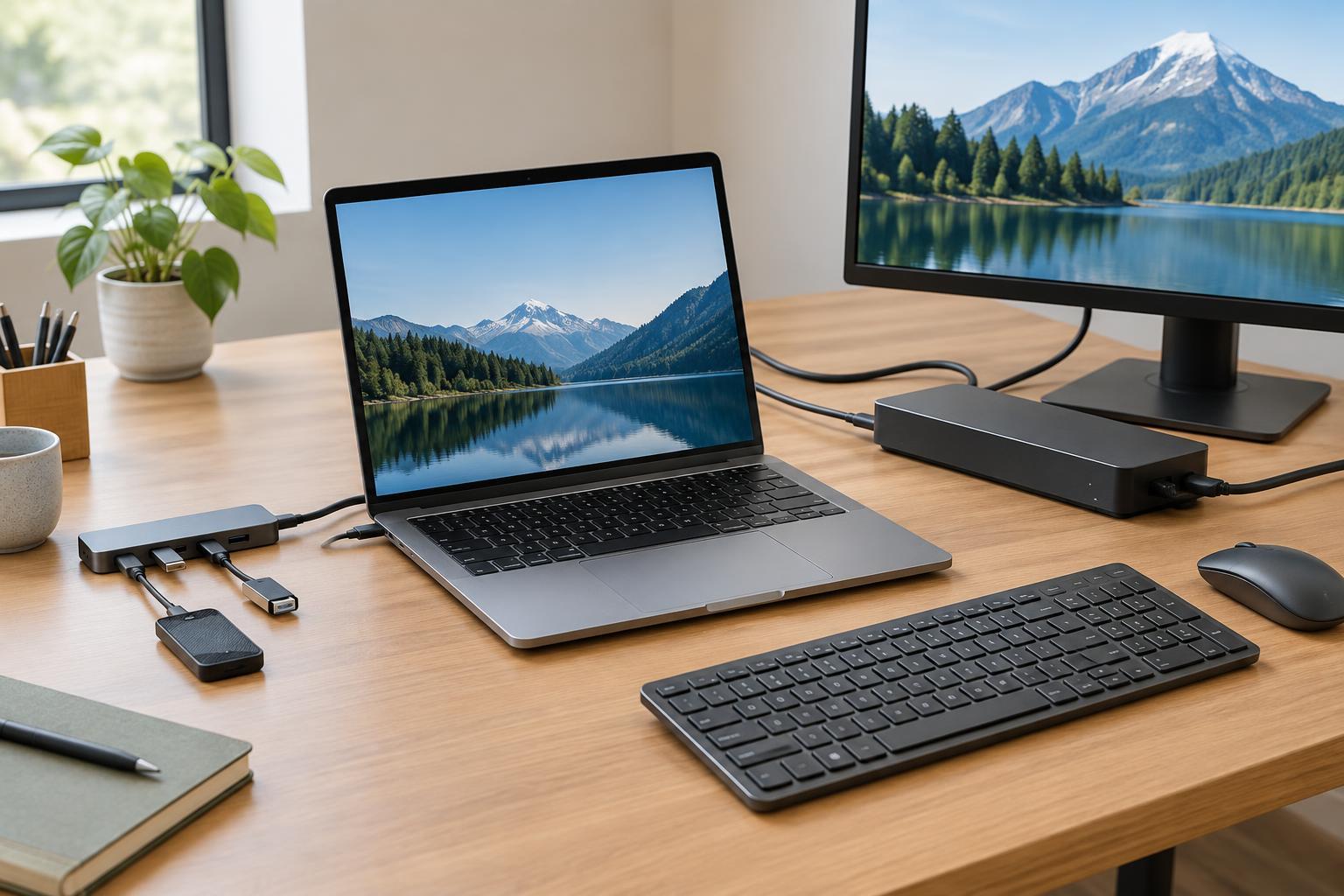
A USB hub expands one computer port into several connections, often in a small, portable package. It is a straightforward choice when you need to plug in a keyboard, mouse, flash drive, or card reader. A docking station is usually designed as a more permanent connection point for a desk. It may combine USB ports with Ethernet, audio, monitor outputs, and laptop charging, so fewer cables need to be handled when you arrive or leave.
Those descriptions are useful starting points, not strict product categories. Some compact hubs include HDMI and charging pass-through, while some products sold as docks offer only modest expansion. Compare the actual port list and specifications rather than relying on the name. For a home office with a laptop, printer, external drive, and one monitor, a capable hub may be enough. If you regularly connect multiple displays and wired accessories, a dock may make the setup easier to manage.
Count the right ports, not just the total
List the devices you want connected at the same time. Note whether each uses USB-A or USB-C, and whether you also need HDMI, DisplayPort, Ethernet, an SD card slot, or an audio jack. A hub with many USB ports will not help much if your desk needs a wired network connection and a monitor output. Check where the ports sit, too: a front-facing port is convenient for a flash drive, while rear-facing ports can keep permanent cables out of the way.
USB connectors also differ in capability. A USB-C plug describes the connector shape; it does not, by itself, promise a particular transfer speed, charging level, or display output. Read the specifications for both the computer port and the hub or dock. If you regularly move large scanned files to an external drive, available data speed may matter. For a keyboard, mouse, and occasional document transfer, it may matter less. Remember that devices connected through one hub or dock share aspects of its connection to the computer.
Check where the power comes from
A bus-powered hub draws power from the computer. That is convenient for travel and low-power accessories, but it may not be the best match for several devices that need substantial power. A powered hub or dock uses an external adapter, giving its connected devices a separate power source. Check the product’s stated power available to its ports if you plan to connect portable drives or other power-hungry accessories.
Laptop charging is a separate question. Some USB-C hubs accept a charger and pass power through to the computer; many docks include their own power adapter and can charge a connected laptop. Compare the stated power delivered to the laptop with what the laptop requires, rather than looking only at the adapter’s total wattage. A device may reserve some power for its own operation and attached accessories. Charging also depends on compatible computer ports, cables, and power standards, so confirm those details before counting on one cable to run your whole desk.
Treat display support as a compatibility check
A monitor socket on a hub or dock is not a guarantee that every laptop can use it. The computer must support the display method the accessory uses. Some USB-C products rely on video output from the computer’s USB-C port, often described as DisplayPort Alt Mode. Thunderbolt or USB4 products can have different requirements. Other docks use USB-based display technology that may require drivers. Check the dock’s stated method and the computer’s supported connections, especially if you cannot install software on a work laptop.
For each intended monitor, confirm the supported resolution and refresh rate, then check whether those limits change when more than one display is connected. Display capacity can depend on the laptop, its port, the dock, the cable, and the operating system. A dock advertising two monitor outputs does not necessarily mean your computer will drive two independent external screens through it. If your needs are simple, such as one office monitor for documents and video calls, a smaller hub with a compatible display output may be sufficient.
Make the choice fit your routine
Choose a hub when you want inexpensive, portable access to a few additional ports and can connect your charger or monitor separately if needed. Consider a dock when your desk has several permanent connections and you value plugging in one laptop cable. Neither option makes a computer support features its own port lacks, so the most useful buying step is to compare the accessory’s specifications with your exact laptop model and intended devices.
Before purchasing, sketch a simple connection plan: laptop port to hub or dock, then each accessory to its required port. Include the charger, monitor cables, printer connection, and any external storage. This makes missing ports and power needs easier to spot. If a connection later behaves unexpectedly, test one device at a time and check the relevant cable and computer settings. A well-matched hub or dock should make your workspace simpler, not add another layer of guesswork.