Start with the view you need
Before comparing cameras, decide what should appear on screen. For a one-person call at a desk, a frame that shows your head and shoulders without much empty space may feel natural. If you often show a physical product, use a whiteboard, or share the camera with a colleague, a wider view may be more useful. A wider view also shows more of the room, so it can make background clutter harder to hide.
Look for a webcam that lets you adjust its angle, and check whether its field of view suits where you sit. A wide-angle lens is not automatically better: when the camera is close, it may make the edges of the image look stretched. If you cannot move the camera farther away, software cropping or a selectable field of view can help you get a tighter shot. Remember that cropping reduces the image area available for the final picture.
Match focus behavior to how you work
Fixed-focus webcams are designed to keep subjects reasonably clear within a set distance range. They can be a straightforward choice if you sit in the same place for every call. Autofocus adjusts as your distance from the camera changes, which may help if you lean forward, stand up, or hold objects near the lens. It is worth checking the stated focus range if showing documents or small items is an important part of your work.
Autofocus can also be distracting if it repeatedly shifts between your face, hands, and background. If you expect to demonstrate objects on camera, look for focus controls or a way to lock focus. For ordinary meetings, consistent lighting and sensible camera placement may make a more noticeable difference than the focus mechanism. Position a light in front of you rather than relying on a bright window behind you; a camera cannot fully compensate when your face is much darker than the background.
Check the mount, not just the camera
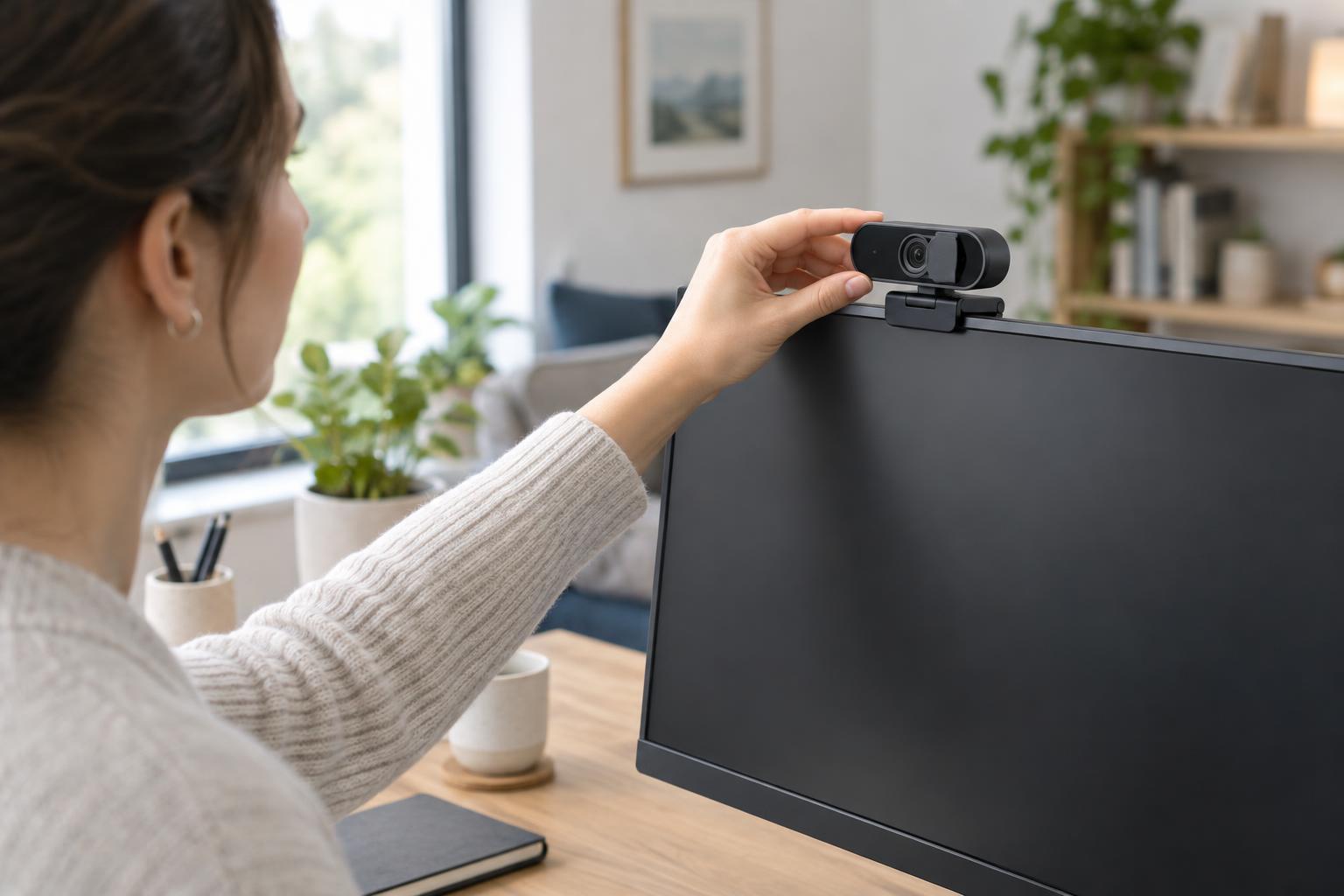
A webcam that cannot stay in the right position will be frustrating even if its image looks good. Many models have a clip intended for the top of a monitor or laptop screen. Check that it opens wide enough for your display and rests securely without covering part of the screen. If your monitor is unusually thick, curved, or close to a wall, a clip may not sit where you want it.
Some webcams can also attach to a small tripod or separate stand. That gives you more placement options, particularly if you use multiple screens or want the camera near eye level rather than looking up from a laptop. Consider the cable length and the location of your computer’s available port before choosing a spot. A stable mount and a route for the cable can prevent the camera from shifting whenever you adjust your desk.
Choose privacy features you will actually use
A physical privacy cover provides a visible way to block the lens when the webcam is not in use. It may be a built-in shutter or a separate cap. Check that you can open and close it easily without moving the camera out of position. A cover blocks the picture, but it does not necessarily disable a built-in microphone.
If microphone privacy matters to you, check whether the webcam has a hardware mute control and how clearly it indicates its status. You can also manage camera and microphone access in your computer’s settings and in individual meeting apps. Before a call, confirm that the app has selected the devices you intend to use. A simple routine—open the cover, check the preview and audio settings, then close the cover afterward—is often more reliable than depending on a feature you rarely notice.
Make a short, practical comparison
Once you know your needs, compare a few webcams using the same questions: Does the view fit one person or a shared workspace? Will focus remain steady during your typical tasks? Can you place the camera securely at a comfortable height? Does it offer a privacy method you will use? These answers are more useful than choosing solely by the largest resolution number. Video apps, connection conditions, and lighting can all affect what other people see.
Finally, check compatibility with your computer and calling apps, including the connector type and any software needed for optional controls. If you rarely move from your desk, a stable, simply mounted camera may be enough. If you regularly demonstrate objects, adjustable framing and focus deserve more attention. The best webcam for an office is not necessarily the one with the longest feature list; it is the one that makes your usual calls easy to set up and repeat.