Start with what the camera is doing
A webcam problem can show up in several ways: the meeting app may report that no camera is available, show a black preview, display an error, or show video from the wrong device. Note which one you see before changing settings. If your computer has both a built-in camera and a USB webcam, the app may simply have selected the one you are not using.
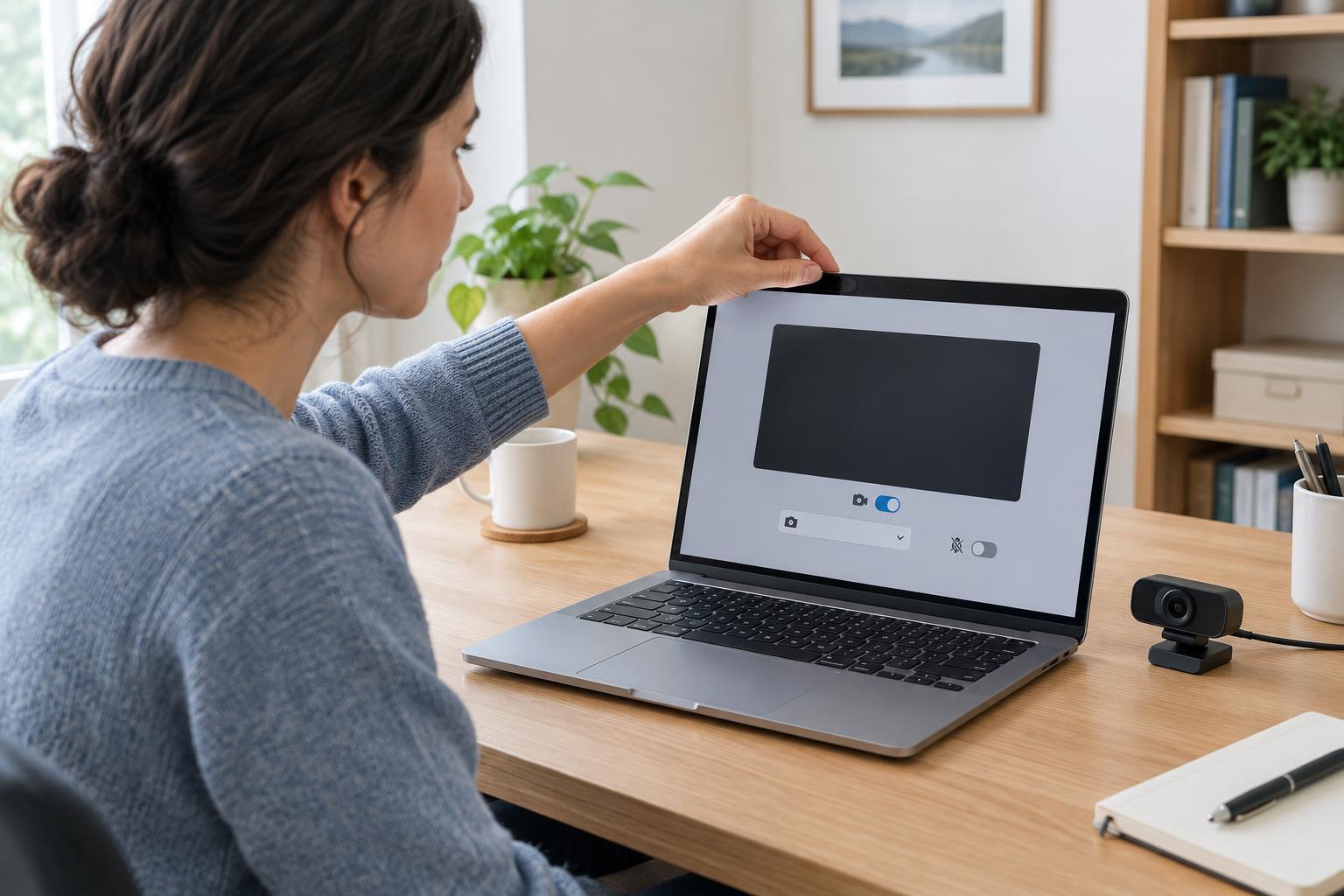
Check the simple physical controls first. Open any built-in privacy shutter and look for a camera switch or keyboard key that disables video. On an external webcam, confirm that its cable is firmly connected and any indicator light behaves as expected. A light alone does not prove the meeting app is receiving video, but it can help you tell whether the camera is being activated.
Check the camera selected in the meeting app
Open the app’s video settings or pre-meeting preview and find its camera selector. Choose the device you intend to use rather than relying on an automatic choice. Wait a moment for the preview to update. If two similarly named devices appear, try each one and watch the preview. Also make sure video is turned on in the meeting controls; a camera can be available even while your video is muted.
If you are joining through a web browser, check both the meeting page and the browser’s camera setting for that page. A browser may remember an earlier decision to block access. After allowing the camera or changing the selected device, reload the meeting page if the preview does not update. If you use a desktop meeting app instead, changing a browser setting will not necessarily affect it.
Review camera permissions
Your computer’s privacy settings can prevent an app from reaching a working camera. Look in the operating system’s camera privacy or app-permission settings and confirm that camera access is enabled for the meeting app. Browsers may need permission there too, in addition to permission for the meeting site. The names and locations of these controls vary by operating system and version, so follow the labels on your device rather than assuming every settings screen looks alike.
If access was already enabled, try switching to another camera in the app and then back again. You can also leave and rejoin the meeting or fully close and reopen the app. Let others know before leaving an active call. For a work-managed computer, some settings may be controlled by your organization; if a permission is locked, ask your support contact rather than trying to work around it.
Rule out another app or a connection problem
Close other programs that may be using the camera, such as a second meeting app, a recording tool or an open browser tab with a video preview. Some devices and app combinations do not share camera access reliably. Fully quit those programs, not just their visible windows, then reopen the meeting app and test its preview. If the camera works in one app but not another, focus on the affected app’s device selection and permissions.
For a USB webcam, disconnect and reconnect it, then check whether it appears in the meeting app’s device list. If practical, plug it directly into the computer to test whether a hub or dock is involved. Try another suitable port if one is available. Avoid pulling cables during a call if doing so could disrupt your microphone, network connection or other equipment. If neither the meeting app nor your computer can detect the webcam, restarting the computer is a reasonable next step.
Test before the next meeting
Use the meeting app’s preview or test-call feature, if it has one, to confirm that the intended camera produces a picture. Then check framing and lighting: face a light source where possible, and place the camera near eye level. These adjustments will not fix missing camera access, but they make the final check more useful than simply seeing that a device name appears in a menu.
If the camera still fails, record the symptom, the camera name shown in the app, and which checks changed the result. That information helps narrow down whether the issue lies with the device, its connection or the app. When you need to join immediately, use audio while you troubleshoot later, or join video from another device if your meeting rules allow it. Once everything works, make a quick pre-meeting preview part of your routine so a changed device selection does not become a last-minute surprise.