What a document camera does
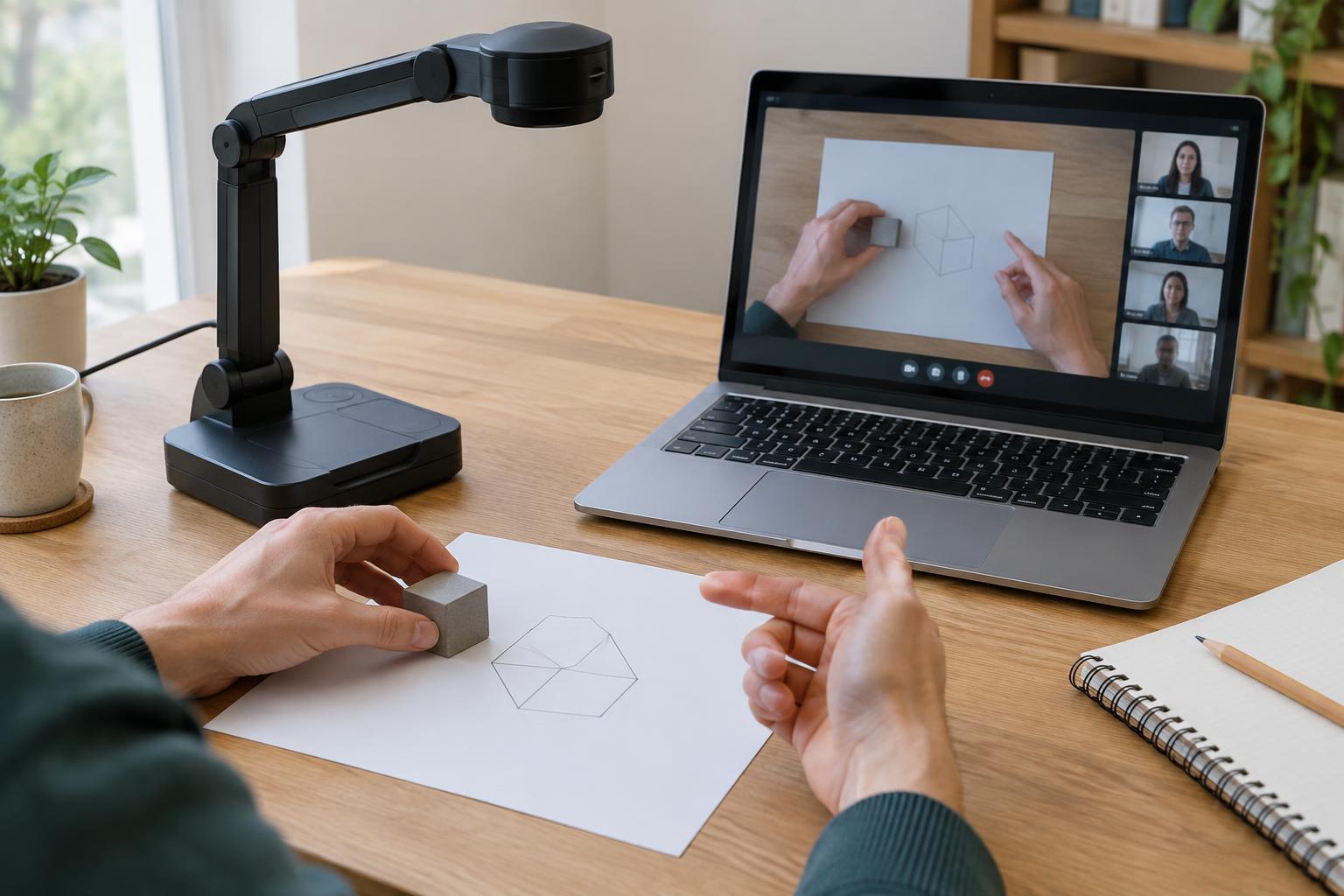
A document camera points down at a work surface and sends a live image to a computer or display. It is sometimes called a visualizer or overhead camera. Unlike a scanner, it shows changes as they happen: you can turn a page, annotate a drawing, or move a small object while others watch. Many models have an adjustable arm, making it easier to frame materials of different sizes.
Its main advantage is the overhead view. A laptop webcam can show an object you hold up, but it is harder to keep the object steady, well lit, and in focus while you explain it. A document camera leaves your hands free and gives viewers a consistent view of the desk. That makes it especially useful when the physical material, rather than the presenter’s face, is the focus of a meeting.
When a live view adds value
Use a document camera when someone needs to follow a physical process, not merely see the finished result. A small business owner might walk a colleague through marking up a printed layout. A trainer might demonstrate how to assemble or inspect a sample. A team reviewing packaging could compare two physical versions while pointing to specific details. Because viewers see your hands and the material together, the explanation can be easier to follow than a series of still photographs.
It is also helpful for materials that do not yet exist as digital files: handwritten notes, book pages, samples, or sketches made during a call. If you need to write as people ask questions, the camera can show each change without repeatedly taking photos or rescanning pages. For a document that everyone needs to read closely after the meeting, however, a scan or clear photograph is usually a better follow-up.
Choosing between a document camera and other tools
Start with what viewers need to do. For a digital file, screen sharing usually gives them the clearest view and lets you zoom within the application. For a paper document that needs to become a searchable, shareable record, use a scanner or scanning app where appropriate. A document camera is strongest when the action itself matters: turning pages, pointing, sorting, drawing, or manipulating an object in real time.
A phone mounted above the desk can serve a similar purpose for occasional demonstrations, provided it stays stable and can connect to your meeting. A dedicated document camera may be more convenient for frequent use because its base and arm are designed for repeatable positioning. Neither option automatically produces a legible image. Small print, glare, and motion can be difficult to see over a video call, so test the actual material with a remote viewer before relying on it.
Features worth checking for a small workspace
First, check the capture area: it should fit the largest page or object you plan to show without forcing the camera so high that details become hard to read. Look for an adjustable arm, a stable base, and a way to rotate or flip the image so text appears upright to viewers. Autofocus can simplify moving between pages and objects, though it may briefly shift focus when hands enter the frame. If your work involves fine detail, compare sample images at the size people will actually see in a meeting.
Connection and software matter as much as the camera itself. A model that appears as a standard camera input may be easy to select in common video-meeting tools; others may depend on their own software. Check compatibility with your computer and how you will switch between your face camera and the overhead view. Built-in lighting can help on a dim desk, but an adjustable desk lamp may offer better control if glossy paper or plastic creates glare.
Set up the view before the call
Place the camera on a steady surface, clear unrelated items from its capture area, and frame one sample page or object. Add light from the side rather than directly above reflective material. Check that writing is large enough to read on a laptop screen, not just on your own full-size preview. Move your hands slowly, pause after repositioning items, and describe what you are pointing to for anyone viewing on a small screen or listening without a clear image.
Before sharing, remove confidential papers, labels, or personal details from the desk and check what appears at the edges of the frame. If participants need an accurate copy, send an appropriate digital file afterward instead of expecting them to capture details from the live video. A document camera is most effective as a way to explain physical work together; it does not need to replace the tools you use to store and distribute the final document.