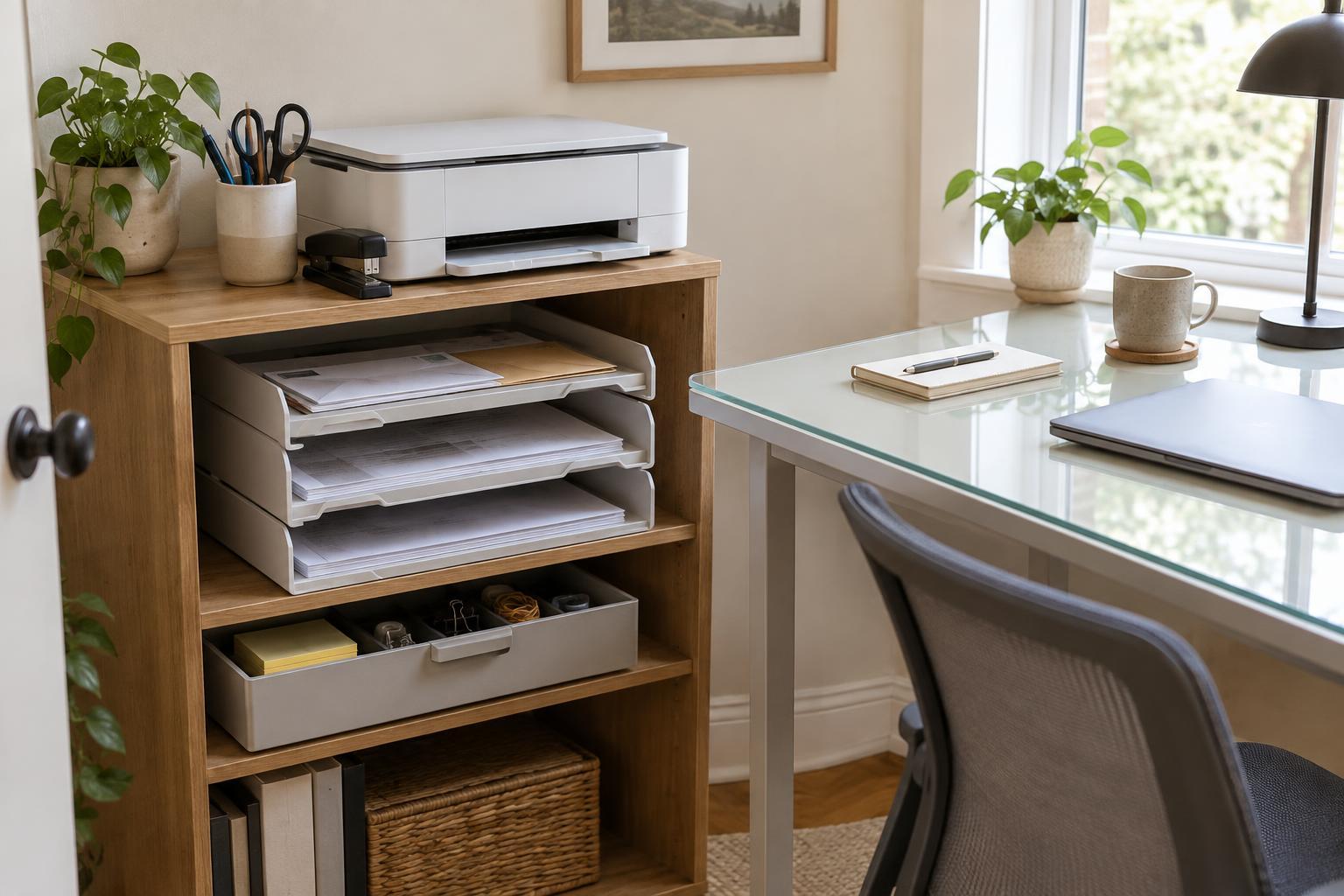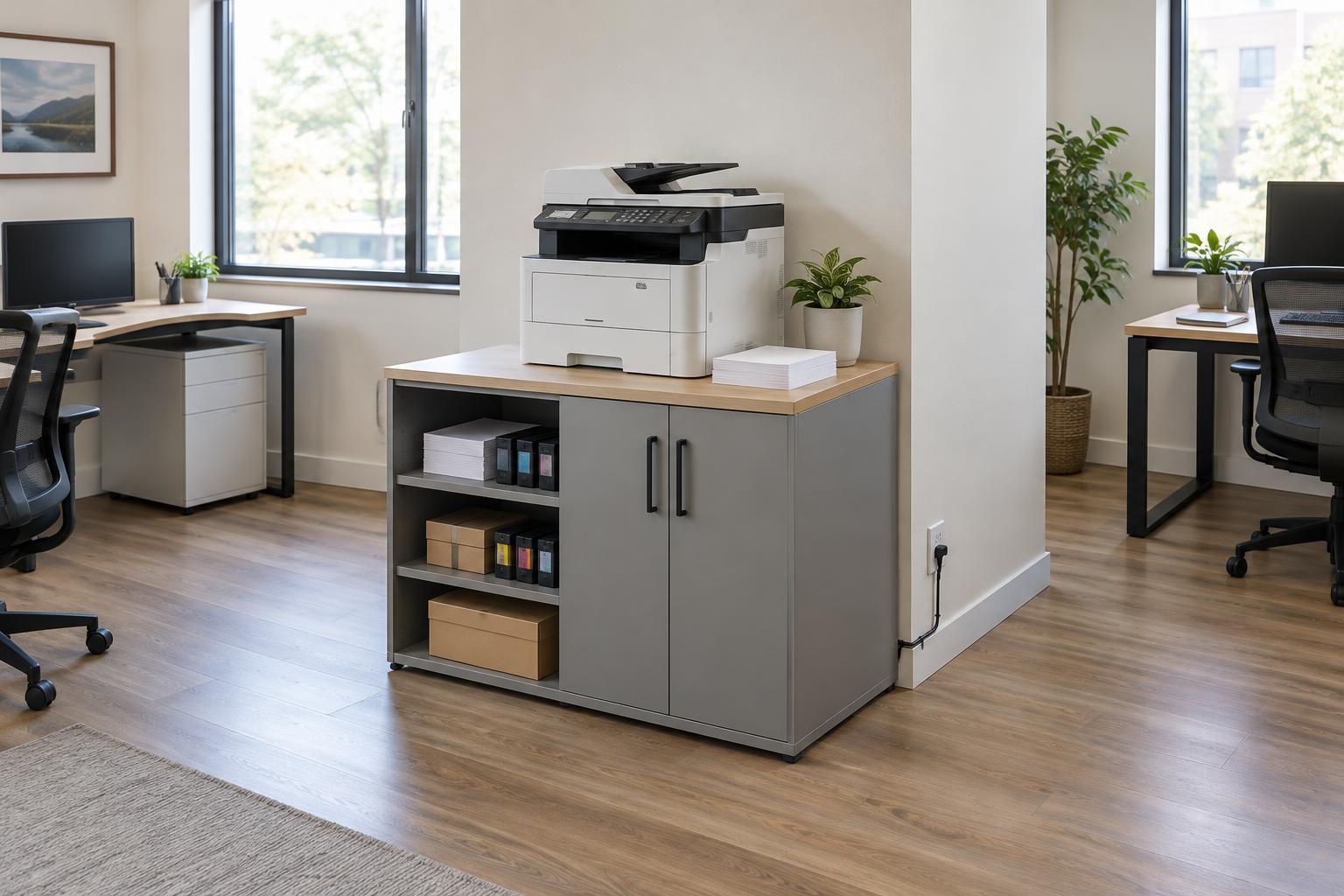
Start with the people who use it
The best place for a shared printer is usually near the people who use it regularly, but outside the main path through the workspace. A printer beside one person’s desk may be convenient for that person while sending everyone else through their work area. A spot just off a common walkway can make collection easier without putting a queue in the middle of the room.
Think about what happens before and after someone presses Print. They may need to load special paper, pick up a multi-page job, scan a document, or check a message on the control panel. People should be able to do those tasks without reaching across another workstation or blocking a doorway. If several teams share the device, compare the likely walking routes rather than assuming the geographic center of the office is the most useful location.
Leave room to operate and maintain it
A printer needs usable space around it, not just enough space to fit its outer dimensions. Check which way the paper trays open, where finished pages land, and which panels give access to ink, toner, or jammed paper. The manufacturer’s setup guidance can help you confirm the required clearances and ventilation. Leave enough room for someone to open the relevant parts fully and work without moving furniture each time.
Choose a stable surface that supports the printer’s weight and allows people to use the controls comfortably. Consider the height of the scanner lid if the device includes a flatbed scanner: a low shelf beneath an overhead cabinet may prevent it from opening. Keep spare paper and other routine supplies nearby, but not so close that boxes obstruct vents, trays, or access panels. Avoid placing the device where spills, direct heat, or dampness are likely.
Check power and connection options before settling on a spot
A location that looks ideal on a floor plan may be awkward once cables are involved. Confirm that the printer can reach a suitable power outlet without a cord crossing a walkway. Follow the device’s power instructions rather than assuming an extension cord or crowded power strip is appropriate. If it uses a wired network connection, check where the network port is and whether the cable can be routed without creating a trip hazard.
For a wireless printer, test the connection at the proposed location instead of relying on how close it appears to the router. Walls, cabinets, and the layout of the workspace can affect performance. If the printer frequently disconnects, moving it a short distance or using a wired connection, when available, may be more useful than repeatedly reconnecting it. Place the device where a person can also reach its screen or controls when troubleshooting.
Account for noise, traffic, and document privacy
Printing and scanning bring short bursts of noise and movement. A device beside a video-call desk or quiet work area may interrupt concentration, even if it is easy to reach. On the other hand, putting it in a remote storage room can make small jobs unnecessarily inconvenient. Look for a middle ground: accessible during normal work, with enough separation from tasks that need quiet.
Consider what happens to pages that sit in the output tray. If documents may contain private customer or business information, avoid a position where visitors can easily see or collect them. A location within the staff work area may be preferable to a reception counter or public hallway. Placement alone cannot protect documents, so establish a simple habit of collecting jobs promptly; if the printer offers a secure-release feature, consider whether it suits your workflow.
Try the location with real tasks
Before treating the decision as final, walk through a few common jobs at the proposed spot. Print a short document, refill paper, open the scanner lid, and reach the parts used to clear a jam. Ask whether someone waiting for pages would block a chair, cabinet, or exit route. These quick checks often reveal problems that measurements alone miss.
A good shared-printer location is a practical compromise, not the shortest walk for every user. If people repeatedly leave pages behind, struggle to refill a tray, or have to move equipment to reach a panel, revisit the setup. Small changes—shifting a table, relocating supplies, or turning the printer so its controls face the approach—may make everyday use and maintenance noticeably easier.