Start with your usual working posture
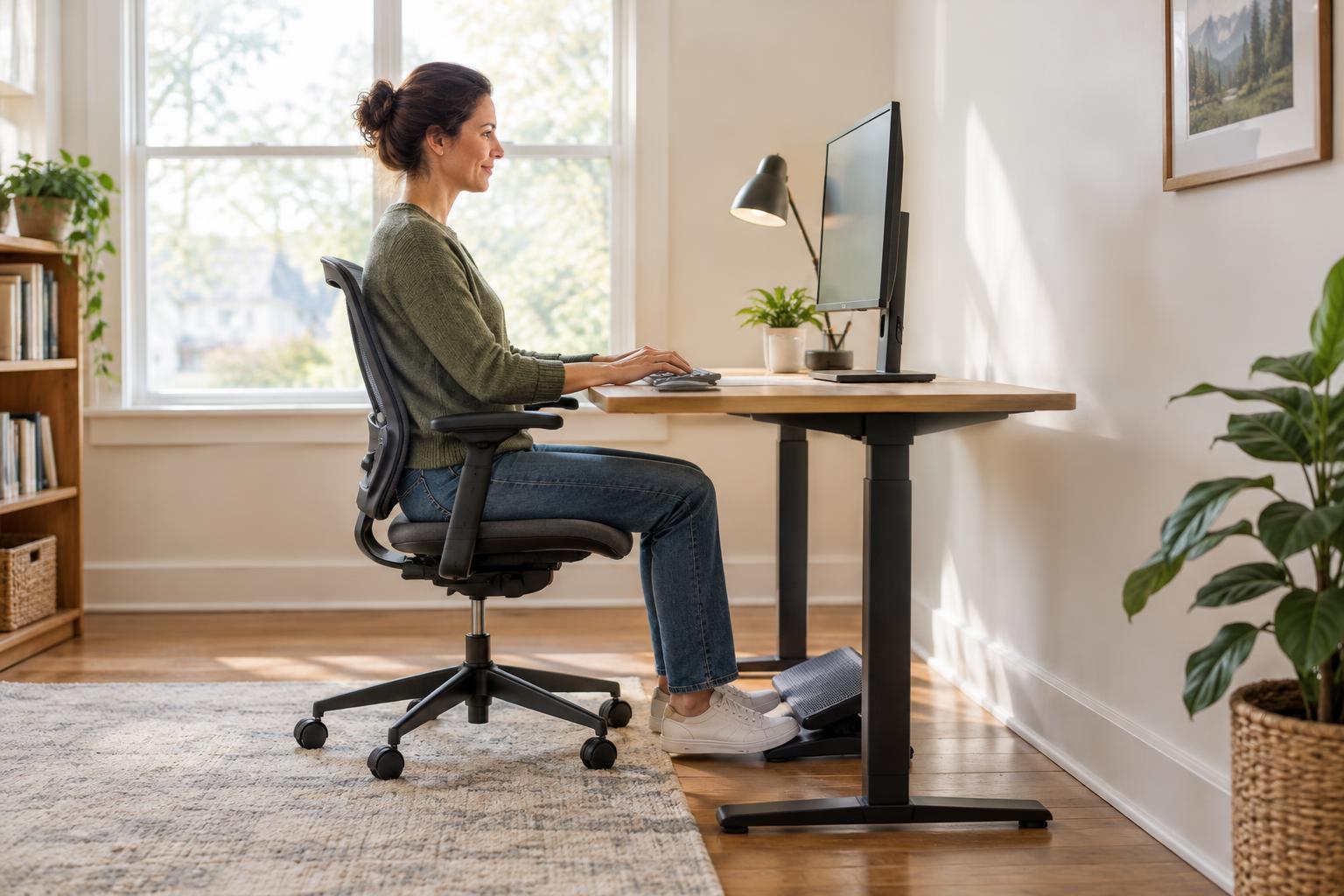
Before moving the monitor, sit as you normally would when working. Place your feet comfortably on the floor or a footrest, let your shoulders relax, and position your keyboard so you do not have to reach for it. Monitor placement is easier to judge from this position than while leaning forward to inspect the screen.
Look straight ahead without lifting your chin or dropping it toward your chest. For many people, a useful starting point is to place the top of the visible screen at or slightly below eye level. The center of the display will then sit lower than your natural line of sight, allowing you to look slightly downward at most content. This is a starting point, not a rule: glasses, screen size, and the way you use your desk may call for a different height.
If you notice yourself looking upward for long periods, try lowering the display. If you repeatedly bend your neck to read, try raising it or increasing the text size first. Make one adjustment at a time so you can tell which change helps.
Set a distance that lets you read without leaning
Place the monitor far enough away that you can see the whole screen comfortably, but close enough to read ordinary text while sitting back. About an arm’s length is a convenient first check, not a required measurement. A large display may feel better farther away; a smaller one may need to be closer.
Pay attention to what happens during a routine task, such as reading a document or answering email. If you lean forward to see details, move the screen closer or enlarge the text and interface. If you turn your head to scan a wide display, consider moving it farther back or arranging your most-used windows nearer the center. Keep the main screen directly in front of your usual seated position rather than off to one side.
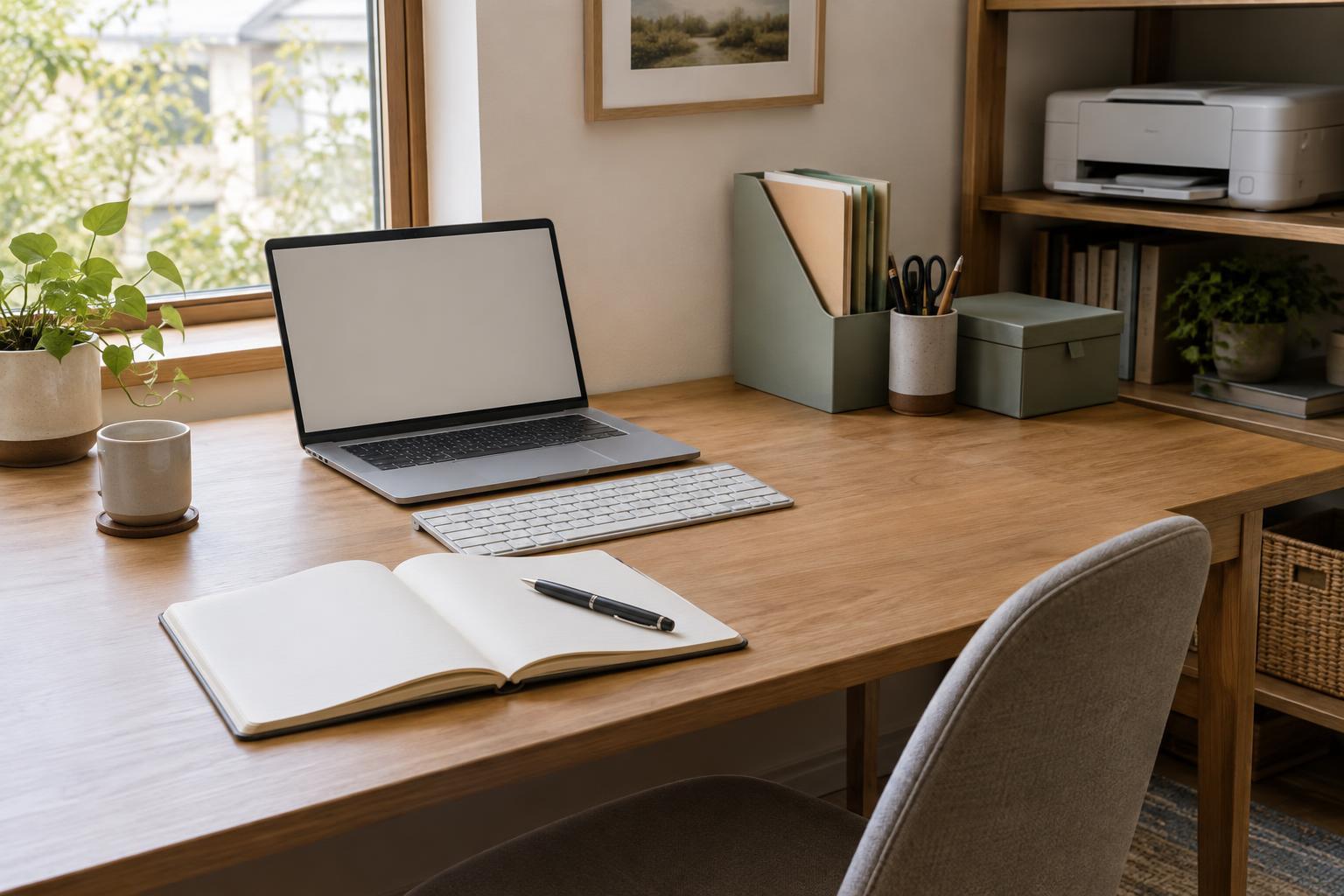
Laptop users often have a trade-off: lifting the screen also lifts the built-in keyboard. A laptop stand paired with a separate keyboard and mouse lets you adjust screen height without reaching upward to type. If your desk is shallow, a monitor arm or a compact stand may help you find a comfortable distance while preserving work surface.
Check where daylight meets the screen
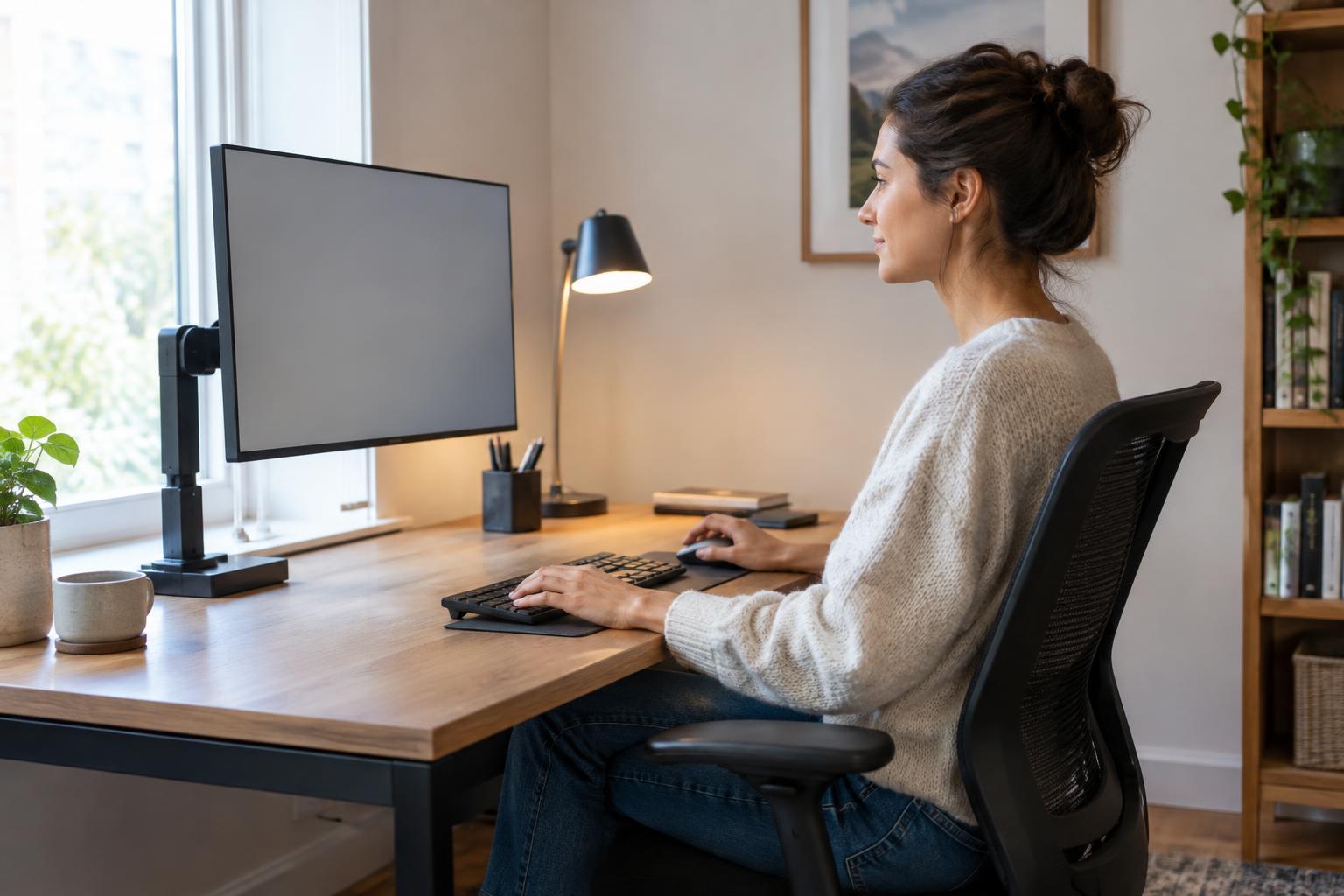
Window placement can affect both reflections and contrast. A window directly behind you may appear as a bright reflection on the screen. A window directly in front of you can put a bright area beside or behind the monitor, making the display harder to view comfortably. When possible, place the monitor roughly perpendicular to the window so daylight comes from the side.
That layout is not always possible in a small home office. Try turning the display slightly, shifting it along the desk, or using an adjustable shade or blind during the brightest part of the day. Check the screen with a typical document open as well as with a dark background: reflections that are easy to miss on a white page may stand out during other tasks.
A matte screen surface may make reflections less distinct, but it cannot fix an awkward light source on its own. Test placement and shading before buying an accessory.
Balance room lighting and screen settings
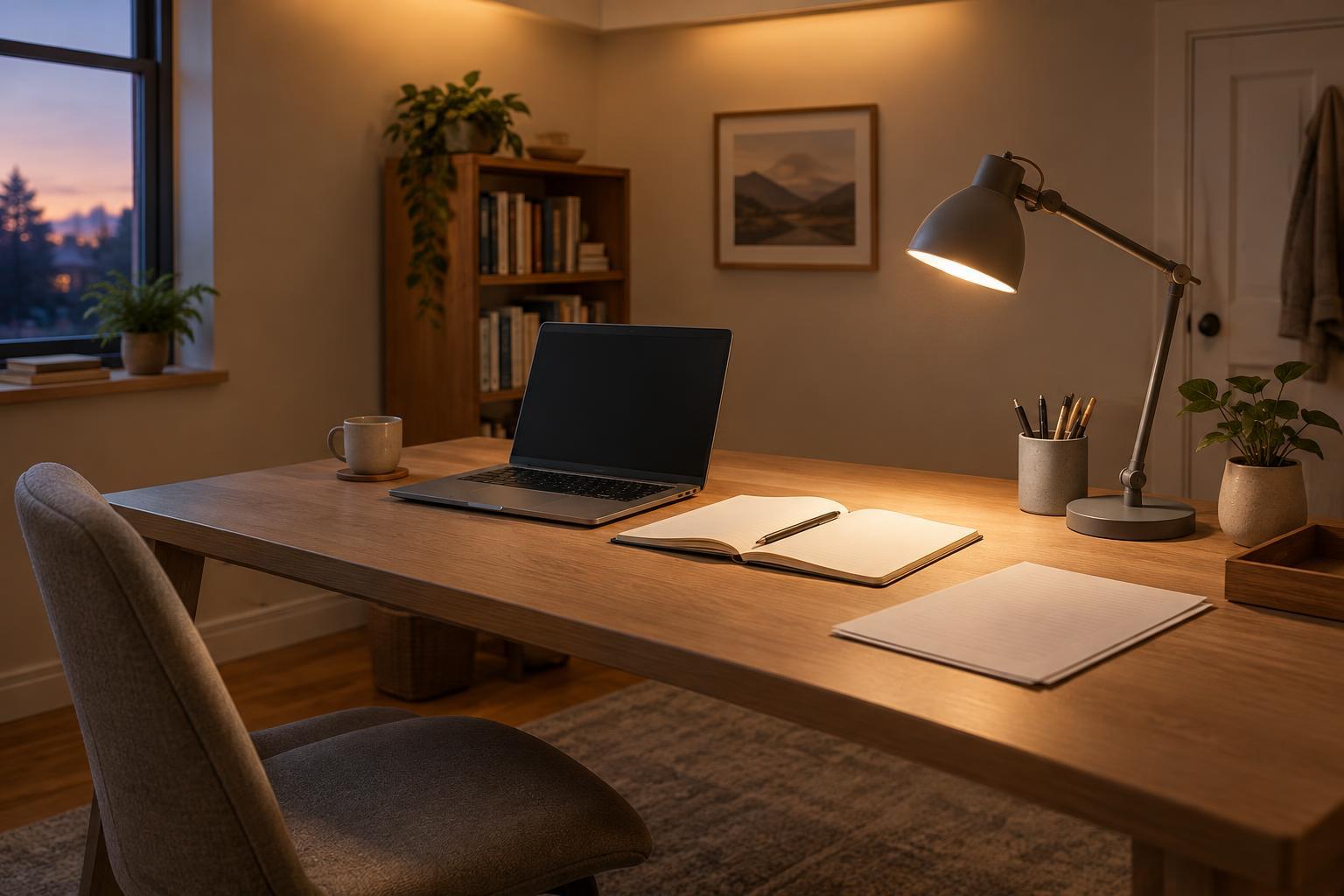
Overhead lights and desk lamps can create glare even when the window is well positioned. If you can see a lamp reflected in the display, move the lamp, redirect its beam, or adjust the monitor angle slightly. A desk lamp is often more useful when it lights papers or the keyboard without shining onto the screen or directly into your eyes.
Set screen brightness to suit the surrounding room rather than leaving it at one setting all day. A display that looks unusually bright in a dim room or faint beside a sunlit window may be tiring to use. Adjusting blinds and room lighting can be more effective than pushing screen brightness to an extreme. If small text is the problem, increase text size instead of relying on brightness to make it readable.
Recheck the setup during real work
An arrangement that looks right for a minute may feel different after an hour of reading, video calls, or working across two displays. Notice whether you keep raising your chin, leaning forward, or turning toward a side screen. These are useful clues that the placement deserves another adjustment.
With two monitors, center the one you use most. If you use both about equally, place them close together and angle them gently toward you so the inner edges meet near the center of your workspace. Keep frequently used windows where you can view them without holding your head turned for long stretches.
Finally, leave room to change position throughout the day. No monitor location makes sitting in one posture indefinitely comfortable. A good setup makes your everyday tasks easy to see without repeatedly reaching, leaning, or working around distracting reflections.